Online booking requests
Every online booking request — from the public booking page, the AI assistant, or the patient portal — lands as a pending request, not a confirmed appointment. This guide covers the Requests (Заявки) tab on the Calendar, where staff review and act on them. It applies to Admin, Front Desk and Doctor. The screenshots below show the Bulgarian interface; every label gives the Bulgarian original in parentheses.
At a glance
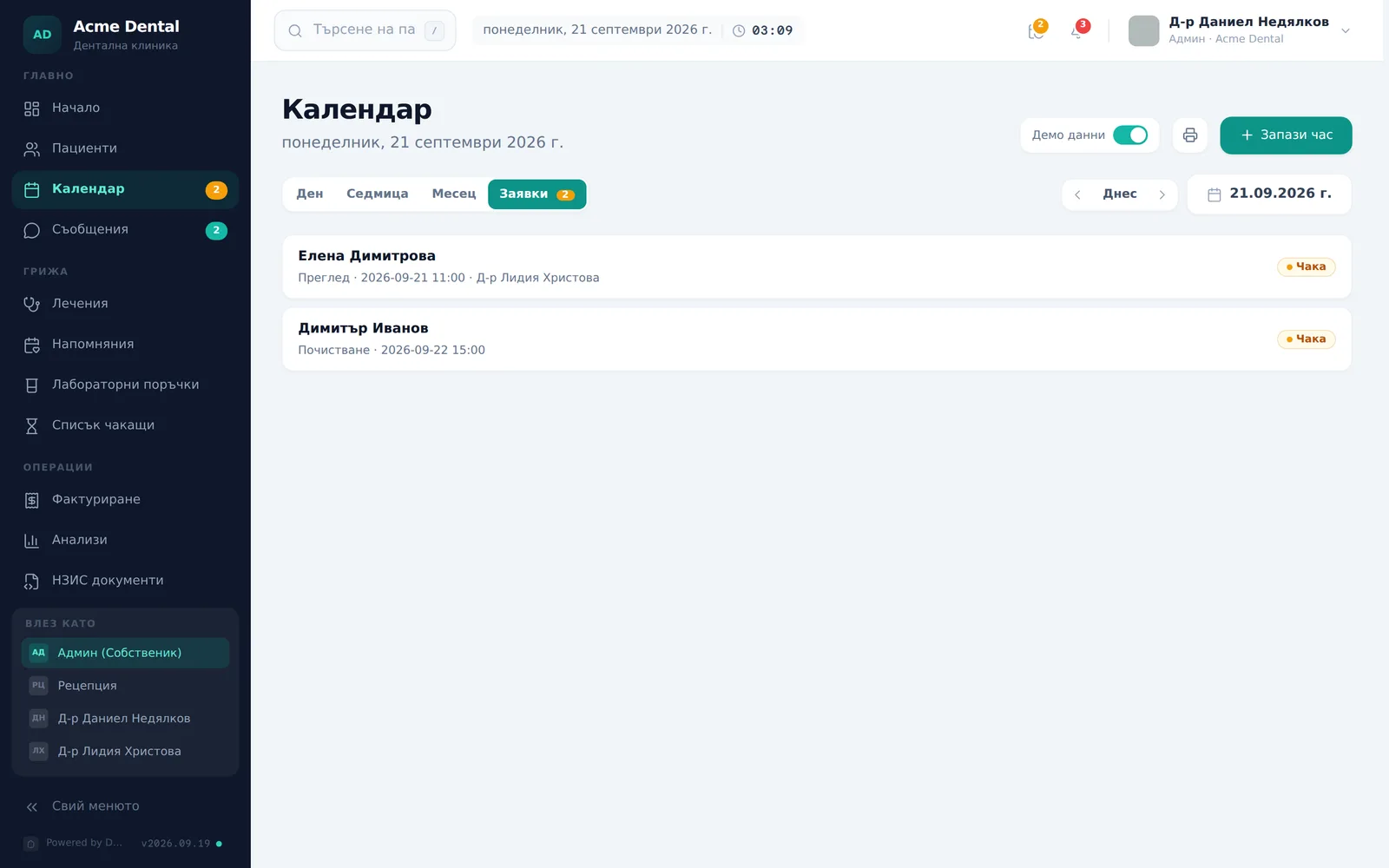
- The Requests (Заявки) tab on the Calendar shows every pending online request, with a count badge.
- No online request is ever confirmed automatically — even the old “Auto-confirm new bookings” setting no longer does anything.
- For every new request DentaFlow emails the clinic address from Settings → Clinic Profile (Настройки → Профил на клиниката) (if one is filled in) and, while the app is open, an in-app notice “New appointment request: …” appears on screen.
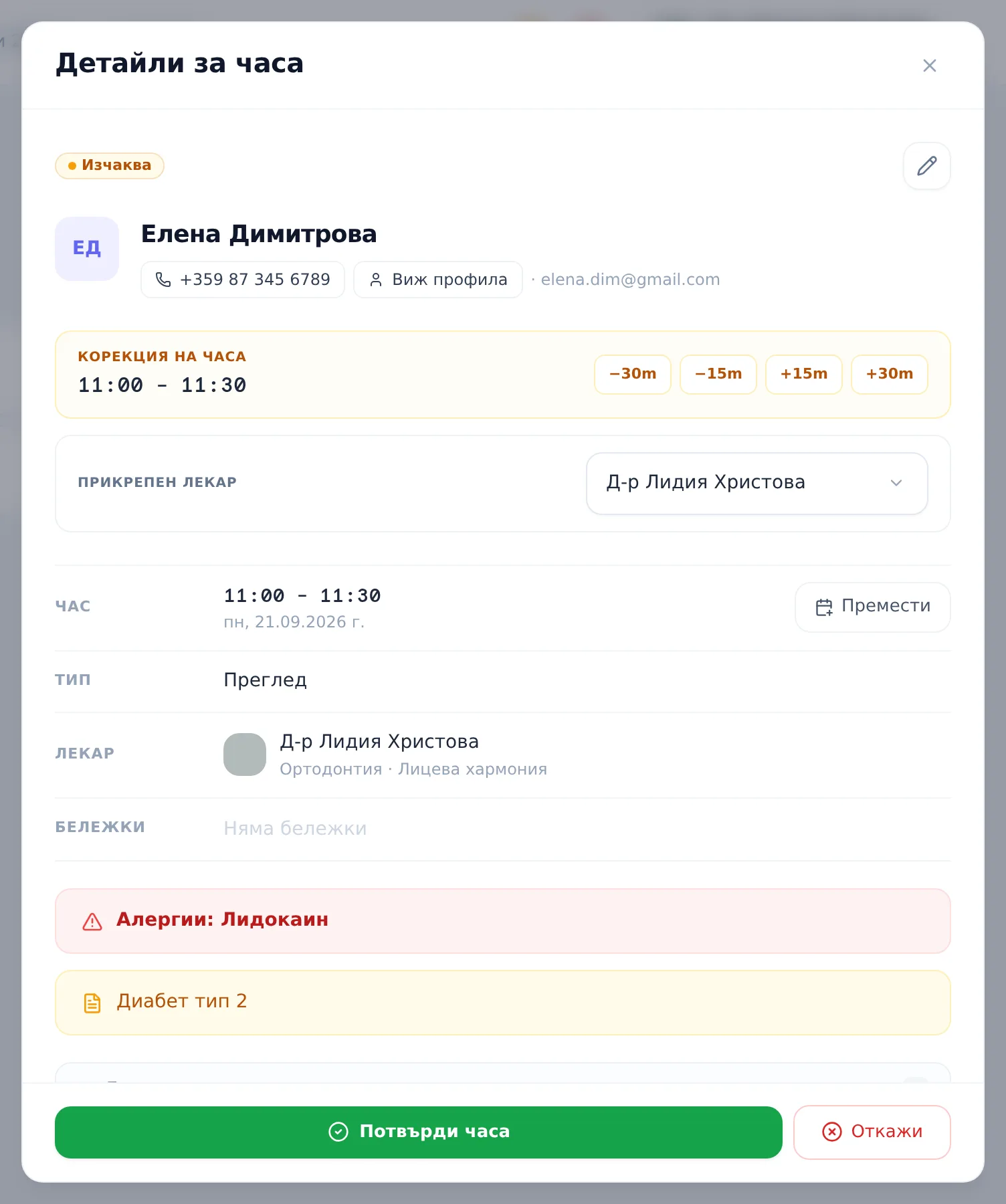
- You can nudge the proposed time with the −30/−15/+15/+30-minute chips, assign a doctor, or open Reschedule (Премести), before confirming.
- If the patient lives outside Bulgaria, the same sheet shows “Foreign patient — collect a deposit before the visit.” with a Send deposit link (Изпрати линк за депозит) button.
- Confirming and declining email the patient automatically, if they left an email address.
- When declining, you can add a reason — it’s included in the patient’s email.
Reviewing and acting on a request
- Open the Requests (Заявки) tab on the Calendar — its badge shows the pending count.
- Each card shows the patient, service, date and time, the doctor (if one was chosen) and a Pending (Чака) badge. Click it to open the Appointment Details (Детайли за часа) sheet.
- If needed, adjust the proposed time in the Adjust time (Корекция на часа) block with the −30m / −15m / +15m / +30m chips, or pick a doctor under Assigned doctor (Прикрепен лекар) if the patient didn’t pick one (“Patient didn’t pick — assign a doctor before confirming”). Both save immediately, with no separate Save button.
- Click the green Confirm (Потвърди часа) button to accept, or Decline (Откажи) to reject.
- Declining opens a “Decline booking request?” (Откажете заявката?) dialog. Optionally type a Reason (optional) (Причина (по избор)) and confirm with Decline request (Откажи заявката) (or go back with Keep (Запази)). The reason is included in the patient’s email as a “Reason: …” (Причина: …) line. A declined request is marked cancelled, not deleted.
Frequently asked questions
Does “Auto-confirm new bookings” confirm requests for me? No. That legacy setting (Settings → Online booking / Настройки → Онлайн записване) no longer does anything — every online request, whether from the form, the AI assistant or the portal, always lands “pending” in Requests and needs a manual confirm or decline.
Does the patient get an email when I confirm or decline? Yes, automatically, if the patient left an email address. Confirming sends a “your appointment is confirmed” email (plus the pre-visit intake form for a patient with no earlier visits). Declining sends a “Booking Declined” email (За съжаление — часът Ви не е потвърден) — with your reason if you typed one. There’s no separate notify step. Automatic SMS and Viber sending is coming soon.
Does the patient get an email when I move the proposed time? Yes — every change to the date or time sends an “Appointment Rescheduled” email if the patient has an email address. Clicking the adjust-time chips several times sends several emails, so land on the final time in as few nudges as you can.
Who gets the email about a new request? The address in the “Email” field under Settings → Clinic Profile (Настройки → Профил на клиниката). If it’s empty, no email goes out — new requests still show in the Requests tab with a badge count and, while the app is open, as an on-screen notice.
Where do the requests in this tab come from? From the public booking page, from the AI booking assistant, or from the patient portal. See Your public booking page and Booking an appointment online for the portal side.
Can I reassign the doctor on a request if the patient didn’t pick one? Yes — the request’s detail sheet has an Assigned doctor (Прикрепен лекар) picker you can use before confirming. Changing the doctor does not email the patient.
How do I handle a request from a patient abroad? Confirm it as usual. The sheet shows a deposit warning; the Send deposit link (Изпрати линк за депозит) button opens the link sending — see Deposit links. The whole team gets a notification for such a request.
Can I drag the proposed time to a new slot? No — you adjust the proposed time with the adjust-time chips, or with the Reschedule (Премести) button in the Time row of the sheet, which opens full editing (date, time, doctor) and is available before you confirm. See Rescheduling, cancelling & no-shows.