Lab orders
Lab orders track work sent out to a dental laboratory — crowns, bridges, veneers, dentures, night guards, retainers. Each order has a status, a due date, files and a discussion, and the lab works on it through a link, with no DentaFlow account. This guide applies to Admin, Front Desk and Doctor — all three roles can view and manage orders. The app screenshots show the Bulgarian interface; every label below gives the Bulgarian original in parentheses.
At a glance
- Orders are created from New order (Нова поръчка) on
/lab-orders, or from the auto-prompt shown right after logging a crown/bridge/veneer/denture procedure on a visit. - An order moves through 10 statuses — from Draft (Чернова) to Delivered (Доставена), plus Rejected (Отхвърлена) (by the lab, with a reason) and Cancelled (Отказана) (by the clinic).
- Send to lab (Изпрати) makes the order Sent. If the lab has an email address, it gets an email with a View and work on the order (Преглед и работа по поръчката) button. You can also copy the link yourself with Copy lab portal link (Копирай линк за лабораторията).
- Through the link the lab accepts or rejects the order (with a reason), marks its stages, uploads files and writes in the discussion — no sign-up needed.
- Files (STL, OBJ, PLY, DCM, PDF, PNG, JPG up to 50 MB) go both ways. The lab can’t delete files.
- If you book the patient in before the order’s due date, DentaFlow shows a warning.
- The lab’s changes — status, notes, tracking number — show up in the list without reloading the page.
- Delivered (Доставена) and Cancelled (Отказана) are final. The lab can’t change an order that is Draft (Чернова), Delivered (Доставена), Cancelled (Отказана) or Rejected (Отхвърлена).
- Messages in the discussion are up to 4,000 characters. A message from one side is emailed to the other.
- The link to an order stops working 30 days after the order is closed (Delivered, Cancelled or Rejected). New link (Нов линк) in the open order cancels the old link at once and gives you a new one.
Creating a lab order
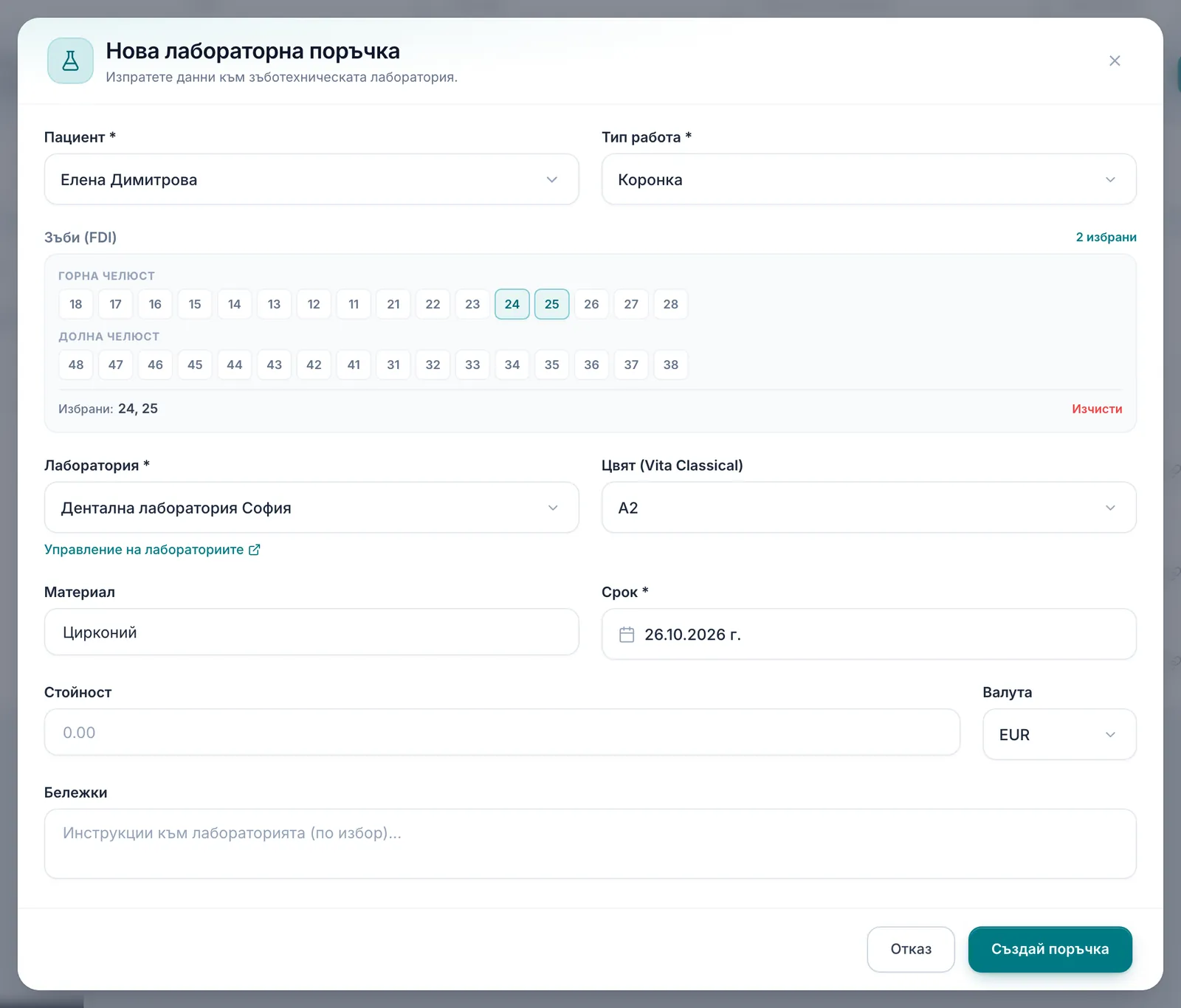
- Click New order (Нова поръчка) on
/lab-orders, or accept the Create lab order? (Създай лабораторна поръчка?) prompt shown right after saving a crown/bridge/veneer/denture line on a visit. - Pick the Patient (Пациент) and Restoration type (Тип работа) (Crown, Bridge, Veneer, Inlay/Onlay, Full denture, Partial denture, Nightguard, Retainer, Other — Коронка, Мост, Винир, Инлей/Онлей, Цяла протеза, Частична протеза, Нощна шина, Ретейнер, Друго — with a Description (Описание) field for “Other”).
- Select the affected Teeth (FDI) (Зъби (FDI)) on the tooth picker (an upper/lower arch toggle is available).
- Choose the Vendor (Лаборатория) — or click Add a laboratory (Добави лаборатория) if the clinic hasn’t set one up yet (see “Laboratories” below).
- Fill in Shade (Vita Classical) (Цвят (Vita Classical)), Material (Материал), Due date (Срок), and optionally Cost (Стойност)/Currency (Валута) and Notes (Бележки) (instructions for the lab). The lab sees the cost in its link if you fill it in.
- Click Create order (Създай поръчка). The order is saved as a Draft (Чернова).
Laboratories
Laboratories are kept under Settings → Labs (Настройки → Лаборатории) (shown while the module “Lab orders” — Зъботехнически поръчки — is on, which it is by default). For each one you record a name, contact person, phone, email, address, standard turnaround (days), services/specialties and notes. The email matters: the email on Send to lab and the discussion notifications go to it. Removing a lab does not delete its existing orders.
Each lab’s row has a Link for the lab (Линк за лабораторията) — a link to its inbox, where it sees all your active and finished orders to it in one place. The link stops working if it has not been opened for 90 days, or while the lab is deactivated; New link (Нов линк) replaces it at once. Send it only to the lab itself — patient names are visible through it.
Order statuses
| Status | What it means | Set by |
|---|---|---|
| Draft (Чернова) | The order is created but not sent yet. | The clinic |
| Sent (Изпратена) | Sent to the lab with Send to lab (Изпрати). | The clinic |
| Received (Приета) | The lab has accepted the order. | The lab |
| In progress (В изработка) | The lab is working on the order. | The lab |
| Try-in (Проба (Try-in)) | The work is ready for a try-in at the clinic. | The lab |
| Shipped (Изпратена от лаб.) | The finished work is on its way to the clinic, optionally with a tracking number. | The lab |
| Ready (Готова) | The work is at the clinic, ready to seat. | The clinic |
| Delivered (Доставена) | The work has been seated/handed over. | The clinic |
| Rejected (Отхвърлена) | The lab has turned the order down and given a reason. | The lab |
| Cancelled (Отказана) | The clinic has cancelled the order. | The clinic |
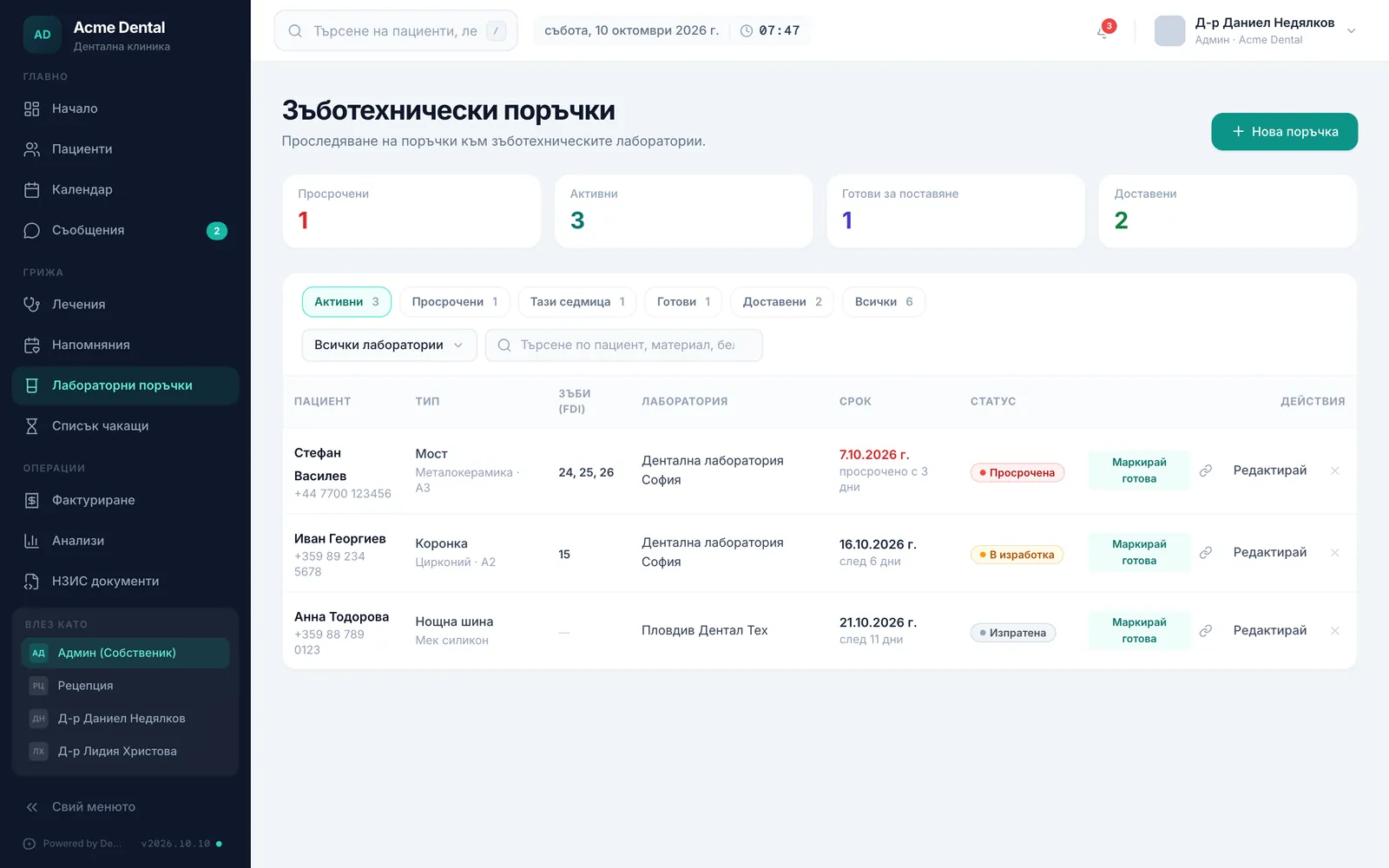
An order that’s still with the lab (from Sent to Shipped) and past its due date shows Overdue (Просрочена) in red instead of its usual status.
Who can change what
DentaFlow keeps the statuses in order — in the app and in the lab’s link. A change the rules below don’t allow is refused.
The lab moves the order with the buttons in its link:
- Sent → Received with Accept order (Приемане на поръчката), or Rejected with Reject order (Отказ на поръчката);
- Received → In progress with Start work (Започване на работа);
- In progress → Try-in with Ready for try-in (Готово за проба), or Shipped with Ship final restoration (Изпращане на готова работа);
- Try-in → back to In progress with Back for revisions (Връщане за корекции), or Shipped with Ship final restoration (Изпращане на готова работа).
The lab can only reject an order while it’s Sent, and can’t move it backwards — the one exception is from a try-in back to in progress.
The clinic in DentaFlow:
- Draft → Sent with Send to lab (Изпрати), or Cancelled;
- anything from Sent to Shipped → Ready with Mark ready (Маркирай готова), or Cancelled;
- Ready → Delivered with Delivered (Доставена), or Cancelled;
- Rejected → Cancelled.
The lab’s stages (Received, In progress, Try-in, Shipped — Приета, В изработка, Проба (Try-in), Изпратена от лаб.) are set by the lab only. Delivered (Доставена) and Cancelled (Отказана) are final — after them neither side can change the status. The lab can’t change an order that is Draft (Чернова), Delivered (Доставена), Cancelled (Отказана) or Rejected (Отхвърлена) — its notes become read-only in the link.
Sending the order to the lab
- On a Draft (Чернова) order, click Send to lab (Изпрати). The order becomes Sent (Изпратена).
- If the lab has an email address on its profile, DentaFlow emails it the order details with a View and work on the order (Преглед и работа по поръчката) button that opens the order (the email is in Bulgarian). A toast confirms “Order emailed to {vendor}” (Поръчката е изпратена по имейл до {лаборатория}). If the lab has no email, you see “Order marked as sent” (Поръчката е отбелязана като изпратена) — the status changes without an email.
- To send the link yourself (say, over Viber), click the link icon on the order’s row or Copy lab portal link (Копирай линк за лабораторията) in the open order. The link is copied to your clipboard.
The link opens the order without signing in to DentaFlow — only share it with the lab.
After the order is closed (Delivered, Cancelled or Rejected) its link keeps working for 30 more days — the date shows next to the copy button, and the lab sees a notice that the link will stop soon. After that the link icon on the row refuses to copy it (“The link has expired — create a new one.”). New link (Нов линк) in the open order makes a new link (a closed order gets a fresh 30 days) and the old one stops working at once.
What the lab can do through the link
The lab doesn’t need an account. Through the link it sees the patient, the doctor, the restoration type, teeth, material and shade, the due date and the clinic’s notes, plus the clinic’s contact details. Under Laboratory actions (Действия на лабораторията) it can:
- accept the order with Accept order (Приемане на поръчката) or turn it down with Reject order (Отказ на поръчката) — a rejection needs a Rejection reason (Причина за отказ), which you see on the order as “Order rejected by laboratory: {reason}” (Поръчката е отхвърлена от лабораторията: {причина});
- mark its stages — Start work (Започване на работа), Ready for try-in (Готово за проба), Ship final restoration (Изпращане на готова работа) (with an optional tracking number); after a try-in it can send the work back with Back for revisions (Връщане за корекции);
- save Laboratory notes (Бележки на лабораторията);
- upload files and write in the discussion (see below).
Laboratory notes and the rejection reason are up to 4,000 characters; the tracking number is up to 200.
Files and the order discussion
Open the order (Edit (Редактирай) on its row). Next to Details (Детайли) there are two tabs:
- Files & 3D scans (Файлове и 3D сканове) — click Upload file / STL (Качи файл / STL), pick the File type (Тип файл) (STL / 3D scan, Photo / shade, PDF document or Other file — the type is detected from the extension), choose the file and click Upload file (Качи файл). STL, OBJ, PLY, DCM, PDF, PNG and JPG files up to 50 MB each are accepted; if you upload too many files to one order you get “Too many uploads for this order. Please try again later.” (Твърде много качвания по тази поръчка…). Both the clinic and the lab upload files, and each file shows who uploaded it. The clinic can delete a file; the lab can’t.
- Discussion (Комуникация) — the order’s discussion between the clinic and the lab. Messages from both sides appear in one thread. A message is up to 4,000 characters. A message from the lab reaches the clinic by email (the clinic’s email, otherwise its active admins) with a link to the Discussion tab; a message from the clinic goes to the lab’s email with the link to the order.
On the Details tab the timeline shows the current stage, and a rejected or cancelled order shows a banner with the reason.
Warning when booking an appointment
When you book or edit an appointment for a patient with an active lab order, DentaFlow shows a warning if:
- the date is before the order’s due date — “Warning: appointment is scheduled before the promised lab delivery date ({date}).” (Внимание: часът е насрочен преди обещания срок за изработка от лабораторията ({дата}).);
- the visit is for a try-in or fit and the order isn’t Ready (Готова) yet — “Warning: this visit is for fit/try-in, but the lab order is not yet marked ready.” (Внимание: посещението е за проба/поставяне, но лабораторната поръчка все още не е отбелязана като готова.)
The warning doesn’t block saving — check with the lab and book the appointment once you’ve agreed.
Tracking orders in the list
- When the work arrives, click Mark ready (Маркирай готова) on its row, then Delivered (Доставена) once it’s seated.
- Use the filters (In progress / Overdue / Due this week / Ready / Delivered / All — Активни / Просрочени / Тази седмица / Готови / Доставени / Всички), the lab dropdown and the search box to find an order.
- The × icon (Cancel (Отказване)) cancels an order that isn’t delivered or cancelled yet. The confirmation warns that the lab is not notified automatically — tell it yourself.
A patient’s orders also show in the Lab orders (Лабораторни поръчки) card on their profile (with a New (Нова) button), and the dashboard shows Lab orders due this week (Поръчки тази седмица).
The lab’s changes without reloading
While DentaFlow is open, the changes the lab makes through its link — status, laboratory notes, tracking number — appear in the /lab-orders list without reloading. The list is also re-read every time you open the page, and an order is re-read when you open it with Edit (Редактирай). You see new messages and files from the lab when you open the order.
When you edit an order, DentaFlow saves only the fields you changed. That way you don’t overwrite what the lab changed in the meantime.
If the status changed while you were working — say the lab rejected the order just as you clicked Mark ready (Маркирай готова) — you see “This change is not possible in the order’s current status. Showing the current state.” (Тази промяна не е възможна при сегашния статус на поръчката. Показваме актуалното състояние.) and the row refreshes. The lab sees the same message in its link if the clinic changed the order first.
Frequently asked questions
Does the lab need a DentaFlow account? No. The lab works on the order through the link in the email or from Copy lab portal link — no sign-up, no sign-in.
If the lab has no email, does that block sending the order? No. The order becomes Sent either way. Copy the link with Copy lab portal link and send it to the lab another way.
What does the red “Overdue” label mean? The order is still with the lab and its due date has passed. The label replaces the usual status while the order is with the lab.
Which files can I send to the lab? STL, OBJ, PLY, DCM, PDF, PNG and JPG, up to 50 MB each — scans, X-rays, clinical photos and PDF documents.
Can I reopen a delivered or cancelled order? No. Delivered and Cancelled are final — neither the clinic nor the lab can change their status. If new work is needed, create a new order.
Can the lab reject an order it has already accepted? No. The lab can only reject an order while it’s Sent. After that, if the work shouldn’t go ahead, the clinic cancels the order with the × icon.
Why do I see “This change is not possible in the order’s current status”? The status changed while you were working on the order — usually the lab made a change through its link. DentaFlow shows the current state; check it and try again if the change is still needed.
Is the auto-prompt after logging a crown mandatory? No — you can dismiss it with Not now (Не сега) without creating an order.
Who can create and manage lab orders? Admin, Front Desk and Doctor — all three view and manage orders the same way.