Patient signature: pen tablets
This guide shows how to set up the patient signature tablet DentaFlow uses when submitting an ambulatory sheet to NHIS, and how to read the most common signing errors. Setup is done by an Admin; capturing a signature is separate from saving locally or opening a sheet early. The app screenshots show the Bulgarian interface; every label below gives the Bulgarian original in parentheses.
At a glance
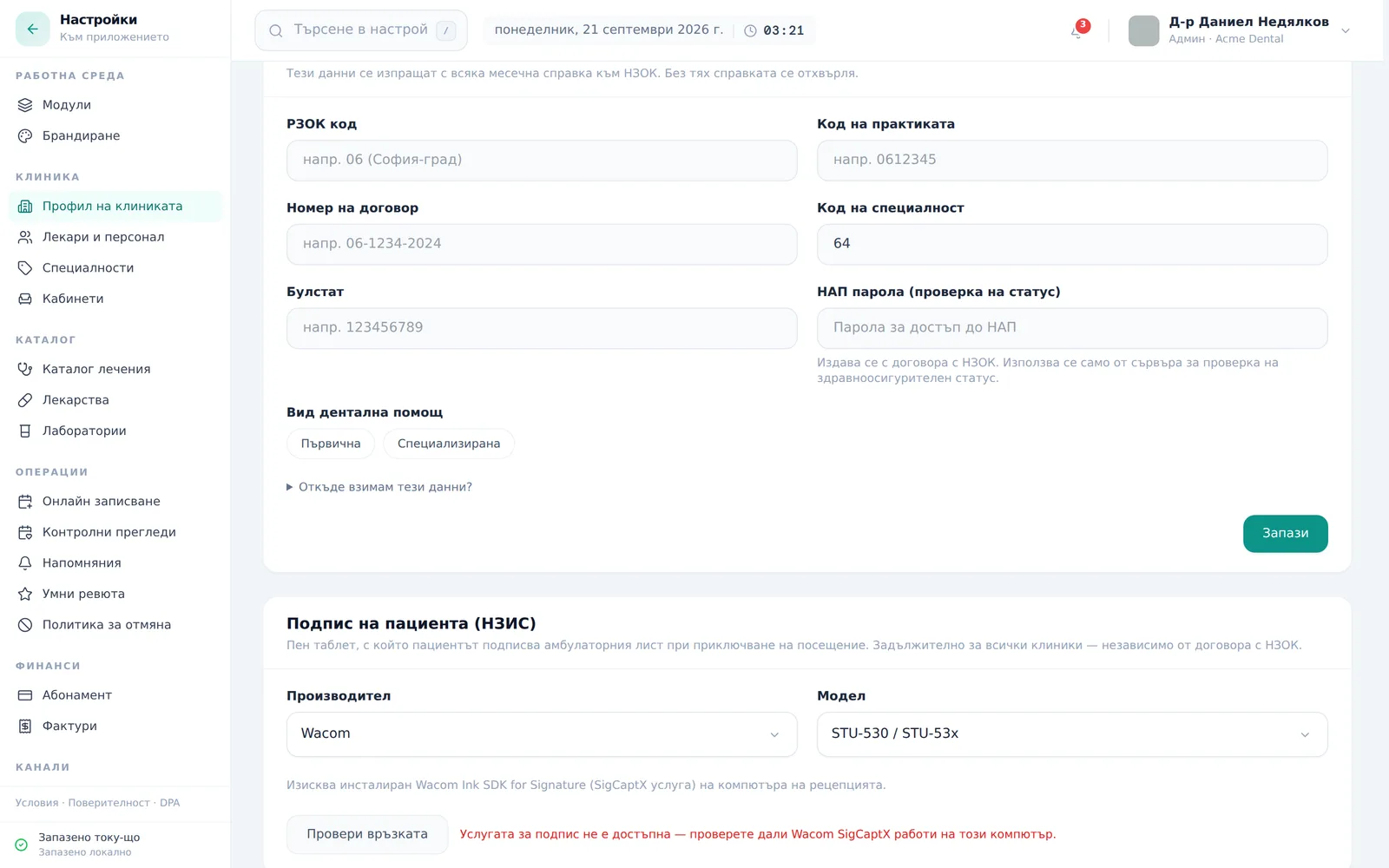
- Setup lives under Settings → Clinic profile → NHIS & NHIF → “Patient signature (NHIS)” (Настройки → Профил на клиниката → НЗИС и НЗОК → „Подпис на пациента (НЗИС)“). Every clinic sees this section, with or without an NHIF contract.
- Connections for Wacom and signotec/Evolis are implemented — pick a manufacturer (Evolis, Signotec or Wacom) and model, then check the specific device, service and licence with support. Models without a display (Sigma LITE, Sig100 Lite) aren’t supported yet.
- Below the model there’s a Pad on this computer (Таблет на този компютър) setting — it applies to the computer and browser you set it on. On a computer without a pad choose No pad (Без таблет): the sheet is submitted with the KEP only and the patient signs later. If the clinic has the patient-signature rule from 1 January 2027 switched on, from that date such a sheet is saved but not sent (see below).
- The Check connection (Провери връзката) button confirms the local signing service is installed and reachable on the computer.
- Patient confirmation is not limited to tablets. The legal methods are explained below; this guide covers DentaFlow’s pad process.
- An ambulatory sheet can be printed without a captured signature — with a blank line to sign on paper. A pad signature is stored in DentaFlow and printed on the sheet; captured later, it isn’t sent to NHIS.
Setting up the tablet
- Open Settings → Clinic profile → NHIS & NHIF (Настройки → Профил на клиниката → НЗИС и НЗОК).
- In the “Patient signature (NHIS)” (Подпис на пациента (НЗИС)) section, pick a Manufacturer (Производител) — Wacom or signotec/Evolis.
- From the dependent dropdown, pick the specific Model (Модел) of tablet.
- Click Check connection (Провери връзката). A green success message confirms the local signing service (Wacom Ink SDK/SigCaptX, or signotec signoPAD) is installed and reachable on the computer; a red error shows inline if it isn’t. If the service runs but no pad is plugged in, you see “The service is running but no pad was detected — check the USB connection.”
- Below that, under Pad on this computer (Таблет на този компютър), choose The pad is plugged in here (Таблетът е включен тук) or No pad (Без таблет) for the computer you’re on.
What signing looks like during a visit
In the intended closing process, the patient signs on the pad while the modal shows “Preparing the document…” and “Signing…” (Подготовка на документа…, Подписване…). Early opening has no patient-signature step; in DentaFlow’s simulation, supplementation simulates signing. On a computer without a pad (or with Patient signs later (Пациентът подписва по-късно) ticked) the sheet is closed with the KEP only and the patient signs afterwards at the computer with the pad — the dashboard shows Awaiting patient signature (Чакат подпис на пациента) with a Sign (Подпиши) button. The full submission flow is covered in NHIS documents: D001, D003, D007.
The illustrations show the interface.
From 1 January 2027: a sheet without the patient’s signature is not sent
DentaFlow has a ready rule for the NHIS requirement that the patient signs the ambulatory sheet from 1 January 2027. We have not yet found a published legal text with that date; if NHIS names another date or scope, the rule will change. DentaFlow support switches it on for each clinic separately — there is no switch for it in Settings.
Before 1 January 2027 nothing changes in what is sent to NHIS. The “Patient signature (NHIS)” (Подпис на пациента (НЗИС)) section in Settings shows the notice Patient signature for NHIS from 1 January 2027 (Подпис на пациента за НЗИС от 1 януари 2027 г.). The same notice shows on the dashboard when the clinic has sent sheets without the patient’s signature or the computer is set to No pad (Без таблет).
From 1 January 2027 (Bulgarian time):
- With a pad on this computer nothing changes: the patient signs on the pad and Save & submit to NHIS (Запиши и подай към НЗИС) — or Save & supplement (D003) (Запиши и допълни (D003)) for a sheet that is already open — sends the sheet with the doctor’s KEP.
- Without the patient’s signature — a plain save, Patient signs later (Пациентът подписва по-късно) ticked, or a computer set to No pad (Без таблет) — the sheet is saved in DentaFlow but not sent to NHIS. The message reads Saved. Not sent to NHIS (Записано. Не е изпратено към НЗИС).
- Such a sheet waits on the dashboard under Awaiting patient signature (Чакат подпис на пациента), labelled Not sent to NHIS (Не е изпратен в НЗИС). Open it on a computer with a pad and a KEP: the patient signs and the sheet is sent with Save & submit to NHIS / Save & supplement (D003), or from the sheet page with Patient signature (Подпис пациент) → Sign on the pad (Подпиши на таблета).
- A signature captured on the print view stays in DentaFlow and on the printout, but does not send the sheet to NHIS.
- Opening a sheet early (NRN before treatment) is not stopped by the rule.
Common signing errors
DentaFlow shows a specific message in the interface language for each tablet problem:
- “The signature was cancelled on the pad” (Подписът беше отказан върху таблета) — the patient or operator cancelled signing. You can retry right away.
- “The signature is too short — ask the patient to sign again.” (Подписът е твърде кратък…) and “Signing timed out — please try again.” (Времето за подписване изтече…) — just try again.
- “The pad could not be opened — another program may be using it…” (Таблетът не можа да се отвори…) — close whatever other program is using the pad, unplug the USB cable, plug it back in and try again.
- “The signature service is not reachable…” (Услугата за подпис не е достъпна…) — check that Wacom SigCaptX, or signotec signoPAD-API/Web, is running on this computer.
- A licence or device error (“The Wacom licence is invalid or has expired.”, “The Wacom licence is missing”, “This pad cannot sign on the device (NHIS requires it).”, “This pad model has no display…”) — these are not retriable; an operator needs to fix the licence or choose another model before signing works again.
Printing without a signature
The Print (Отпечатай) button on the ambulatory sheet’s print view works without a captured signature — the sheet prints with a blank line for the patient to sign on paper. If a signature is missing, the page shows a “not signed” (⚠ не е подписан) warning — click Patient signature (Подпис на пациента) to capture it there. This signature is stored in DentaFlow and printed on the sheet; it isn’t sent to NHIS.
Frequently asked questions
Which tablets does DentaFlow support? Connections are prepared for Wacom and signotec/Evolis devices attached to the computer in the treatment room. Pick them under Settings → Clinic profile → NHIS & NHIF → “Patient signature (NHIS).” Check the specific model, service and licence with support before use.
Is a tablet compulsory for patient confirmation? It is not the only legal method. NRD 2026–2028, article 129(7) permits the patient’s qualified electronic signature, an NHIS one-time code sent to their phone, an electronic signing device, or a signature on a printout. The general rule in Ordinance N-6, articles 14(4) and 25(2) is not limited to NHIF care; the tablet method also requires express signed agreement on its use and the signature’s equivalence. This does not mean DentaFlow supports every permitted method. Sources checked on 6 October 2026.
The signing error keeps happening even after I retry — what now? If the message mentions a licence (Wacom), “This pad cannot sign on the device” or a pad model without a display (signotec/Evolis), retrying signing won’t help — an operator needs to check the licence or the model. For the other messages (“signature cancelled”, “pad could not be opened”), a direct retry usually works.
Can I print an ambulatory sheet without the patient’s signature? Yes. The Print button works without a captured signature — the sheet prints with a blank line for the patient to sign on paper.
How does the signature tablet relate to the doctor’s KEP signature? When a sheet is closed, they are two separate steps: the patient signs on the tablet, and the doctor separately confirms with their KEP token through DentaFlow Bridge. If the patient signs later, the sheet is closed with the dentist’s KEP only; with the patient-signature rule switched on, from 1 January 2027 such a sheet is saved but not sent until the patient signs. See KEP signing & DentaFlow Bridge.