Booking an appointment
This guide shows how to book a new appointment from the calendar — for an existing patient or a brand-new one. It applies to every staff role: Admin, Front Desk and Doctor. The app screenshots show the Bulgarian interface; every label below gives the Bulgarian original in parentheses.
At a glance
- Click Book Appointment (Запази час) at the top right of the Calendar (or an empty slot in Week view when one doctor is picked).
- Everything is in one window, with no second step: date and doctor on top, then patient, time, treatment, tooth and notes, with the doctor’s day beside them.
- Date, doctor, patient, start, end and treatment type are required. Tooth and notes are optional. The form has no cost field.
- Type the time directly (9, 915 or 9:15) or click a free row on the right. The duration takes one click or comes from the service.
- The system warns you when the doctor is off, the time is outside their hours, or the doctor already has an appointment starting then; if the clinic is closed, the appointment can’t be saved.
- The appointment is saved as confirmed straight away. Booking it does not send the patient an email.
Booking a new appointment
- Open the Calendar (Календар) from the sidebar and click Book Appointment (Запази час) at the top right. You can also click an empty slot in the Week view of one doctor — the date, time and doctor fill in automatically.
- Check the Date (Дата) at the top. The arrows beside it move the date one day back or forward.
- Pick the Doctor (Лекар) with the button showing their name. With more than 8 doctors the choice is a Select doctor… (Изберете лекар…) dropdown. If you are signed in as a doctor, your name is already picked. At the front desk, the doctor you picked last stays picked, and a clinic with one doctor has them picked automatically.
- Under Patient (Пациент), click Search patients… (Търси пациент…) and start typing a name or phone number. This field has focus when the window opens, so you can type straight away. Enter picks the first result.
- For a new patient, click New patient (Нов пациент) and fill in First Name (Име), Phone (Телефон) and optionally Last Name (Фамилия) and Email (Имейл). The search is off while these fields are open; Pick from the list (Избери от списъка) takes you back to it. The patient is created only on Save appointment (Запази часа), so Cancel (Отказ) leaves no new record behind.
- Type the Start Time (Начало) and End Time (Край) directly: 9, 915, 9:15 and 9.15 all work. The 15, 30, 45, 60 and 90 min (мин) buttons set the end from the start. A new start keeps the same duration. If the end isn’t after the start, you see “End time must be after start time.” (Крайното време трябва да е след началното.) and the appointment can’t be saved.
- A banner can appear under the times: red if the clinic is closed that day (“The clinic is closed on …”) — then the appointment can’t be saved; yellow if the doctor is off that day, the time is outside their hours, or the doctor already has an appointment starting at that time (or the patient has one). The yellow warning ends with ”— go ahead only if you’ve cleared this with the doctor” and doesn’t stop you from saving. If the patient has a lab order that isn’t ready yet, a warning about that appears too.
- Pick the Treatment Type (Тип на лечението) from Frequently used (Често използвани) or by searching. If the service has a duration in the catalog, that sets the end of the appointment.
- Optionally fill in Tooth Number (Зъб) (free text, e.g. 14, 36) and Notes (Бележки). The tooth is saved on the appointment, shows in Appointment Details (Детайли за часа) and can be changed when you edit it.
- Click Save appointment (Запази часа). The button is active once the required fields are filled in. The toast “Appointment booked” (Часът е запазен) confirms the booking. The appointment shows on the calendar as confirmed (no status dot). If the save fails, the window stays open with everything filled in and you can try again.
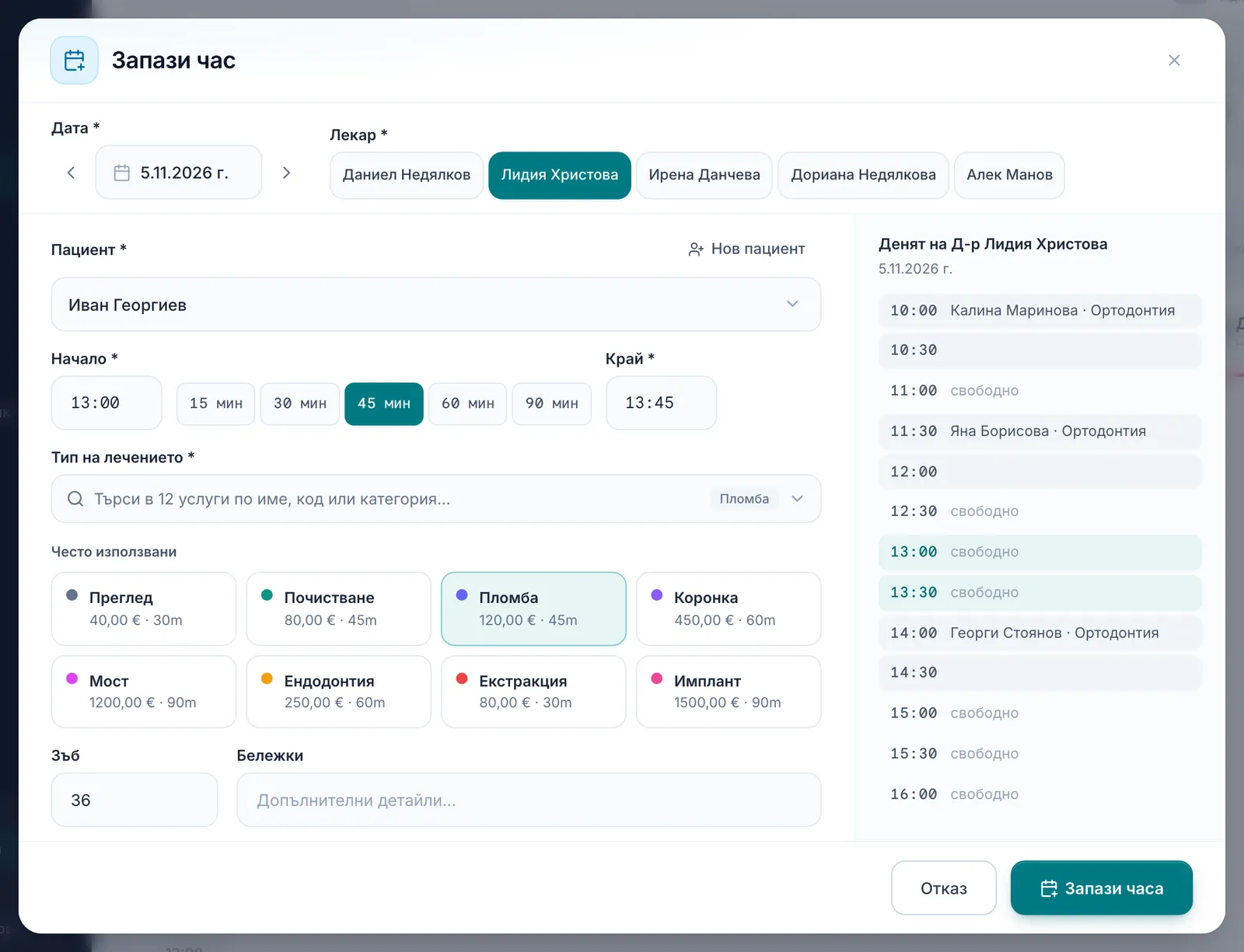
The doctor’s day on the right
Beside the form is the selected doctor’s day (Денят на …) for the selected date, in 30-minute rows. On screens under 1024 px the list sits below the form. Until a doctor is picked it reads “Pick a doctor to see the day.” (Изберете лекар, за да видите деня.)
- A row marked free (свободно) is open. Click it to set the start; the duration stays the same.
- A taken row is grey and can’t be clicked. Its first row names the patient and treatment, and a longer appointment fills the rows after it.
- The rows your appointment covers are tinted. If your appointment overlaps a taken row, that row turns yellow. For another appointment of the doctor’s, the yellow banner only warns about the same start time, so check the rows for overlaps too.
- The rows follow the doctor’s hours for that date. If they have none, they follow the clinic’s hours, and if the clinic has none either, 07:00 to 20:00.
What the calendar colors and patterns mean
- Grey diagonal hatching — the doctor is not working during that hour.
- A red “Clinic closed” (Клиниката е затворена) banner at the top — the whole clinic is closed that day.
- A dot at the top right of a card — the appointment is not confirmed (confirmed ones have no dot).
- A dot at the bottom right of a card — it has a deposit attached (see Deposit links).
More on the colours in The calendar: views & navigation.
Frequently asked questions
Can I move an appointment by dragging it? No. Rescheduling always goes through the edit dialog — open the appointment and use Reschedule (Премести). See Rescheduling, cancelling & no-shows.
Why do I see no free slots for a doctor? Most often the doctor has no working hours set for that day — the calendar shows it as a day off, a yellow banner in the form says the doctor is off, and the rows on the right follow the clinic’s hours. Set their schedule under Settings → Doctors & staff (Настройки → Лекари и персонал). See Working hours, vacations & closures.
Where do I enter the price? Not in this window: it has no cost field, and the price on the service tiles comes from the catalog and isn’t saved on the appointment. The price is recorded with the visit.
Does the patient get a confirmation? Not when you book it: an appointment saved from this window is confirmed at once and sends no email. A patient with an email address gets a message on a later change — a move (new date or time), a decline, or confirming a pending one. To tell a patient about the time, use “Send reminder” (Изпрати напомняне) from their profile. Online requests (from the booking page or the portal) are different: they wait for confirmation in Requests, and the patient is emailed when you confirm or decline — see Online booking requests.
What happens if I log a visit for a patient who already has a booked appointment? If the patient has a booked appointment with the same doctor, on the same day and at the same start time, the visit doesn’t create a second appointment — the booked one becomes “Completed” (Завършен).
Can I book an appointment for a patient without a phone number? No — the Phone (Телефон) field is required when creating a new patient from this window.