Inviting your team
DentaFlow separates three different things on one screen: doctors with a clinical profile, invites that grant an actual login, and a staff directory with no login at all. This guide covers all three, plus accepting an invite as the new colleague. Management is Admin-only; Front Desk can view the read-only doctor directory (/doctors) but can’t invite, edit roles, or delete. The screenshots below show the Bulgarian interface.
At a glance
- Doctor directory:
/doctors(Admin + Front Desk). Full management: Settings → Doctors & staff (Настройки → Лекари и персонал). - Three separate lists: Doctors, Staff Accounts (no login) and Pending invites (real login).
- Invite roles: Admin (Администратор), Front Desk (Регистратура), Doctor (Лекар).
- The invite link expires after 7 days; a repeat invite to the same email just resends the same link.
- A colleague already signed in with the invited email accepts in one click — Accept invitation (Приеми поканата). With an existing account they sign in with the same password; if needed there is an Email me a password reset link („Изпрати линк за нова парола“) button, which brings the colleague back to the invite after the reset.
- Invited colleagues skip the clinic setup wizard — after accepting they land straight on the dashboard.
- An invite can only be accepted by the account with the email it was sent to. A forwarded link gives nobody else access.
- If accepting would remove the colleague from another clinic, the screen names that clinic and asks them to confirm before anything changes.
- A clinic’s only admin can’t be moved out of it by accepting an invite — there has to be another admin there first.
Adding a doctor (clinical profile)
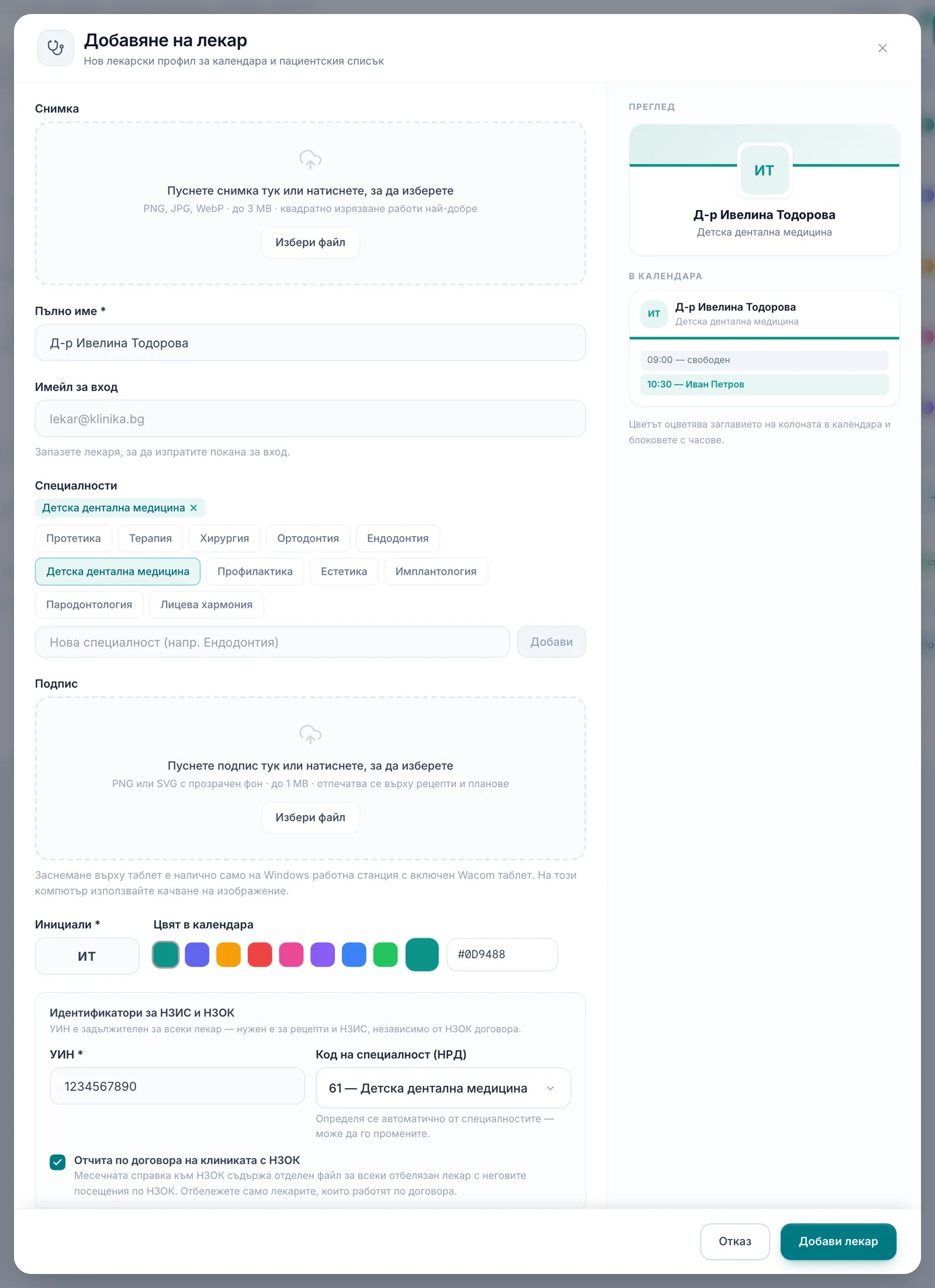
- Click Add doctor (Добави лекар) on the Doctors card.
- Fill in Full name (Пълно име), upload a Photo (Снимка), pick Specialties (Специалности), and set Initials (Инициали) and the Calendar color (Цвят в календара).
- Optionally upload a Signature (Подпис) (used on prescriptions). In the Login email (Имейл за вход) field you can invite the doctor straight away with Invite to log in (Покани да влезе) — once sent it reads “Invited · awaiting acceptance” (Поканен · изчаква приемане), and after acceptance “User account connected” (Акаунтът е свързан).
- Fill in the required UIN (УИН) (9–10 digits, from the Bulgarian Dental Association, БЗС) and check the Specialty code (NRD) (Код на специалност (НРД)) — it’s set automatically from the specialties. Both are needed for prescriptions and NHIS documents; the doctor won’t save without a valid UIN.
- Click Add doctor (Добави лекар) (when editing: Save changes (Запази промените)).
Inviting someone with a real login
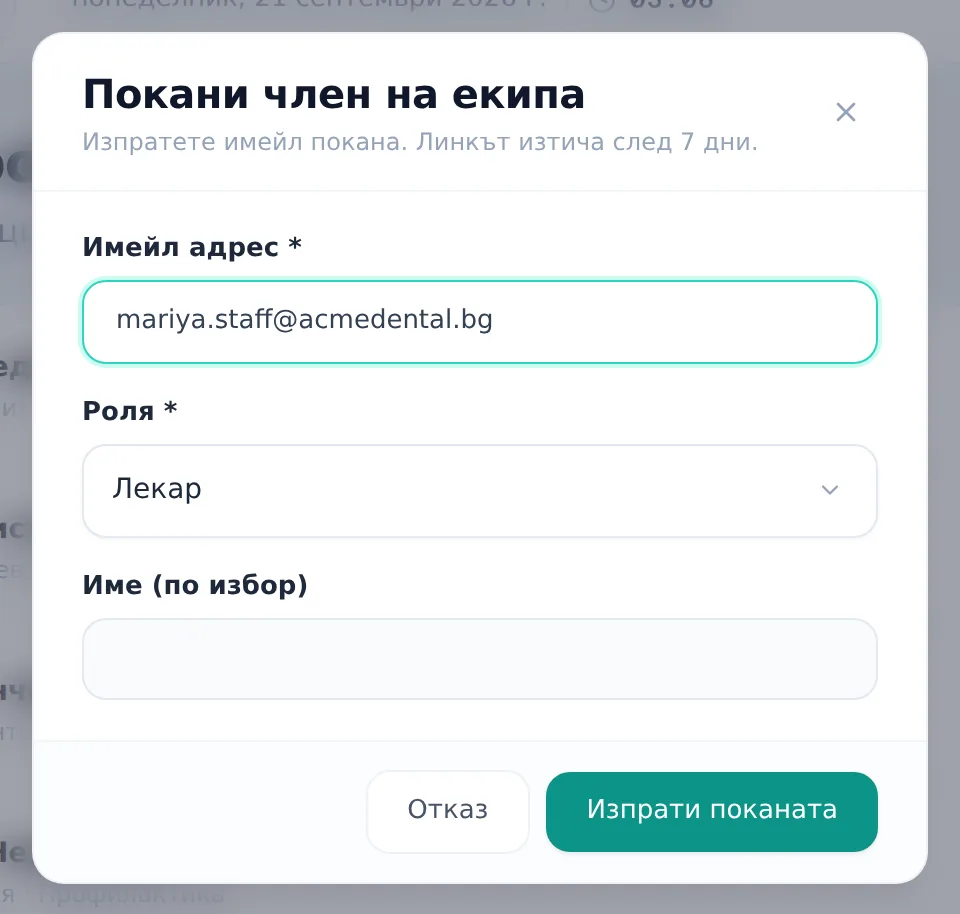
- Click Invite team member (Покани член на екипа) (top of the page, or on the Staff tab).
- Enter their Email address (Имейл адрес), pick a Role (Роля) (Doctor / Front Desk / Admin), and optionally a Name (optional) (Име (по избор)).
- Click Send invite (Изпрати поканата). The link is valid for 7 days; a repeat invite to the same email just resends the same link.
Accepting the invite (as the new colleague)
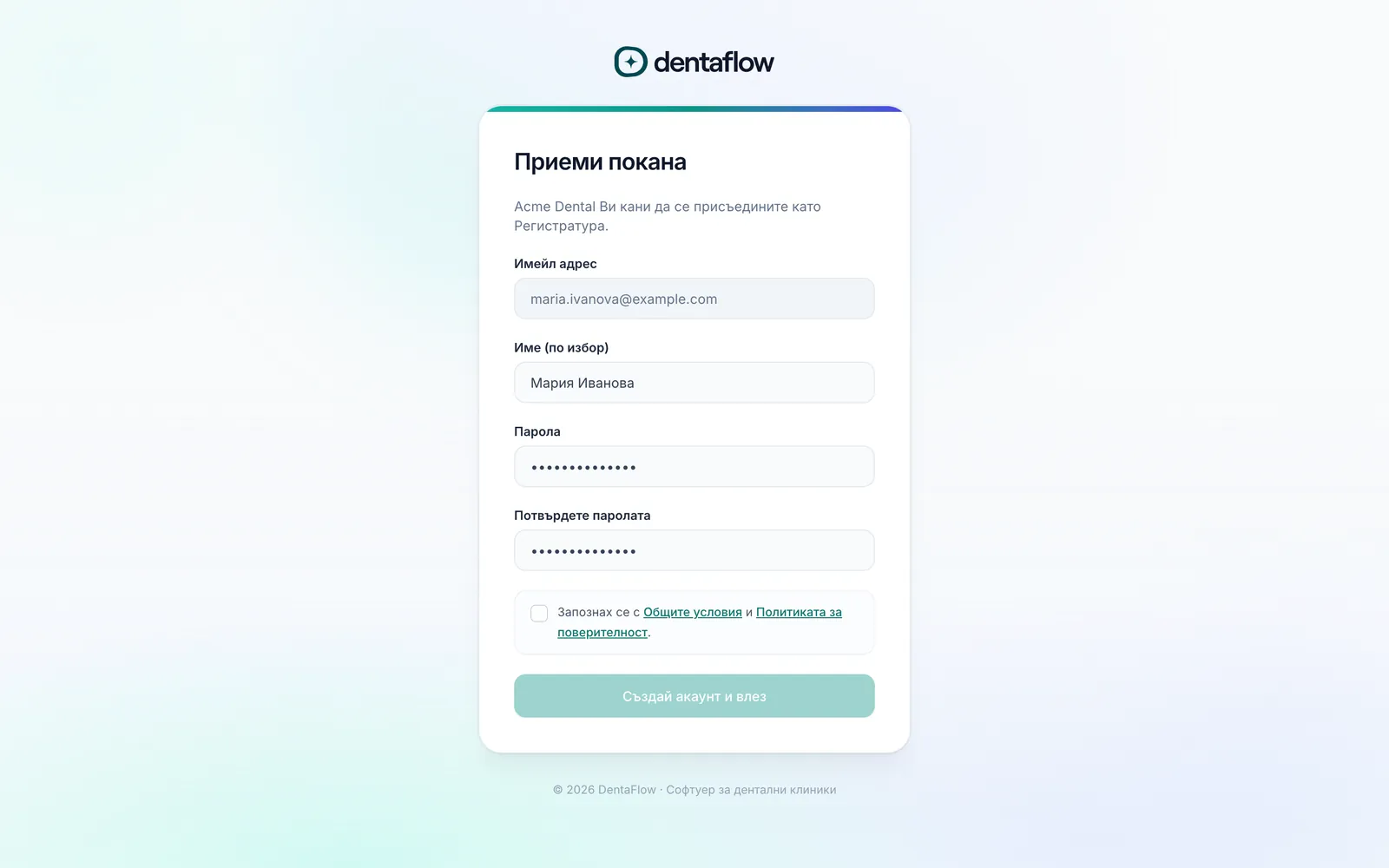
The new colleague opens the emailed link (/accept-invite/:token). The Accept invitation (Приеми покана) screen shows “{clinicName} is inviting you to join as a {role}.” What happens next depends on whether they have an account and which account they’re signed in with:
- No DentaFlow account. They enter a name and password (minimum 8 characters, confirmed twice), tick the Terms of Service and Privacy Policy checkbox, and click Create account and sign in (Създай акаунт и влез) — this creates their login and links them into the clinic with the role you picked.
- An account under the invited email, not signed in. They type their existing password in both fields and click Create account and sign in (Създай акаунт и влез). DentaFlow doesn’t create a second account or change the password. With a wrong password they see “This email already has an account. Sign in with your existing password or reset it.” (Адресът вече има акаунт. Влезте с паролата си или поискайте възстановяване.) and an Email me a password reset link (Изпрати линк за нова парола) button — the link goes to the invited email, and once the colleague sets the new password they are returned to the invite.
- Already signed in with the invited email. They see “You are currently signed in as {email}” (В момента сте влезли като {имейл}), tick the terms checkbox and click Accept invitation (Приеми поканата) — no password needed. The Sign in with another account (Вход с друг акаунт) link below it ends the current session and shows the password form instead.
- Signed in with a different account. They see a warning: “You are currently signed in as {email}. Accepting the invitation for {inviteEmail} will sign you out of that account.” (В момента сте влезли като {имейл}. Приемането на поканата за {поканен имейл} ще прекрати текущата сесия.) If they carry on with the form, the current session ends and they sign in with the invited email.
After accepting, the colleague lands straight on the dashboard — the clinic setup wizard is only for the owner who creates the clinic.
The invite only works for the email it was sent to
DentaFlow checks the email of the account accepting the invite. If it isn’t the invited address, the colleague sees “This invitation was sent to {inviteEmail}. Sign in with that email to accept it.” (Поканата е изпратена до {поканен имейл}. Влезте с този имейл, за да я приемете.) and nothing changes. So a forwarded link gives nobody else access — to invite another colleague, send them their own invite to their own email.
If the colleague is already in another clinic
A DentaFlow account is active in one clinic. If the colleague is already a member of another clinic under the same email, accepting the invite removes them from it. So DentaFlow asks first:
- A Moving to {clinicName} (Преминавате към {клиника}) screen shows “Accepting will remove you from {clinic}. Continue?” (Приемането ще Ви премахне от {клиника}. Продължи?) — naming the clinic (or clinics) they would be removed from.
- Continue (Продължи) accepts the invite and moves the colleague to the new clinic.
- Cancel (Отказ) changes nothing — the colleague stays in their current clinic and the invite stays valid.
If the colleague is the only admin of the clinic they would leave, accepting stops with “You are the only admin of {clinic}. Add another admin there before accepting this invitation.” (Вие сте единственият администратор на {клиника}. Добавете друг администратор там, преди да приемете поканата.) Nothing changes. That clinic needs a second admin first (for example, invite a colleague with the Admin (Администратор) role) — then the colleague can accept the invite again. The same applies when a clinic’s only admin is invited to their own clinic with a different role, such as Doctor (Лекар).
If the colleague needs to keep access to both clinics, they should use a separate email for the second clinic.
Managing invites and profiles
- To revoke an invite before it’s accepted: find it under Pending invites (Активни покани), click the trash icon (Revoke „Отмени“), and confirm in “Revoke this invite?” (Отмяна на поканата?). Each invite shows “Expires in N days” (Изтича след N дни).
- For a no-login directory entry: click Add account (Добавете акаунт) on the Staff accounts (Профили на персонала) card, fill in Name, Email (contact only), Role (Роля) (Receptionist / Office Manager / Front Desk Supervisor / Practice Manager — Рецепционист / Офис мениджър / Старши рецепционист / Управител на практиката), Phone and Notes, then Add account (Добави акаунт).
- To change a doctor’s login role once they already have a linked login, use the role dropdown next to their name.
- Edit or remove a record with the pencil/trash icons on its row; removal asks for confirmation first.
- First-time admins who are themselves practicing dentists get a one-time “Вие също ли практикувате като лекар?” (Are you also a practicing dentist?) prompt — it can be skipped and added later.
Frequently asked questions
The invite link no longer works — what do I do? An expired, already-accepted or revoked invite all show the same generic “Invite invalid or expired” (Поканата е невалидна или изтекла) screen — “The link was used, revoked, or expired. Contact the clinic for a new one.” — with the support@dentaflow.bg address. Send a fresh invite to the same email.
What’s the difference between a Staff Account and an invite? A Staff Account is a contact directory entry only — it doesn’t grant sign-in access. Only a real email invite creates an actual login.
What happens if I remove a doctor? Removing a doctor is permanent (a confirmation dialog warns before proceeding). Past appointments and treatments keep the historical doctor reference, but the doctor disappears from every picker going forward.
A colleague already has a DentaFlow account under that email — what happens if I invite them? No second account is created. If the colleague is already signed in with that email, they accept in one click — Accept invitation (Приеми поканата). If not, they type their existing password in the form; with a wrong password they see a message and an Email me a password reset link (Изпрати линк за нова парола) button (after the reset they return to the invite). If the account is already in another clinic, DentaFlow names that clinic and asks for confirmation before moving it to the new one. To keep both, the colleague should use a separate email for the second clinic.
Can I forward the invite to a different colleague? No. The invite can only be accepted by the account with the email it was sent to — anyone else sees “This invitation was sent to {inviteEmail}. Sign in with that email to accept it.” (Поканата е изпратена до {поканен имейл}. Влезте с този имейл, за да я приемете.) Send them their own invite.
The colleague is the only admin of another clinic. Can they accept the invite? Not until that clinic has a second admin. Accepting would leave the clinic without an admin, so DentaFlow stops and changes nothing. Add a second admin there, then the colleague accepts the invite again.
Who can see the doctor directory?
/doctors is visible to Admin and Front Desk. Doctor doesn’t see either that page or the full management screen in Settings.