Waitlist
The Waitlist holds patients who want an earlier slot, with their preferred doctor, date window and priority. When a slot opens — most often a staff cancellation with more than 24 hours’ notice — DentaFlow automatically surfaces matching waitlist patients. The list itself sends no messages: you contact the patient yourself. It applies to Admin, Front Desk and Doctor, only when the Waitlist module is enabled. The screenshots below show the Bulgarian interface; every label gives the Bulgarian original in parentheses.
At a glance
- Found at
/waitlist— sidebar under “Care (Грижа)”, only when the module is enabled. - Add a patient with a preferred doctor, service, date window and priority.
- Cancelling an appointment from its preview with ≥24h notice automatically opens a prompt with matching waitlist patients.
- Book (Запиши) in that prompt creates a confirmed appointment instantly, in the same slot, and marks the entry fulfilled. No message is sent to the patient automatically — contact them before you book.
- Matching uses the date window, doctor and time of day (before 13:00 counts as Morning, from 13:00 as Afternoon). Service requested (Желана услуга) is kept for reference but isn’t used for matching.
- An entry with “any doctor / any time” matches the widest set of freed slots.
- Patients can also add themselves — from the public booking page or the portal, when there are no free slots on the date they picked.
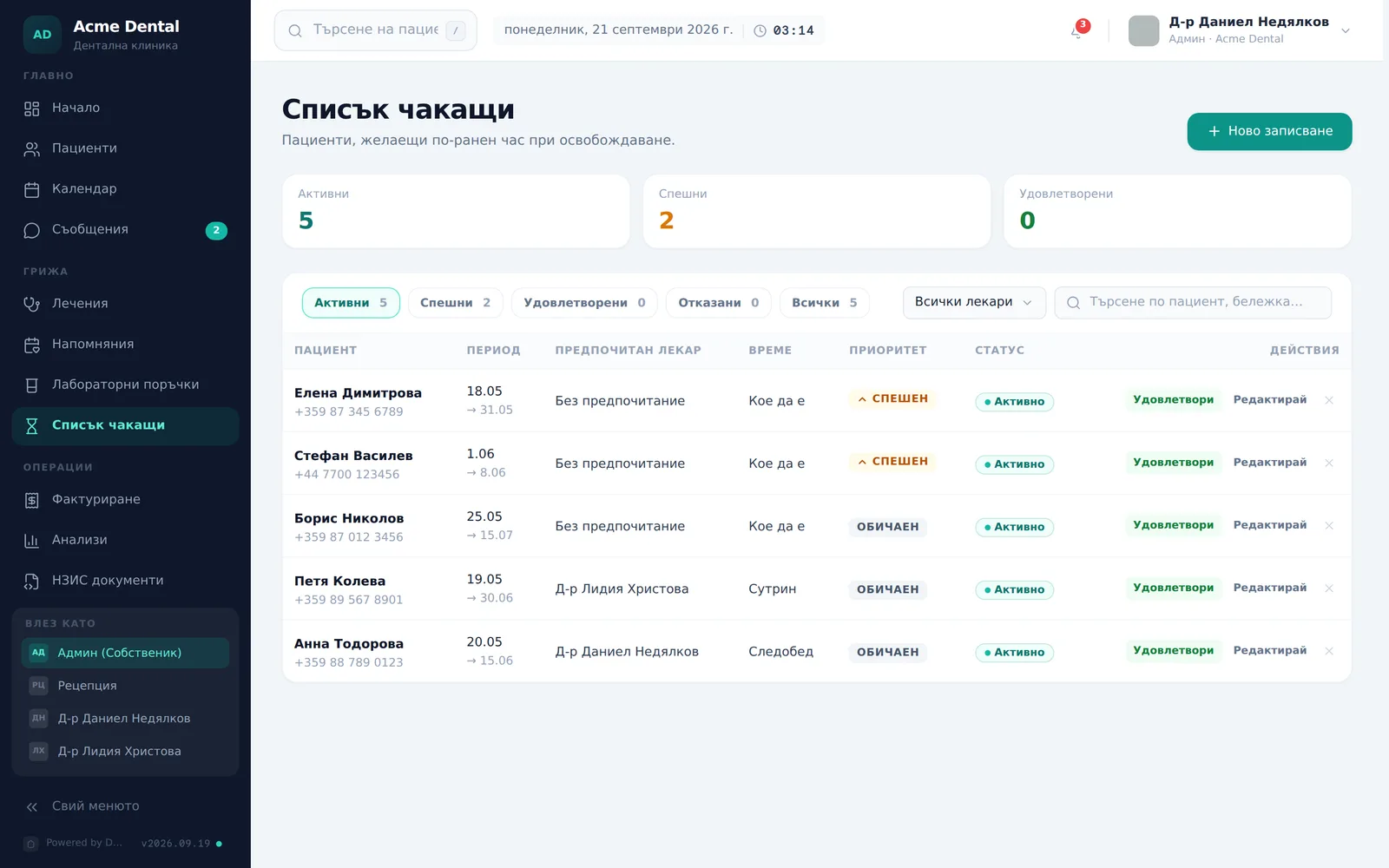
Adding a patient to the waitlist
- Click New entry (Ново записване) on
/waitlist. - Search and pick the Patient (Пациент).
- Optionally set the Preferred doctor (Предпочитан лекар) and Service requested (Желана услуга). You can add Notes (Бележки) too. The same form is available from the patient’s profile — the Waitlist (Списък чакащи) section, Add to waitlist (Добави в списъка) button.
- Set From date (От дата) / To date (До дата) (defaults today → +30 days) and Time of day (Време на деня) (Morning / Afternoon / Any — Сутрин / Следобед / Кое да е).
- Set the Priority (Приоритет) (Normal / High — Обичаен / Спешен).
- Click Add (Добави).
Filling a freed slot from the waitlist
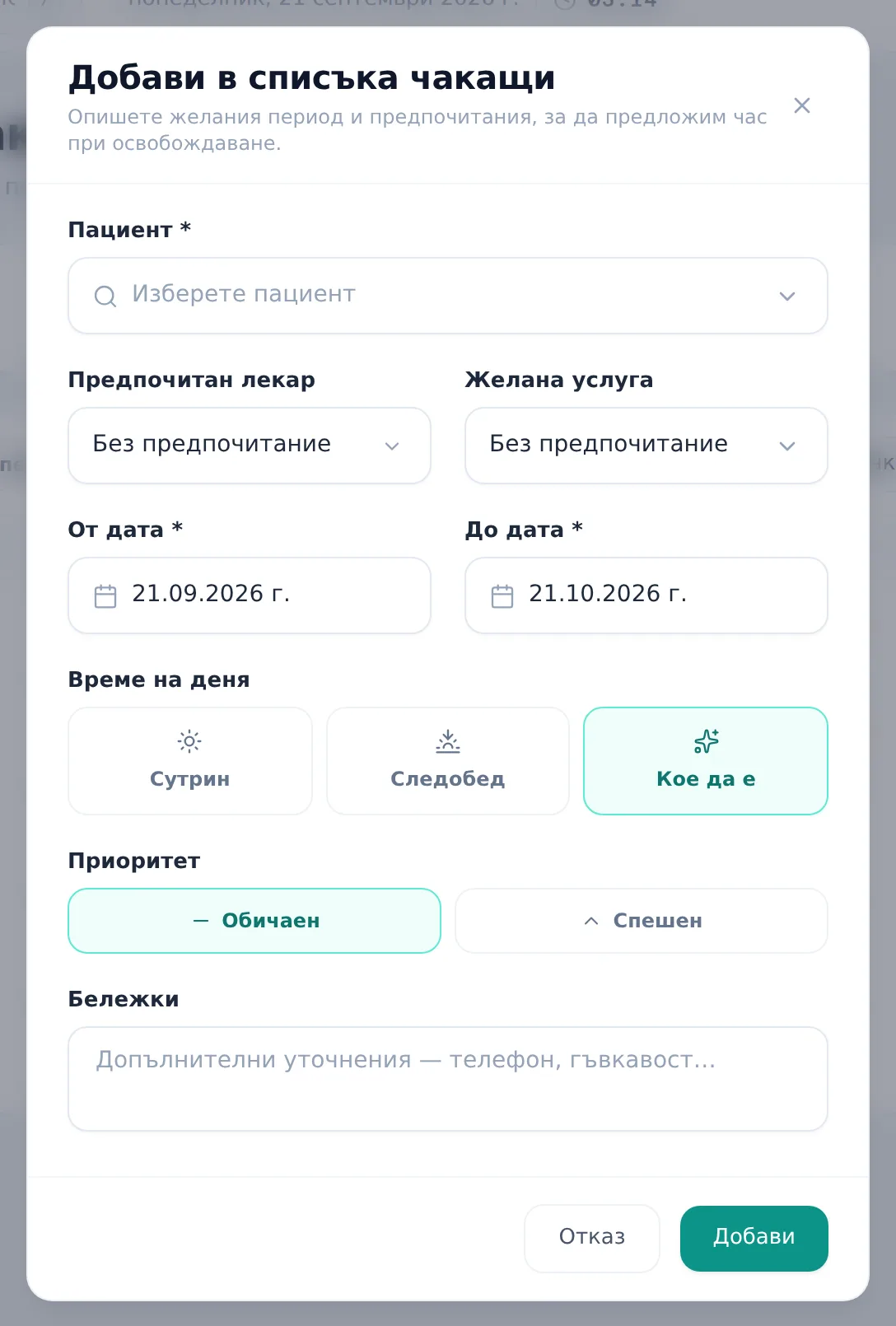
- When you cancel an appointment from the Appointment Details (Детайли за часа) panel more than 24 hours before it starts, the Waitlist matches for this slot (Чакащи за този час) dialog opens automatically after you confirm the cancellation.
- Review matching patients — each shows phone, time of day, preferred doctor and note. High-priority ones come first, then older entries.
- Contact the patient, then click Book (Запиши) next to the entry. It instantly creates a confirmed appointment in the freed slot (with the cancelled appointment’s doctor, same start and end), with the note “Auto-booked from waitlist after a cancellation.” (Автоматично записан от списъка чакащи след освобождаване.), and marks the waitlist entry fulfilled. No email or other message is sent; if nothing matches, the dialog says so.
If the cancellation comes another way (for example the patient cancels in the portal), the prompt doesn’t open, but an in-app notification A slot opened up (Освободи се час) appears with a link to the list — as long as an active entry matches a future date.
Managing an entry
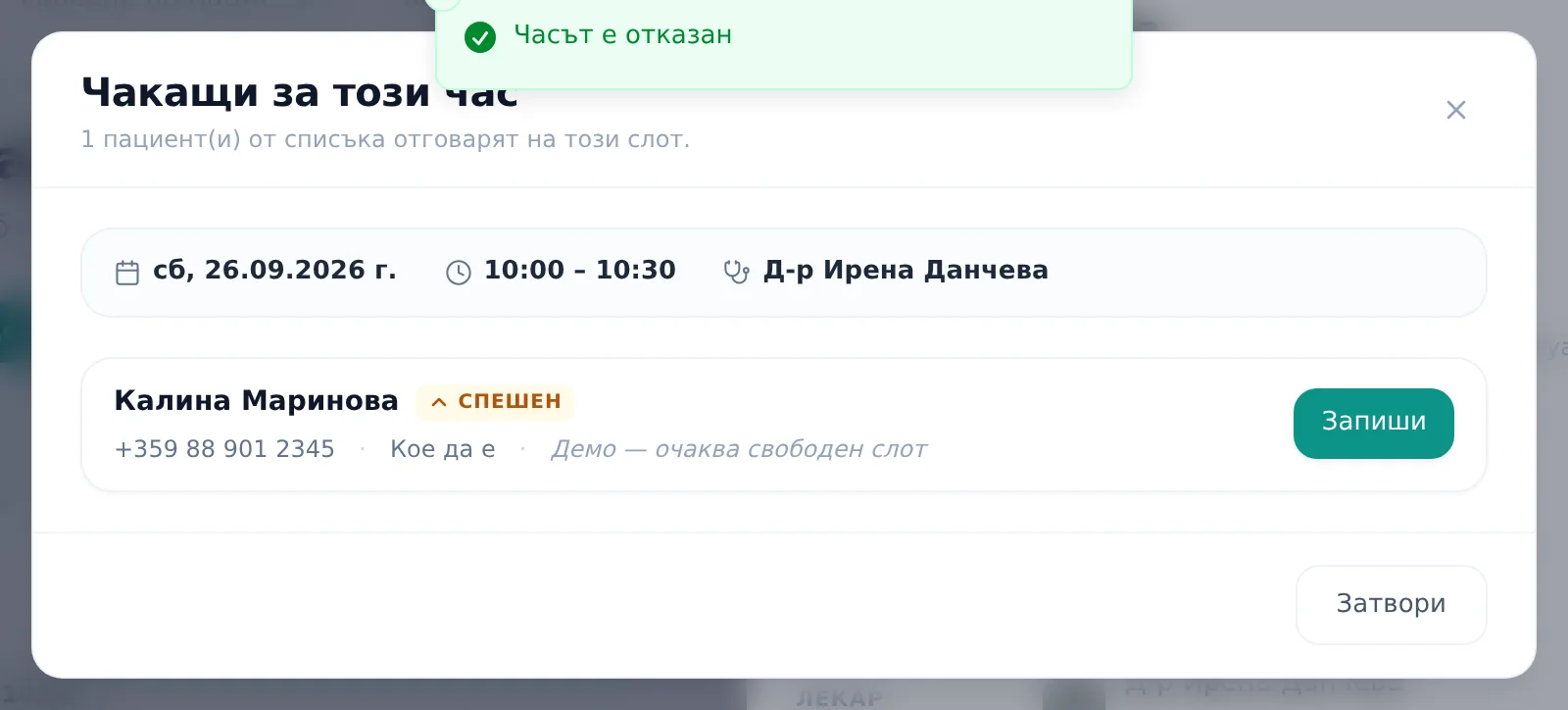
- Use the filter pills (Active / High priority / Fulfilled / Cancelled / All — Активни / Спешни / Удовлетворени / Отказани / Всички; “Active” is open by default), the doctor filter, and the search by name, phone or note. High-priority entries are at the top, then older ones.
- Click Edit (Редактирай), the green Fulfil (Удовлетвори) button, or the red X (tooltip Remove from waitlist (Премахни от списъка)).
Fulfil only marks the entry as fulfilled — it does not create an appointment. The appointment comes from Book in the prompt, or from the Calendar. The red X asks for confirmation (“Remove from waitlist?” — this dialog is currently English-only); the entry becomes Cancelled rather than being deleted, and stays under the Cancelled filter. Fulfilled and cancelled entries only have Edit.
Frequently asked questions
Why don’t I see the Waitlist in the sidebar? The Waitlist module needs to be turned on under Settings → Modules — with the module off, the page and its nav link disappear entirely for every role.
Does the waitlist prompt open for a last-minute cancellation too? Not automatically — the “Waitlist matches for this slot” prompt only opens when the freed slot is at least 24 hours away. Last-minute cancellations don’t trigger it on their own.
Which entry matches the widest set of freed slots? An entry with “any doctor” and “any time of day” matches the widest set of freed slots.
Can a patient add themselves to the waitlist? Yes, when the module is on and there are no free slots on the picked date. On the public booking page the patient enters first name, last name, phone and the spam check (email, country and language are optional; the patient can also pick a service and doctor) — this creates a new patient record. The team gets no notification for such an entry — check the list. In the portal it’s one click, for the patient’s own record, with at most one active entry per patient. Either way the entry covers the picked date through 30 days later, any time of day, normal priority. For portal entries the team gets a “New waitlist entry” (Нов запис в списъка чакащи) notification. If the patient already has an active entry, no second one is added. See Your public booking page.
What do I see if the list is empty? An empty state with a quick shortcut to New entry (Ново записване).