Invoices & payments
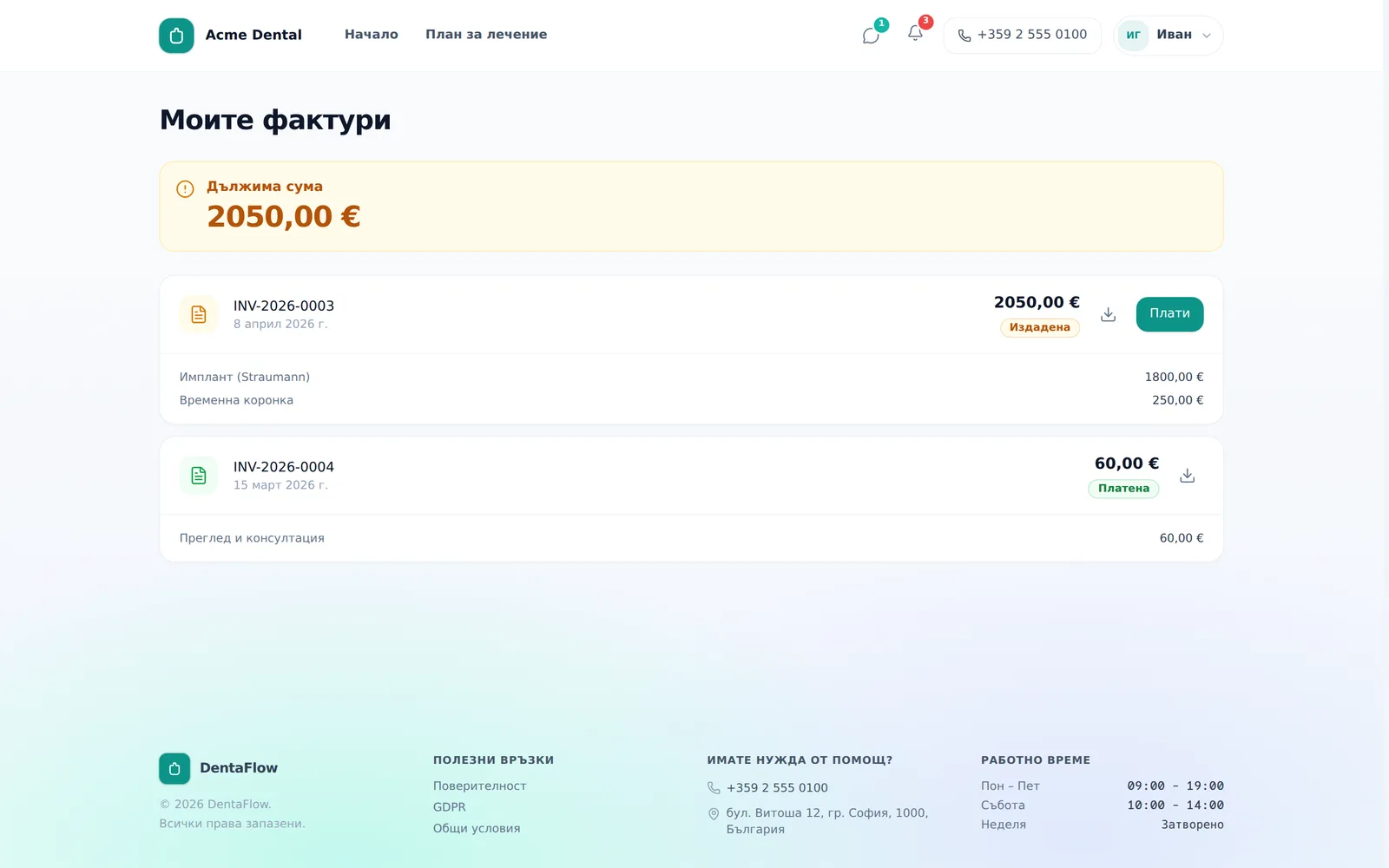
The portal shows every invoice issued to you, with the exact balance owed, and lets you download or print it. Actual payment, though, is arranged with the clinic — this guide explains how, and why. The screenshots below show the Bulgarian interface; every label gives the Bulgarian original in parentheses.
At a glance
- The banner at the top shows what’s owed, or “All invoices are paid” (“Всички фактури са платени”).
- Every invoice expands with its line items — no extra clicks needed.
- Download or print any invoice as a clean PDF view in a new tab.
- You only see your own issued invoices — drafts are never shown to patients.
- There is no online invoice payment in the portal — you pay at the reception, by bank transfer (if the clinic has entered an IBAN), or through a deposit link the clinic sends you.
- If the clinic has split a payment into instalments, the instalments are on a separate “Instalments” page, where you can pay the next one (by card, if the clinic has Stripe connected).
Checking what you owe
- Open Invoices (Фактури) from the account menu.
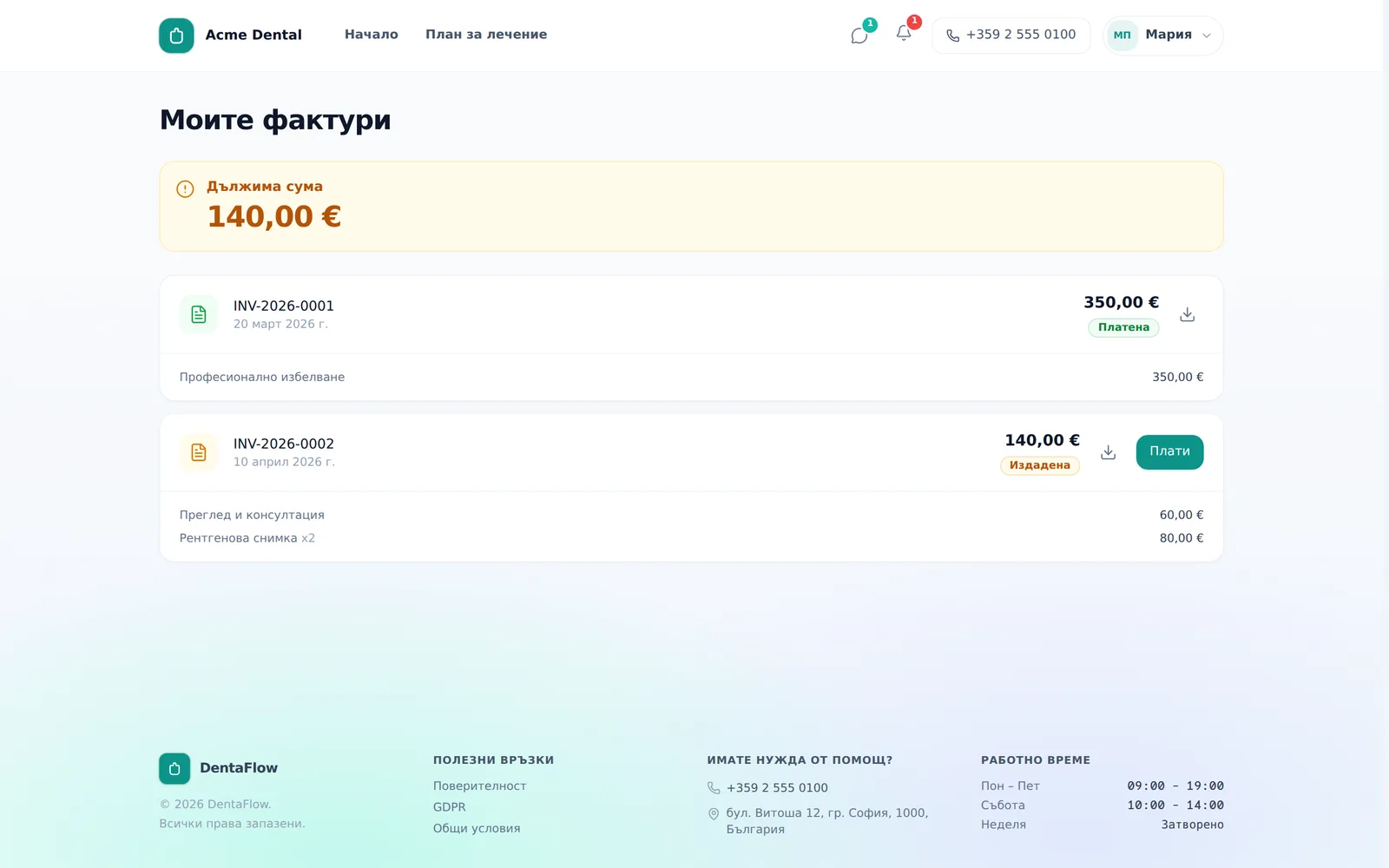
- The top banner shows Outstanding Balance (Дължима сума) in amber with the total, or “All invoices are paid” (“Всички фактури са платени”) in green if nothing’s owed.
- Expand any invoice card to see its line items — description, quantity and price — with no extra clicks.
Downloading and printing an invoice
- On any invoice card, click the download/print icon.
- A clean, printable view opens in a new tab — your browser’s print dialog opens automatically, and you can save it as PDF from there.
You can only ever open your own invoices — a link to someone else’s invoice redirects you back to the list.
How to actually pay an invoice
There is no online pay button for invoices in the portal. When you owe something, the Outstanding Balance (Дължима сума) banner reads “Online payment through the portal is not available yet. You can pay at the clinic reception.” (Онлайн плащане през портала все още няма. Можете да платите на рецепцията в клиниката.) If the clinic has entered an IBAN, the note adds “or by bank transfer”, and below it you see the Payee (Получател), the IBAN and the Payment reference (Основание за плащане) — the invoice number. If the clinic has a contact on file, a Questions about payment: … (Въпроси за плащането: …) line follows. The clinic marks the invoice paid once the money arrives. If the clinic has sent you a deposit link for a specific visit — by email or as a personal message from the staff — you can pay through that link.
Paying in instalments
If the clinic has split an invoice or a treatment plan into instalments, you see it in two places:
- The invoice carries an On instalments (На вноски) badge and the note “This invoice is being paid in instalments.” with a View instalments (Виж вноските) link. If all your unpaid invoices are on instalments, the top banner reads Being paid in instalments (Плаща се на вноски) instead of “Outstanding Balance”, and their amount is not counted in it.
- The Instalments (Вноски) page (“My instalments” — Моите вноски, from the account menu) shows each schedule — Instalment plan (Разсрочено плащане), “N of M paid”, Remaining (Остава), due dates, the clinic’s note and a link to the agreement.
For the next instalment you see Pay the next instalment (Плати следващата вноска) (card payment through Stripe, if the clinic has connected it) or How to pay the next instalment (Как да платя следващата вноска) (bank-transfer details or paying at the reception). Instalments are paid in order — the earliest unpaid one first. An online payment shows in the schedule within a few minutes; a bank transfer once the clinic confirms it. The bell tells you when an instalment is coming due or overdue.
Frequently asked questions
Can I pay an invoice by card in the portal? No. The portal has no invoice payment form and never marks an invoice paid itself — the clinic does that once it receives the money. Pay at the reception, by bank transfer (if the clinic has entered an IBAN), or through a deposit link the clinic sends for a specific appointment. If the invoice is on instalments, an instalment can be paid by card from the “Instalments” page.
So how do I actually pay the clinic online? If the clinic wants prepayment for a visit, they send you a separate deposit link (by email or as a personal message from the staff) — that’s the online payment for invoices and deposits; instalments are separate (see below). For invoices after treatment is done, you pay at the reception, or by bank transfer if the clinic has entered an IBAN.
Why don’t I see “Instalments” in the menu? The page appears when the clinic has split a payment for you into instalments. If there is none, there is nothing to show.
Why don’t I see an older invoice? Invoices only appear in the portal once the clinic issues them — drafts are never visible to patients.
Can I request a refund from the portal? No. There’s no self-service refund or dispute action in the portal — contact the clinic directly.