Working hours, vacations & closures
Working hours determine when each doctor is bookable. There are three layers: the clinic’s default weekly schedule, each doctor’s individual schedule, and clinic-wide closures (holidays, a full-clinic vacation). These settings directly drive the Calendar, the public booking page and portal booking. This guide is for Admin — Front Desk can open Settings, but doctor management is effectively admin territory, and Doctor doesn’t see the Settings link at all. The screenshots below show the Bulgarian interface.
At a glance
- Clinic default hours: Settings → Clinic profile → Hours (Настройки → Профил на клиниката → Работно време).
- A doctor’s individual schedule: Settings → Doctors & staff (Настройки → Лекари и персонал) → the clock icon next to their row.
- A clinic closure always wins over an individual doctor’s hours for the same date.
- With no hours configured at all, the Calendar falls back to a generic 08:00–17:00 grid, but the public booking page shows no slots until real hours are set.
Setting the clinic’s default working hours
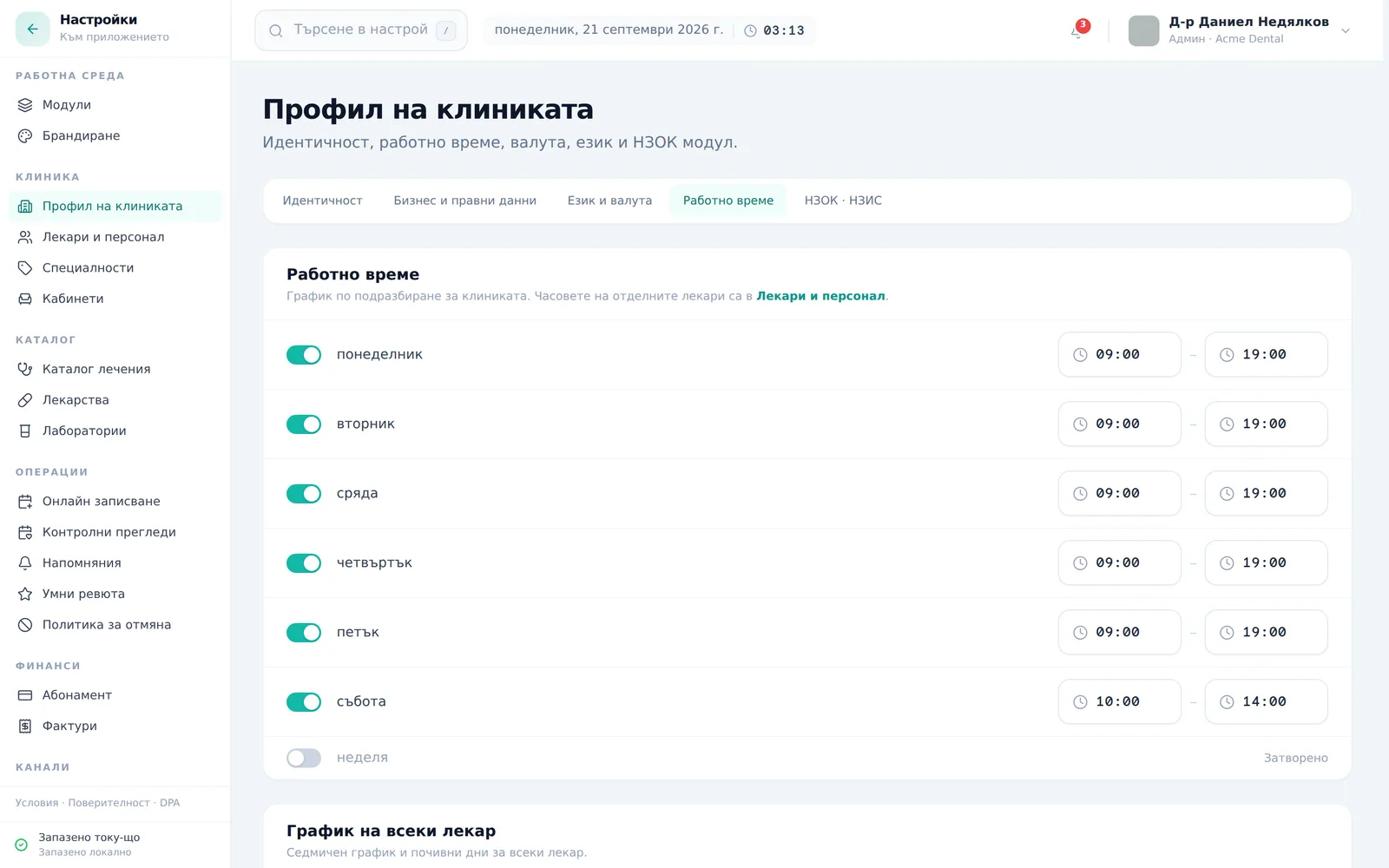
- Go to Settings → Clinic profile → Hours (Настройки → Профил на клиниката → Работно време).
- Toggle each weekday on/off and set start/end times with the time pickers — this is the fallback schedule for a doctor with no hours of their own.
Adding a clinic closure (holiday, full-clinic vacation)
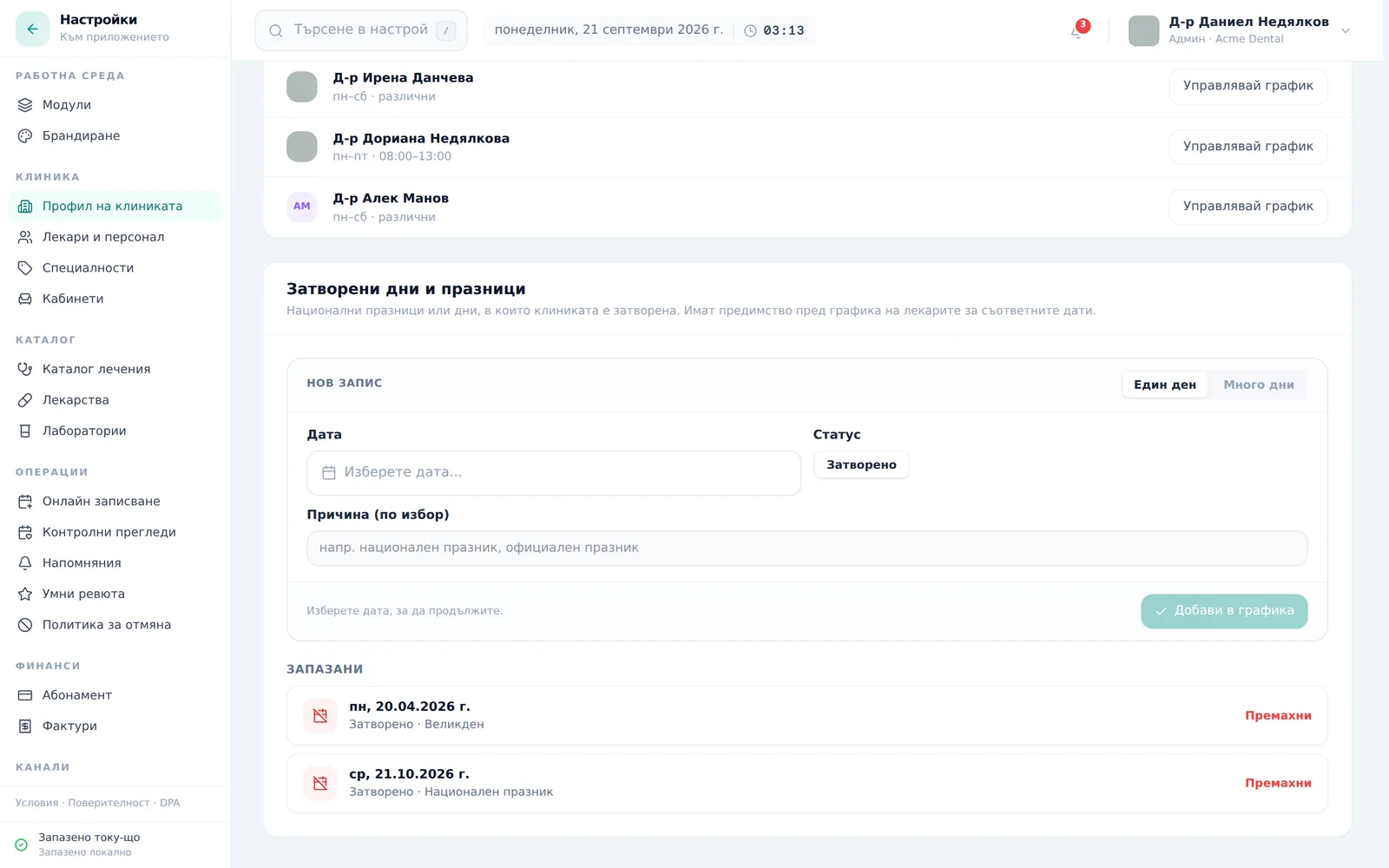
- On the same page, open the Clinic closures & holidays (Затворени дни и празници) card.
- Choose Single day (Един ден) or Multi-day (Много дни), pick the date(s), optionally add a Reason (optional) (Причина (по избор)) and click Add to schedule (Добави в графика) — the entry covers the whole clinic for the chosen dates and shows a red banner on the Calendar. Clinics have no “Modified hours” option — a date is either closed or runs on the normal schedule.
Setting a doctor’s individual schedule
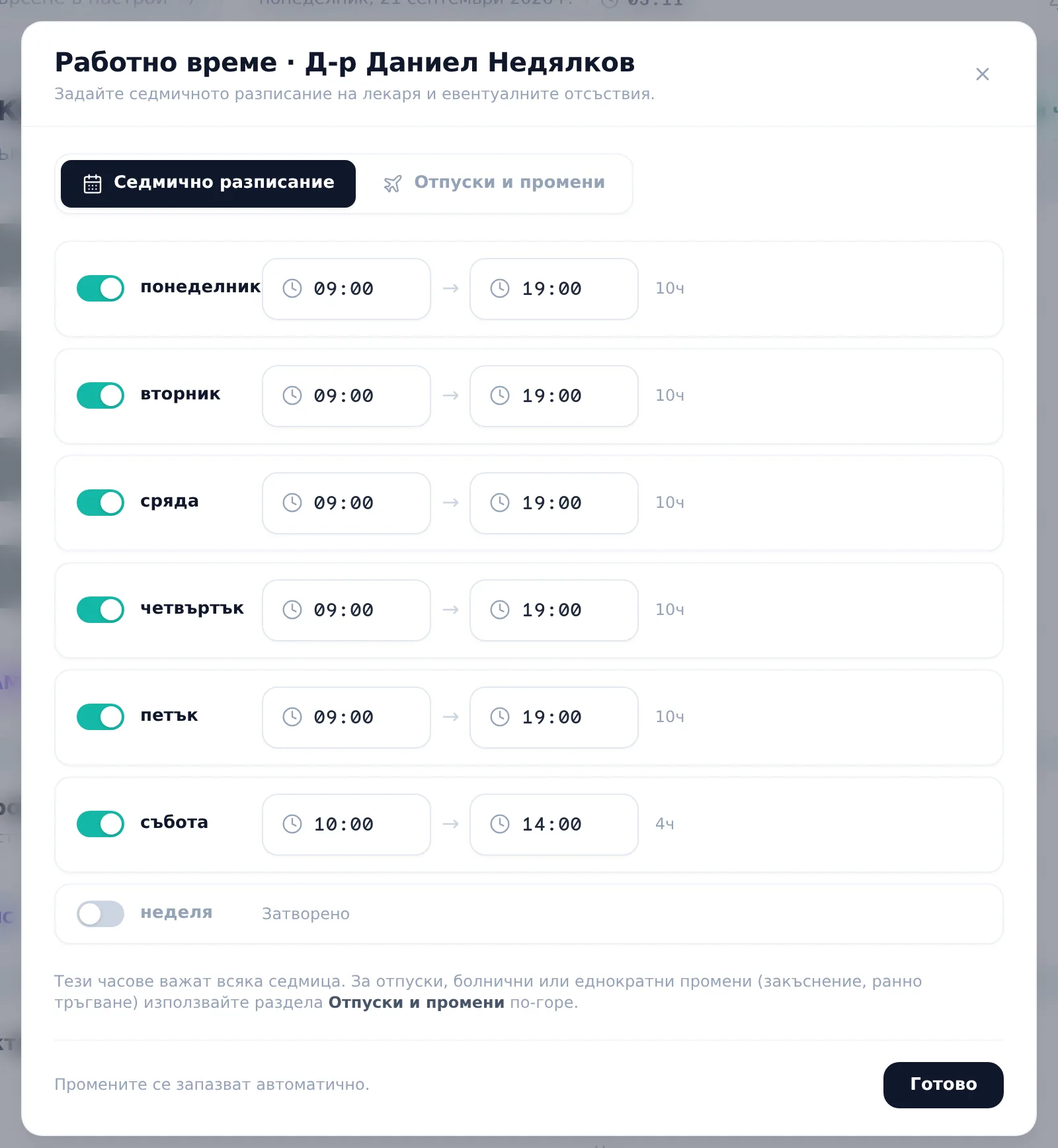
- Go to Settings → Doctors & staff (Настройки → Лекари и персонал), find the doctor, and click the clock icon (or Manage hours (Управлявай график) from the Per-doctor schedules (График на всеки лекар) list on the Hours sub-tab).
- On the Weekly schedule (Седмично разписание) tab, toggle each day and set the start/end time — it saves immediately (toast: “Разписанието е запазено” / “Schedule saved”).
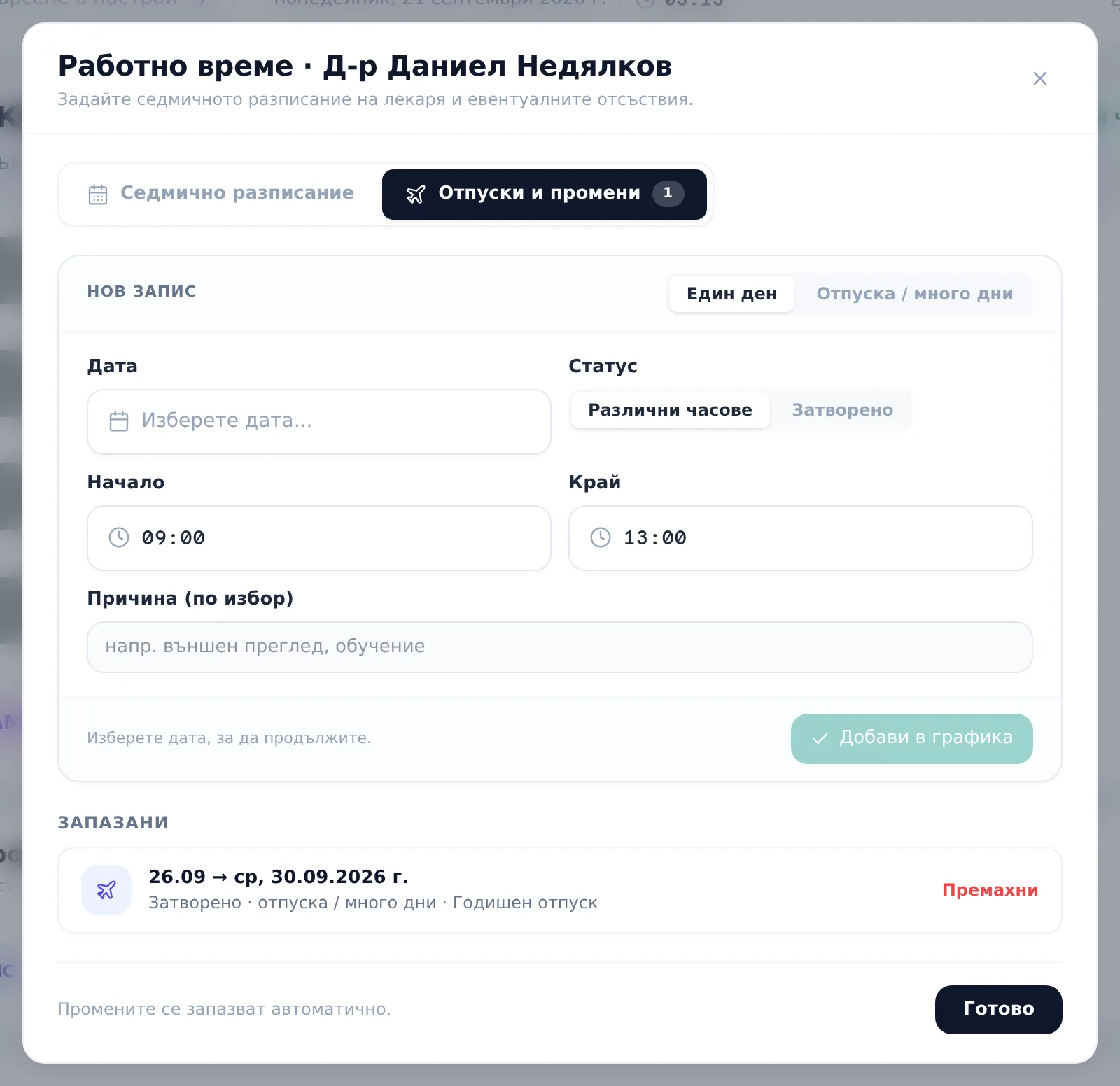
- On the Time off & changes (Отпуски и промени) tab, choose Single day (Един ден) or Vacation / multi-day (Отпуска / много дни), pick the date(s), for a single day choose Modified hours (Различни часове) or Closed (Затворено), optionally add a Reason (optional) (Причина (по избор)), and click Add to schedule (Добави в графика).
Frequently asked questions
Which schedule wins if a doctor is set to work but the clinic is closed? A clinic closure always wins over an individual doctor’s hours for the same date.
Why do I see no free slots for a specific doctor on a given day? Most often the doctor has no working hours set for that day — the Calendar shows it as a day off (“Почивен ден”) and skips it everywhere slots are generated: quick-add, public booking, portal booking, reschedule.
What happens if I haven’t set any working hours at all? The Calendar falls back to a generic 08:00–17:00 grid, but the public booking page shows no slots until real hours are set.
How do I see which doctors have upcoming time off? The staff list shows an “N почивка” badge for doctors with upcoming recorded time off.