Treatment payments
This guide shows how to use the Treatments tab on the Billing page — a per-treatment payment ledger, independent of formal invoices. It applies to the Admin and Front Desk roles; the tab is not visible to the Doctor role. The app screenshots show the Bulgarian interface; every label below gives the Bulgarian original in parentheses.
At a glance
- Treatments (Лечения) is the default tab on the Billing page — a separate ledger from Invoices.
- Marking a treatment paid is a simple flag on the row; it doesn’t create or update an invoice.
- Revenue, outstanding-balance and collection-rate stats depend on the selected period — Today / Monthly / All-time.
- “Outstanding by Patient (Дължими по пациент)” appears when any patient has a positive balance, and links straight to their profile.
- A treatment settled through an instalment plan shows “Paid in instalments” („Платено по вноски“) and has no Mark paid button.
- Export CSV (Експорт CSV) (top right) downloads the displayed treatments for the current filter and period.
Reviewing revenue and choosing a period
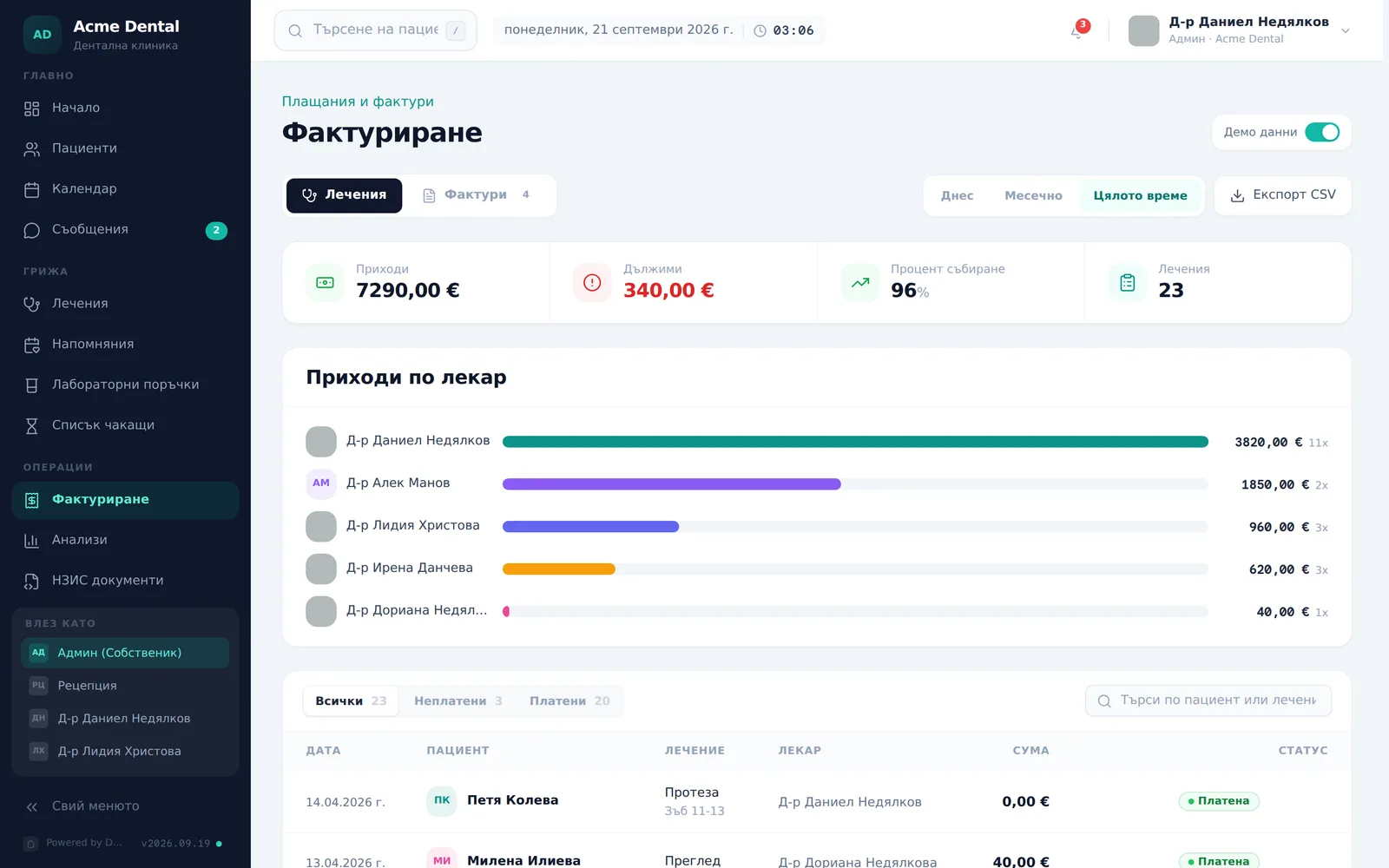
- Open Billing → Treatments (Фактуриране → Лечения) (the default tab when the page loads).
- Pick a period with the Today / Monthly / All Time (Днес / Месечно / Цялото време) pills; for Monthly, jump months with the arrows or open the quick month/year picker.
- Review the stats bar — Revenue (Приходи), Outstanding (Дължими), Collection Rate (Процент събиране), Treatments (Лечения) and Revenue by Doctor (Приходи по лекар) for the selected period. For Monthly, revenue is compared with the previous month.
Marking payments and filtering
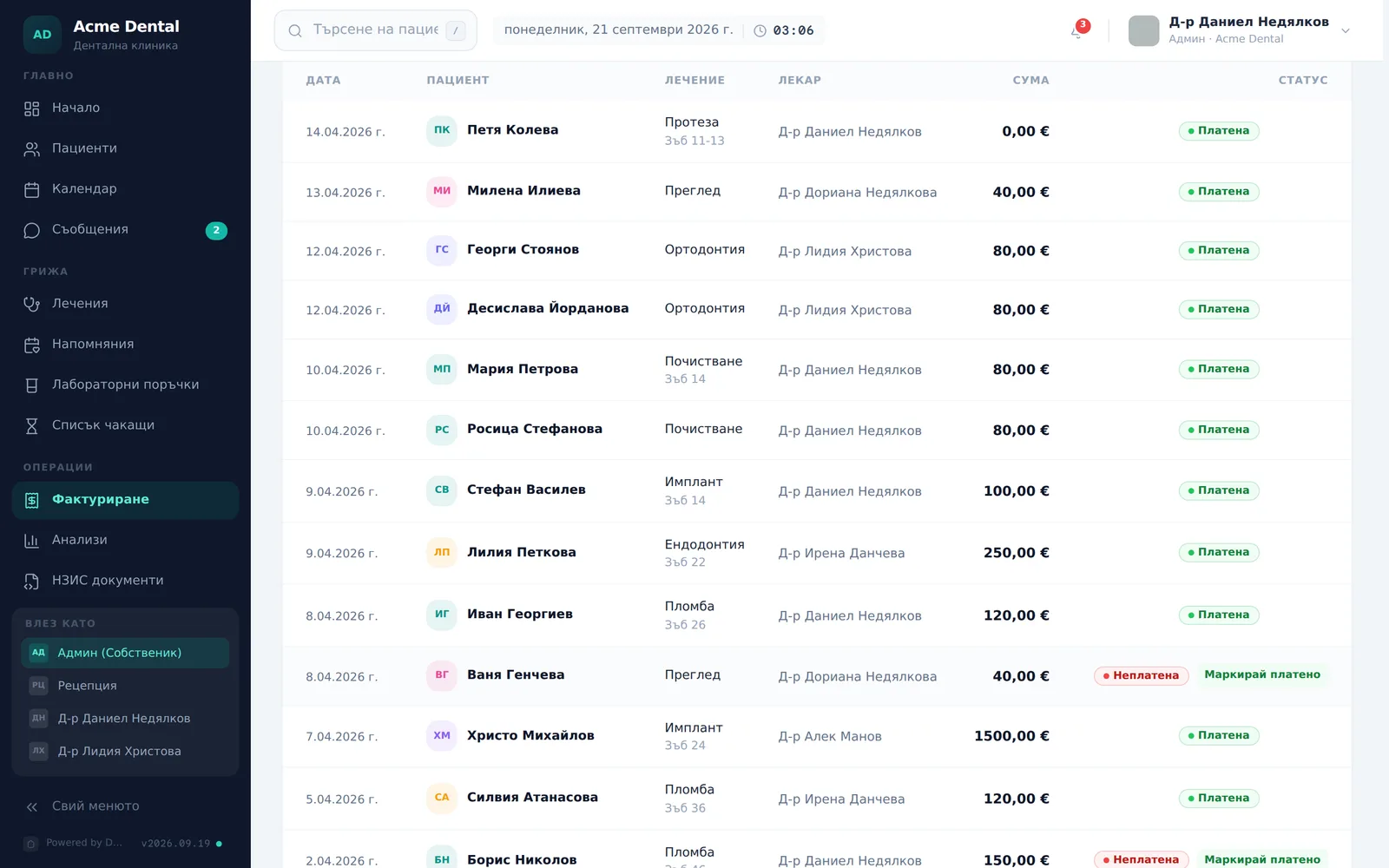
- In the treatments table, click Mark paid (Маркирай платено) on any unpaid row — the amount instantly rolls into the revenue stat.
- To undo a wrong mark, hover the paid row and click Undo (Отмени) (the button only appears on hover).
- Filter with the All / Unpaid / Paid (Всички / Неплатени / Платени) pills, or use the search box („Търси по пациент или лечение…“ — matches patient, treatment type and doctor). The table shows 15 rows per page.
- If the patient has an instalment plan that covers the visit, the row shows Paid in instalments (Платено по вноски) and no Mark paid button. If marking paid is refused because of instalments, the Paid outside the instalments? (Платено извън вноските?) dialog opens — confirm with Yes, paid separately (Да, платено отделно) only if the visit really was paid separately.
Outstanding balances and export
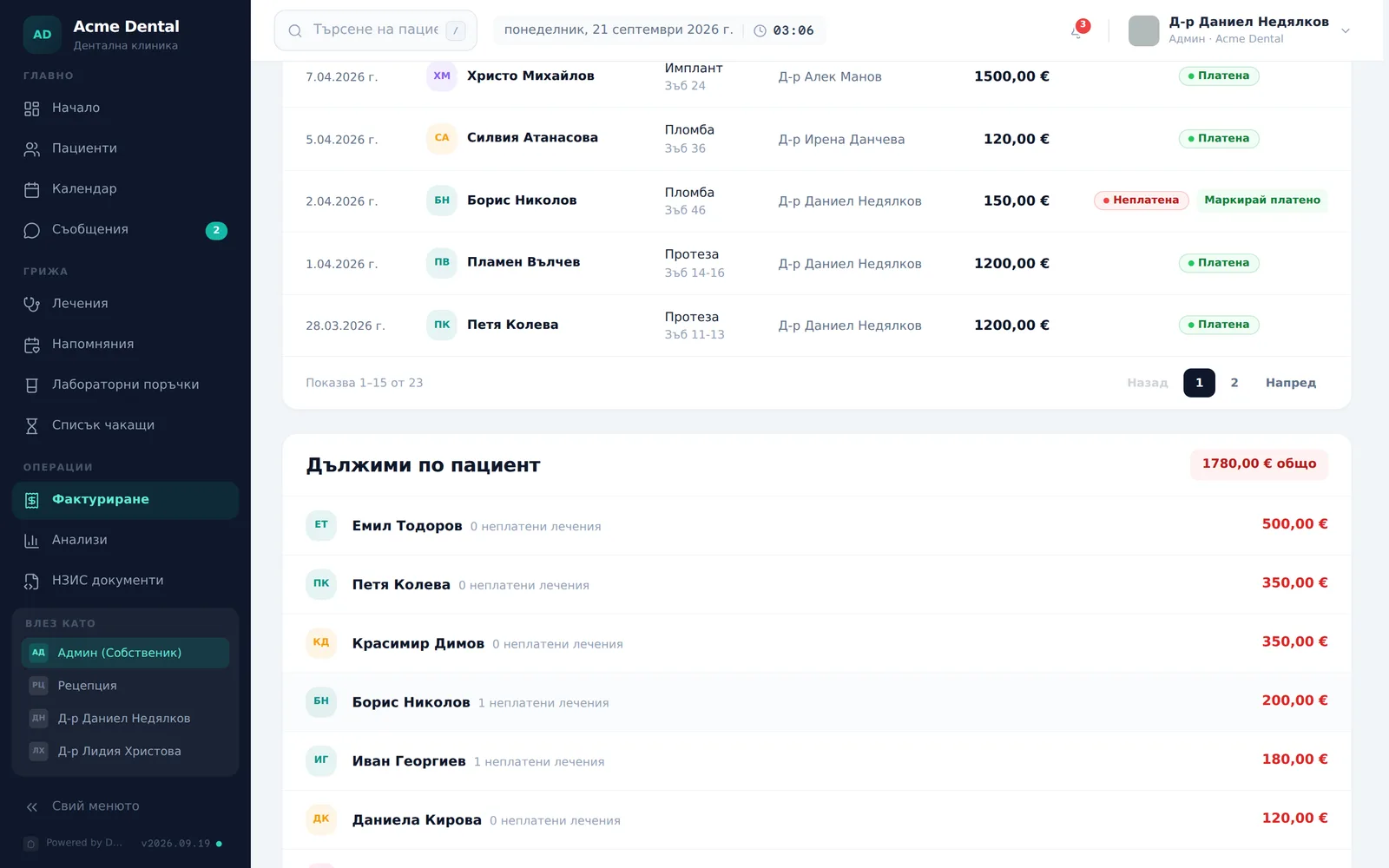
- Scroll to Outstanding by Patient (Дължими по пациент) — a list of every patient with a balance above 0 (it only appears when there is one), with a total badge (”… общо”), a count of unpaid treatments per row (“N неплатени лечения”) and a link straight to the patient’s profile.
- Click Export CSV (Експорт CSV) in the button bar at the top right to download the displayed treatments for the current filter and period. The column headings are in English: Date, Patient, Treatment, Tooth, Doctor, Amount (EUR), Status.
Frequently asked questions
Does marking a treatment paid create an invoice? No. This is a separate ledger from Invoices — marking a treatment paid doesn’t create or update an invoice, and issuing or paying an invoice doesn’t retroactively flag the treatment rows it covers. See Invoices.
How is the collection rate calculated? Collection Rate (Процент събиране) is the paid share of the total treatment amount in the selected period (paid ÷ total). Revenue and Revenue by Doctor count only treatments marked paid. An empty period shows “Няма лечения в този период” (no treatments in this period).
Why don’t I see an Undo button on every paid row? It only appears when you hover a paid row — a safeguard against accidental clicks.
I see a “Demo data” toggle — what is that? It only appears for the demo clinic, to switch test data on or off. Real clinics never see this toggle.