Signing up & first login
This guide covers what happens between paying on dentaflow.bg and logging into the app — the magic-link email, the 3-step setup wizard, and what to do if something doesn’t go through. It applies to the original paying Admin only — invited team members go through a different flow (see Inviting your team). The screenshots below show the Bulgarian interface.
At a glance
- Payment happens on the marketing site (dentaflow.bg) via Stripe Checkout — not inside the app itself.
- After paying, you get an email with a magic sign-in link — click “Влез в DentaFlow” (Sign in to DentaFlow).
- The wizard has 3 steps: name → optional password → whether you’re a practicing doctor.
- There is no way to register a clinic from inside the app — only after a real payment.
- If setup takes longer than a minute, you get buttons to retry or contact support.
Signing in after payment
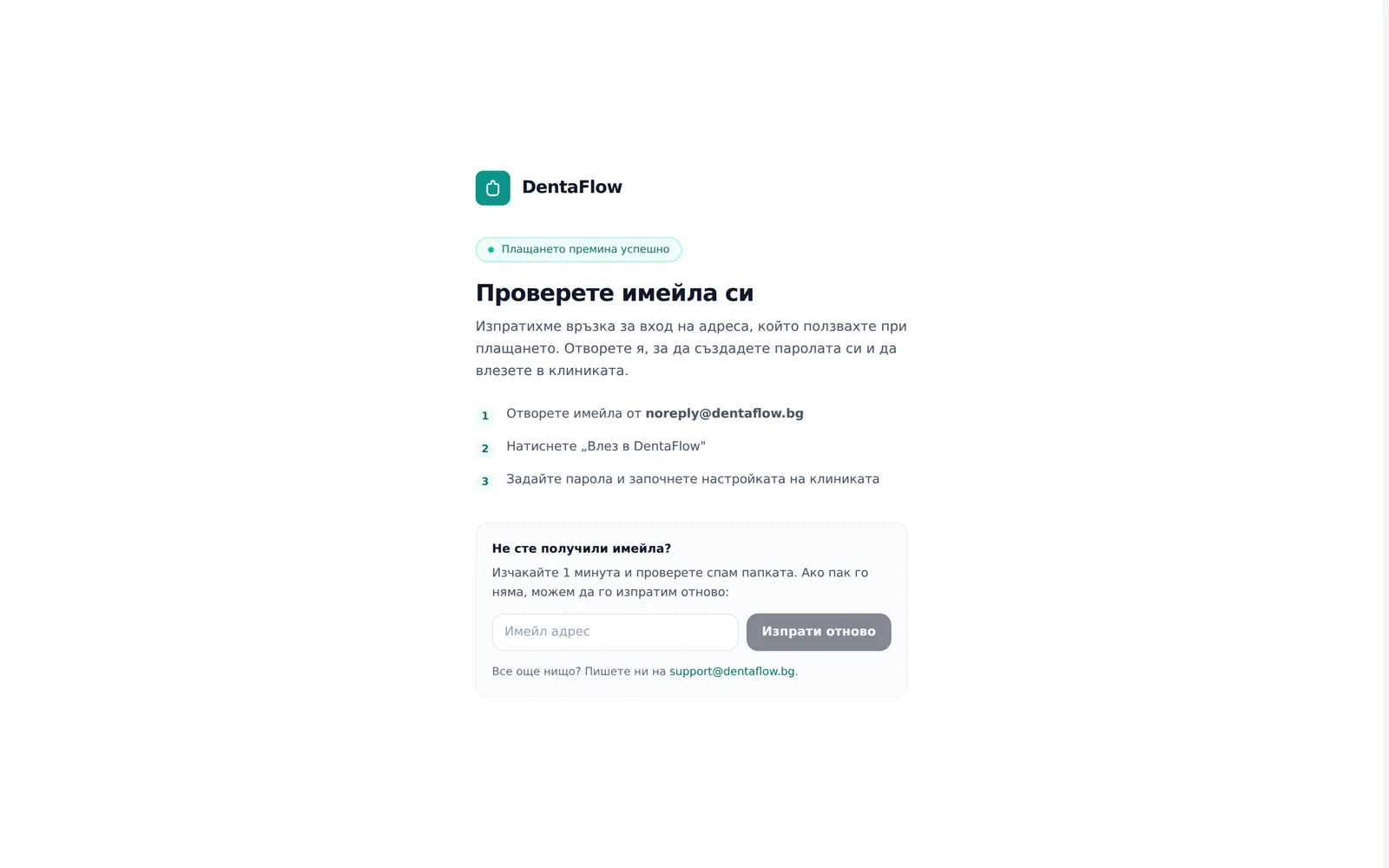
- Check your inbox for the “Добре дошли в DentaFlow” (Welcome to DentaFlow) email from noreply@dentaflow.bg and click the Влез в DentaFlow (Sign in to DentaFlow) button. While you wait, the
/welcomepage is titled Check your email („Проверете имейла си“). - If the email hasn’t arrived, on
/welcomeuse the Resend (Изпрати отново) form — enter your email and submit (a short cooldown with a countdown applies between resends; hCaptcha may be required). - Once you’re signed in via the link, the page shows “Настройваме клиниката Ви…” (“Setting up your clinic…”) while it checks that the clinic is ready (up to 60 seconds).
The setup wizard
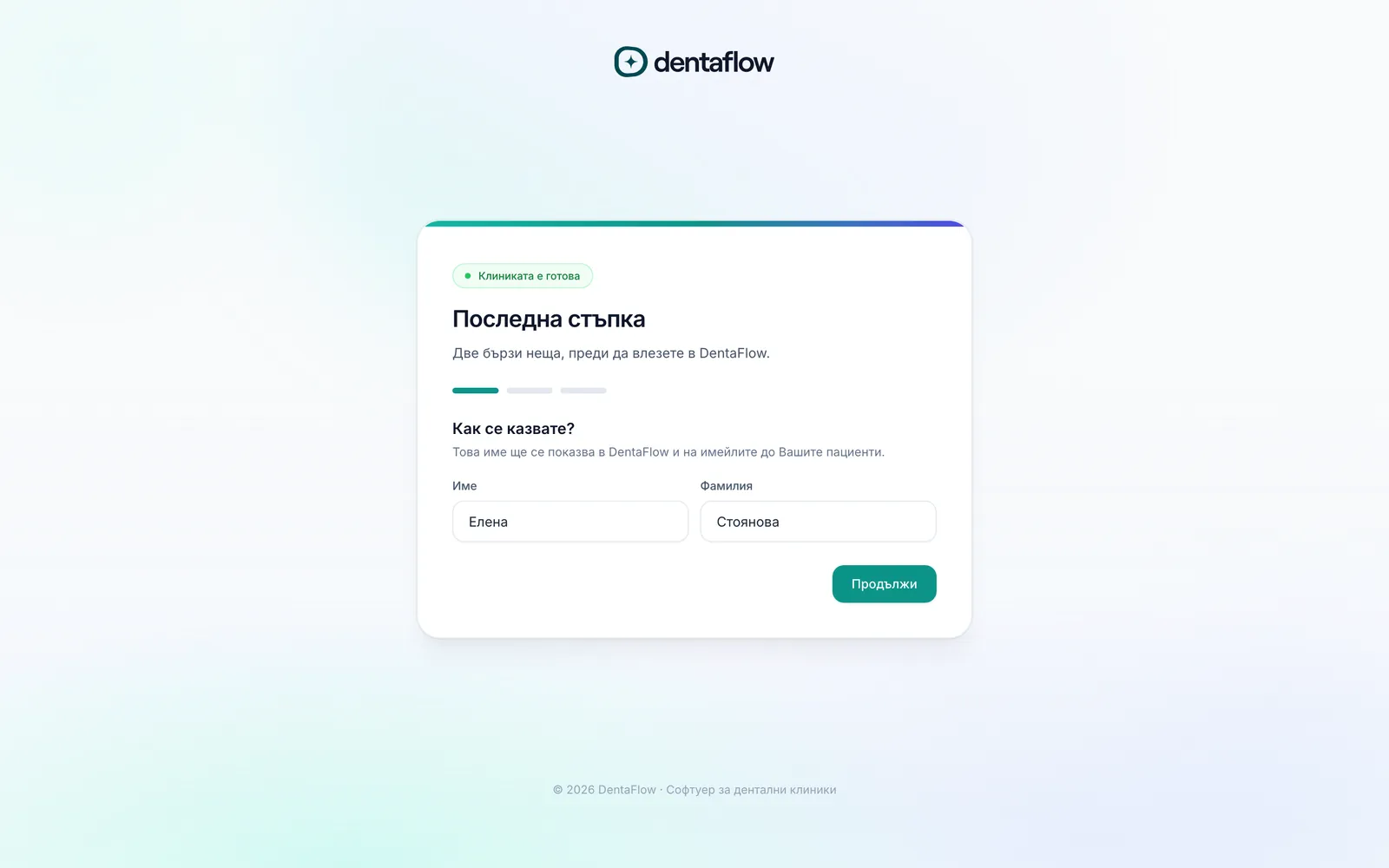
- Step 1 — enter First name (Име) and Last name (Фамилия), click Continue (Продължи).
- Step 2 — optionally set a New password (min. 8 characters) („Нова парола (мин. 8 символа)“) and repeat it in Confirm password („Повторете паролата“) so future sign-ins don’t require a fresh magic link. Leave both fields blank to skip this step entirely.
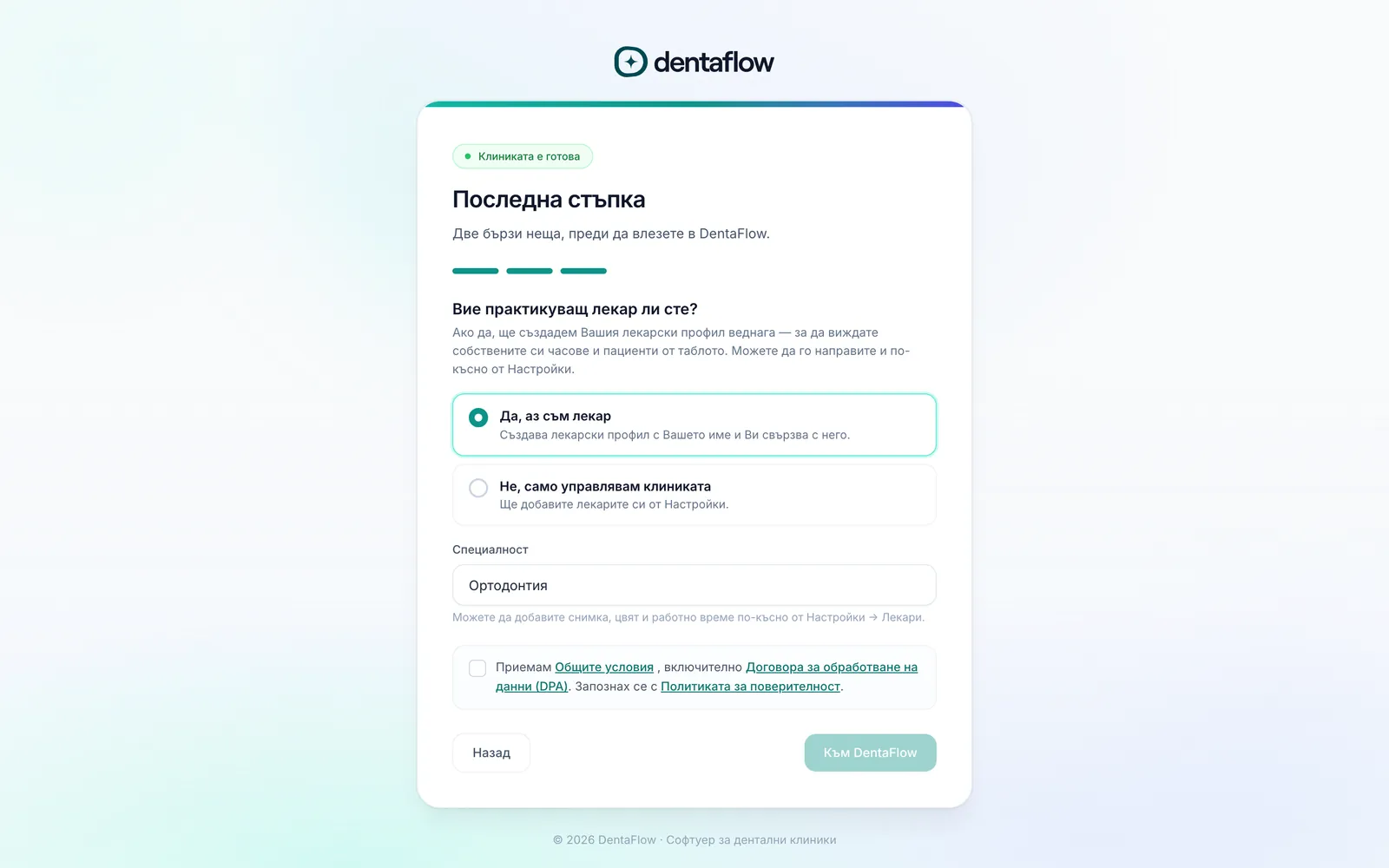
- Step 3 — answer “Вие практикуващ лекар ли сте?” (Are you a practicing doctor?): choosing “Да, аз съм лекар” (Yes, I’m a doctor) creates a linked doctor profile and asks for a Specialty (Специалност) (defaults to “Дентална медицина”, refinable later under Settings → Doctors & staff); choosing “Не, само управлявам клиниката” (No, I only manage the clinic) skips it.
- Tick the required checkbox (“I accept the Terms of Service, including the Data Processing Agreement (DPA). I have read the Privacy Policy” — „Приемам Общите условия…“), then click Go to DentaFlow („Към DentaFlow“) — you land on the dashboard with a one-time welcome toast. Back („Назад“) returns to the previous step.
If something goes wrong
- If provisioning takes longer than 60 seconds, a timeout screen offers Try again (Опитай отново) or Contact us (Свържи се с нас) (a mailto link to support) instead of leaving you on a spinner.
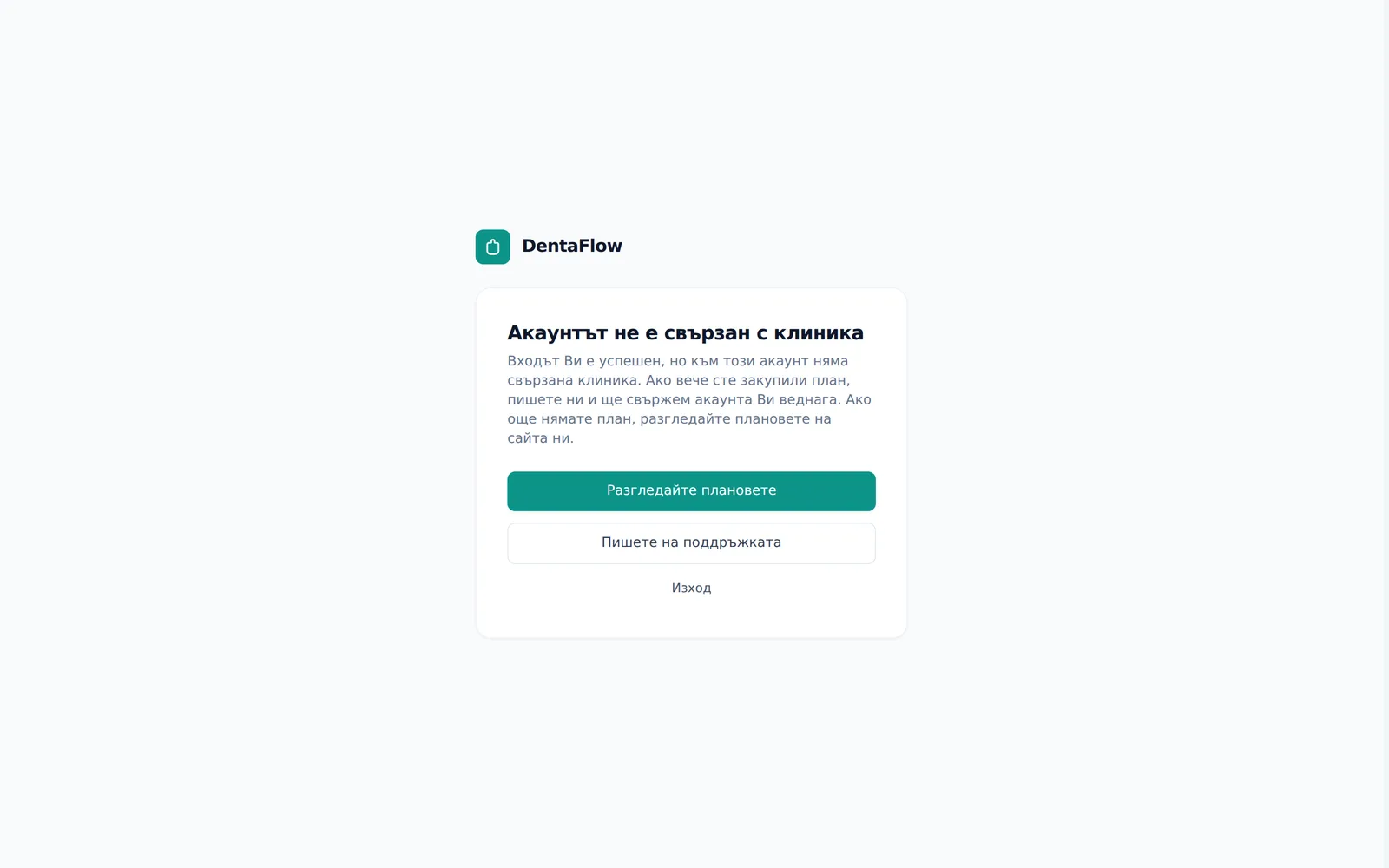
- If you’re signed in but have no clinic linked (a payment that hasn’t been processed yet, or simply no purchase), you land on
/onboarding— the screen is titled Account not linked to a clinic („Акаунтът не е свързан с клиника“) and offers only View plans („Разгледайте плановете“, back to the marketing site), Contact support („Пишете на поддръжката“) and Sign out („Изход“); there’s no way to create a clinic from inside the app.
Frequently asked questions
Can I create a clinic without paying? No. The function that used to let a signed-in user self-create a clinic from inside the app has been deliberately removed — clinics are only ever created by the system after a real Stripe payment.
Do I need a password? It’s optional. Skipping that step just means future sign-ins go through a magic link or one-time code instead of a password.
What does “Are you a practicing doctor?” actually do? Answering yes creates a linked doctor profile with the default specialty “Дентална медицина” (Dental medicine) — you can refine it later under Settings → Doctors & staff.
Does everyone on the team go through this?
No — only the original paying Admin sees this flow. Invited colleagues accept an invite through a different link (/accept-invite/:token) — see Inviting your team.
What should I do if it’s taking more than a minute? Use the “Try again” button on the timeout screen, or reach out at support@dentaflow.bg if the problem continues.