Invoice settings: numbering & VAT
This guide shows how to set the invoice number and what the other fields do (payment terms, VAT, footer line, IBAN) — once for the whole clinic, instead of on every single invoice. The section is part of the Patient Invoices (Фактури в портала) module (Settings → Modules; on by default). It complements the Invoices article. The app screenshots show the Bulgarian interface; every label below gives the Bulgarian original in parentheses.
At a glance
- All invoice settings are set once, in Settings → Finance → Invoices (Настройки → Финанси → Фактури), not per invoice. The tab is visible to Front Desk too, but only an Admin can save the settings.
- An invoice number is ten digits: the first is the invoice book (кочан) (0, 1 or 2), the other nine are the running number. In the Numbering (Номериране) card you pick the book and set the Next running number (Следващ пореден номер).
- Payment due (days) (Срок за плащане (дни)) sets each invoice’s Due by (Платима до) date when it is issued: the date is on the print and in the invoice email, and the payment reminder counts from it.
- Default VAT (%) (Стандартен ДДС (%)), VAT-inclusive pricing (Цените в каталога включват ДДС) and Footer line (Долен ред) are stored but not applied to the invoice yet: it has no VAT line, and the footer on the print is fixed text.
- Include bank details (IBAN) (Включи банкови данни (IBAN)) controls whether the IBAN shows in the patient portal and with instalments; the printed invoice shows the clinic’s IBAN whenever one is entered in the profile.
- Which currencies and payer options are available when creating an invoice depends on the clinic’s general settings and enabled modules.
Setting up numbering
An invoice number is ten digits. The first is the invoice book, the other nine are the running number, padded with zeros: book 0 and running number 1024 give № 0000001024.
- Open Settings → Finance → Invoices (Настройки → Финанси → Фактури). If the Patient Invoices module is off but Instalment plans is on, the tab is called Instalments (Вноски) and shows only the instalment settings.
- In the Numbering (Номериране) card, pick the Invoice book (Кочан): 0, 1 or 2. The default is 0. The book changes when your accountant opens a new group of numbers.
- In Next running number (Следващ пореден номер), enter the number the next invoice should continue from: a whole number from 1 to 999 999 999. Set it when the clinic starts issuing invoices with DentaFlow, to continue its current numbering. After that it goes up by one by itself with every issued invoice.
- Check the line The next invoice will be issued as № … (Следващата фактура ще бъде издадена с № …) under the fields: it shows the full number. Below it, Last number issued in this book (Последно издаден номер в този кочан) shows how far the numbering has got.
Changes are saved by themselves; there is no save button.
The number is given when you click Issue invoice (Издай фактура); a draft has no number. The same number is never issued twice in a clinic. If you enter a running number that is already issued in the book, a warning appears under the fields (”№ … is already issued in this book. The next invoice will get № …”) and the next invoice gets the number after the last one issued.
Changing the book. A new book starts from 1. Going back to an earlier book continues where it stopped. When a book has no numbers left (after № 999 999 999), choose the next one.
Older numbers. Invoices issued with a number in the earlier form (for example INV-01030) keep their number. They are not counted in any book.
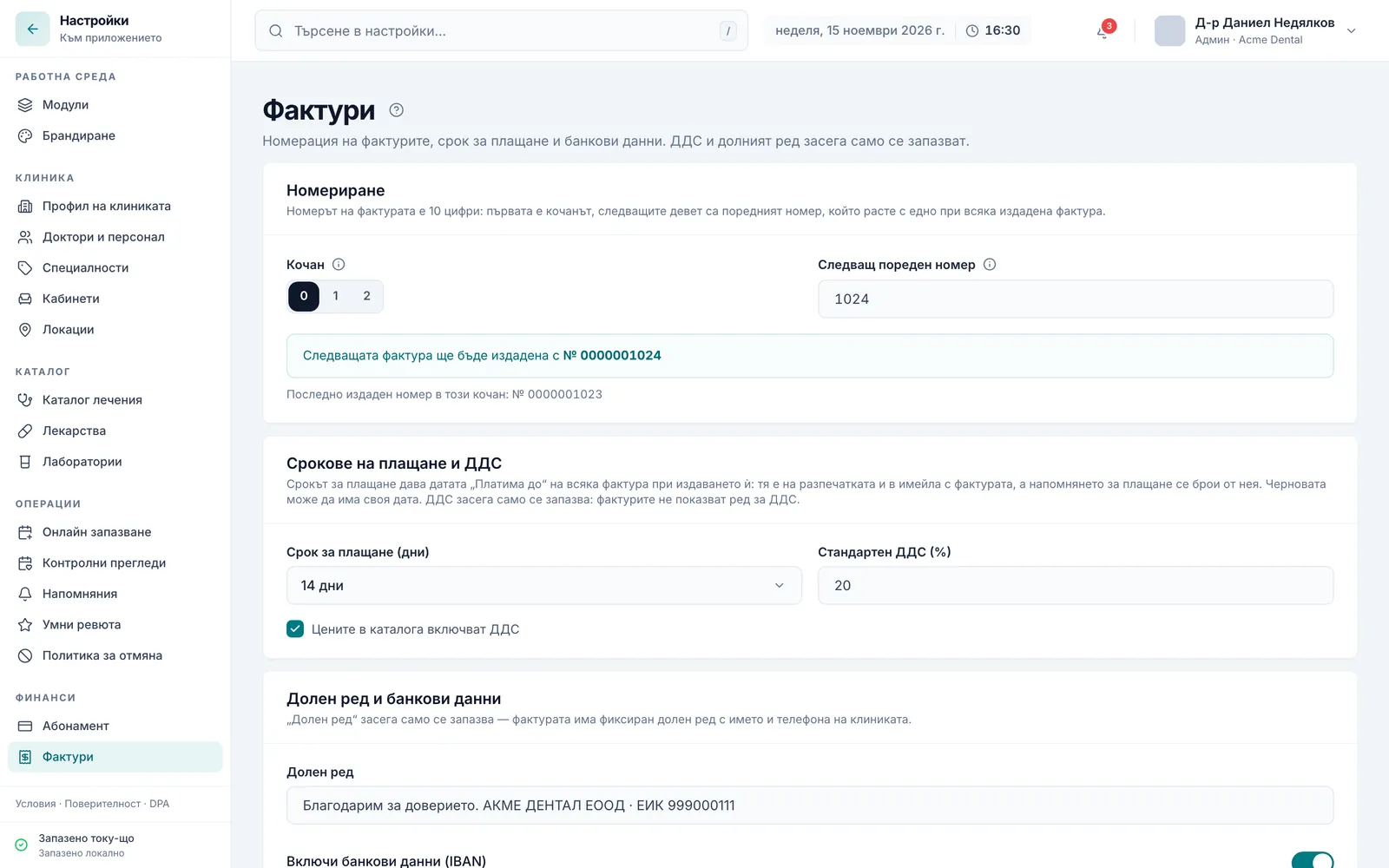
Payment terms, VAT, footer line and IBAN
Payment due (days) (Срок за плащане (дни)) sets the Due by (Платима до) date of every invoice when it is issued. The choices are “Due immediately” (Дължимо незабавно), 7, 14, 30 or 60 days. The date is printed on the invoice and stated in the invoice-issued email, and the payment reminder counts from it. A draft can have its own date: set it in the Due by (Платима до) field on the invoice itself; if the field is left empty, the term from the settings applies.
The fields Default VAT (%) (Стандартен ДДС (%)), VAT-inclusive pricing (Цените в каталога включват ДДС) and Footer line (Долен ред) are saved for the clinic, but the app does not use them on invoices yet: line amounts are edited in the draft itself, the invoice has no separate VAT line, and the footer in the print layout is fixed text (“Благодарим, че избрахте …” plus the clinic’s phone). If your invoices need a specific VAT note, check with your accountant how to add it.
Include bank details (IBAN) (Включи банкови данни (IBAN)) decides whether the IBAN is shown in the patient portal (the invoices page and the instalment payment details) and in instalment reminders. The IBAN itself is entered in the clinic profile, under Business & legal („Бизнес и юридически данни“). The printed invoice shows the clinic’s IBAN whenever one is entered.
Currency and payer split
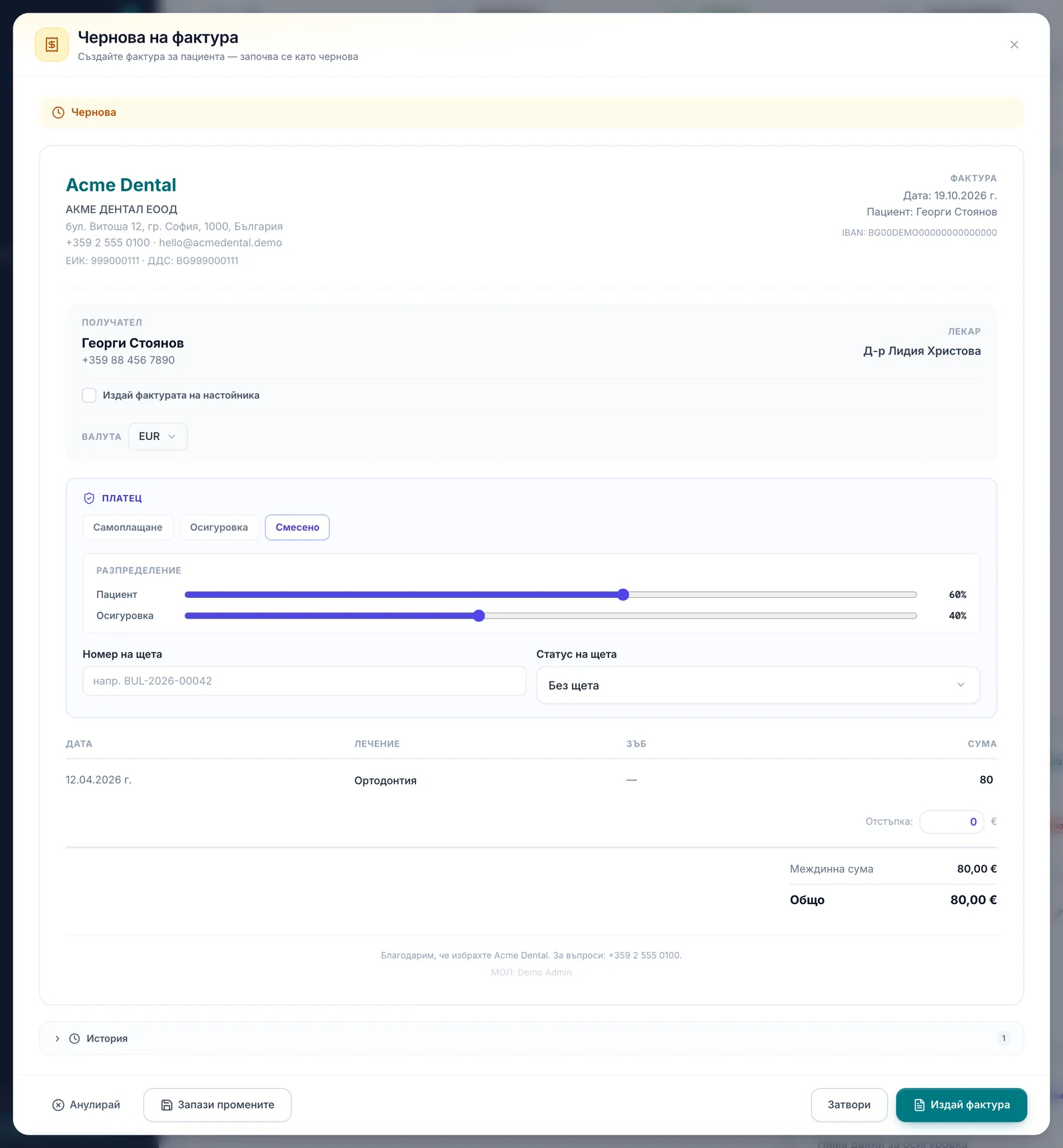
Which currencies appear in the Currency (Валута) dropdown when creating a draft invoice depends on the clinic’s enabled currencies, set in the clinic profile. The Payer (Платец) option (Self-pay / Insurance / Mixed) only appears when the Private Health Insurance (Частни здравни осигуровки) module is on (Settings → Modules; off by default); the NHIF option is added only if NHIF is enabled for the clinic.
Frequently asked questions
What is an invoice book, and which one should I pick? The invoice book is the first digit of the number. It splits the numbers into three separate series: 0, 1 and 2. The default is 0. It changes when your accountant opens a new group of numbers; if you are not sure which one to pick, ask your accountant.
If I change the next running number, does it affect already-issued invoices? No. Numbering only applies going forward — already-issued invoices keep the number they were issued with.
Can I move the numbering back? Not below the last number issued in the book. The app shows a warning and the next invoice gets the number after it.
Why don’t I see a Payer field when creating an invoice? Because the Private Health Insurance module isn’t enabled for the clinic (Settings → Modules). The NHIF option additionally needs NHIF to be enabled. See NHIF: contract setup.
Can I set a different VAT rate on a single invoice? No. The “Default VAT (%)” field is not applied to invoices yet; line amounts are edited in the draft itself.
Where do the currency options on an invoice come from? From the clinic’s enabled currencies, set in its profile. See Clinic profile: details, language & currency.
Can Front Desk access these settings? Front Desk can open the tab, but only an Admin can save the settings — they are stored in the clinic’s data, which only an Admin can edit.