NHIF: contract setup
This guide shows how to set up the clinic’s NHIS details and NHIF contract in DentaFlow — from the shared NHIS settings, through turning on NHIF as a payer and each doctor’s UIN, to patients’ insurance details. Setup is one-time and only an Admin can do it. The app screenshots show the Bulgarian interface; every label below gives the Bulgarian original in parentheses.
At a glance
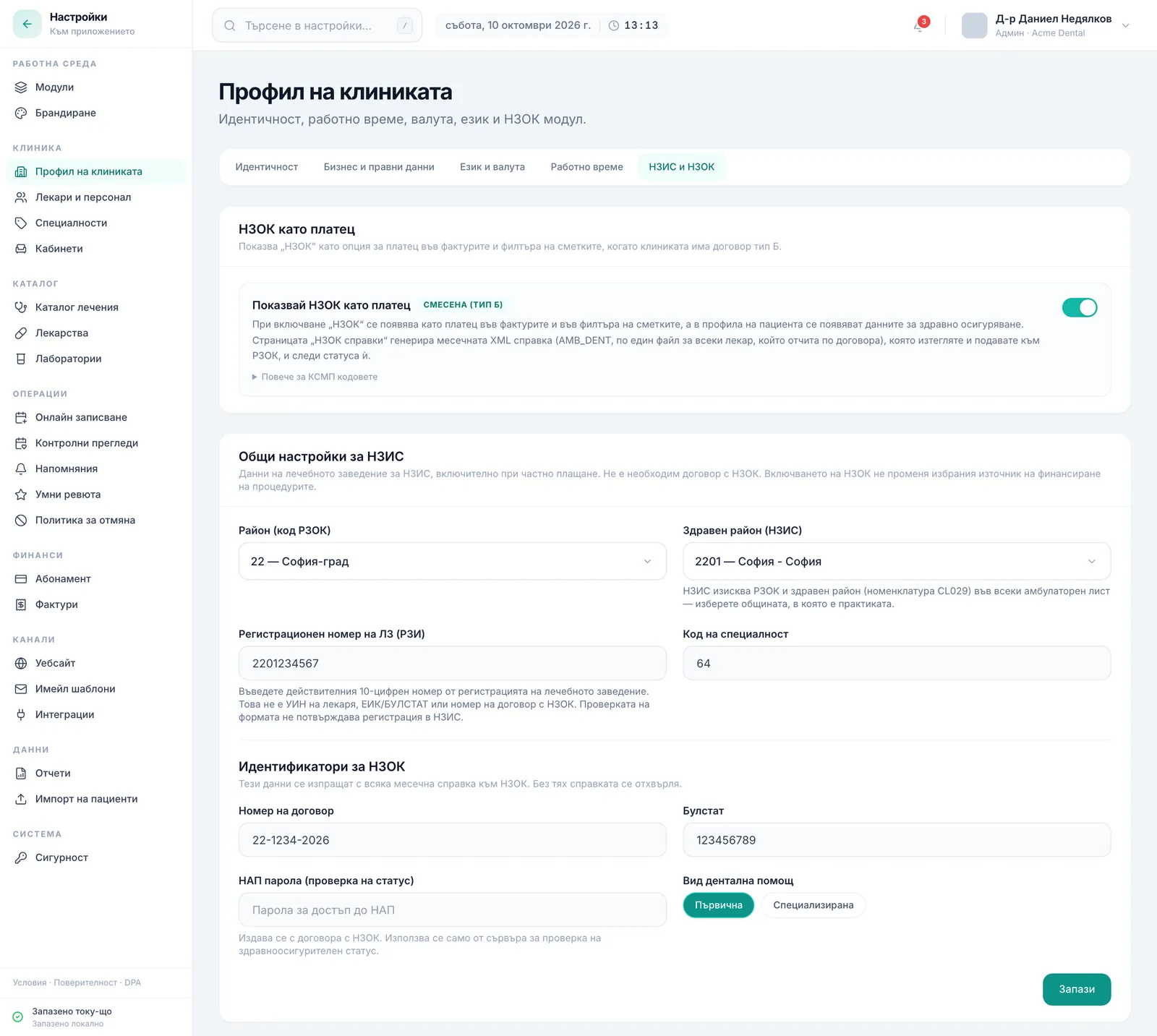
- Everything lives under Settings → Clinic profile → NHIS & NHIF (Настройки → Профил на клиниката → НЗИС и НЗОК).
- The Shared NHIS settings (Общи настройки за НЗИС) section — Region (RHIF code) (Район (код РЗОК)), Health district (NHIS) (Здравен район (НЗИС)), Clinic registration number (RZI) (Регистрационен номер на ЛЗ (РЗИ)) (10 digits) and Specialty code (Код на специалност) — shows even with NHIF off. Fill it in even as a private clinic with no NHIF contract.
- Turn on Show НЗОК as a payer (Показвай НЗОК като платец) if you have a contract — this unlocks NHIF as a payer, the claims page and the NHIF identifiers (Идентификатори за НЗОК) section (contract number, BULSTAT, NRA password, dental service type).
- For every doctor, fill in the UIN (УИН) (9–10 digits, from the Bulgarian Dental Association, БЗС) on their profile — it’s mandatory for all doctors, not just those with NHIF activity. Tick Reports under the clinic’s NHIF contract (Отчита по договора на клиниката с НЗОК) for every dentist who works under the contract — the monthly claim holds a separate file for each of them.
- For NHIF-insured patients, enter their RHIF of residence, health region and health-insurance booklet number on their profile.
- Procedure codes (КСМП) in the services catalog are mandatory for every clinic, regardless of NHIF contract status.
Step 1: Shared NHIS settings (every clinic)
- Open Settings (Настройки) from the profile menu at the top right.
- Go to Clinic profile → NHIS & NHIF (Профил на клиниката → НЗИС и НЗОК).
- In the Shared NHIS settings (Общи настройки за НЗИС) section, pick the Region (RHIF code) (Район (код РЗОК)), then the Health district (NHIS) (Здравен район (НЗИС)) — the municipality where the practice is. NHIS requires the RHIF and health district (CL029 code list) on every ambulatory sheet; without a health district, submission stops before signing and points you here.
- Enter the Clinic registration number (RZI) (Регистрационен номер на ЛЗ (РЗИ)) — the actual 10-digit number from the clinic’s registration as a medical establishment. It isn’t the doctor’s UIN, the company’s EIK/BULSTAT or an NHIF contract number. Don’t pad it with zeros or use another clinic’s number. The format check doesn’t confirm that the clinic is registered with NHIS.
- Check the Specialty code (Код на специалност) (64 by default) and click Save (Запази).
This data is used for NHIS documents — patient-funded care included — which is why the section shows even when NHIF is off.
Step 2: Turn on NHIF as a payer
This step is only for clinics with an NHIF contract.
- On the same screen, turn on the Show НЗОК as a payer (Показвай НЗОК като платец) switch. This adds NHIF as a payer option on invoices and unlocks the claims page. Next to the switch you see a label — “Mixed (Type B)” (Смесена (тип Б)). That label just follows the switch automatically, it isn’t a separate choice; an off switch shows “Private only (Type A)” (Само частна (тип А)).
- The NHIF identifiers (Идентификатори за НЗОК) section appears in the card. Fill in Contract number (Номер на договор), Bulstat (Булстат) and NRA password (status checks) (НАП парола (проверка на статус)) (used server-side only, to check health-insurance status).
- Choose the Dental service type (Вид дентална помощ) — primary or specialized.
- Click Save (Запази). This data goes with every monthly NHIF claim — without it, the claim is rejected.
Step 3: Each doctor’s UIN
- Open Settings → Doctors & Staff (Настройки → Лекари и персонал) (or the Doctors (Лекари) page and its Manage Staff (Управление на персонала) button).
- Open the doctor’s profile for editing.
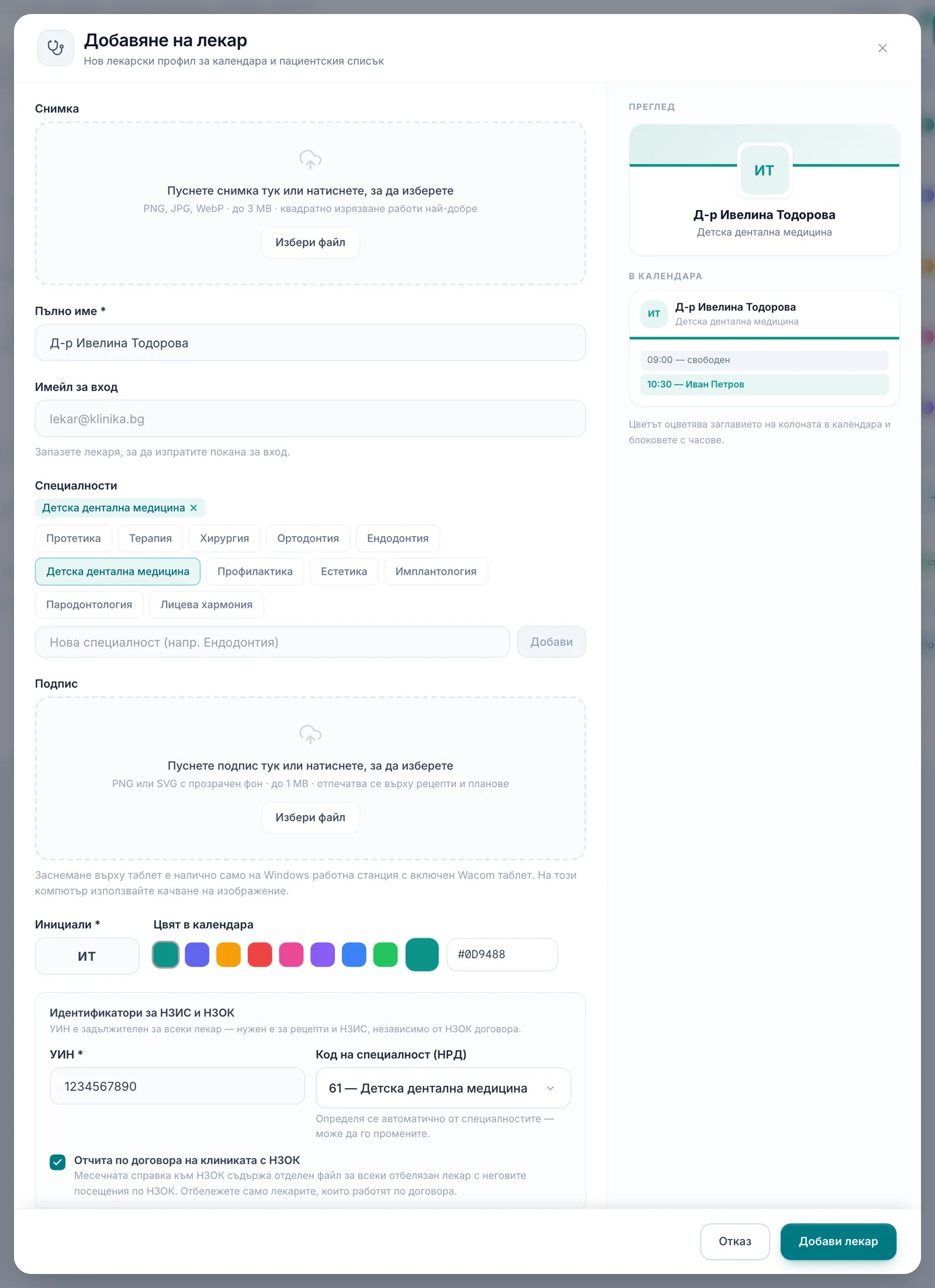
- In the NHIS & NHIF identifiers (Идентификатори за НЗИС и НЗОК) section, fill in the UIN (УИН) — 9–10 digits from the doctor’s registration with the Bulgarian Dental Association (БЗС). The UIN is mandatory for every doctor — it’s needed for prescriptions and NHIS documents whether or not the doctor works under NHIF — and the form won’t save without a valid one.
- Specialty code (NRD) (Код на специалност (НРД)) is set automatically from the doctor’s specialties — you can change it.
- When NHIF is on as a payer, there’s a Reports under the clinic’s NHIF contract (Отчита по договора на клиниката с НЗОК) tick under these fields. Tick it for every dentist who works under the contract and untick it for the rest. The monthly claim holds a separate file for each ticked dentist with their NHIF visits. A new doctor gets the tick automatically only if nobody else has it yet — so check it for every doctor.
- Save. Repeat for every doctor at the clinic.
Step 4: The patient’s NHIF data
- Open the patient’s profile (or create it from Patients → Add patient (Пациенти → Добави пациент)).
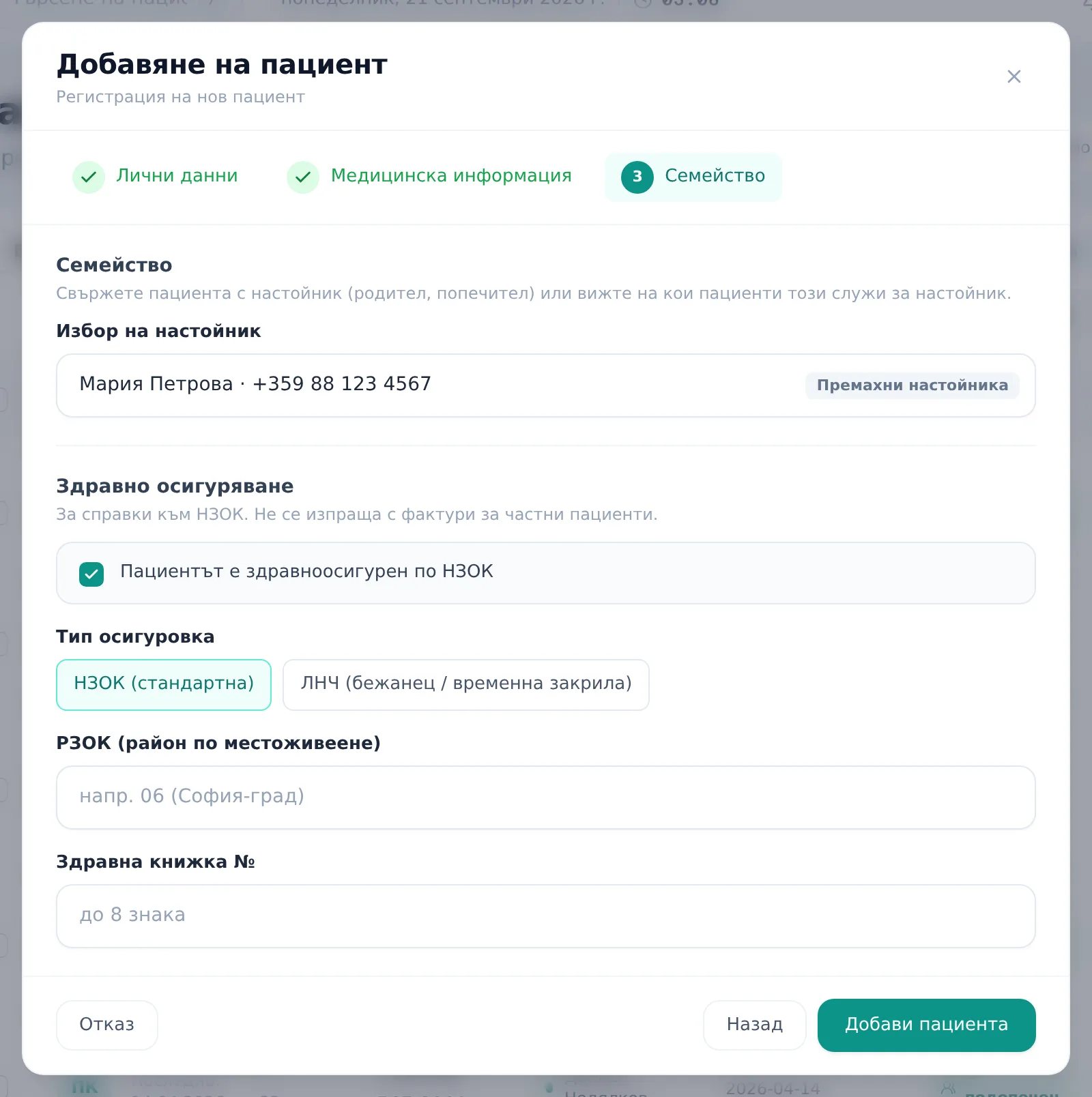
- In the wizard’s Family (Семейство) step, an Insurance (Осигуровка) sub-step appears once the NHIF/private-insurance modules are on. On an existing patient’s profile the data is in the Health insurance (Здравно осигуряване) section.
- Fill in RHIF of residence (РЗОК по местоживеене), Health region (of residence) (Здравен район (по местоживеене)) (a 2-digit code from the national health map — not the RHIF) and Health book No. (Здравна книжка №) (up to 8 characters).
- Save the profile.
If an NHIF patient is missing data, the claims page flags it before you generate — see Monthly NHIF claims & XML.
Step 5: Check the codes in your services catalog
- Open Services (Услуги) (or Settings → Catalog → Treatment catalog).
- For every service, check whether it has a Procedure code (Процедурен код, КСМП) set — mandatory for every clinic under Ordinance №42, regardless of NHIF status.
- A service without a code shows an orange “No code” (Без код) badge. Add the code from the edit menu.
Full catalog setup — pricing and materials included — is covered in Services & price list.
Frequently asked questions
Which role can set up the NHIF contract? Admin only. The clinic’s contract data saves through an Admin-only settings path — any other role doesn’t see these fields in the menu at all.
We’re a private clinic with no NHIF contract. Do we need to fill in anything here? Yes — the Shared NHIS settings section (region, clinic registration number, specialty code). NHIS documents need it whoever pays. Leave the Show НЗОК as a payer switch off.
The claim says “Fill in “Practice code”…” — where is that field? It’s the Clinic registration number (RZI) (Регистрационен номер на ЛЗ (РЗИ)) field under Shared NHIS settings.
Do I need to enter insurance data for a patient who only pays cash? No. The RHIF of residence, health region and health-insurance booklet fields are only needed for patients an NHIF claim is filed for. Leave them blank for private patients.
What’s the difference between Type A and Type B? Type A is a fully private clinic with no NHIF contract. Type B is a mixed practice — it sees patients both under NHIF and privately. The label isn’t a setting of its own — it just reflects whether “Show НЗОК as a payer” is turned on.
My service shows a grey “No NHIS code” badge instead of “No code” — what does that mean? The service has a КСМП procedure code, but it isn’t an NHIS activity code (CL110). In the NHIS nomenclatures the activity codes are the dental КСМП codes themselves, so for a service with one of those DentaFlow fills the code in on its own. The grey badge (a grey icon next to the name in Table view) means this service’s code isn’t among them. Pick the code under NHIS activity code (Код на дейност НЗИС (CL110)) in the service editor — otherwise Save & submit to NHIS (Запиши и подай към НЗИС) stops with “Procedure N has no NHIS code (CL110) — pick a code before submitting” at every visit.
Does this setup submit anything to NHIF automatically? No. This setup only prepares the data. Generating the monthly claim and uploading it to the NHIF portal is a separate step — see Monthly NHIF claims & XML.