Security: 2FA & IP restrictions
This guide covers DentaFlow’s three security controls: mandatory two-factor authentication (2FA) for every login, a clinic-wide IP allowlist that’s actually enforced, and how long audit-log entries are kept. It’s relevant to everyone on the team — 2FA is for your own account, while the IP allowlist and log retention are Admin-only. The app screenshots show the Bulgarian interface; UI labels give the Bulgarian original in parentheses.
At a glance
- 2FA is mandatory for the whole team on a real (non-demo) clinic — the next sign-in redirects to the “Set up two-factor authentication” screen. There are no backup codes: if you lose your phone, email support@dentaflow.bg.
- The IP allowlist is genuinely enforced: once you save a non-empty list, every request from outside those ranges is blocked for the whole team.
- The save endpoint refuses to save a list that would lock out your own current IP — but double-check the range if you’re saving from somewhere else.
- Audit-log retention is configurable from 90 days to 5 years; anything below 90 days isn’t possible.
Setting up 2FA
If 2FA isn’t set up on your account yet, signing in opens the “Set up two-factor authentication” page with a Set up now („Настрой сега“) button (or Sign out („Излез от акаунта“)) — you can’t continue into the app until you set it up. You can also do it from Settings:
- Open Settings → System → Security (Настройки → Система → Сигурност), or go directly to Security & 2FA (Сигурност и 2FA) from the account menu. The Your 2FA („Вашата 2FA“) card carries a “Mandatory for staff” note.
- Click Set up 2FA (Настройте 2FA).
- On the Scan code („Сканирай кода“) step, scan the QR code with an authenticator app (Authy, 1Password, Google Authenticator or another TOTP app) or paste the secret key shown.
- On the Verify („Потвърди“) step, enter the 6-digit code (valid for about 30 seconds) and click Finish („Готово“). The card then reads “Enabled on {date}”.

Disable (Изключи) actually resets your 2FA: the “Reset two-factor authentication?” dialog warns that 2FA is mandatory and you’ll be asked to set up a new authenticator on your next action. Use it only when switching phones or apps; confirm with Reset („Нулирай“).
Lost phone or app. There are no backup codes. The code screen at sign-in links “Lost access to your authenticator? Email support@dentaflow.bg”. Support resets 2FA on your account and you set up a new authenticator at your next sign-in. A clinic owner can’t reset a colleague’s 2FA.
Restricting access by IP address
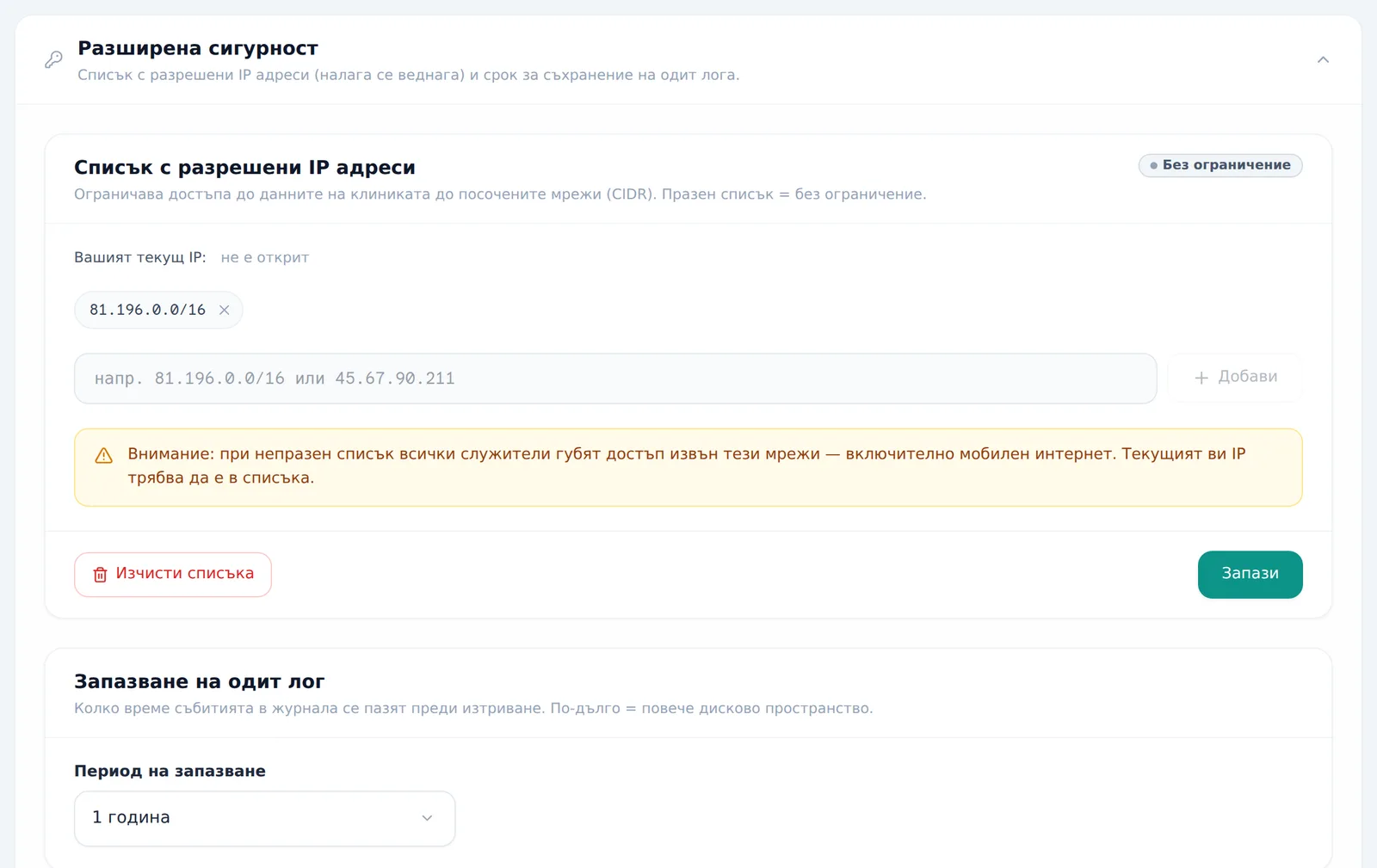
- Open the collapsible Advanced security (Разширена сигурност) section — you can see it even if you’re not Admin, but only to review it.
- Under IP allowlist (Списък с разрешени IP адреси) you see “Your current IP”. Click Add current (Добави текущия) to add it, or type an IP address or CIDR range (e.g.
81.196.0.0/16) and click Add (Добави). The badge at the top right reads “No restriction” or “Active · N networks”. - Remove an entry with the × on its chip; Clear list („Изчисти списъка“) empties the draft.
- Click Save (Запази) for it to take effect — nothing is enforced until you save (unlike the other settings, which save automatically).
Setting audit-log retention
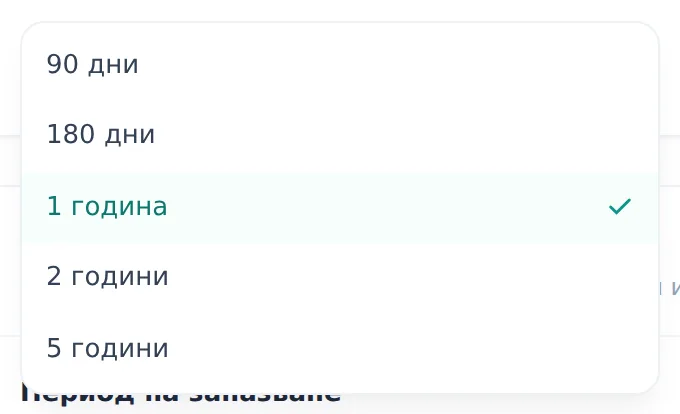
- In the same expanded section, in the Audit log retention (Запазване на одит лог) card, pick a value from the Retention (Период на запазване) dropdown: 90 days, 180 days, 1 year, 2 years or 5 years. The card only shows when the Audit log module is on. The change saves automatically.
- Entries older than the chosen window are deleted automatically every Sunday by the weekly cleanup job.
Frequently asked questions
Can a clinic turn off mandatory 2FA? No. There’s no clinic-level opt-out — every staff member on a real (non-demo) clinic is redirected to the setup screen on their next sign-in. Patients in the portal are not affected.
What does an empty IP allowlist do? Nothing — an empty list means no restriction at all. The restriction only takes effect once you save a non-empty list.
Can I lock myself out of the clinic? The save endpoint explicitly refuses to save a list that would lock out the IP you’re currently saving from — but that protection only covers the IP you’re on right now; double-check the range carefully if you’re configuring it from somewhere else or for another staff member.
Does the audit log get purged immediately after I change the retention setting? Not immediately — entries older than the chosen window are removed automatically the next time the weekly cleanup job runs (every Sunday), not at the moment you save. The floor is 90 days even if a lower value is ever saved.
Do Front Desk and Doctor see the security settings? 2FA for their own account — yes, for every role. The IP allowlist and audit retention are visible to everyone, but read-only — only Admin can edit them.