Your public booking page
The public booking page is a no-login link the clinic shares on its own site, Google Business profile, or social media. This guide covers how to share it, what to configure before publishing it, and what it looks like to a patient — through the classic step form or the AI booking assistant. It applies to Admin and Front Desk. The screenshots below show the Bulgarian interface; every label gives the Bulgarian original in parentheses.
At a glance
- The link is
app.dentaflow.bg/book/:clinicSlug— no login required, found under Settings → Website (Уебсайт). - Configure what’s bookable under Settings → Online booking (Онлайн записване): a master switch, lead time, horizon, and which services are publicly bookable.
- Every submission — from the form or the AI chat — lands “pending” in the Requests tab; nothing is ever auto-confirmed.
- For every new request the clinic gets an email at the address in Settings → Clinic Profile, if one is filled in.
- If there are no free slots on the picked date and the Waitlist module is on, the patient can add themselves to the waitlist.
- By default the page shows the form. The AI chat is off until an admin turns it on under Settings → Modules (Модули) → AI booking chat (AI чат за записване); when it is on, it opens first and the patient can switch to the form at any time.
- Submissions are rate-limited and spam-protected (hCaptcha).
Sharing the booking link
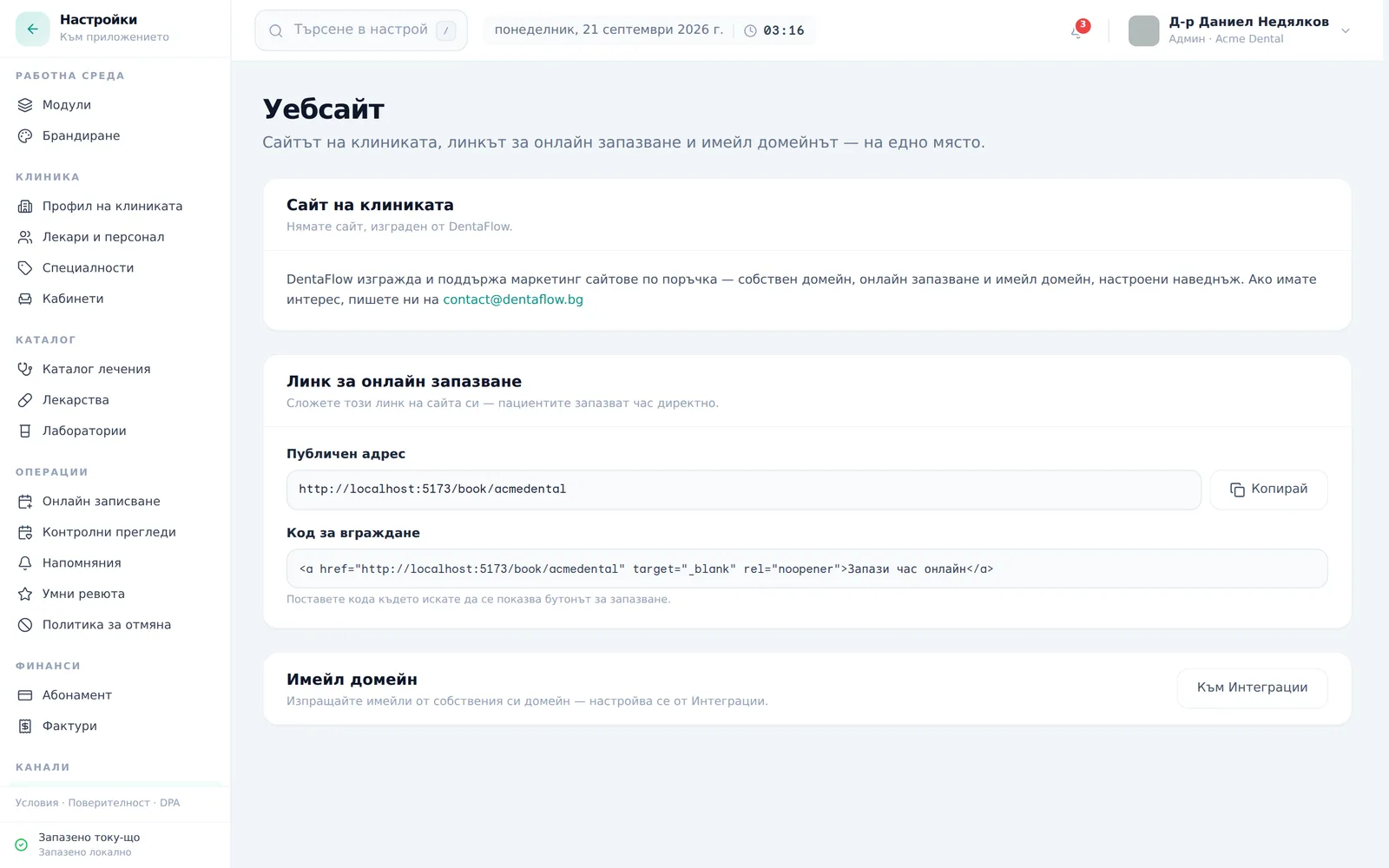
- Go to Settings → Website (Настройки → Уебсайт).
- Click Copy (Копирай) next to the Public address (Публичен адрес) link, or copy the ready-made embed snippet for the clinic’s own site.
Configuring what’s bookable
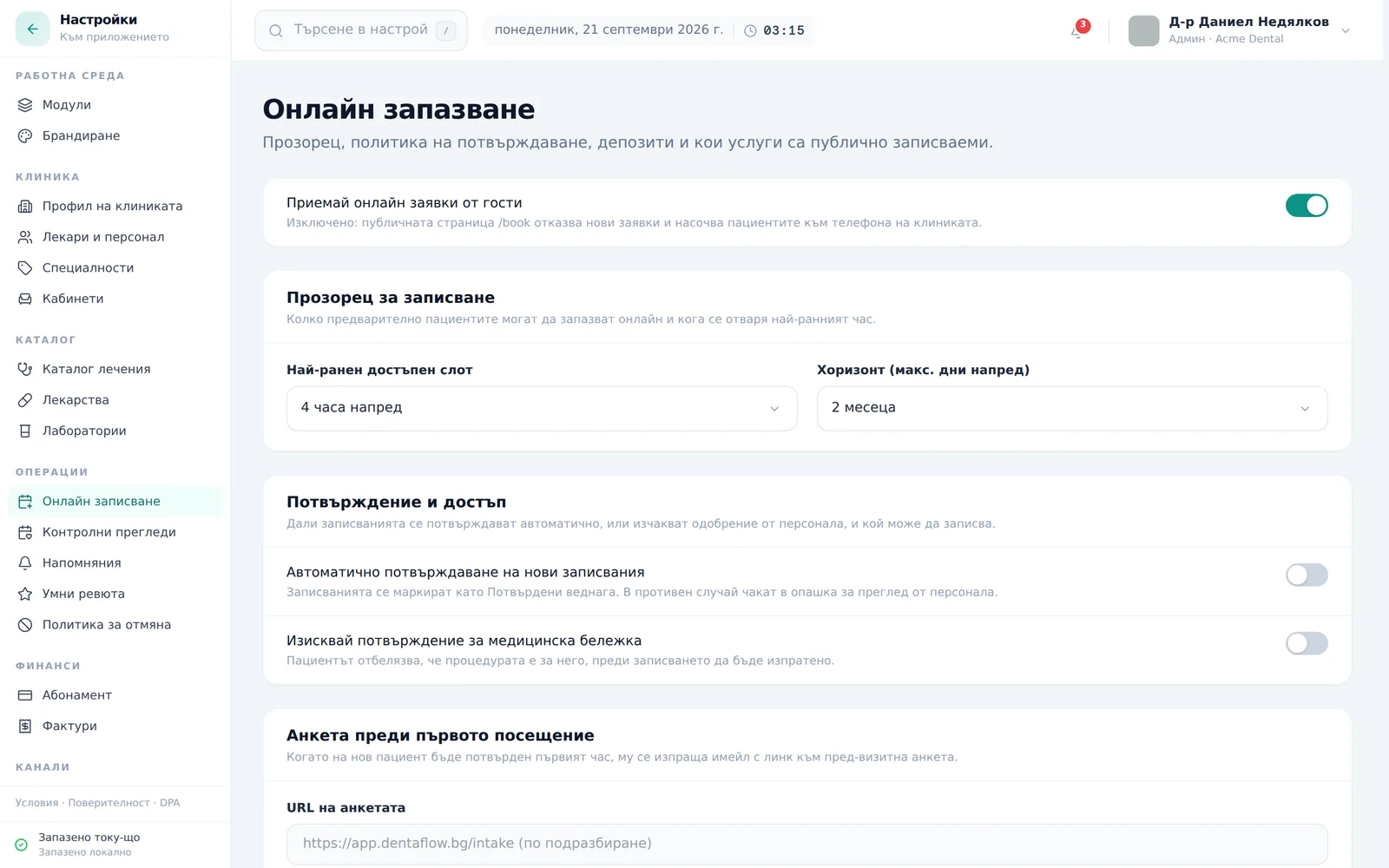
- Go to Settings → Online booking (Настройки → Онлайн записване).
- Toggle Accept online guest bookings (Приемай онлайн заявки от гости) — the master switch for the whole page. When it’s off, the page shows “Online Booking Unavailable” (Онлайн запазването е недостъпно) with the clinic’s phone number.
- Set Earliest a slot opens (Най-ранен достъпен слот) (from 1 hour to 2 days ahead) and Horizon (max days ahead) (Хоризонт (макс. дни напред)) (from 2 weeks to 6 months; the default is 2 months).
- Under Bookable services (Услуги за записване) you see the services that can be booked online — check-ups, prophylaxis, diagnostics, cosmetic and “Other”; other categories are marked “Not bookable online” (Не се записва онлайн). Untick any service that shouldn’t be publicly bookable — it stays in the internal catalog, just hidden here.
- Optionally enable Require medical note acknowledgement (Изисквай потвърждение за медицинска бележка) — the patient must tick that they have read the preparation instructions before the request is sent. Separately, under Pre-visit intake form (Анкета преди първото посещение) you can put your own survey link; when a new patient’s first appointment is confirmed they get an email with it (empty = the standard DentaFlow form).
The Deposit policy (Политика за депозит) section on the same page is marked “Coming soon” (Очаквайте скоро) — the settings are saved, but the page does not collect a deposit automatically (see Deposit links).
How a patient books through the form
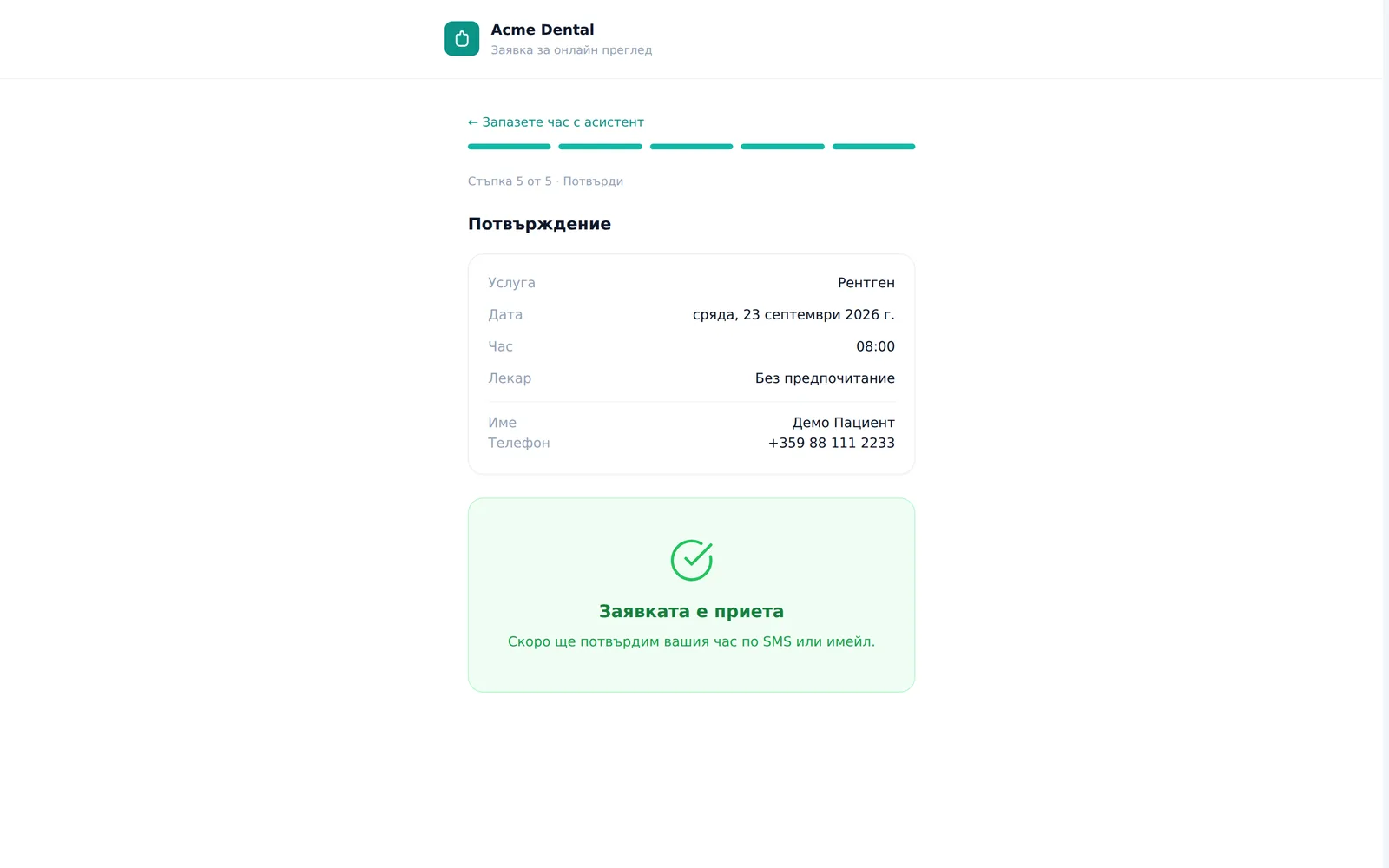
A progress bar stays pinned at the top — “Step X of 5” with the step name (Service, Date & Time, Doctor, Contact, Confirm) — so it doesn’t scroll away on a long step.
- The patient opens the link and picks a service card (name, duration, price).
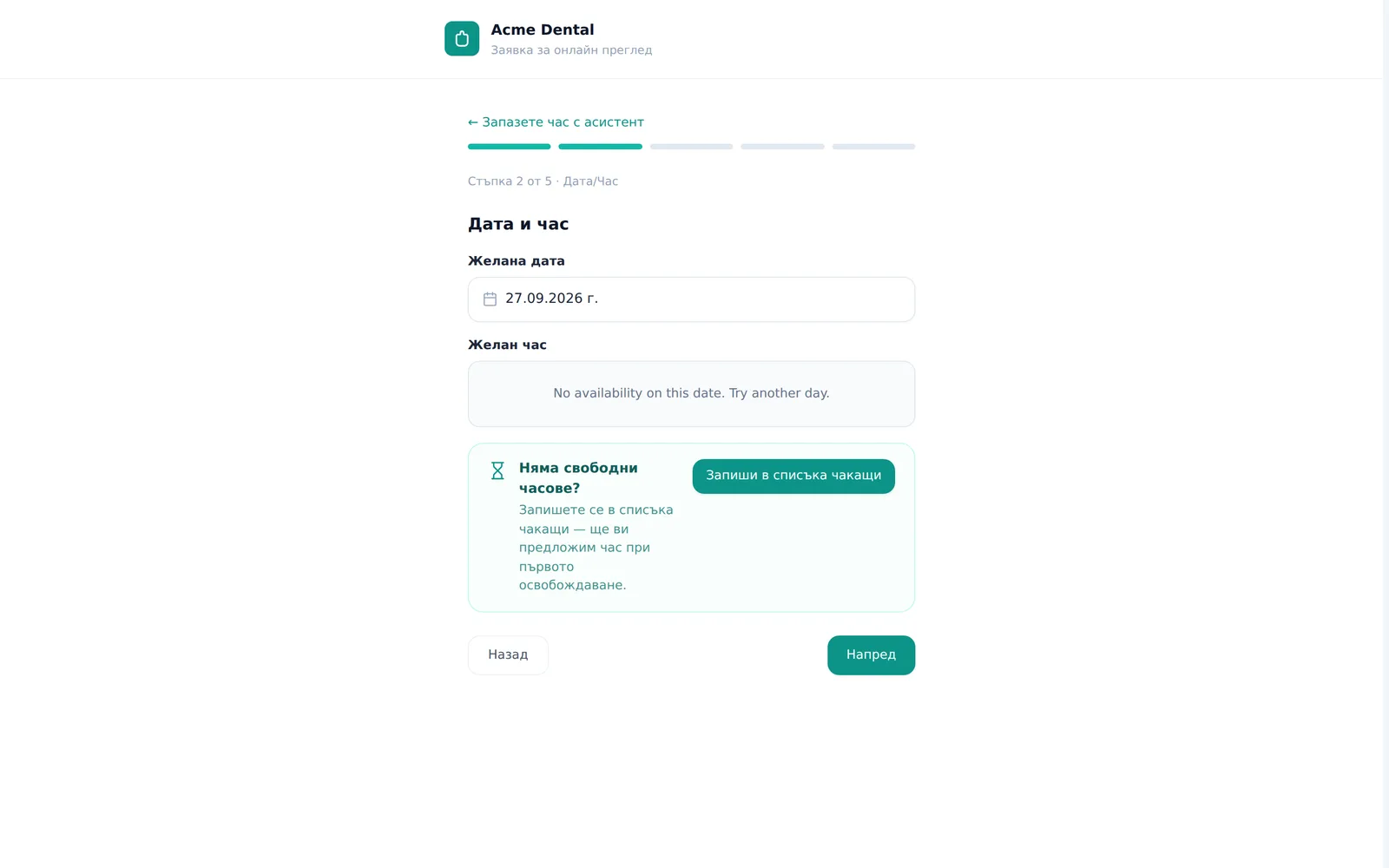
- They pick a date, then a free time slot. If the clinic is closed that day the form says so; if no slots show, they can pick another date or join the waitlist (see below).
- Optionally they pick a doctor, or leave No preference (Без предпочитание). A doctor who isn’t free at the chosen time is greyed out as “Not available” (Не е свободен).
- They enter contact details (first name, last name, phone, email), country of residence and preferred language. Ticking “Booking for someone else (e.g. a child)? (Записвате час за друг човек (напр. дете)?)” splits the step into two cards — Parent / guardian contact (Данни на родителя / настойника) and Patient details (Данни на пациента) — so the two sets of names can’t be mixed up.
- They review the summary and tick any required checkboxes (medical-note acknowledgment if enabled, spam check). A patient from another country sees a note that they will get a deposit link.
- They click Confirm (Потвърди) — the success screen reads “Booking Received” (Заявката е приета), with “We’ll email you at … as soon as the clinic reviews your request.” if they left an email, or “The clinic will contact you to confirm your appointment.” if not.
Joining the waitlist from the page
When the Waitlist module is on and the picked date has no free slots (not when the clinic is closed), the form shows “No slots that work for you?” (Няма свободни часове?) with a join button.
- The patient clicks Join the waitlist (Запиши в списъка чакащи).
- They enter first name, last name, phone, country and, optionally, email, then the spam check.
- They click Join the waitlist (Запиши в списъка чакащи) again and see “You are on the waitlist. We will reach out the moment a slot opens.”
The entry appears in the Waitlist for the picked date through 30 days later, as a new patient record — the same as an online booking request. The patient doesn’t choose the window themselves.
The AI booking assistant (chat)
The chat appears only if an admin has switched on the AI booking chat (AI чат за записване) module under Settings → Modules (off by default). While it is off, the page shows just the form. The conversation, including name, phone and complaint, is processed by Anthropic in the USA — so turn the module on deliberately.
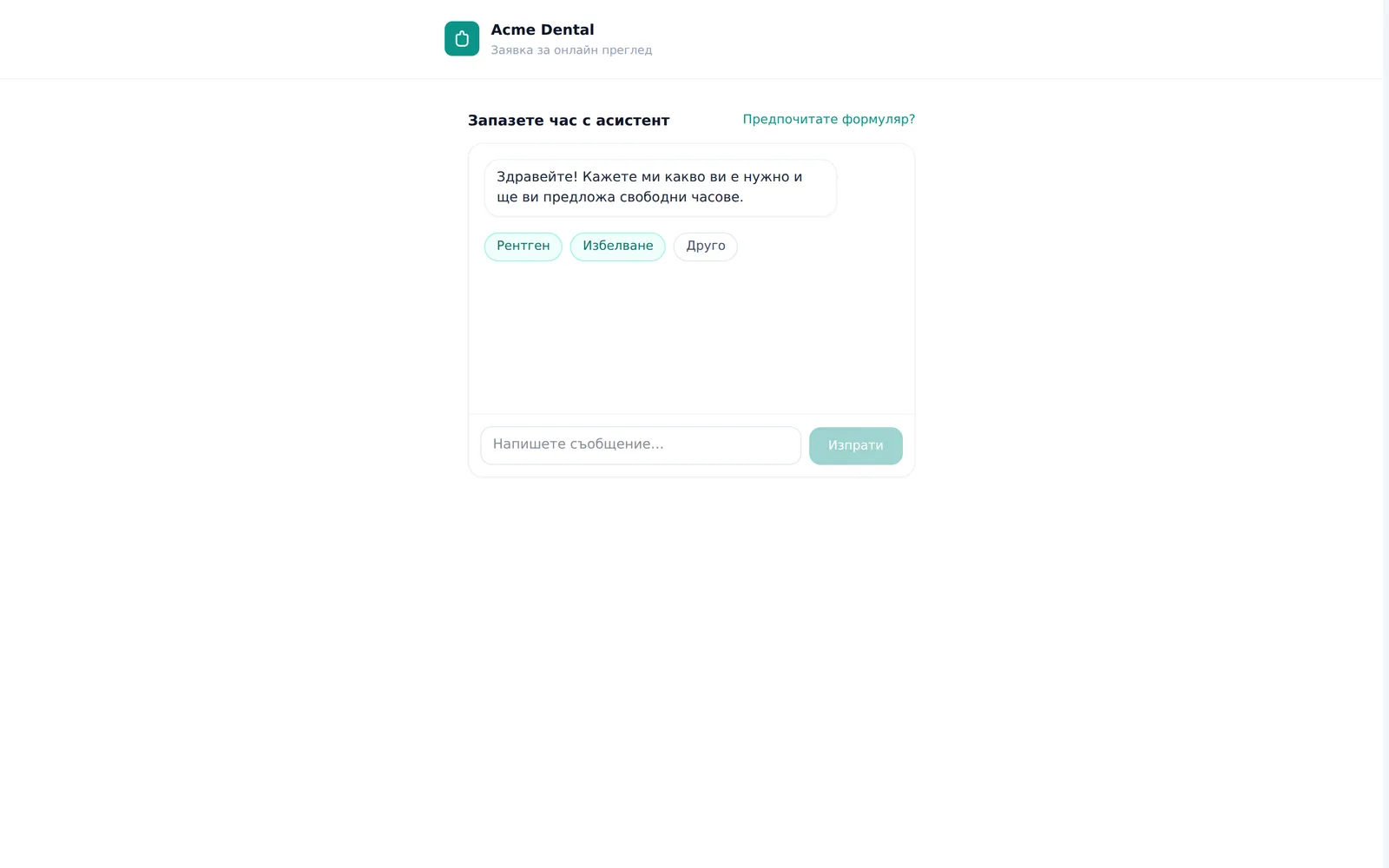
- The patient opens the link — the chat opens titled “Book with the AI assistant” (Запазете час с AI асистент), with a note that they are talking to an AI assistant (Anthropic Claude) and that the clinic team confirms the request, and a greeting (“Hi! I’m an AI assistant. Tell me what you need…”). Prefer a form? (Предпочитате формуляр?) takes them to the form.
- They tap a suggested service pill, or type a request and press Enter / Send (Изпрати).
- They complete a one-time spam check if the widget asks for it.
- They answer the assistant’s follow-up questions or tap its suggested quick-reply chips.
- They tap one of the proposed time-slot chips (e.g. “2026-09-22 · 10:00 · Д-р Иванова”) to pick it.
- The assistant confirms with a “Request received — the clinic will confirm shortly” (Заявката е приета — клиниката ще потвърди скоро) card — the same pending state as the form.
Frequently asked questions
Does a request get auto-confirmed, even with “Auto-confirm new bookings” turned on? No — every public request lands “pending” regardless of that (now-inert) setting. The clinic always confirms it from Calendar → Requests. See Online booking requests.
What does the patient see if there are no free slots on the picked date? They can pick another date or join the waitlist — see “Joining the waitlist from the page” above.
Is there a limit on how many times a patient can try to book? Yes — submissions are rate-limited (about 8 per visitor per hour) and spam-gated with hCaptcha. Rapid repeat attempts get blocked.
What does the patient see if the request doesn’t go through? “Your request wasn’t sent. Please try again or call the clinic.” If the chosen time was taken in the meantime, the form sends them back to pick another time with “That time was just taken. Please pick another one.”
Will my page show the AI chat? Only if you turned it on. The AI booking chat is off by default (Settings → Modules → AI booking chat). While it is off, patients see only the form.
What does the patient see if I switch online booking off? An “Online Booking Unavailable” page with the clinic’s name and phone number — no form and no chat.
Is there a built-in QR code for the link? No — there’s no built-in QR-code generator. You only have the copyable link and the embeddable HTML snippet.
What happens if the AI assistant is temporarily unavailable? The chat shows “The assistant is unavailable right now. Please use the form.” (Асистентът е недостъпен в момента. Моля, използвайте формуляра.) The patient switches to the classic form and fills it in from scratch — what they typed in the chat isn’t carried over.
Is a deposit collected automatically from an international patient? Not automatically. If the patient’s country isn’t Bulgaria, the form tells them they will get a deposit link, and staff get a notification (“Записване на пациент от чужбина — изпратете линк за депозит”, booking from abroad — send a deposit link). The front desk sends the link from the appointment itself — see Deposit links.