Booking an appointment online
There are two ways to book an appointment online: through the clinic’s public booking page if you don’t have a portal account yet, or straight from the patient portal once you’re signed in. Both end up the same way — a request the clinic confirms. The screenshots below show the Bulgarian interface, since that’s what the clinic’s booking pages look like; every label gives the Bulgarian original in parentheses.
At a glance
- Every online booking — public page or portal — is a request, not an instantly confirmed appointment.
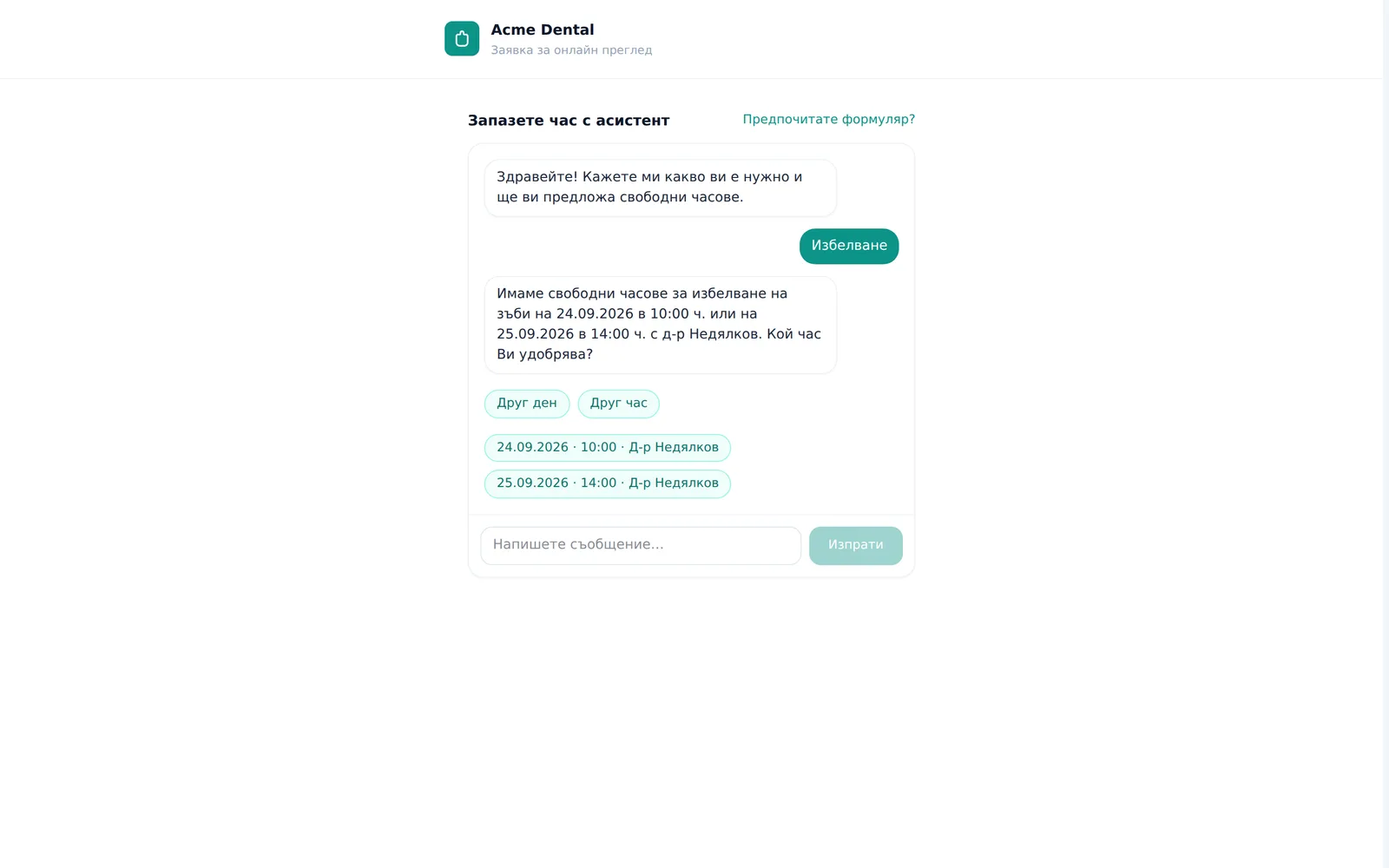
- On the public page you use the step-by-step form by default. If the clinic has switched on its AI booking assistant, you can also chat freely with it.
- From the portal, your details (name, phone, email) are pre-filled.
- If no slot is open on your chosen date, you can join the waitlist (if the clinic offers one).
- If you left an email address, the clinic emails you when it confirms, reschedules or declines the visit.
Booking through the clinic’s public page
If you’re not a portal patient yet, or you’d rather not log in, you can book from the link the clinic has published on its website, Google profile or social media. No login required.
- Open the clinic’s booking link.
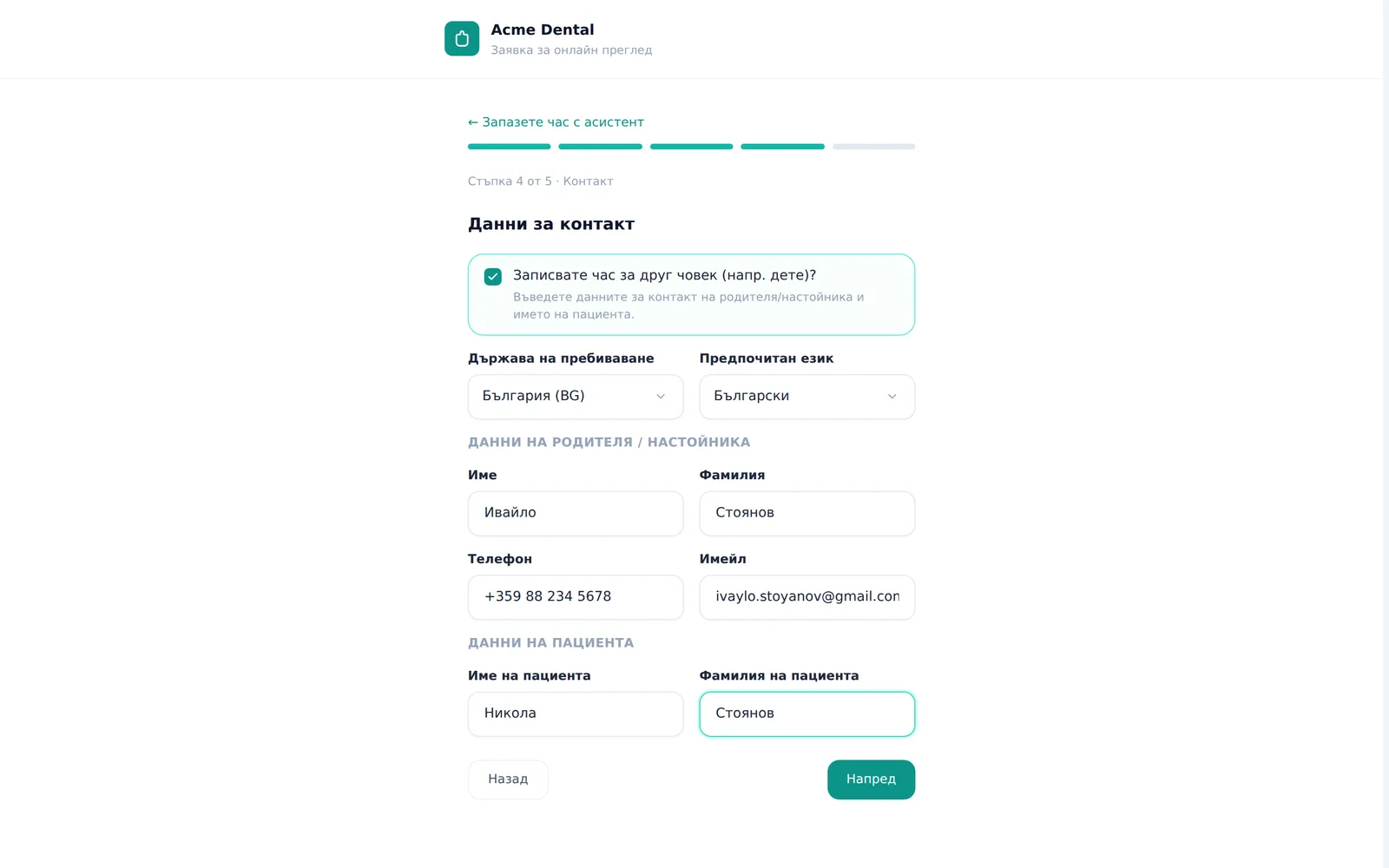
- The step-by-step form opens: service → date/time → doctor → contact details → confirmation. Move on with Next (Напред) and go back with Back (Назад).
- If the clinic has switched on its AI booking assistant (it is off by default), the page opens with a chat, “Book with the AI assistant” (Запазете час с AI асистент). A note above the chat says you are talking to an AI, and the clinic team still confirms the request. Type freely what you need or tap a suggested service pill, then pick a proposed time slot. Prefer a form: click Prefer a form? (Предпочитате формуляр?).
- Fill in your contact details. If you’re booking for someone else (a child or dependent family member), tick Booking for someone else (e.g. a child)? (Записвате час за друг човек (напр. дете)?) and add their name — this only works fully here, on the public page. If you have no record at the clinic you will also pick your country of residence and preferred language; for a country outside Bulgaria the clinic sends you a deposit link to secure the slot before you arrive.
- Review the summary, tick any required boxes, and click Confirm Booking (Потвърди).
- You’ll see the “Booking Received” (“Заявката е приета”) screen — the clinic still needs to confirm the exact slot. If you left an email, they’ll write to you as soon as they’ve reviewed the request.
If there are no free slots on the date you picked, click Join the waitlist (Запиши в списъка чакащи), enter your first name, last name and phone (email is optional) and confirm — the clinic will contact you if an earlier slot opens up.
Booking from the patient portal
If you’re already signed in to the portal, you can book a new appointment straight from there — your contact details are pre-filled.
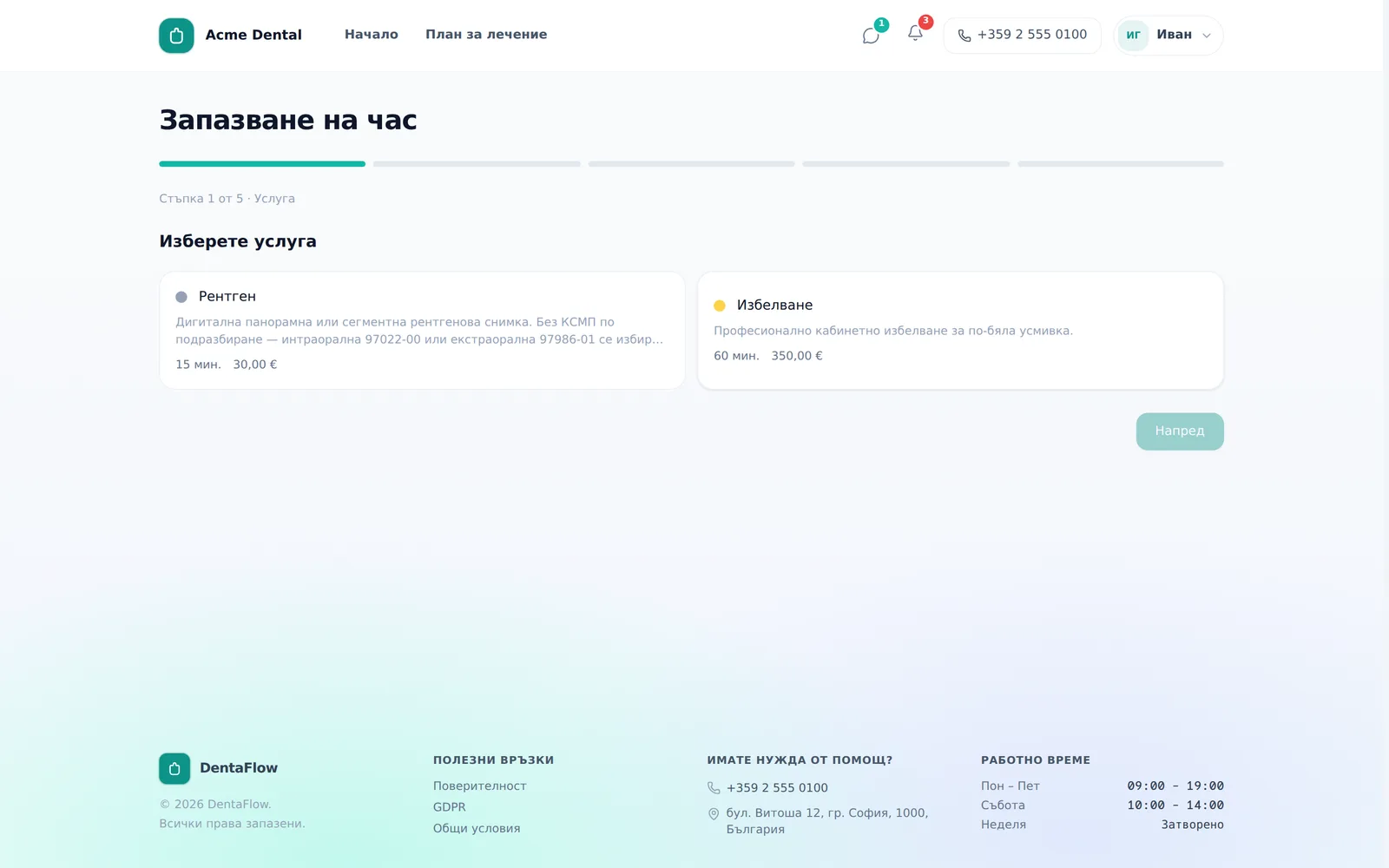
- From the home screen, click Book another appointment (Запази нов час) (or Book your first appointment (Запазете първия си час) if you have none yet), or open the booking page directly.
- Step 1 — tap a service card (e.g. cleaning, checkup).
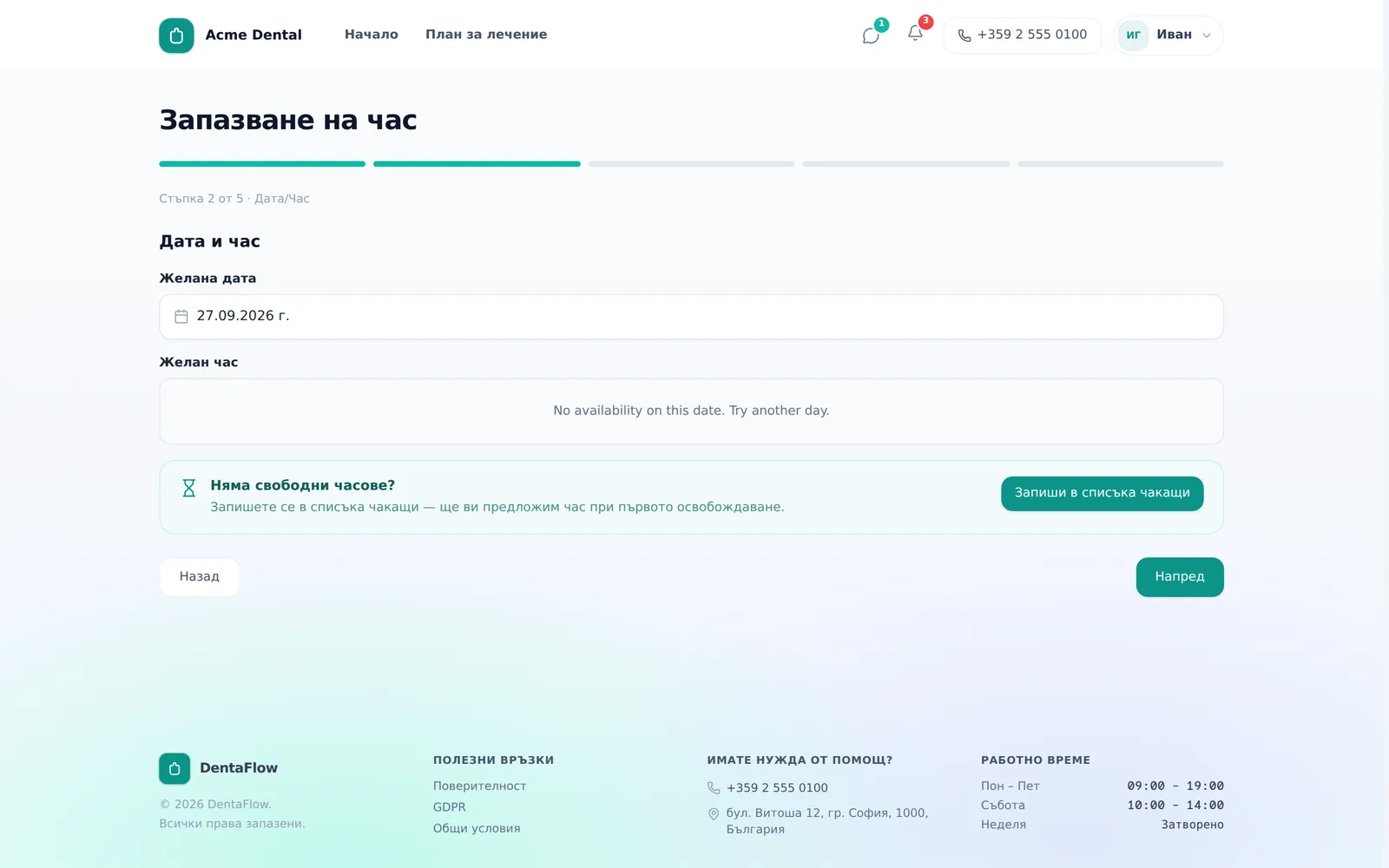
- Step 2 — pick a date, then a time slot. If nothing is free that day and the clinic has a waitlist, you’ll see a Join the waitlist (Запиши в списъка чакащи) button — one click adds you with your profile details.
- Step 3 — optionally pick a specific doctor, or leave No preference (Без предпочитание).
- Step 4 — contact fields are pre-filled from your profile; edit if needed.
- Step 5 — review the summary, tick the medical-note acknowledgment box if the clinic requires it, and click Confirm Booking (Потвърди). You’ll see “Booking Received” (“Заявката е приета”). The visit stays a request until the clinic confirms it — in “My appointments” it shows as “Pending” (“Изчаква”).
Frequently asked questions
Is my appointment confirmed right away? No. Every online booking — from the public page or the portal — arrives at the clinic as a request awaiting confirmation. The status changes to “Confirmed” (“Потвърден”) once staff review it.
“Booking for someone else” in the portal doesn’t seem to do anything — why? Inside the portal that checkbox has no real effect: the appointment is still created under your own patient record even if you tick it. It only works fully on the anonymous public booking page, where it creates a separate record for the child or dependent. To book a child from your own portal account, call the clinic instead.
Why don’t I see any open dates? Booking respects the clinic’s lead time and horizon settings — how soon a slot can be booked and how far ahead. Dates outside that window simply don’t appear as pickable.
What if there’s no slot on the date I want? If the clinic has a waitlist, you’ll see a “Join the waitlist” (Запиши в списъка чакащи) button — in the portal it adds you right away; on the public page you first enter your name and phone. The clinic will contact you if an earlier slot opens up. You can also pick another date or call.
I saw “Your request wasn’t sent” — what should I do? Try again in a moment or call the clinic. If you see “That time was just taken”, pick another time.