Prescriptions
The Prescriptions module adds prescription issuing straight from a patient’s profile or during a visit — with a library of common dental medications, printing, emailing, and submitting an official e-prescription to NHIS. The module is on by default; an Admin can switch it off under Settings → Modules. There is no separate role restriction for prescriptions in the app — the prescribing doctor is chosen on the form. This guide is for Doctors (who issue prescriptions) and for Admin/Front Desk (print, send, review). The app screenshots show the Bulgarian interface; every label below gives the Bulgarian original in parentheses.
At a glance
- The Prescriptions (Рецепти) module is on by default. If an Admin switches it off under Settings → Modules (Настройки → Модули), the Prescriptions card on the profile and the section in the visit disappear.
- A new prescription is issued from the Add prescription (Добави рецепта) button on the patient profile (the full form), or in the Prescriptions section while you register a new visit (a shorter form, see below).
- A medication is picked from the built-in library (search or browse by category) or typed in as free text.
- A prescription saves immediately with status Signed (Подписана) — this is a status in DentaFlow, not a KEP signature, and there is no separate signing step. A KEP is used only when you submit to NHIS.
- Only medications linked to an НСЦРЛП code in Settings → Catalog → Medications (Настройки → Каталог → Лекарства) can be submitted electronically to NHIS — and only if every line on the prescription is linked; even one unlinked line blocks submitting the whole prescription.
- Submitting an e-prescription to NHIS is built but has not yet been checked with a real prescription in production mode; a clinic in NHIS test mode gets a test number labelled “mock” or “sandbox”, not a real NRN.
- Only print and email actually work from the patient profile — automated SMS or Viber sending isn’t available. The channel picked in a visit (Print, Email — Печат, Email) is only recorded; nothing is sent automatically.
Issuing a new prescription
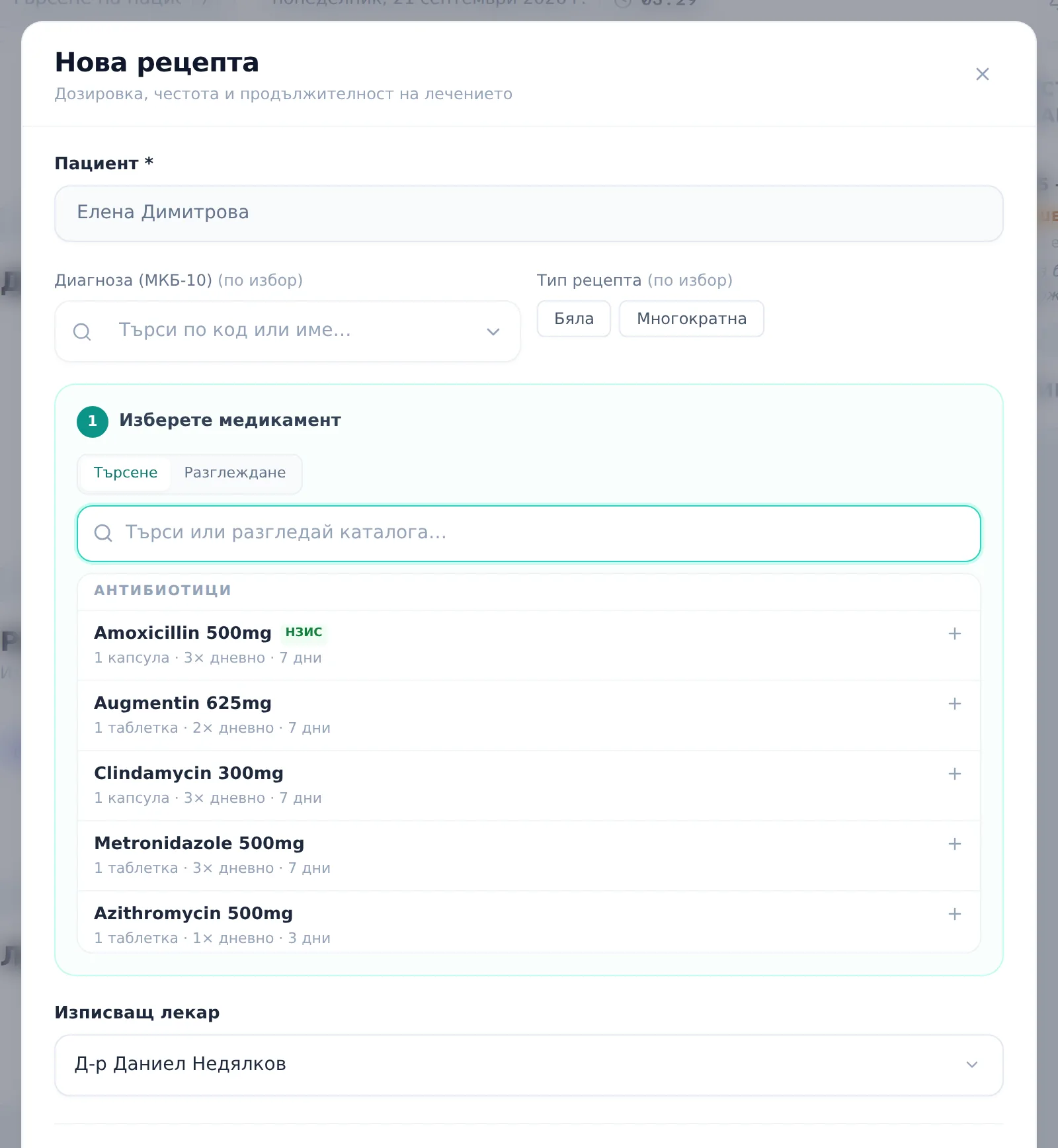
- On the patient profile, click Add prescription (Добави рецепта) in the Prescriptions card. The window is titled “New prescription” (Нова рецепта). (For a prescription during a visit, see the next section.)
- Optionally pick a Diagnosis (ICD-10) (Диагноза (МКБ-10)) and a recipe type — White (Бяла) or Multi-use (Многократна) — both fields are optional.
- Under “Choose medication (Изберете медикамент)”, switch between Search (Търсене) and Browse (Разглеждане) to find a medication from the built-in library, grouped by category (Antibiotics, Analgesics, Antiseptics, Other — Антибиотици, Обезболяващи, Антисептици, Други); Browse shows the catalogue as cards with a category filter (manufacturer and pack show on each card). A medication linked to an НСЦРЛП code shows a green NHIS (НЗИС) badge. The catalogue is shared between clinics — under Settings → Catalog → Medications you upload photos and link НСЦРЛП codes, but you can’t add new medications.
- If the medication you want isn’t in the library, click the Add “{text}” as custom (Добави „{текст}“ като потребителски) row at the bottom of the dropdown to add it as free text (with no НСЦРЛП link — such a line stays paper-only). One prescription can hold several medications — add them one by one.
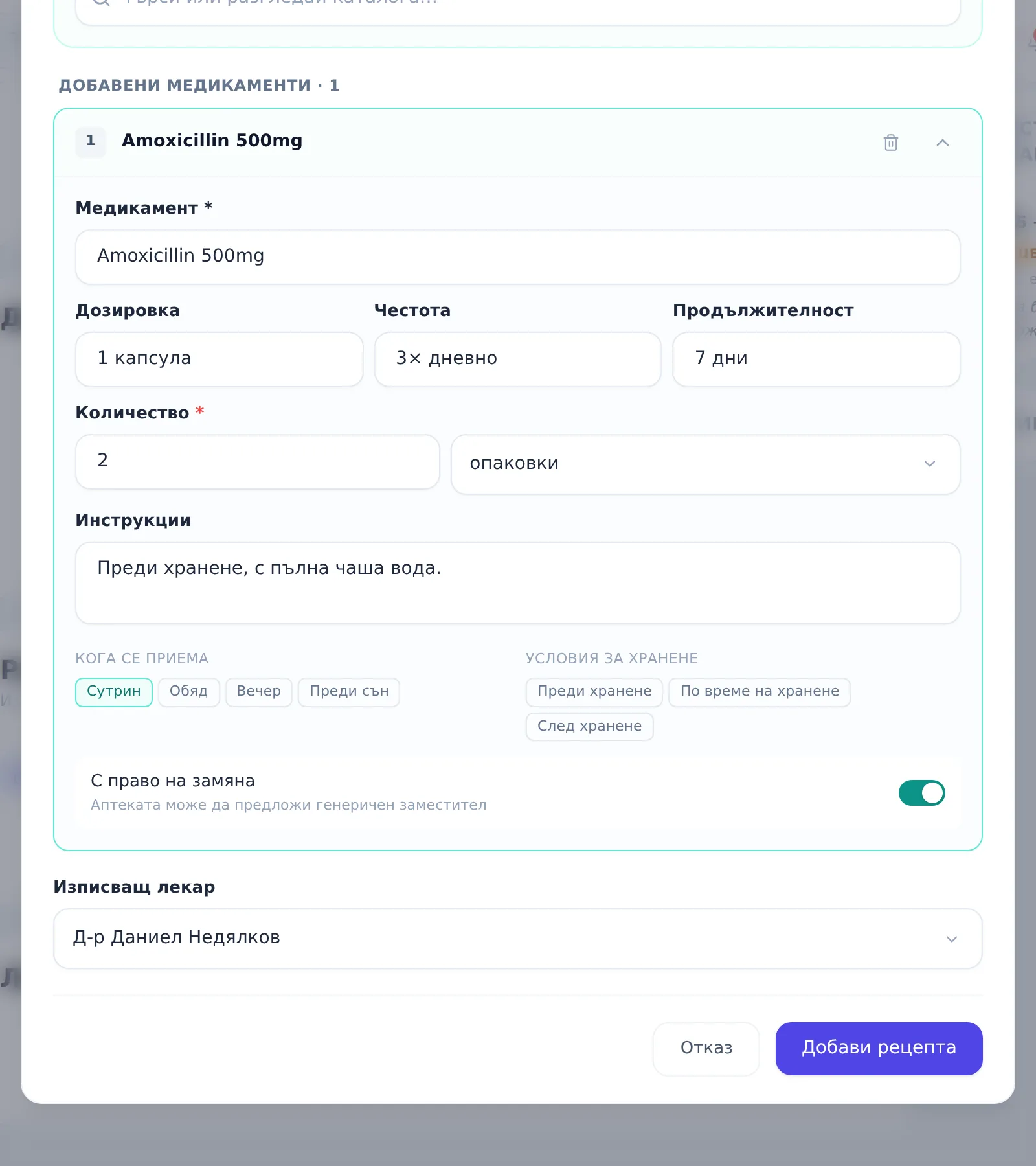
- Each added medication expands into its own card: Medication (Медикамент), Dosage (Дозировка), Frequency (Честота), Duration (Продължителност), Instructions (Инструкции), Quantity (Количество) + unit (packs/boxes/tablets/blisters/ml/g — опаковки/кутии/таблетки/блистера/мл/г; the quantity is required for a medication with the green “NHIS” badge), When to take (Кога се приема) and Meal conditions (Условия за хранене), plus a Substitution allowed (С право на замяна) toggle (lets the pharmacy offer a generic substitute).
- Pick the Prescribing doctor (Изписващ лекар) at the bottom of the form — it defaults to the first doctor in the list, so check it.
- Click Add prescription (Добави рецепта) — the prescription saves immediately with status Signed. With no medication the form says “Add at least one medication.” (Добавете поне един медикамент.). When editing, the button is Save changes (Запази промените).
A prescription during a visit
The new-visit window (“Register visit” — Регистрирай посещение — or “Ambulatory sheet” — Амбулаторен лист — step “Clinical details”) has a Prescriptions (Рецепти) section (“Add medications for this visit”). It is shorter: type at least 2 characters in the search (up to 8 matches are shown) or click Add custom (Добави персонализирана); for each medication you fill in Dosage, Frequency, Duration and instructions. The section exists only for new visits — for an already saved visit, add and edit prescriptions from the patient profile.
When you save the visit, each medication becomes its own prescription, with status Signed and the visit’s doctor. There is no Quantity, Diagnosis (ICD-10), type or Substitution allowed here — if the medication is linked to an НСЦРЛП code and you want to submit it to NHIS, open the prescription from the profile, click Edit (Редактирай) and add the quantity.
Printing, sending, editing or deleting
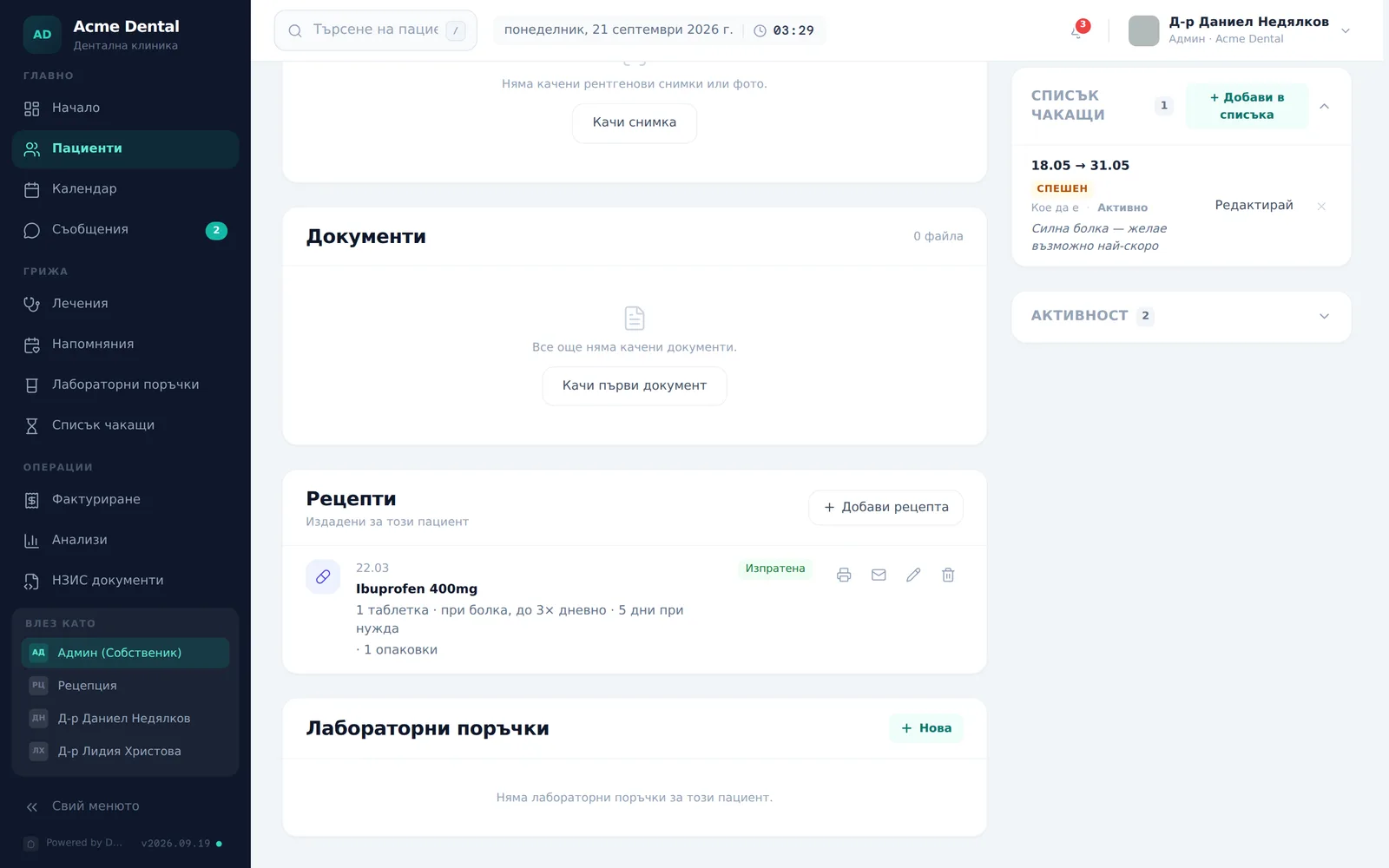
- In the Prescriptions card on the patient profile, each row shows the date, medication(s) with dosage, a status (Draft/Signed/Sent/Filled — Чернова/Подписана/Изпратена/Закупена), and four quick actions.
- Click the printer icon to open the print view in a new tab and print the prescription. The sheet is a DentaFlow layout — clinic, patient and doctor details (with the doctor’s УИН), the medications, a line for the doctor’s signature and one for the clinic stamp; it is not an official prescription form, and its footer says it is issued “for reference” (за информационни цели). The NRN is printed only if it came from the production NHIS environment (not a test one).
- Click the envelope icon to email the prescription to the patient — the button is disabled if the patient has no email on file. On success you see “The prescription was emailed” (Рецептата е изпратена по имейл) and the status becomes Sent. Printing does not change the status. Filled is set automatically when NHIS reports the prescription as fully filled (after you refresh the status).
- Click the pencil icon to edit the prescription in the same modal, pre-filled.
- Click the trash icon to delete it — the dialog warns that the clinical log may retain the record for legal reasons, even after it’s removed from the patient’s list.
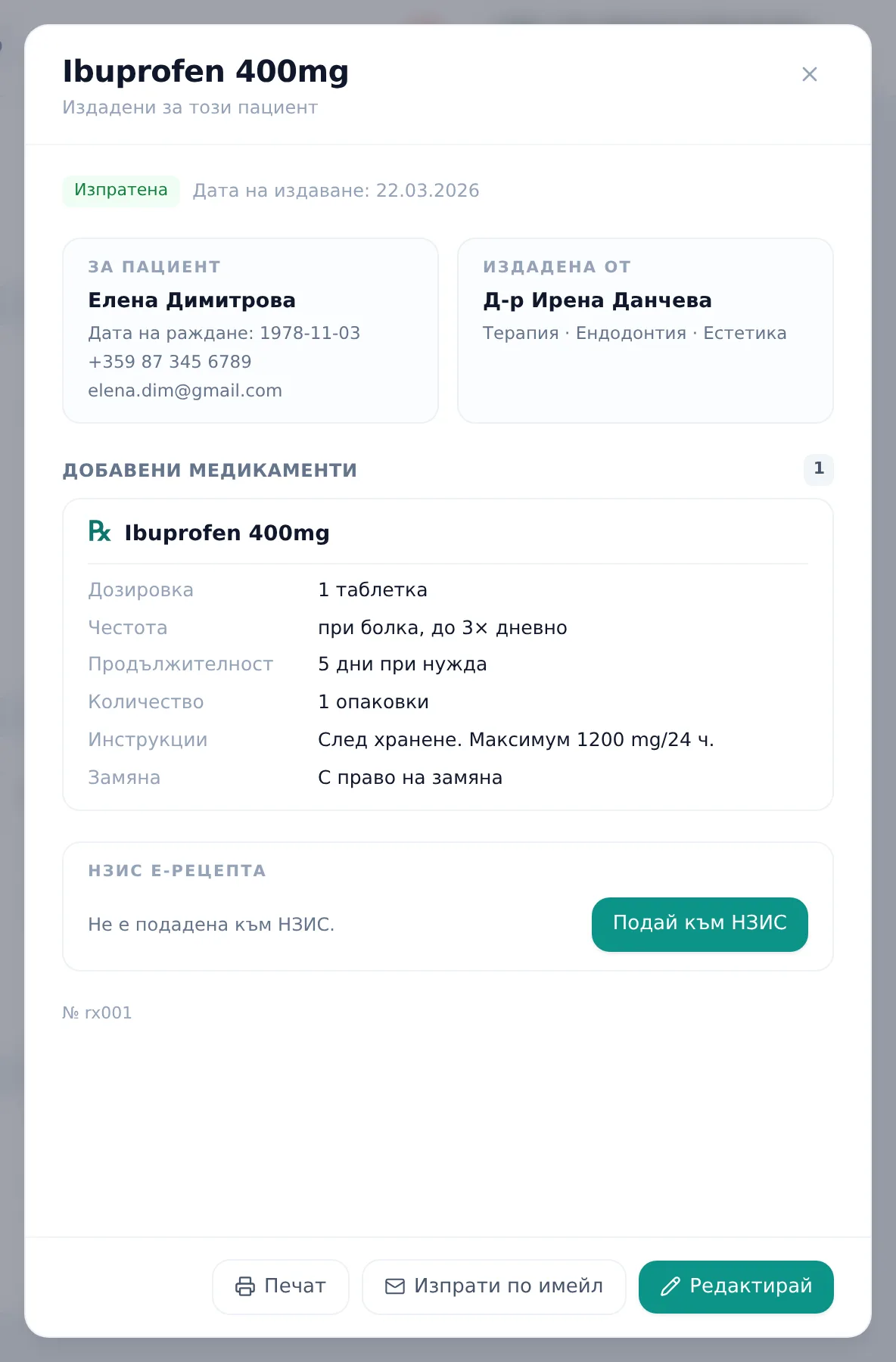
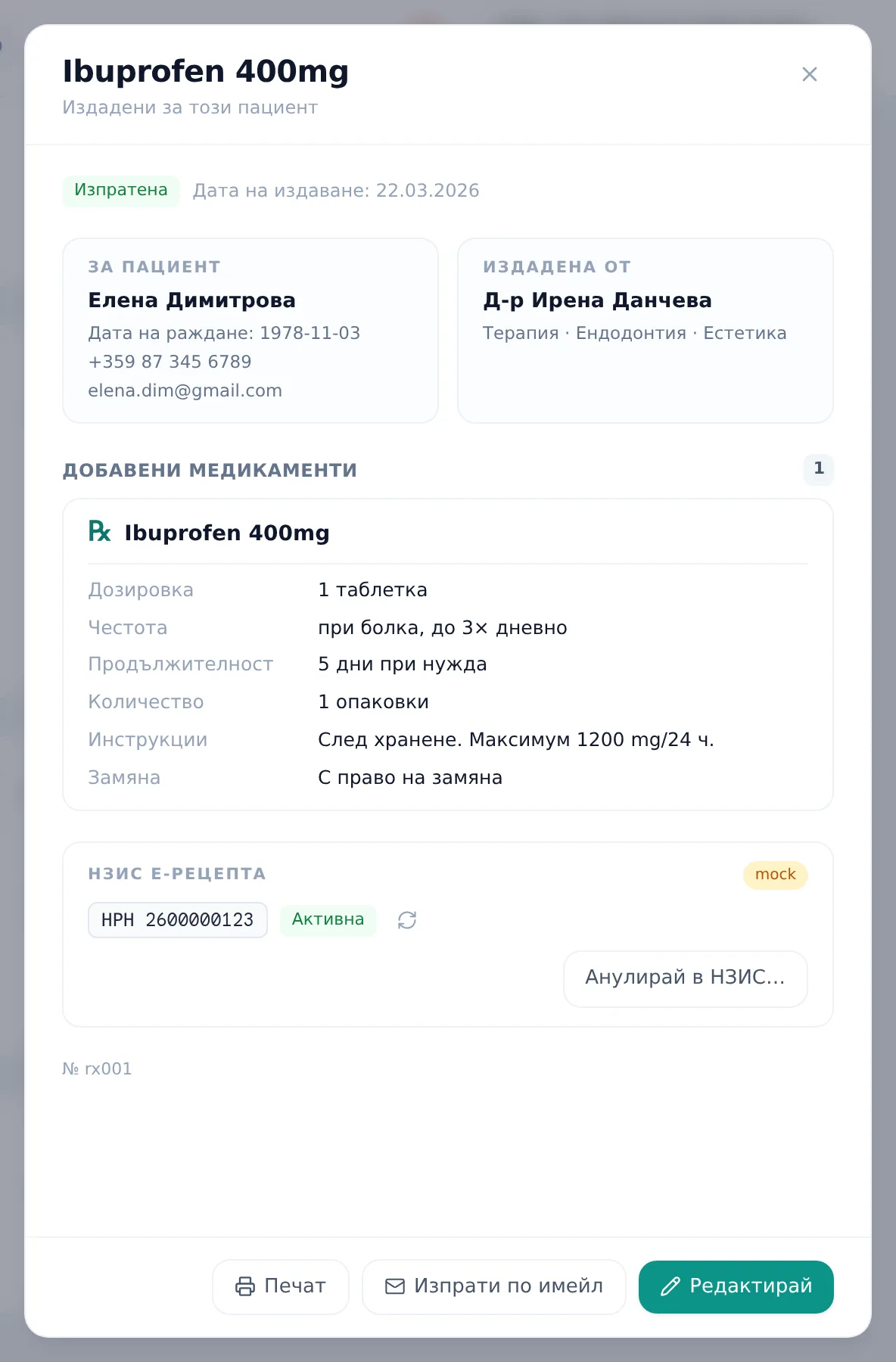
- Click the row’s body (not the icons) to open a read-only preview with the full details and the NHIS e-prescription block. The preview footer has the same Print (Печат), Send by email (Изпрати по имейл) and Edit (Редактирай) buttons.
Submitting an e-prescription to NHIS
- Open a prescription’s preview (click its row in the Prescriptions card).
- Once the prescription is saved in the database (has an id), the NHIS e-prescription (НЗИС е-рецепта) block appears — regardless of whether its medications are linked to an НСЦРЛП code yet.
- Click Submit to NHIS (Подай към НЗИС). You need the doctor’s УИН and the clinic’s data in the NHIS settings, plus the patient data NHIS requires; the doctor signs with their KEP through DentaFlow Bridge (in NHIS test mode signing is skipped and a test number is returned, and a “mock” or “sandbox” chip appears next to the block title). On success it shows the NRN {number} and a status from the NHIS nomenclature (Active, Partially filled, Filled, Declined, Cancelled, Expired and others — Активна, Частично изпълнена, Изпълнена, Отказана, Анулирана, Изтекла и др.). If even one line on the prescription is missing its НСЦРЛП code or quantity, submission is rejected with an error naming that specific line — the whole prescription stays paper-only until the line is linked or removed.
- Click the refresh button next to the status to pull the latest state from NHIS — useful for seeing whether a pharmacy has already filled it.
- To withdraw a submitted prescription, click Cancel at NHIS… (Анулирай в НЗИС…), enter the Cancellation reason (Причина за анулиране) (required) and confirm with Cancel (Анулирай) — cancelling is final, with no way back. The button disappears afterwards.
Frequently asked questions
Why don’t I see the Prescriptions card on the patient profile? The module is on by default, so most likely an Admin has switched it off. It is turned back on under Settings → Modules (“Prescriptions” — Рецепти); while it is off, the card, the section in the visit and the prescription print page are unavailable.
Why does the system ask for a quantity on some medications but not others? Quantity is required only for medications linked to an НСЦРЛП code (you’ll see the green “NHIS” badge when you pick them) — it’s needed for electronic submission to NHIS. For freely-typed medications with no such link, the field stays optional.
Why can’t I submit a prescription electronically to NHIS? The most common reason is that at least one medication on the prescription isn’t linked to an НСЦРЛП code — link it from Settings → Catalog → Medications (Настройки → Каталог → Лекарства) (the Link to НСЦРЛП (Свържи с НСЦРЛП) button on the medication’s row, search by name, minimum 3 characters; Admin only). Lines typed as “custom” can’t be linked. Every line needs the link, not just some of them; as long as one line is unlinked, the whole prescription stays paper-only. Also note the NHIS block only appears for prescriptions that are already saved — not for a still-unsaved draft inside the modal.
Can I send a prescription over Viber or SMS automatically? No — only print and email actually work from the patient profile. SMS and Viber don’t send yet; the channel picked in a visit is only recorded.
What happens after I delete a prescription? The record disappears from the patient’s list, but the clinical log may retain it under medical-record retention requirements — deleting it from the patient view isn’t necessarily a full removal from history.
Can I undo a cancelled e-prescription? No — cancelling at NHIS is a terminal state, the same as with the ambulatory sheet. You’d need to issue a new prescription if the patient still needs the medication.