Importing patients from CSV/Excel
If you’re migrating from another system, you can bulk-upload your whole patient roster from a CSV or Excel file instead of entering it by hand. Columns are matched automatically, AI can help with the leftovers, and duplicates are detected by ЕГН (the national ID). It’s available to the same roles that can add patients (Admin/Front Desk in practice). The screenshots below show the Bulgarian interface.
At a glance
- Opens from the Import from CSV (Импорт от CSV) button on the empty state of /patients (only shown when the clinic has zero patients), or from Settings → Data → Patient import (Настройки → Данни → Импорт на пациенти).
- Accepts a CSV or Excel .xlsx/.xls file up to 10 MB. For Excel, only the first worksheet is read.
- Only first and last name are required (or a full-name column with the split toggle) — everything else is optional.
- For duplicate ЕГН you choose: skip, update with non-empty imported values, or force import.
Uploading the file
The window runs through four steps: File („Файл“), Fields („Полета“), Review („Преглед“) and Invites („Покани“).
- Click Import from CSV (Импорт от CSV), then drag a file onto the dropzone or click Choose file (Изберете файл) (CSV or Excel .xlsx/.xls, up to 10 MB).
Mapping the columns
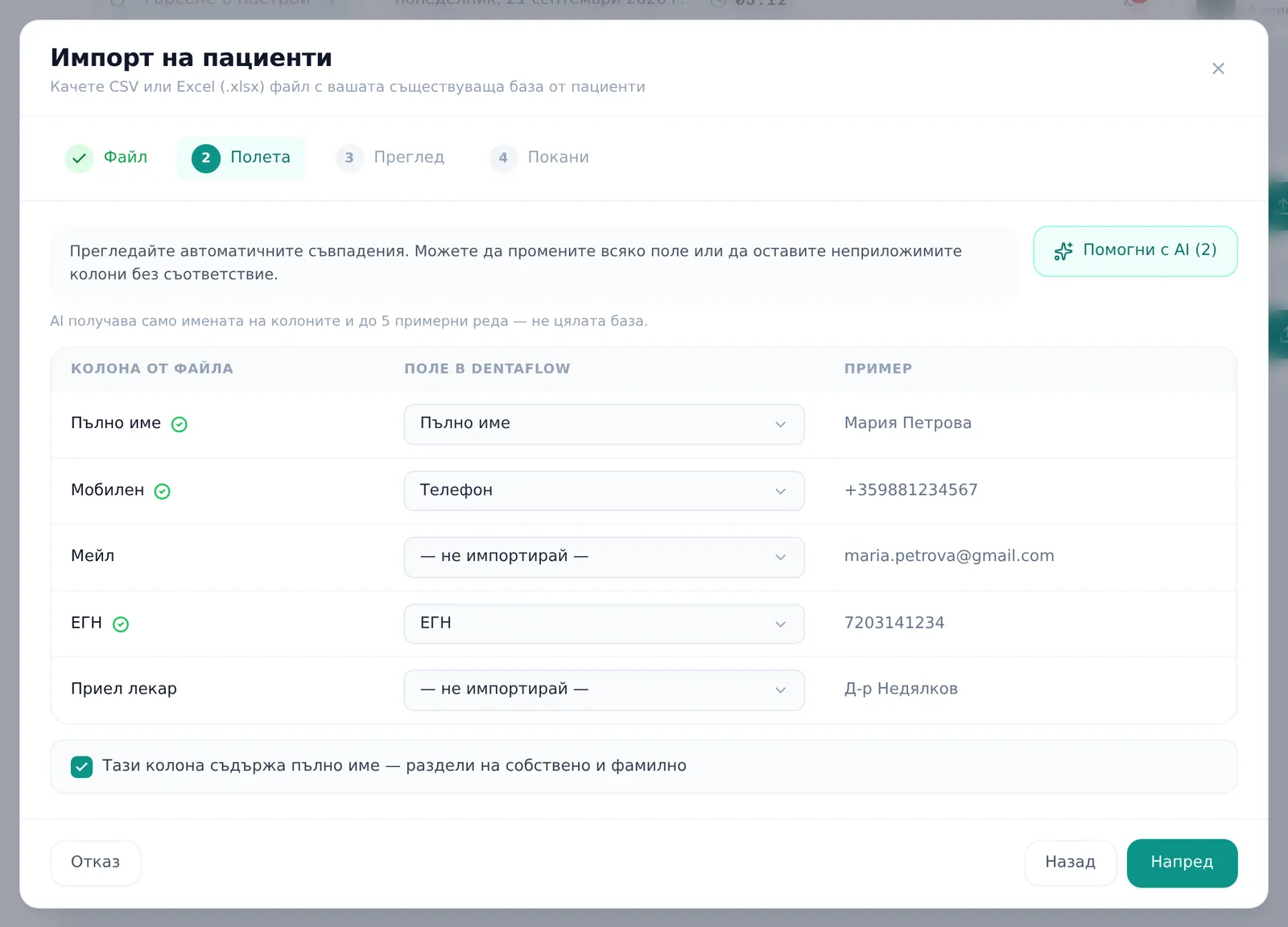
- On the Fields (Полета) step, review the auto-matched column→field pairs.
- If any columns are unmatched, a violet AI bar appears above the table. In it, click Suggest with AI (N) (Помогни с AI (N)) to get a suggested mapping from Claude, based on all headers and the first 5 sample rows. Every column in those rows is sent, not just unmatched columns; the values are not anonymized. The recipient is Anthropic in the US, so consider the contents and applicable terms before using it. Manual mapping remains available without AI.
- If a “Full name” (Пълно име) column was detected, toggle This column has full names — split into first + last (Тази колона съдържа пълно име — раздели на собствено и фамилно) to split it. The final word becomes the last name, with the preceding words stored as the first name. Review three-part Bulgarian names and the middle-name field before importing.
Reviewing and resolving duplicates
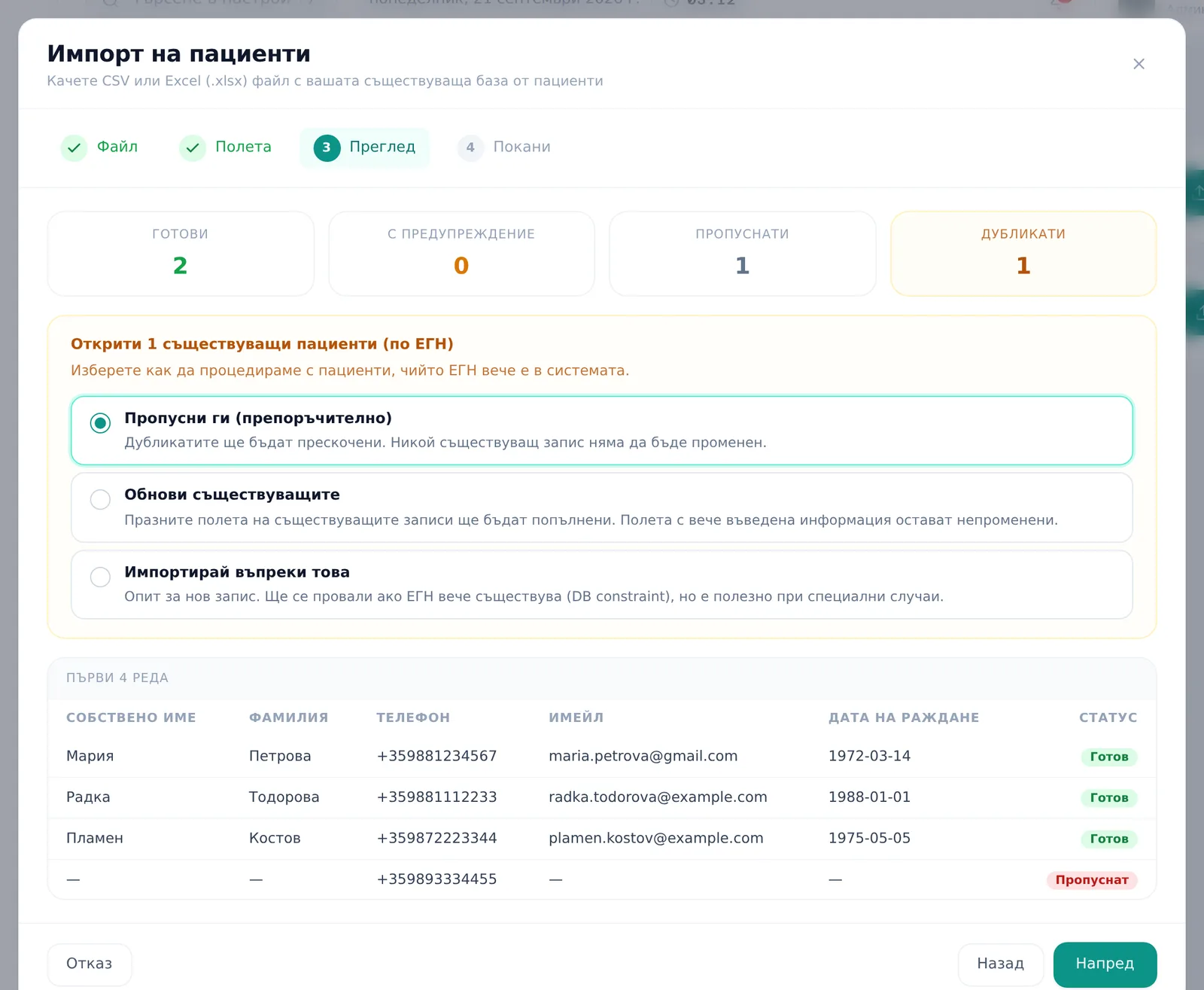
- On the Review (Преглед) step, if the file has a doctor column, resolve each distinct name: pick an existing doctor, Create new profile (Създай нов профил), or Skip (no assignment) (Пропусни (без прикачване)); use Create all N profiles (Създай N профила накуп) if the clinic has none yet.
- If duplicate ЕГН are detected, pick a dedup mode: Skip them (recommended) (Пропусни ги (препоръчително)) (default — no changes to existing rows), Update existing records (Обнови съществуващите) (non-empty imported values can replace existing data, including populated fields), or Import anyway (Импортирай въпреки това) (force insert, may fail on the database’s unique constraint).
Importing and reviewing the results
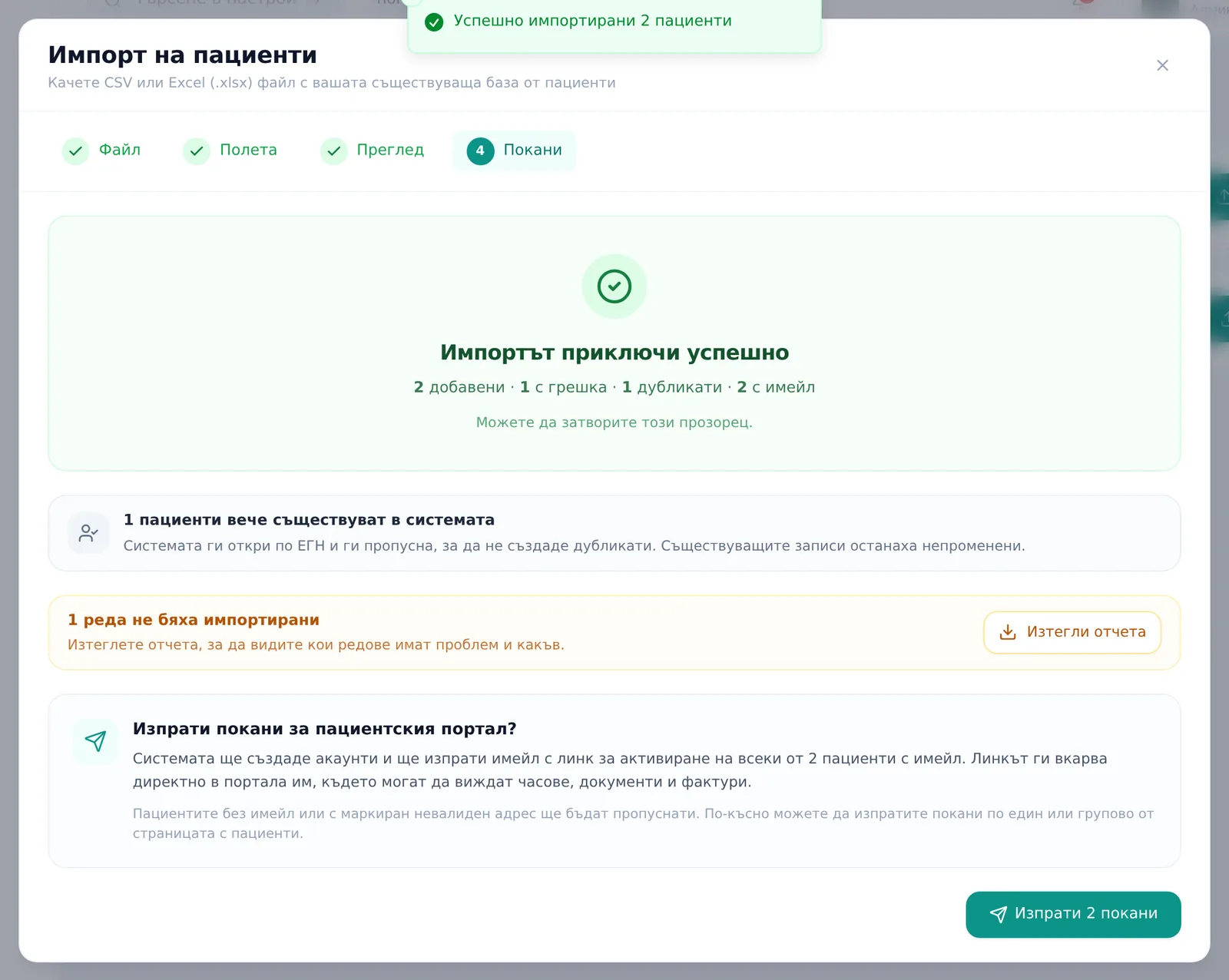
- Click Import (Импортирай) and watch the progress bar (“Импортирани X от Y”).
- On the results screen, review the added/updated/failed/duplicate counts; click Download report (Изтегли отчета) to get a CSV of every failed or duplicate row with its error tag.
- If any imported patients have emails, click Send N invites (Изпрати N покани) to send portal invites right away, or close and invite them later from the Patients list. If none of them has an email, the results screen shows a Done („Готово“) button instead.
Frequently asked questions
Which columns are required? Just first and last name (or a full-name column with the split toggle on) — everything else is optional, so most rows import even with sparse source data.
What happens to rows with no name? They’re always skipped, never silently dropped without a count — the number of skipped rows shows in the results.
How is duplicate ЕГН checked? It looks for matching EGN values within your clinic, reading from the database. If that read fails, it falls back to the loaded list, so review the result and error messages. Matching names or email addresses does not replace the EGN check, and force import does not bypass the database’s uniqueness constraint.
The AI mapping helper isn’t working — what do I do? You’ll see distinct toasts for “AI not configured,” “not authenticated,” or “AI didn’t recognize the remaining columns” — it never blocks the manual mapping path.
Does it detect the header row automatically? Yes, up to 12 rows deep (handles files with a few preamble rows before the real headers), as long as it finds at least 3 recognizable column matches.
What does this import not transfer?
The patient roster does not automatically transfer old appointments, visits, treatment plans, tooth charts, invoices, images or signed documents. An imported last-visit date or medical note does not recreate individual treatments. Keep access to the necessary historical archive. For preparation, see the dental software switching plan.