The calendar: views & navigation
The Calendar is the main screen for working with appointments in DentaFlow — it’s where you book, edit and track how busy the whole clinic is. This guide covers the three views, the keyboard shortcuts, and the visual cues (colors, hatching, banners) you’ll see throughout the Calendar. It applies to every staff role: Admin, Front Desk and Doctor. The screenshots below show the Bulgarian interface; every label gives the Bulgarian original in parentheses.
At a glance
- The Calendar has three views: Day (Ден) — every doctor at once, Week (Седмица) — workload by day and hour with “All (Всички)”, or one doctor’s week when you pick a doctor, and Month (Месец) — clinic-wide density. Next to them sits the Requests (Заявки) tab.
- All three roles — Admin, Front Desk, Doctor — see the entire clinic schedule, not just their own appointments.
- Keyboard shortcuts D/W/M switch the view, T jumps to today, and the arrow keys step the date — all disabled while typing in a field or with a dialog open.
- Grey hatching means the doctor isn’t working; a red “Clinic closed” (Клиниката е затворена) banner means the clinic is closed; a coloured dot at the top right of a card means the appointment isn’t confirmed; a dot at the bottom right means it has a deposit.
- The Requests (Заявки) tab shows the number of pending online booking requests as a badge.
Switching between views
- Open Calendar (Календар) from the sidebar.
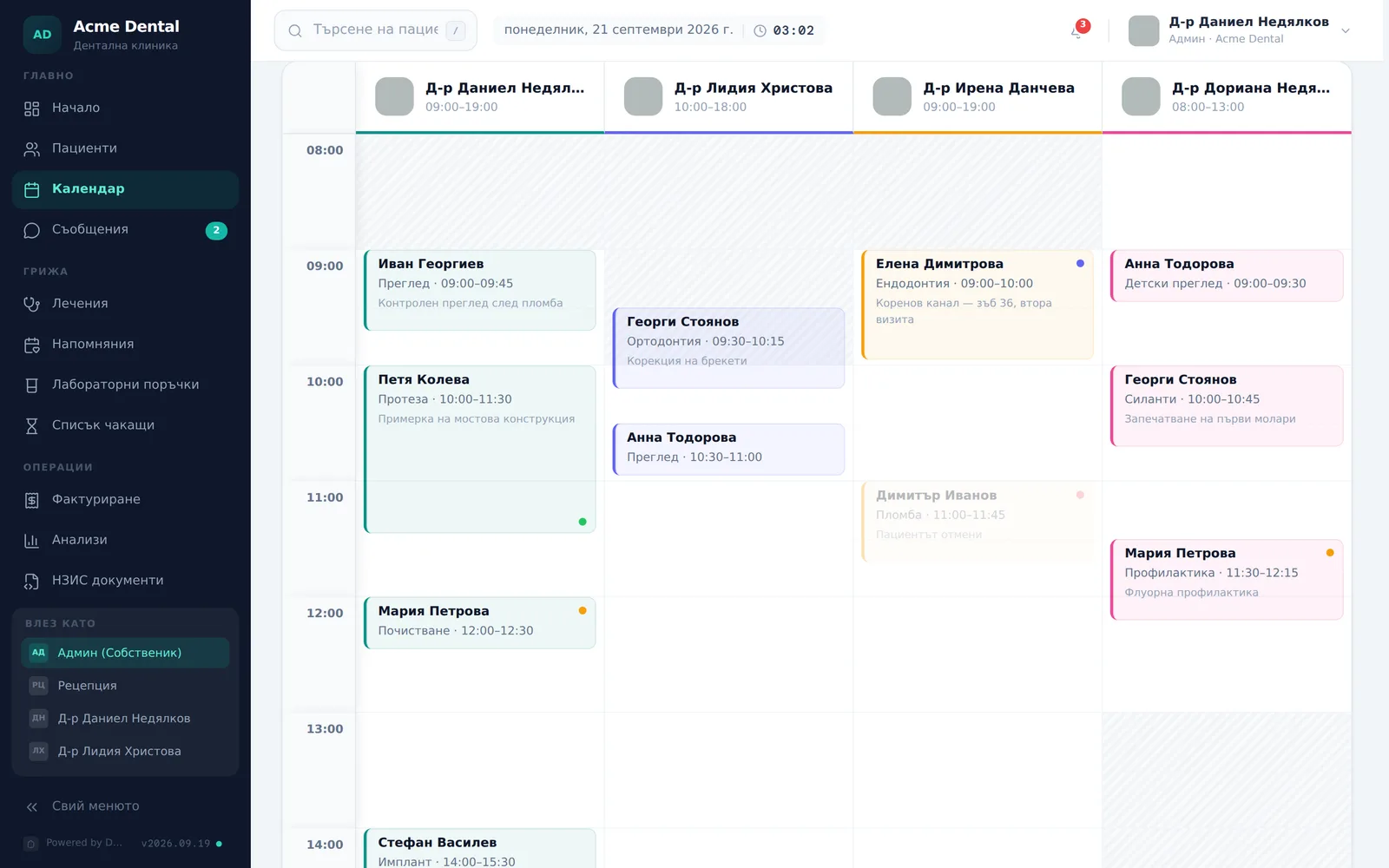
- Pick Day (Ден) to see every doctor’s column side by side. Each column shows the doctor’s working hours at the top; a card with a dot at the top right is not confirmed (see the “Status:” legend under the grid), and a dot at the bottom right shows a deposit. Click a card to open Appointment Details (Детайли за часа). Book a new appointment with Book Appointment (Запази час) at the top right.
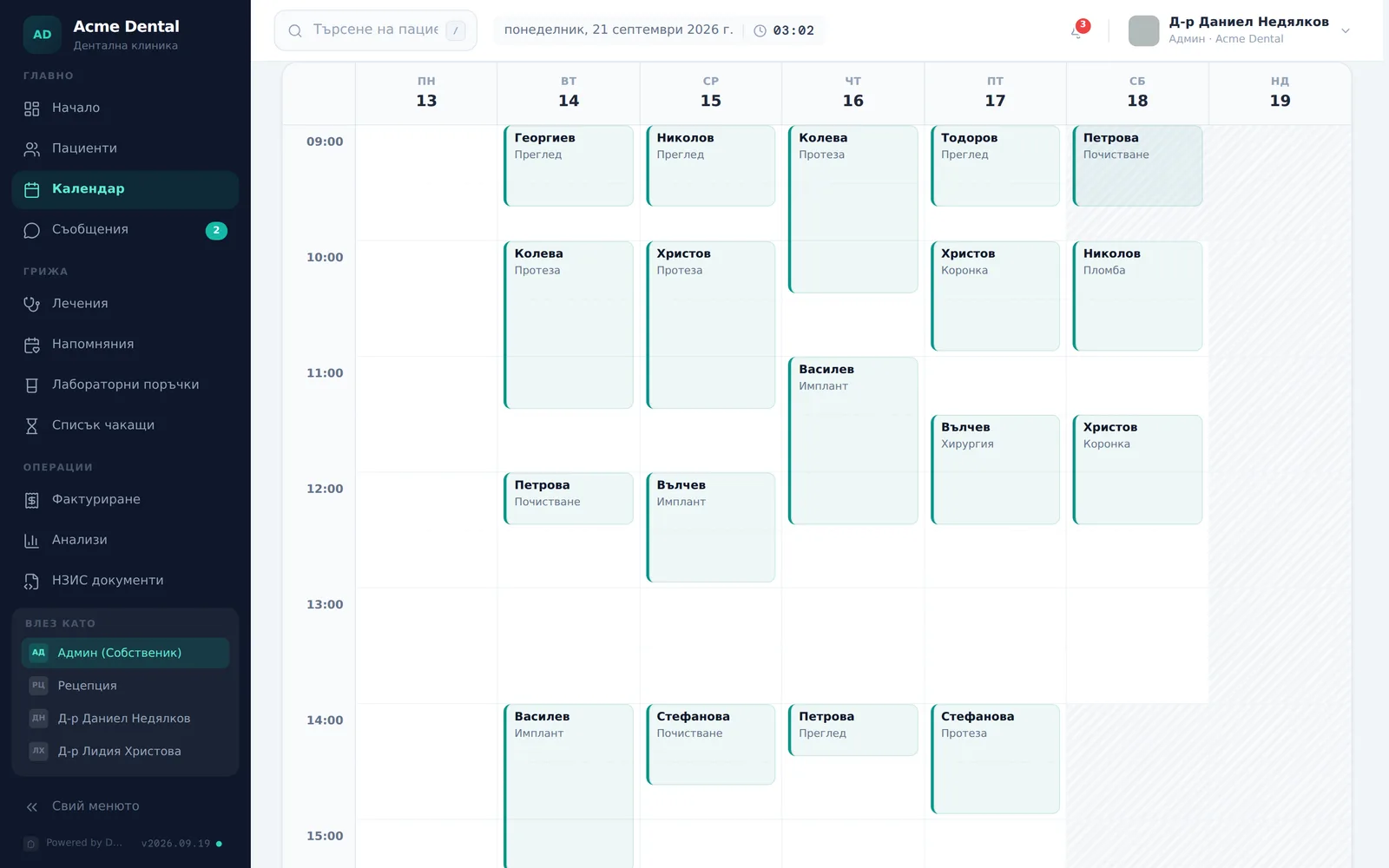
- Pick Week (Седмица). Under the doctor filter bar there are two modes: with All (Всички) you see how many appointments fall in each day × hour cell (click a number to jump to that day); with one doctor picked you see that doctor’s week and can click an empty slot — Book Appointment opens with the date, time and doctor filled in. On a phone the week is a list of day cards.
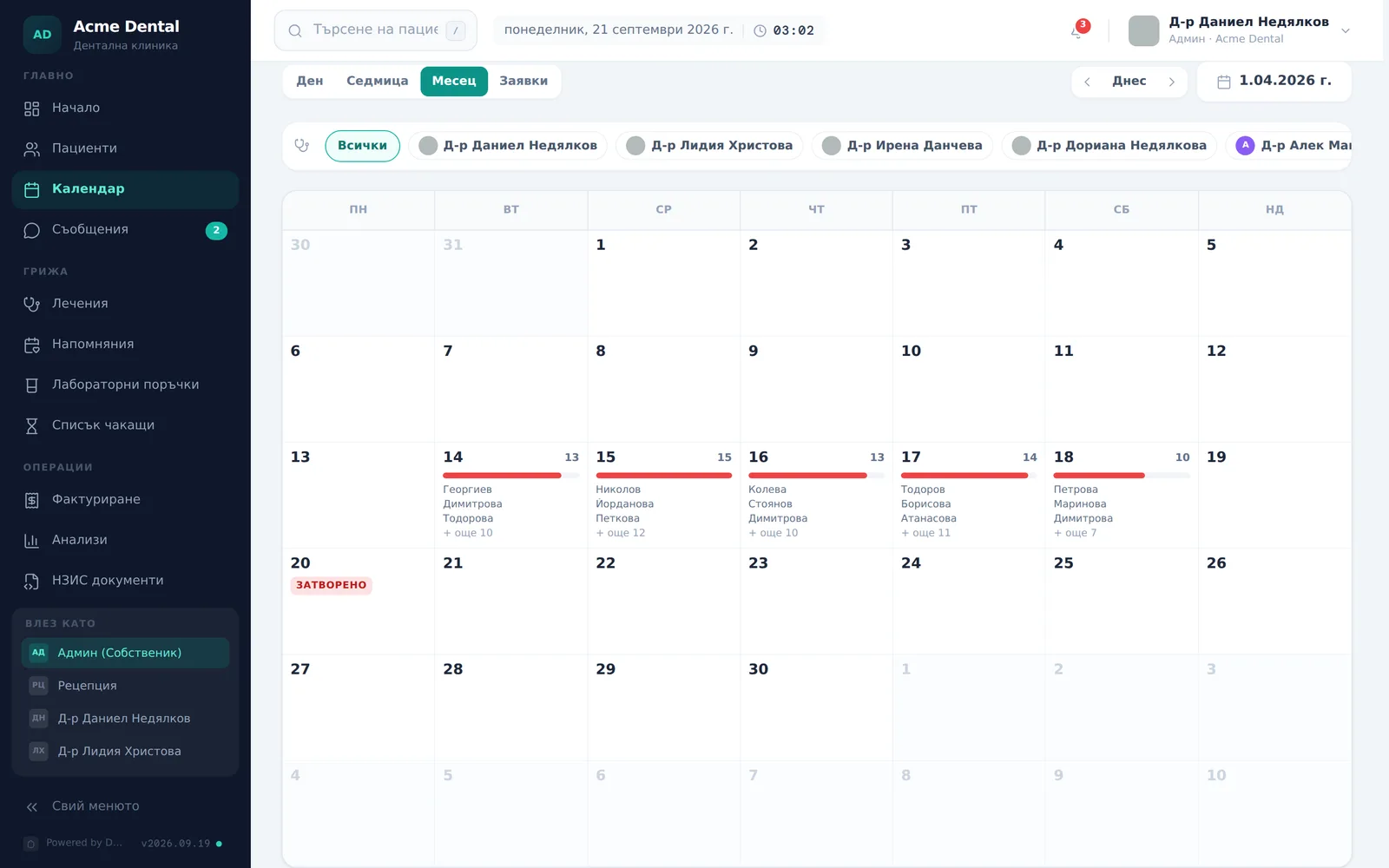
- Pick Month (Месец). Each cell shows the number of appointments for the day, a bar for how busy it is (relative to the busiest day of the month) and up to three patients; closed days are marked Closed (Затворено). Click a day to open it in Day view. The doctor bar filters the month by doctor.
Keyboard shortcuts and pagination
- Use D, W and M to jump straight to Day, Week or Month, and T to return to today’s date. The letters are matched as typed, so they work with a Latin keyboard layout.
- Use the left/right arrow keys (or the arrows in the toolbar) to step the view: 1 day in Day, 7 days in Week and 1 month in Month. Today (Днес) returns to today’s date, and the date on the right opens a mini-calendar for any day.
- With more than 4 doctors in Day view (more than 2 on a phone), columns don’t scroll — instead, page through them with the arrows above the grid, next to “Showing 1–4 of …”.
The printer icon next to Book Appointment prints the calendar.
Shortcuts are disabled while you’re typing in a search field or a modal is open, so they don’t accidentally switch the view while you’re entering a note or a patient’s name.
What the colors, hatching and banners mean
- Grey diagonal hatching on a cell — the doctor isn’t working that hour. If the doctor doesn’t work at all that day, their whole column is grey and Off today (Почивен ден) appears under their name. An override (промяна) tag next to the hours means the hours for that day differ from the usual ones.
- A red “Clinic closed” (Клиниката е затворена) banner at the top of Day view — the clinic is closed for the day (a closure or holiday). It shows the reason if one was entered, and a “Manage closures →” link.
- A “No working hours configured” (Няма зададено работно време) card — shown instead of the grid in Day view when the clinic’s working hours mark that day as closed. Its link goes to Settings → Clinic profile.
- A dot at the top right of an appointment card — the appointment isn’t confirmed. Confirmed appointments have no dot. The colours are in the “Status:” legend under the grid: pending, in progress, cancelled.
- A dot at the bottom right of an appointment card — the appointment has a deposit: sent, paid or expired (tooltip “Deposit pending / paid / expired”). See Deposit links.
- The number badge on the Requests (Заявки) tab shows how many online bookings are waiting for confirmation — see Online booking requests.
Frequently asked questions
If I’m logged in as a Doctor, do I only see my own appointments? No. All three roles — Admin, Front Desk and Doctor — see the entire clinic schedule, with a column per doctor. No role is restricted to only its own appointments on the Calendar.
Why don’t I see all doctors at once in Day view? With more than 4 doctors, the columns don’t all fit on screen; instead of scrolling, pagination arrows appear at the top of the view — click them to see the next group of doctors.
Can I move an appointment by dragging and dropping it? No — that feature doesn’t exist on the Calendar. Rescheduling always goes through the edit dialog. See Rescheduling, cancelling & no-shows.
Why does a whole day show grey hatching instead of just one appointment? If the doctor has no working hours set for that day at all, their whole column is grey and Off today (Почивен ден) appears under their name. If the whole clinic is closed, a “Clinic closed” banner appears at the top instead, and for a day the clinic’s working hours mark as closed, the “No working hours configured” card replaces the grid. Set the schedule from Working hours, vacations & closures.