Team & roles
This guide explains DentaFlow’s three login roles — Admin, Front Desk and Doctor — what each one can see and do, and why a “staff profile” is not the same as a real invited login. It’s useful whenever you’re deciding who on your team should get what kind of access. The app screenshots below show the Bulgarian interface; every UI label gives the Bulgarian original in parentheses.
At a glance
- DentaFlow has three login roles: Admin (full access), Front Desk (patients, appointments, billing — no settings writes or deletions) and Doctor (own patients and treatments — no Settings, Billing, NHIF, Inventory or Audit log).
- Patients don’t use the staff app at all — they sign in through the separate patient portal.
- A “Staff profile (Профил на персонала)” is just a directory contact — it grants no login. Only an email invite creates a real login.
- Only Admin can connect Stripe, manage the IP allowlist, or save changes to the Clinic profile.
Who can do what
| Area | Admin | Front Desk | Doctor |
|---|---|---|---|
| Calendar & appointments | Full access, sees the whole team | Full access, sees the whole team | Full access, sees the whole team (not just their own) |
| Patients | Full access | View, add and edit; delete/archive is Admin only | View (own or all patients) and add; can’t edit, delete or archive |
| Clinic settings | Views and saves | Views, but saves are silently rejected by the server | No “Settings” link in the menu at all |
| Billing & invoicing | Full access | Full access | No nav item at all |
| NHIF claims & NHIS documents | Full access | No access | No access |
| Inventory | Full access | No access | No access |
| Audit log | Full access (when the module is on) | No access | No access |
| Analytics | Sees everything, including revenue | Revenue unless Admin turns off “Revenue Visible to Staff (Видими приходи за персонал)” (on by default) | Own patients/appointments only; revenue unless that same toggle is off |
| Doctor directory (/doctors) | Manages — add, invite, delete | View only | Doesn’t see the page |
| Sending a deposit link | Yes | Yes | Yes |
| Connect/disconnect Stripe | Admin only | No | No |
| 2FA on their own account | Mandatory | Mandatory | Mandatory |
| Services & prices (/services) and Reviews (/reviews) | Full access | No nav item | No nav item |
| IP allowlist & audit retention | Manages | View only | View only |
This table reflects the real permissions enforced in the app — don’t assume an exception exists for a particular staff member just because they’re an Admin for another reason.
Staff profile vs. an invited login
Both live under “Doctors & staff (Лекари и персонал)” but they do different things:
- A staff profile (Профил на персонала) — on the “Staff profiles (Профили на персонала)” card — is just a directory entry: name, contact email, job title, phone. It grants no login access.
- An email invite (“Покани член на екипа”) creates a real login with a chosen role (Doctor / Front Desk / Admin). The link is valid for 7 days; a duplicate invite to the same email just resends the same link. The full walkthrough for sending and accepting an invite is in Inviting your team.
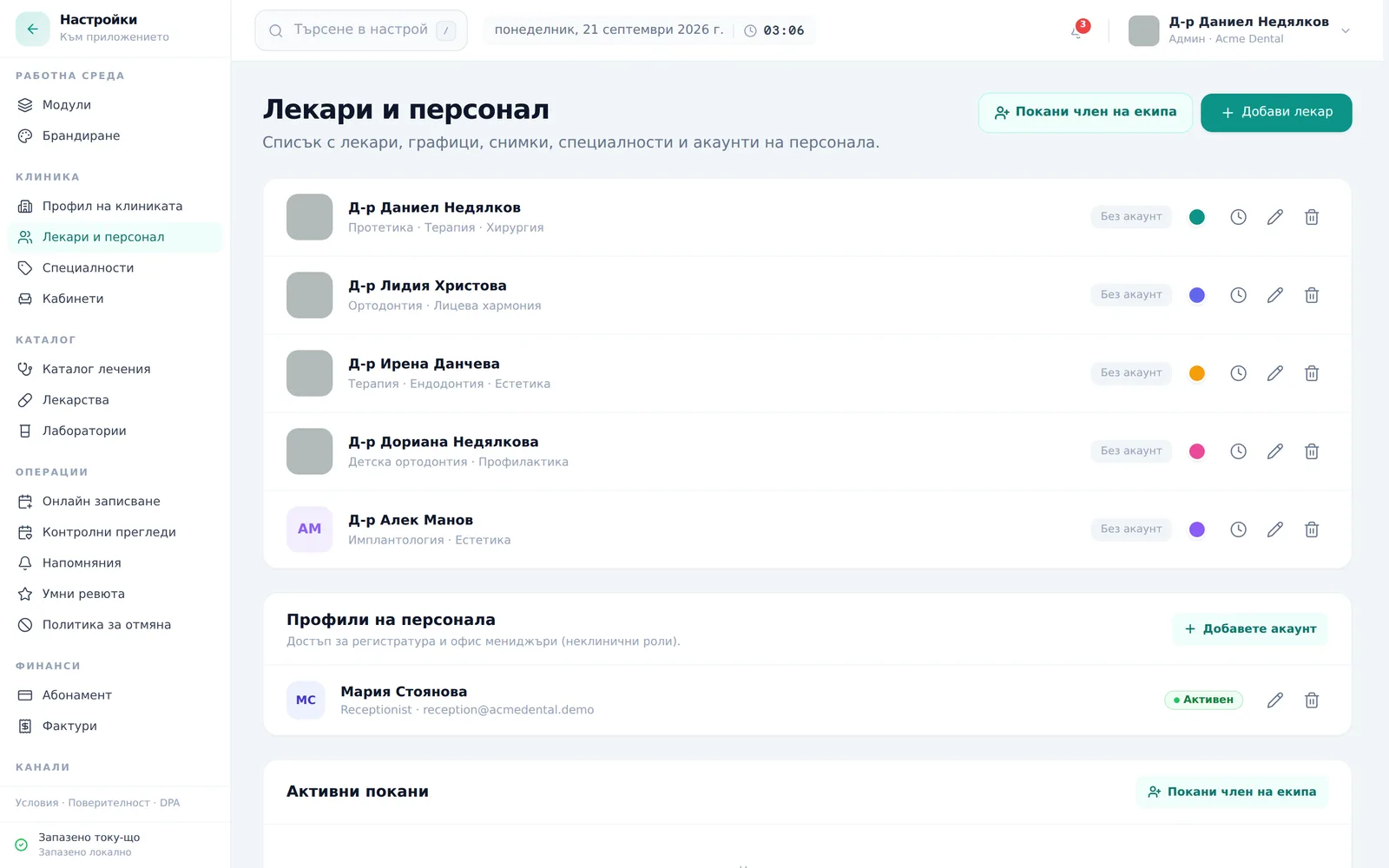
If someone actually needs to sign in, invite them by email — adding them only as a “Staff profile” will not let them log in.
The doctor directory
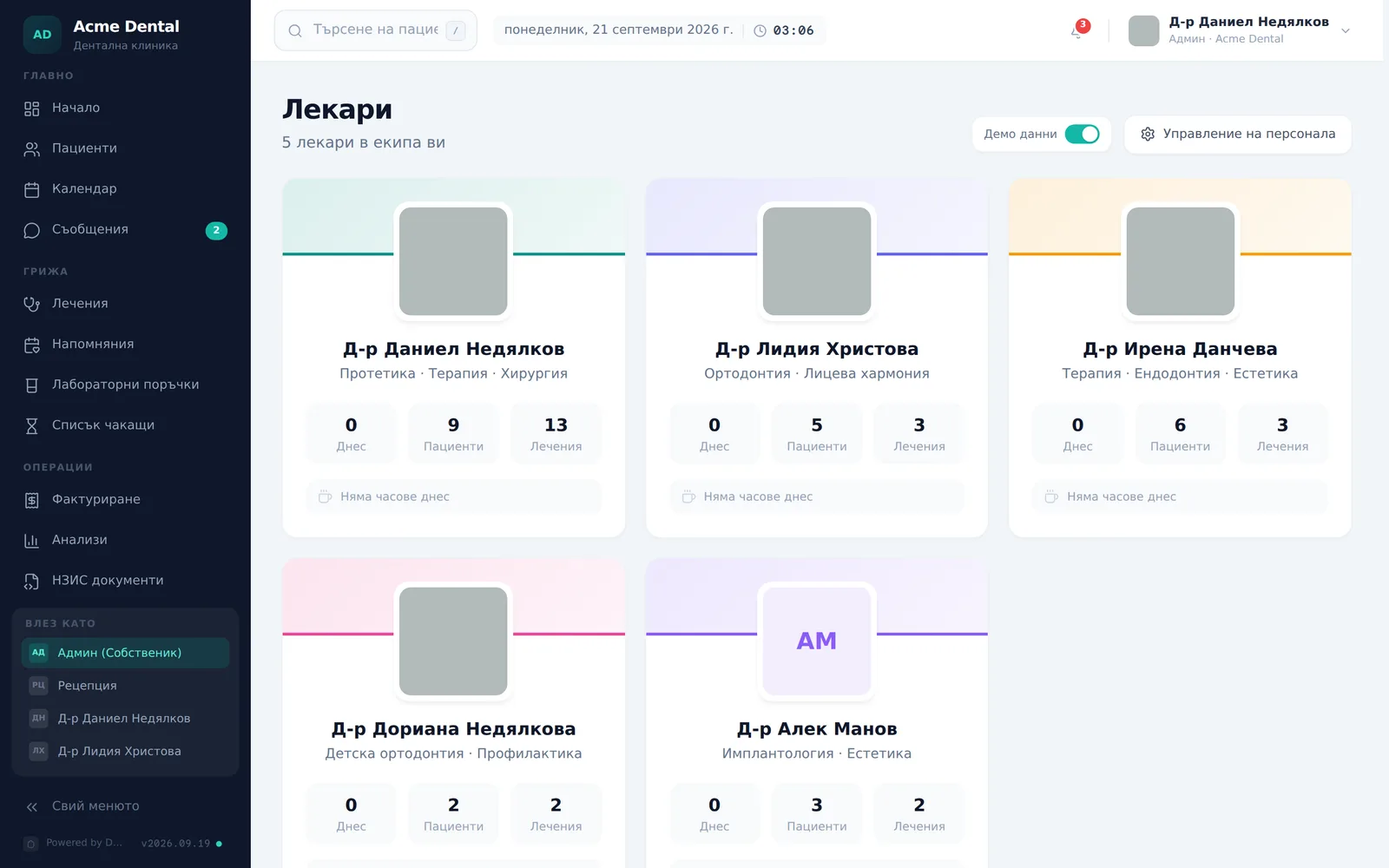
- Open Doctors (Лекари) in the sidebar to see doctor cards with today’s patient and treatment stats.
- Admin and Front Desk both see this page; Doctor has no nav link to it.
- Front Desk sees the directory read-only — no inviting, role editing or deleting from here.
- For management (add, invite, change role, delete), use Manage Staff (Управление на персонала) — it opens the full Settings section.
Changing a role or removing access
- To change a doctor’s login role, use the role dropdown next to their name on the Doctors card — it only appears if that doctor already has a linked login.
- To edit or remove a doctor or staff record, use the pencil/trash icons on their row; removing asks for confirmation before it runs.
- Removing a doctor permanently deletes their record — past appointments and treatments keep the historical reference to them, but they disappear from future pickers.
- To revoke an invite before it’s accepted, find it under Pending invites (Активни покани) and click the trash icon, then confirm.
Frequently asked questions
Why don’t my changes in Settings save? Most often because you’re signed in as Front Desk. The Clinic profile and most administrative settings only save when the role is Admin — Front Desk can see the fields, but the write is silently rejected by the server, and the indicator shows “Could not save (Не успяхме да запазим)”.
Do doctors see the clinic settings? No. The “Settings (Настройки)” link in the account menu is shown only to Admin and Front Desk — Doctor never sees it in the navigation.
Can I give a staff member a directory listing without app access? Yes — that’s exactly what a “Staff profile” is. It creates no login; if you later decide the person needs to sign in, send them a separate email invite.
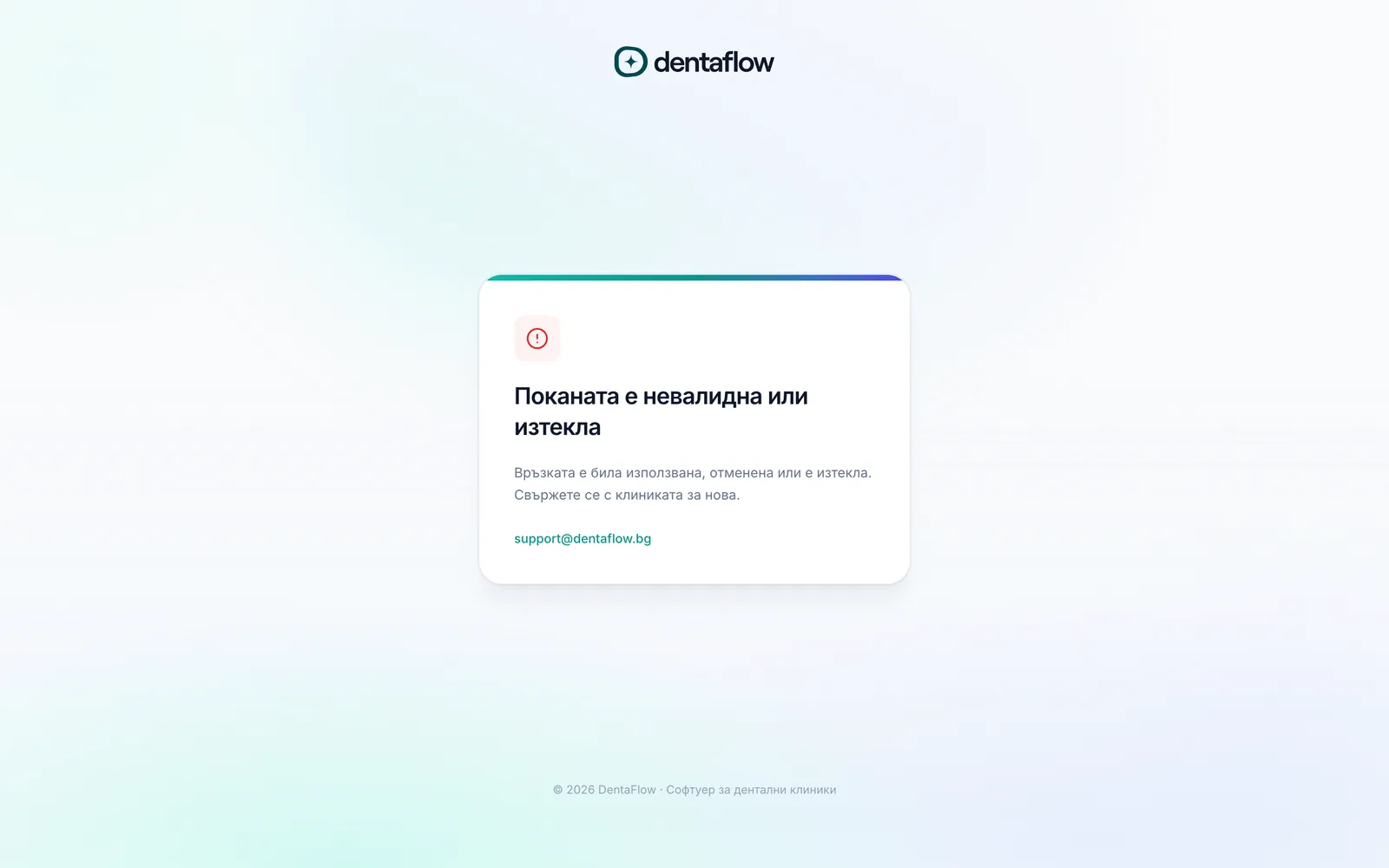
What happens if I click an expired or already-used invite link? The same generic screen appears — “Invite invalid or expired” (Поканата е невалидна или изтекла) — with the support@dentaflow.bg address. If the invite is valid and the invited person already has an account under that email, DentaFlow doesn’t create a duplicate: if they’re signed in with that email they accept in one click (Accept invitation — Приеми поканата); if not, they type their existing password, and can use the Email me a password reset link („Изпрати линк за нова парола“) button if needed. See Inviting your team.
Can a clinic’s only admin accept an invite from another clinic? Not until their own clinic has a second admin. Accepting would remove them from it and leave the clinic without an admin, so DentaFlow stops and shows “You are the only admin of {clinic}. Add another admin there before accepting this invitation.” (Вие сте единственият администратор на {клиника}. Добавете друг администратор там, преди да приемете поканата.) See Inviting your team.
Do all roles see revenue in Analytics? Admin always does. Front Desk and Doctor see currency amounts while Revenue Visible to Staff („Видими приходи за персонал“) in Settings → Modules is on (the default). If Admin turns it off, they see treatment counts instead of money.