Getting into the patient portal
The patient portal is where you see your appointments, your treatment plan, your invoices and messages from your clinic. This guide covers how you get access, how you log in for the first time, and how to get back in if you forget your password. The screenshots below show the Bulgarian interface — every button label gives the Bulgarian original in parentheses.
At a glance
- Access comes by email from your clinic — you cannot register a portal account yourself.
- One sign-in (email and password) opens every clinic that has invited you; you switch between them from the clinic name at the top.
- On your first login you go through a short wizard: an optional password and your preferred contact channel.
- After that, you log in with email and password, or with a one-time sign-in link, no password needed.
- Forgot your password? We email you a reset link, valid for 1 hour.
- Once you’re in, the portal home screen shows your next visit, any balance owed, and quick links to your tooth chart, documents and appointment history.
- You can change the portal language from the account menu at the top: Bulgarian, English, German, Russian or Italian. The choice is remembered.
How you get access
Access to the portal is invite-only. Your clinic emails you a link once your record is set up in their system — there is no way to create a portal account on your own.
- Check your inbox for an email from the clinic with a portal link.
- If you don’t see it, check your Spam or Promotions folder.
- If it’s still missing, contact the clinic. Your email on file may be wrong, or the message may have bounced — the clinic can check the address and resend the invite.
The clinic doesn’t send an invite if you have ticked Do not send via email (Не изпращай чрез имейл) in your profile, if there is no email on your record, or if the address is marked undeliverable. Tell the front desk — they can see the reason and fix the address.
Your first login
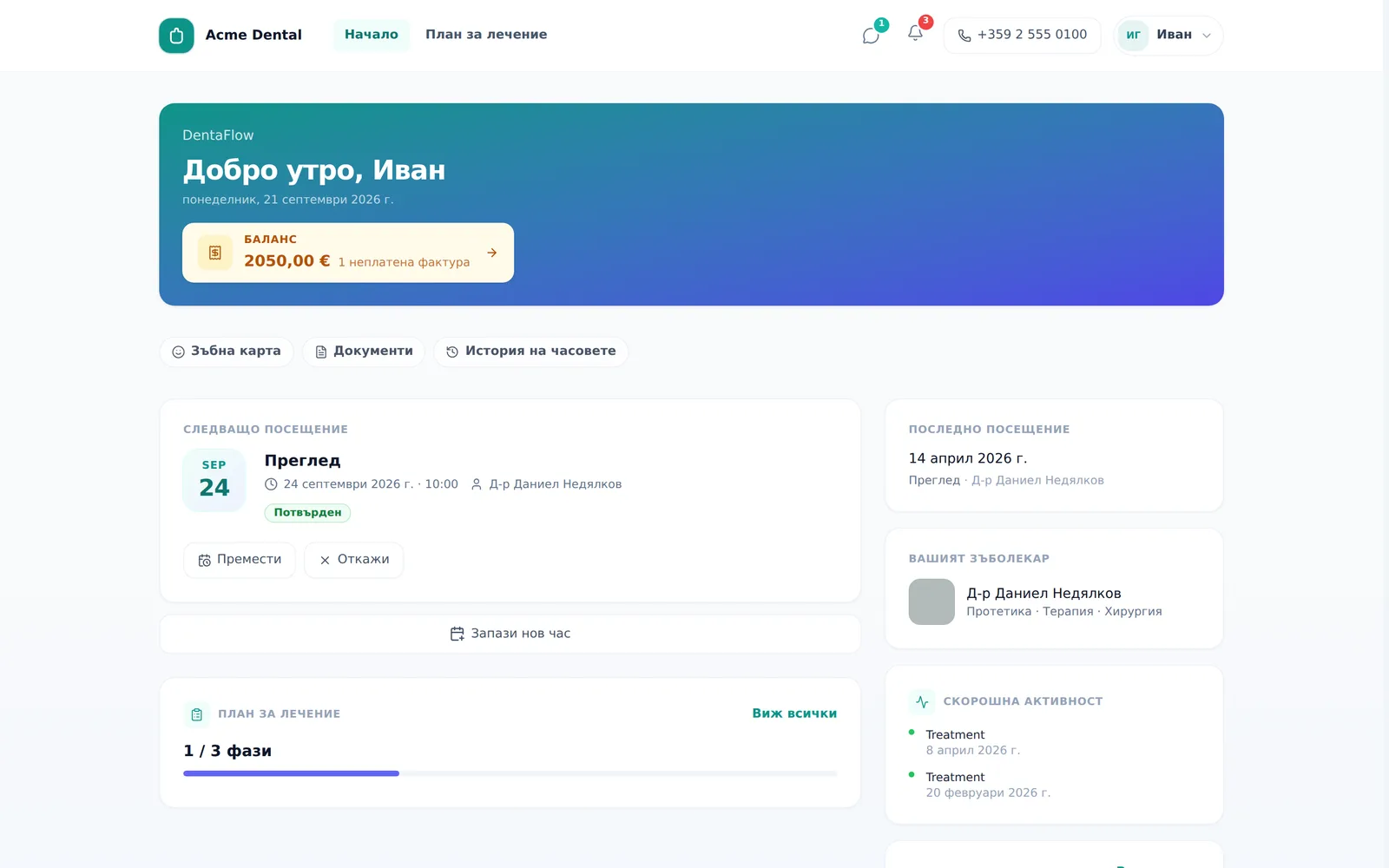
- Open the link from the invite email. It signs you in automatically and takes you to a short two-step first-time wizard — “Password” (“Парола”) and “Notifications” (“Известия”) — with a progress bar at the top.
- Optionally, type a password into New password, min. 8 characters (Нова парола (мин. 8 символа)) — or leave it blank and keep signing in with one-time links only.
- Click Continue (Продължи).
- On the “How should we reach you?” step, pick a Preferred channel (Предпочитан канал): Email (Имейл), Viber, SMS or Call (Обаждане). (Today the clinic can only actually reach you by email or the portal message thread — the other channels are coming soon.)
- Optionally turn on Promotions & health tips (Промоции и здравни съвети) if you want marketing messages from the clinic.
- Click Go to portal (Към портала) — you’ll see a “Done” (“Готово”) confirmation and land on the home screen.
If you already have a DentaFlow account from another clinic, the wizard says so (“You already have a DentaFlow account and password from another clinic…” / „Вече имате профил и парола в DentaFlow от друга клиника…“): type a new password, or leave the field empty to keep the one you have.
Signing in later: email, password or a sign-in link
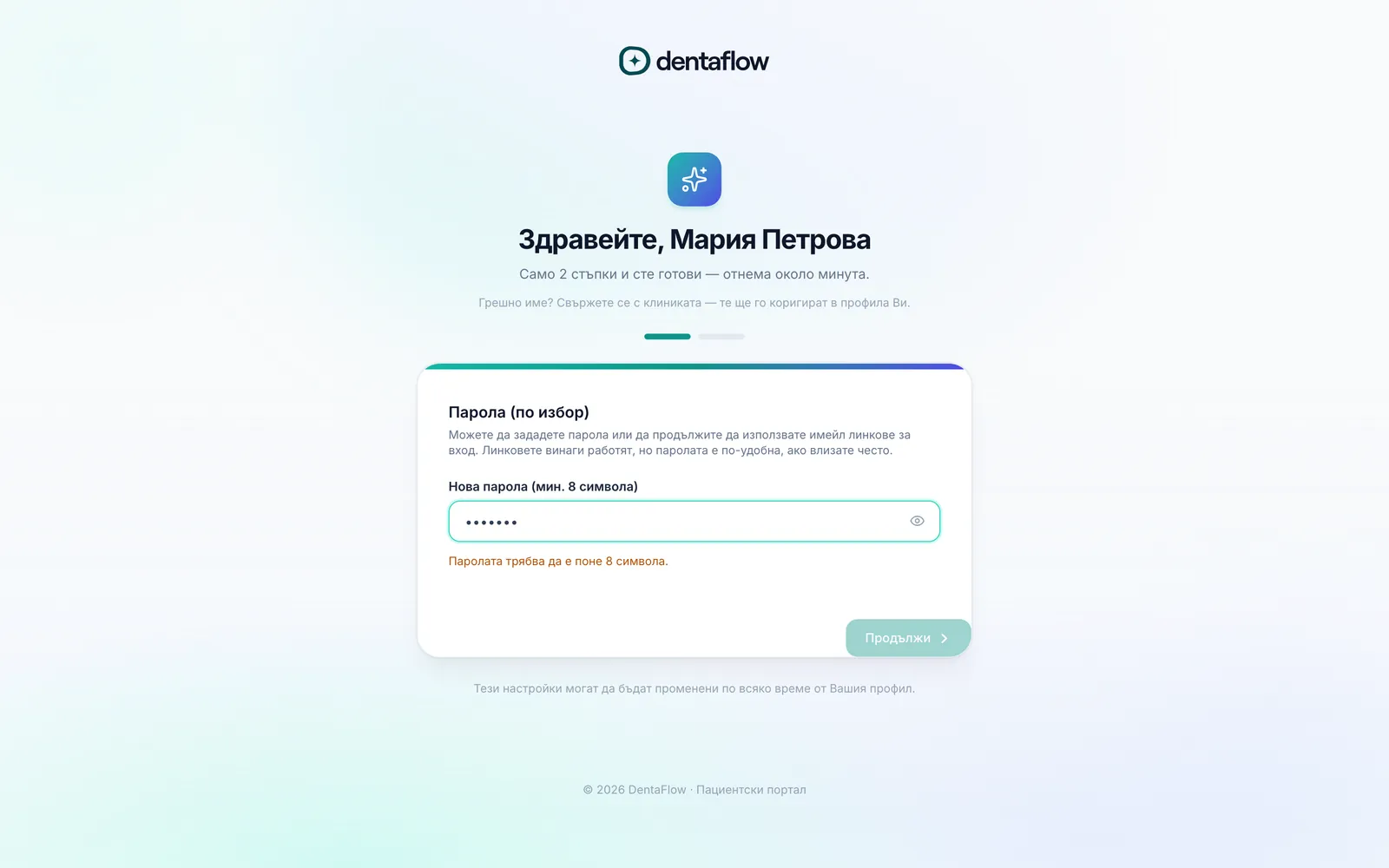
- Open the login page, enter your Email (Имейл) and Password (Парола), then click Sign in (Влез).
- Forgot your password: click Forgot password? (Забравена парола?), enter your email in the dialog and click Send reset link (Изпрати линк). Check your inbox — the link is valid for 1 hour and works once.
- Prefer no password: click Email me a sign-in link (Изпрати ми линк за вход) instead of typing a password, enter your email and click Send sign-in link (Изпрати линк за вход).
- Open the link from the email. A password-reset link lands you on a page to type and confirm a new password (min. 8 characters) and click Save password (Запази паролата); a sign-in link takes you straight into the portal, already signed in.
The login page also has a Remember me (Запомни ме) tick.
The portal home screen
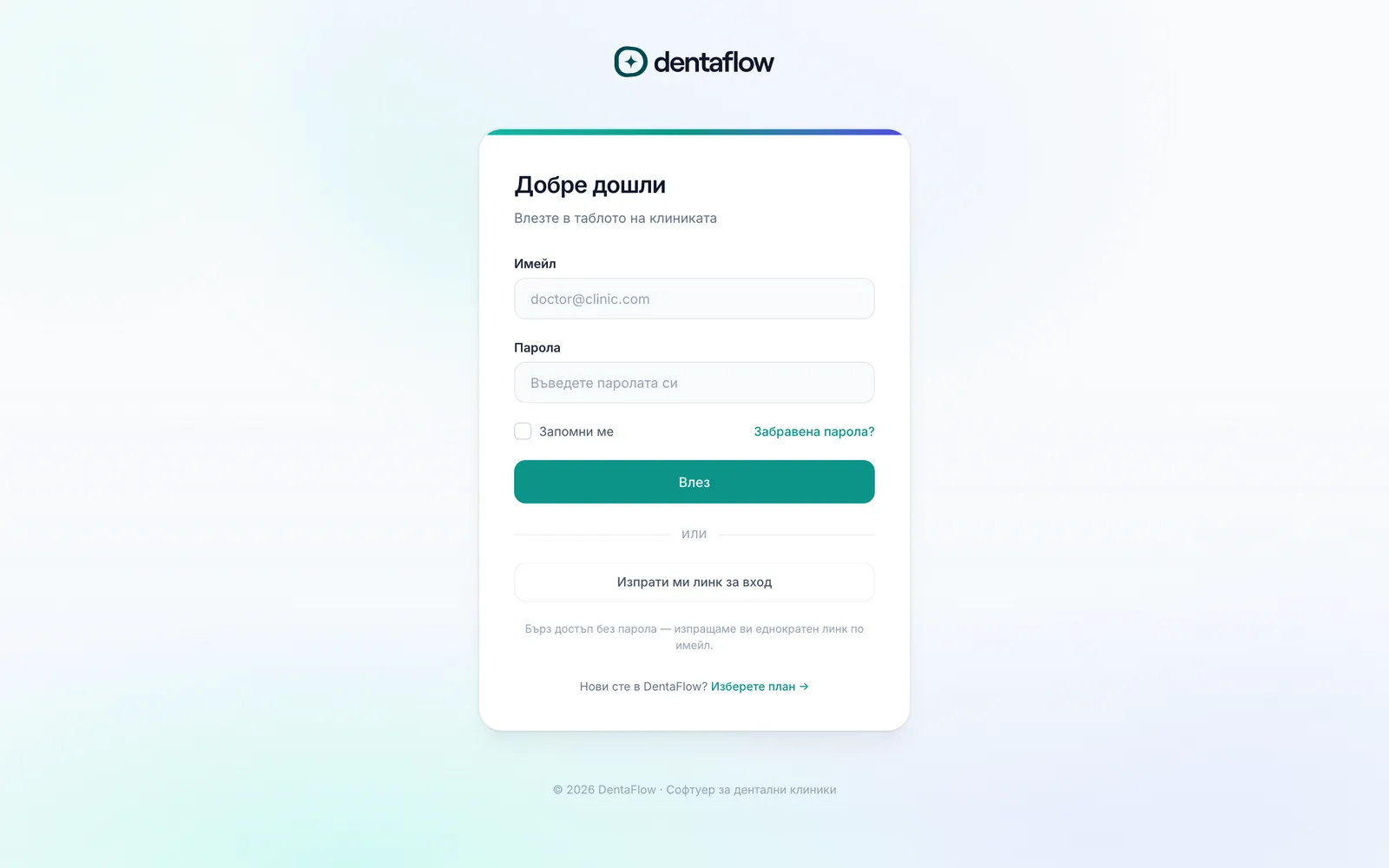
After signing in you land on the home screen. It shows a greeting with the clinic name, your next visit (“Следващо посещение”) with Reschedule (Премести) and Cancel (Откажи) buttons, a Balance (Баланс) chip (only if the clinic bills you through the portal and something is unpaid), your treatment-plan progress (if you have an accepted or in-progress plan), your next instalment (if you pay in instalments), your last visit, your assigned dentist, your recent activity and the most recently shared documents from the clinic. Below the card there is a Book another appointment (Запази нов час) button; if you have no upcoming visit it reads Book your first appointment (Запазете първия си час). A shortcut row across the top links to the tooth chart, documents and appointment history.
Also at the top of the portal: a messages icon (with an unread count), the bell, a call-the-clinic button and the account menu — appointment history, tooth chart, invoices, instalments, documents, “My Profile” (“Моят профил”), the language and Sign Out (Изход).
Several clinics
If more than one clinic has invited you, you don’t need a second account: sign in with the same email and password and the clinic name appears in the header. Click it (“Switch clinic” / „Смени клиниката“) to pick from “Your clinics” („Вашите клиники“). Each clinic keeps its own record — appointments, plan, invoices and documents show only for the clinic you have selected. A clinic whose first-time steps you haven’t finished is marked “Setup required” („Изисква се настройка“).
Notifications (the bell icon)
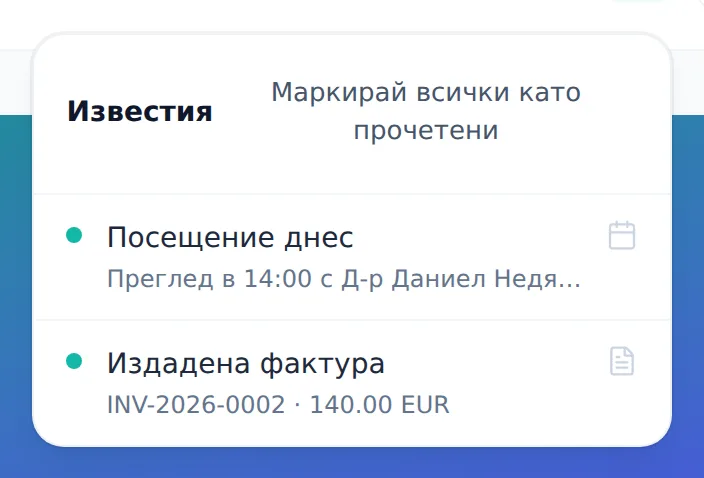
The bell at the top of the portal shows appointments in the next 3 days, a treatment plan awaiting your approval, newly issued invoices, and instalments that are coming due or overdue. Click it to see the list, or click a row to jump straight to it — the row is marked as read. Mark all as read (Маркирай всички като прочетени) clears them all at once.
Frequently asked questions
Can I create my own portal account? No. Access is invite-only from your clinic — they email you a link once your record is in their system. If you’re not yet a patient there, or they don’t have your details, contact the clinic directly.
I never got the invite. What do I do? Check your Spam and Promotions folders. If it’s still missing, contact the clinic — your email may be wrong on file, or the message may have bounced. The clinic can check the address and resend the invite.
Do I have to set a password? No. You can skip the password step on first login and sign in afterward using a one-time link emailed to you each time.
Can I log in as a child or another family member? No. Each portal sign-in is for one person. To see or book for a child, they need to be invited under their own email, or you can call the clinic.
I’m a patient at several clinics — do I need several accounts? No. You have one sign-in (one email and one password) and each clinic that has invited you keeps its own record. Switch clinics from the clinic name in the portal header. If a second clinic invites you with the same email, you get a message that takes you into that clinic with your existing password.
My clinic stopped my portal access. What does that mean? The clinic can cut the link between your sign-in and your record — for example if the invite went to a wrong email. Nothing in your record is deleted. Once the address is fixed the clinic invites you again and you go through the first-time steps once more.
Will I be asked for two-factor authentication? No. Two-factor authentication (2FA) only applies to the clinic’s staff accounts, not to patients.
Why does the bell sometimes show notifications again that I already saw? The “read” state isn’t saved between sessions — reloading the page resets everything to unread, even if you marked items as read. This is expected behavior, not a bug.