Recall reminders
Recall reminders track patients who are due to come back — a routine cleaning, an annual exam, or a treatment follow-up. Each recall has a due date and a status, and the system automatically emails the patient as the due date gets close. This module is available to Admin, Front Desk and Doctor when it’s enabled for the clinic. DentaFlow does not send SMS or Viber messages itself — see below for exactly what each channel does. The app screenshots show the Bulgarian interface; every label below gives the Bulgarian original in parentheses.
At a glance
- Every recall is a row with a status: pending, sent, overdue, completed or cancelled.
- An automatic email goes out every morning — but only for recalls with status pending, channel Email (Имейл), and a due date from today to 7 days ahead (dates already past are not emailed). Afterwards the status becomes “sent”. Patients with no email, a bouncing email, or ticked Do not send via email (Не изпращай чрез имейл) are skipped.
- Send (Изпрати) in the list does not send anything and does not open a chat — it only marks the recall as sent.
- New recalls get the clinic’s default channel (Email by default); if that is Email and the patient has no usable email, the recall is created for a manual channel and waits for the team. Viber is manual click-to-chat (a chat window opens when you save, and a staff member sends it). SMS has no sender — the recall just waits in the list.
- Logging a completed cleaning treatment on a patient’s chart automatically adds the next recall (can be switched off in Settings).
Creating a recall
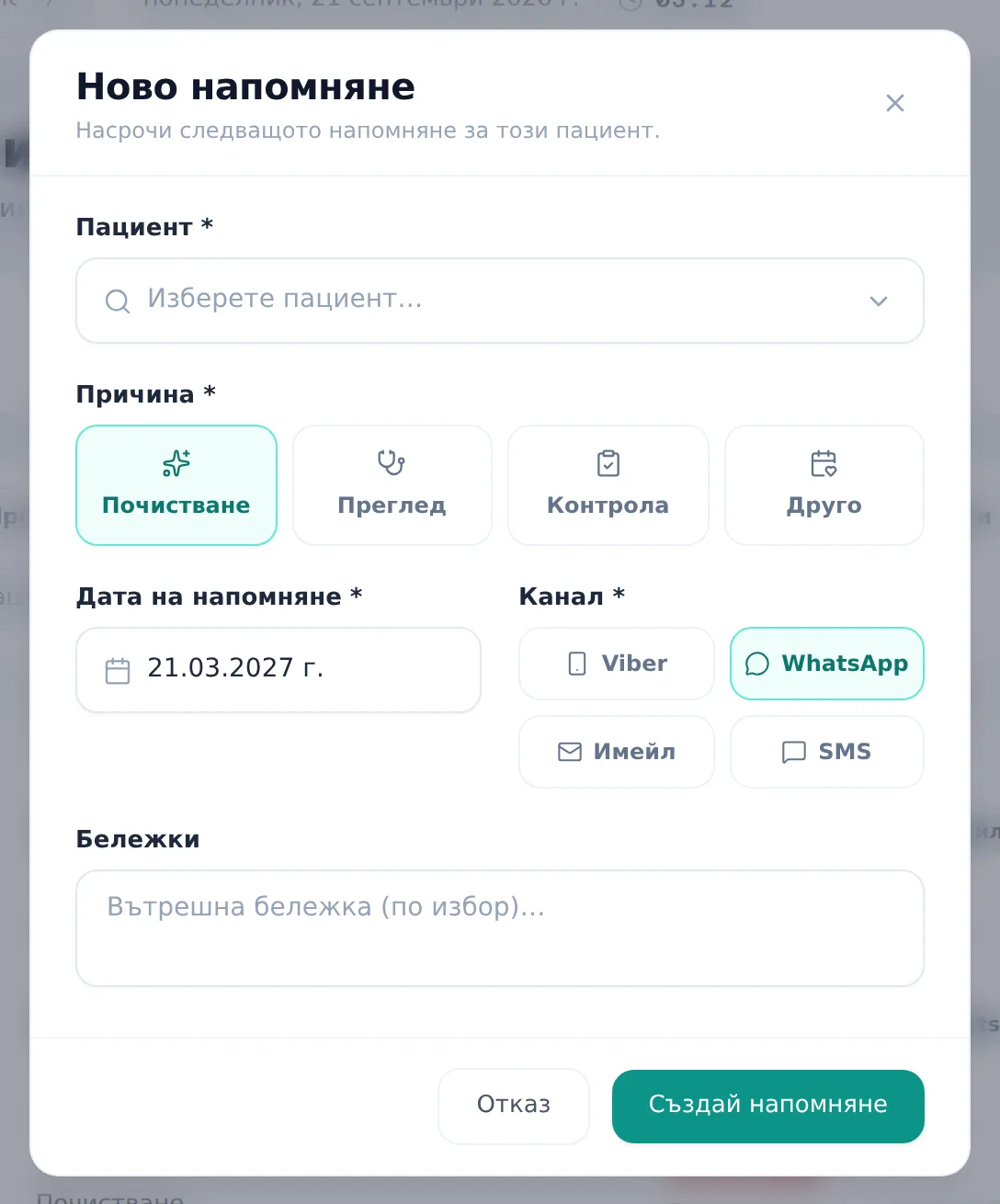
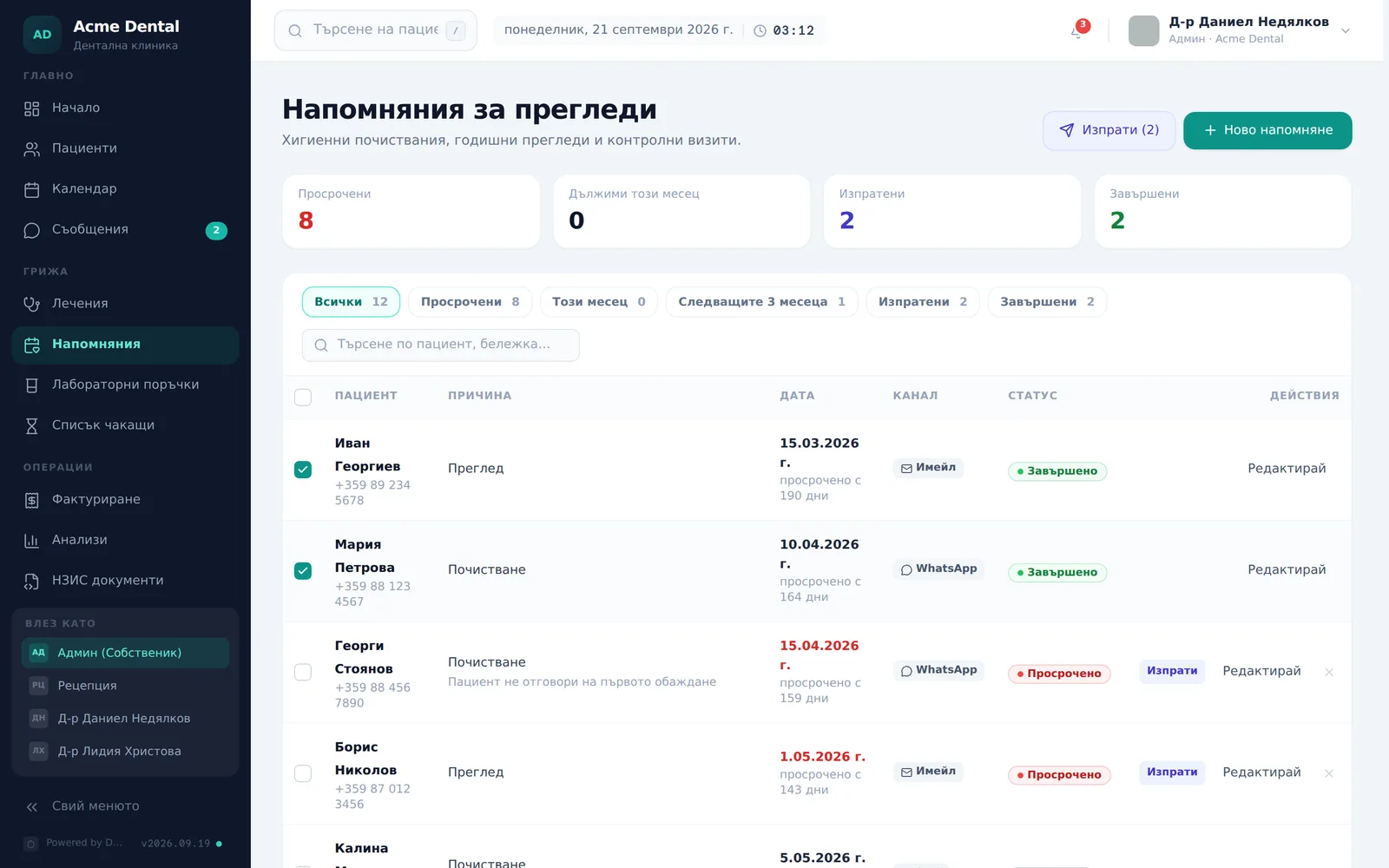
- Open Recalls (Напомняния) from the sidebar (“Care” section) and click New recall (Ново напомняне).
- Search and pick the Patient (Пациент).
- Pick a reason — Cleaning (Почистване), Exam (Преглед), Follow-up (Контрола) or Custom (Друго) (free text).
- Confirm or adjust the Due date (Дата на напомняне) — pre-filled from the clinic’s default intervals (3, 6 or 12 months out, depending on the reason).
- Pick a Channel (Канал) — Email (tagged auto (авто)), Viber or SMS. The clinic’s default channel is pre-selected; if the patient has no usable email, a manual channel is suggested. A hint under the buttons says what will happen with the chosen channel — for example “Sent automatically by email — in the morning, up to 7 days before the date”, or a warning that the patient has no email, a bouncing email, or opted out of email (then pick Viber or SMS).
- Optionally add internal Notes (Бележки).
- Click Create recall (Създай напомняне). If you picked Viber, a pre-filled chat window opens as you save — a staff member still has to press send in it themselves. SMS is not sent automatically — contact the patient yourself and then mark the recall as sent.
If auto-suggest is on (Settings → Recalls (Настройки → Контролни прегледи); on by default) and staff log a completed cleaning treatment, the system adds the next recall itself, as many months out as is set for the treatment’s category. It is skipped if the patient already has a pending or sent recall. The channel is chosen as for a manually created recall.
Sending, editing and closing out a recall
- To edit, click Edit (Редактирай) on a row, change reason/date/channel/notes and click Save (Запази). If the channel is Viber, saving also opens the chat window.
- To record that the patient has been contacted, click Send (Изпрати) on a pending row. This only changes the status to “sent” (for example after you phoned the patient, or sent from the chat window). No email or message is sent and no chat opens. Changing the status away from pending stops the automatic email for that recall.
- To do several at once, tick the rows via the checkboxes and click Send (N) (Изпрати (N)) at the top. This also only marks the selected rows as sent.
- Once the patient has booked or come in, click Complete (Завърши) on a sent row.
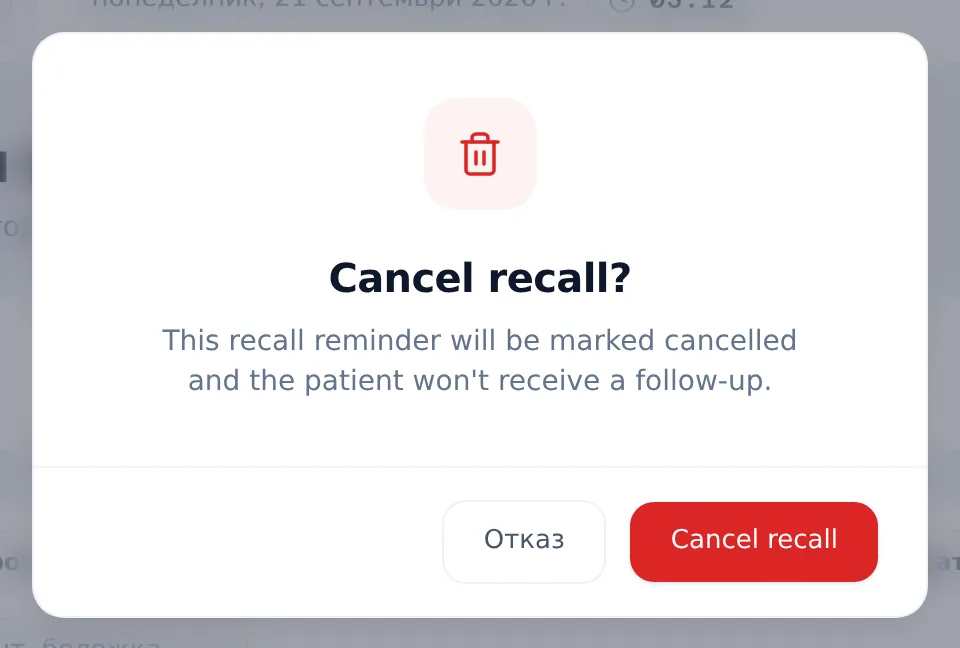
- To cancel a recall, click the small ✕ on a row (shown on every row that isn’t completed or cancelled) and confirm in the dialog — this is irreversible; the patient will not get a follow-up for it.
- Filter or search the list with the pills — All (Всички) (the default — so an empty “Overdue” tab doesn’t read as “there are no reminders at all”), Overdue (Просрочени), This month (Този месец), Next 3 months (Следващите 3 месеца), Sent (Изпратени), Completed (Завършени) — or the search box (patient name, phone, email or notes).
Settings: intervals and the default channel
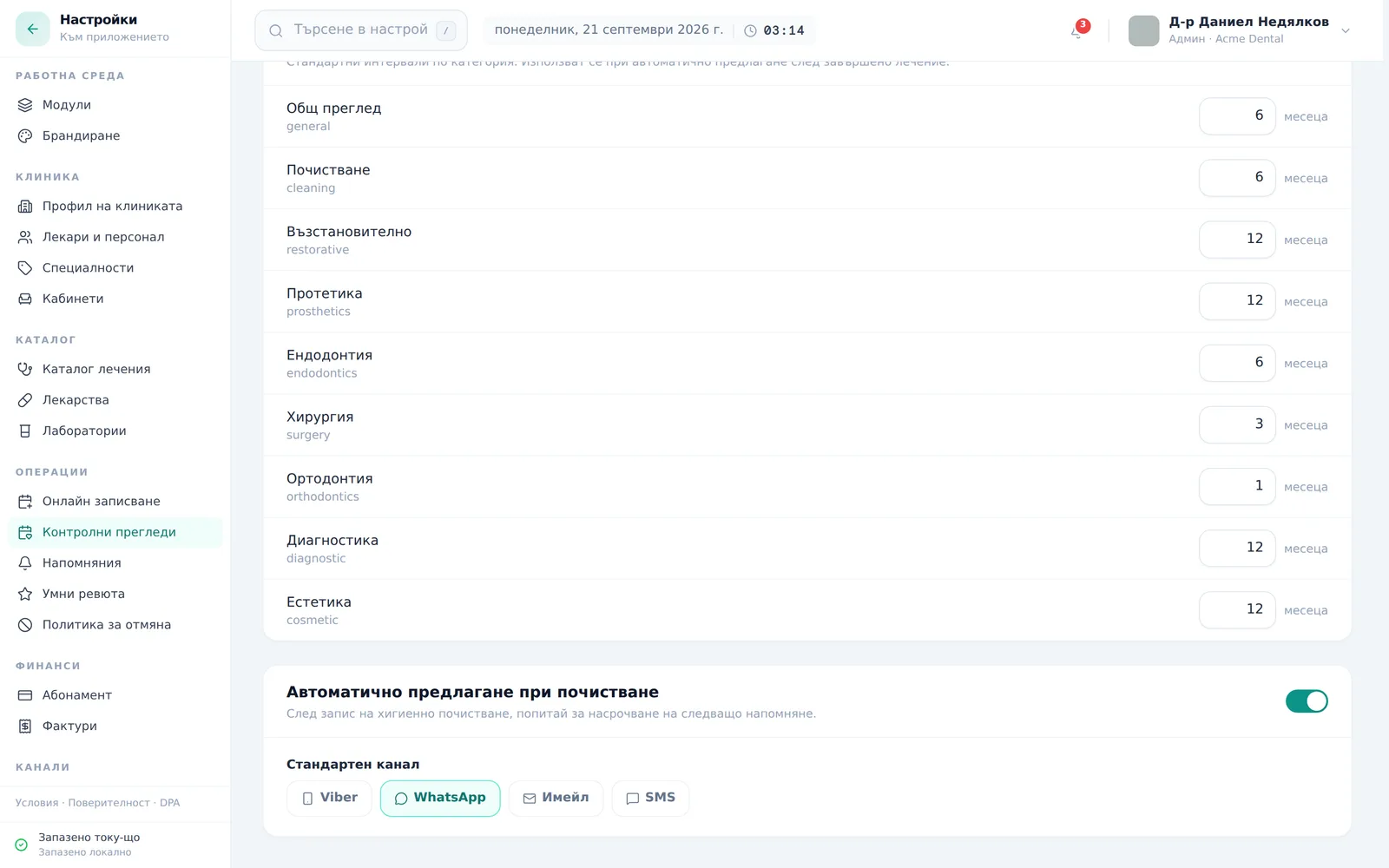
Under Settings → Recalls (Настройки → Контролни прегледи) (the “Operations” group), in the “Recall defaults (Настройки на напомнянията)” card, you set once, clinic-wide:
- the default intervals in months (1–36) for each treatment category — General exam, Cleaning, Restorative, Prosthetics, Endodontics, Surgery, Orthodontics, Diagnostic, Cosmetic;
- the Auto-suggest on cleanings (Автоматично предлагане при почистване) switch — after a hygiene cleaning is logged, the system adds the next recall;
- the Default channel (Стандартен канал) for new recalls. Email is tagged Automatic (Автоматично), the others Manual (Ръчно). For a patient without a working email the recall is created for a manual channel and your team sends it by hand.
Individual recalls can still override the channel per patient. Quiet hours, patient reminders and staff alerts live elsewhere — Settings → Reminders (Настройки → Напомняния).
Frequently asked questions
Does clicking “Send” actually email or text the patient? No. In the list it only changes the status to “sent” (for example, because you called the patient yourself). The only automatic sending is for the Email channel, through the daily automatic run in the morning — it emails every recall that is still pending, set to Email, and due from today to 7 days ahead. Moving the status away from pending stops that email. For Viber, a chat window opens when you save the recall (not from Send), and a staff member still has to press send in it — nothing goes out automatically.
Which channel actually auto-sends? Only Email. Viber only works as a manual click-to-chat, opened when you save a recall. SMS has no sender — a SMS recall waits in the list until your team contacts the patient and marks it sent.
Why was a new recall created for a manual channel instead of Email? The default channel is Email, but if the patient has no email, a bouncing email, or opted out of email, the recall is created for a manual channel so it stays visible and your team sends it by hand. The New recall window shows a hint explaining why.
Why didn’t a patient get the automatic reminder email? Check the communication preferences on their profile. If Do not send via email (Не изпращай чрез имейл) is ticked, DentaFlow sends the patient no email at all — no reminders, invoices or receipts. The email is also skipped if the patient has no email or the address bounces, and for a recall whose date has already passed. Reach them by phone or through the portal thread.
What language is the reminder email in? Bulgarian by default. Only clinics for which DentaFlow has switched on English patient emails send English to a patient whose language is English. Changes you make to the “Recall reminder (Напомняне за преглед)” template (Settings → Email Templates) apply to the Bulgarian emails. See Email templates.
Why does a recall show “Overdue” when its status still says “pending”? “Overdue” (Просрочено) is a computed display label (pending + a due date in the past) — the stored status stays “pending” until someone sends, completes or cancels it. The Overdue (Просрочени) filter and the counter above the list also include sent recalls past their date, so they can show more rows than carry the “Overdue” label.
Where else does an overdue recall show up? A patient with an overdue recall gets the status Overdue (Просрочен) in the patients list (when the recalls module is on). On the dashboard, the Overdue recalls (Просрочени напомняния) row in Needs Attention links to Recalls → Overdue; hide it under Settings → Reminders → Staff alerts → Overdue recalls (Настройки → Напомняния → Сигнали за екипа → Просрочени напомняния). These alerts are in-app only — nothing is sent to the team or the patient.
Can I undo cancelling a recall? No — cancelling is irreversible, and the patient will not get a follow-up for that recall.
Why didn’t the Viber chat window open? The toast explains why — either the patient has no valid Viber number, or the browser blocked the popup (allow pop-ups and try again).
Why did a new recall appear that nobody created by hand? If auto-suggest is on, logging a completed cleaning treatment on a patient’s chart adds a recall on its own (skipped if one is already pending or sent) — this is expected behavior. Switch it off under Settings → Recalls. See Logging treatments & visits.