My Treatment Plan
When your dentist proposes a treatment plan, you see it in the portal — phases, cost, and a way to accept it or ask for changes. Your tooth chart lives in the same place, exactly as your dentist recorded it. The screenshots below show the Bulgarian interface; every label gives the Bulgarian original in parentheses.
At a glance
- You see one plan at a time: first the one waiting for your decision, otherwise the newest accepted or in-progress plan.
- Accept the plan with one click, or write free text to request changes.
- If the clinic has published a document for the plan, you decide on the document instead: “I accept the document” or “Request changes”.
- Accepting is logged and can’t be undone from the portal.
- Progress shows as phases with a checkmark on completed ones and an overall progress bar.
- Your tooth chart in the portal is view-only — you can’t edit it yourself.
Reviewing and approving the plan
- Open Treatment Plan (План за лечение) from the portal menu (the page is titled My Treatment Plan — Моят план за лечение).
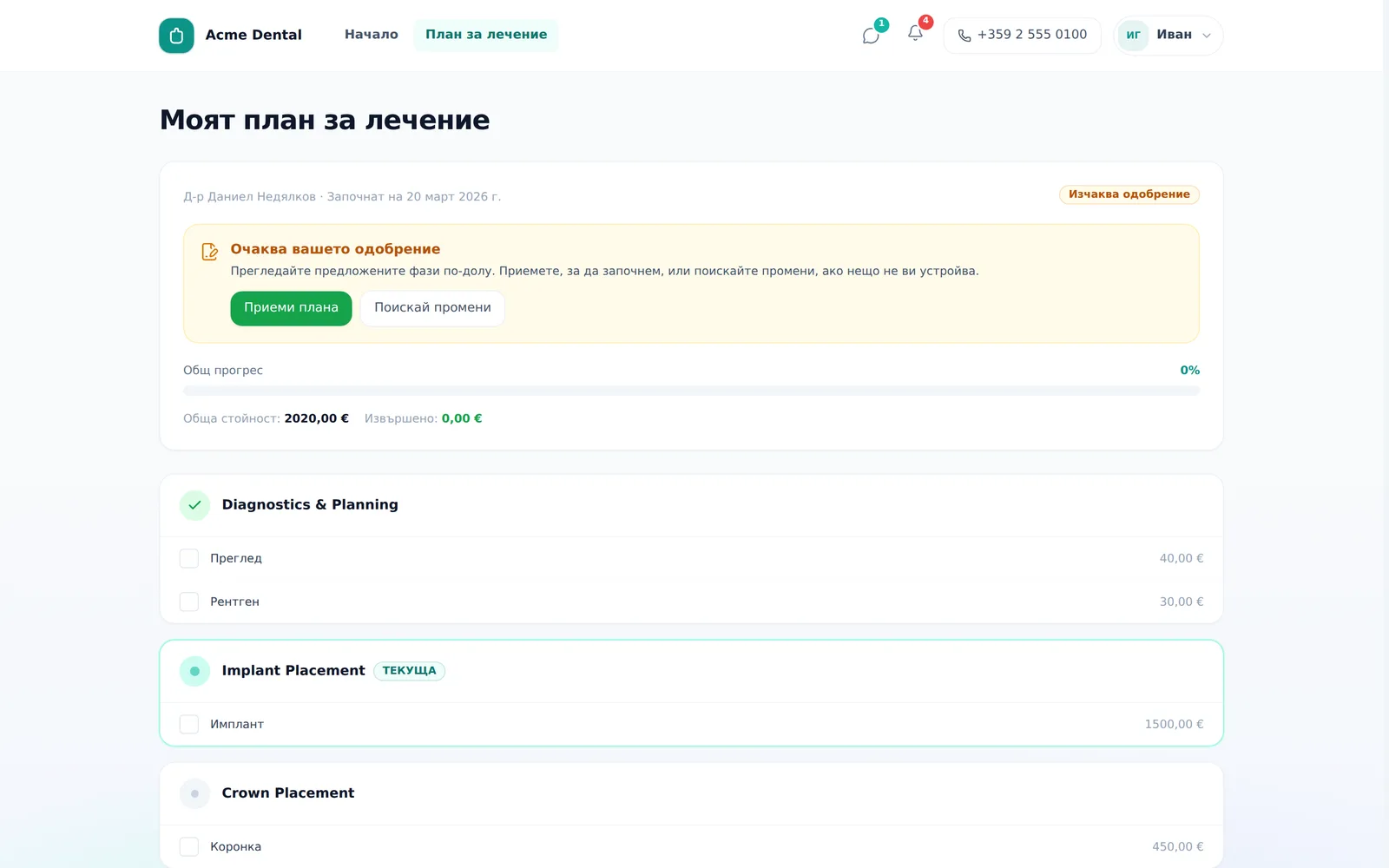
- If the plan is awaiting your approval, read the phases and costs, then click Accept plan (Приеми плана) to approve it.
- If you want changes instead of accepting outright, click Request changes (Поискай промени), describe what you want in the text box, and click Send request (Изпрати заявка). This only files a written request — it doesn’t change the plan itself; you’ll see a “Revision requested” (“Поискана промяна”) banner until your dentist edits it and re-presents it.
If the clinic has your email address and you haven’t opted out of email, you get an email „Вашият план за лечение е готов —
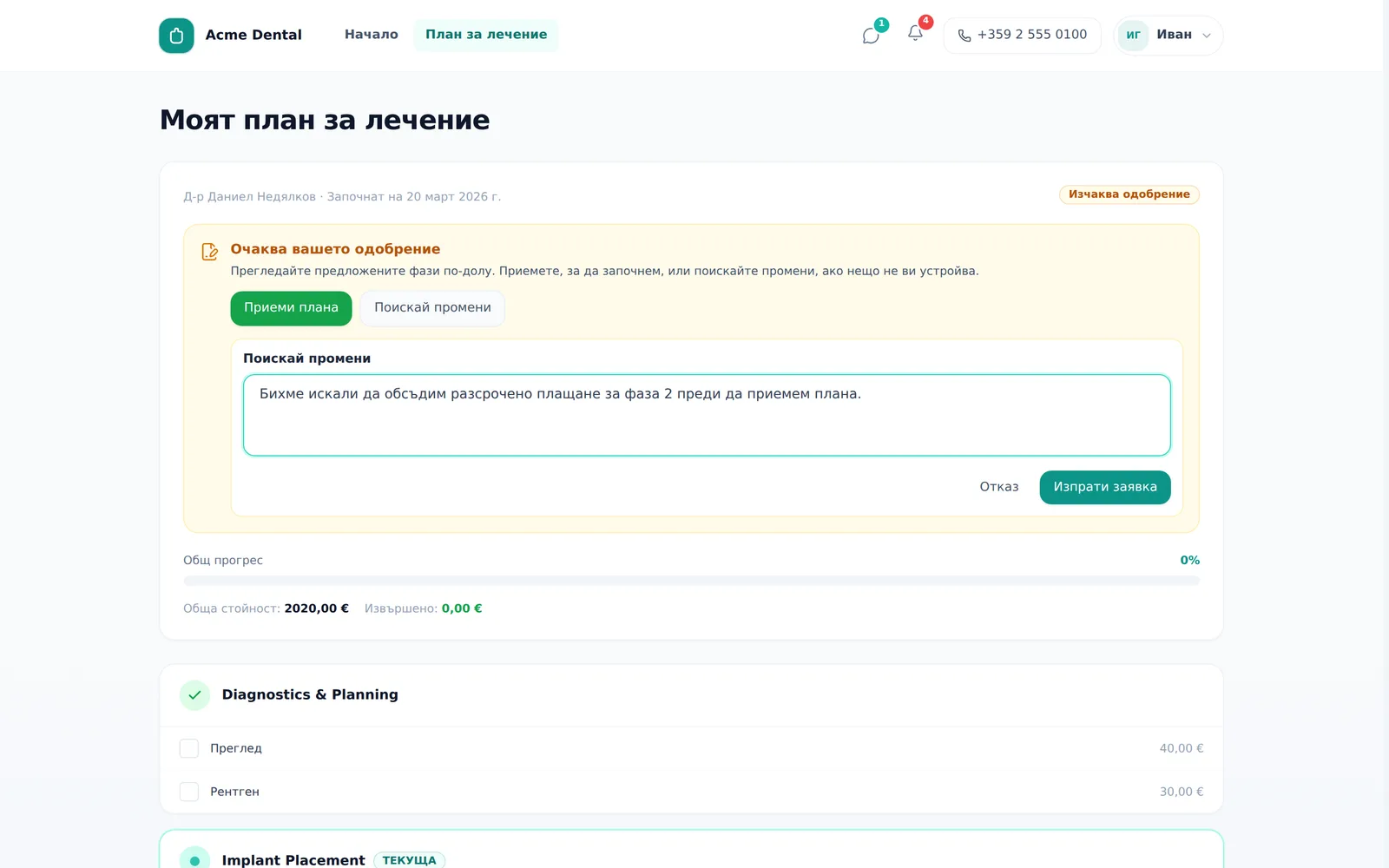
After you accept, the page shows “Accepted on” („Приет на“) with the date; after a change request you see the “Revision requested” banner. The note can be up to 2000 characters.
When the plan has a document
If the clinic has switched on the “Patient documents” module and published a document for your plan, the Accept plan and Request changes buttons are not shown. In their place is the card Document for your plan (Документ за вашия план) with “Version N” („Версия N“), its date and a Download PDF (Изтегли PDF) button. You decide on the document:
- Read the document (Download PDF).
- Click I accept the document (Приемам документа) — you see “Version N, dated
— you confirm that you accept this version of the document” — then Confirm (Потвърди). Or click Request changes (Искам промени), describe it under What should be changed (Какво да бъде променено) and click Send (Изпрати) (to back out, use Cancel — „Отказ“). - A decision is tied to that exact version. If the clinic publishes a newer one, you see “The document was updated — we are showing the current version.” and decide again; earlier versions are under “Earlier versions (N)” („Предишни версии (N)“). If the clinic withdraws the document, it says “The document was withdrawn by the clinic.”
Accepting tells the clinic that you agree with the proposed plan. It does not replace the informed consent you give before each procedure.
Tracking progress
- Look at the phase list — completed phases show a checkmark and the current phase is badged CURRENT (ТЕКУЩА). Procedures already performed at a visit show a checkmark and strikethrough.
- Total estimate (Обща стойност) is the amount after any discount (a discount shows separately as Discount (Отстъпка)). Completed (Извършено) is the value of the procedures performed so far, and Overall Progress (Общ прогрес) shows the share of procedures performed.
- The portal has no print button for the plan. If you need a paper copy, ask the clinic.
Your tooth chart in the portal
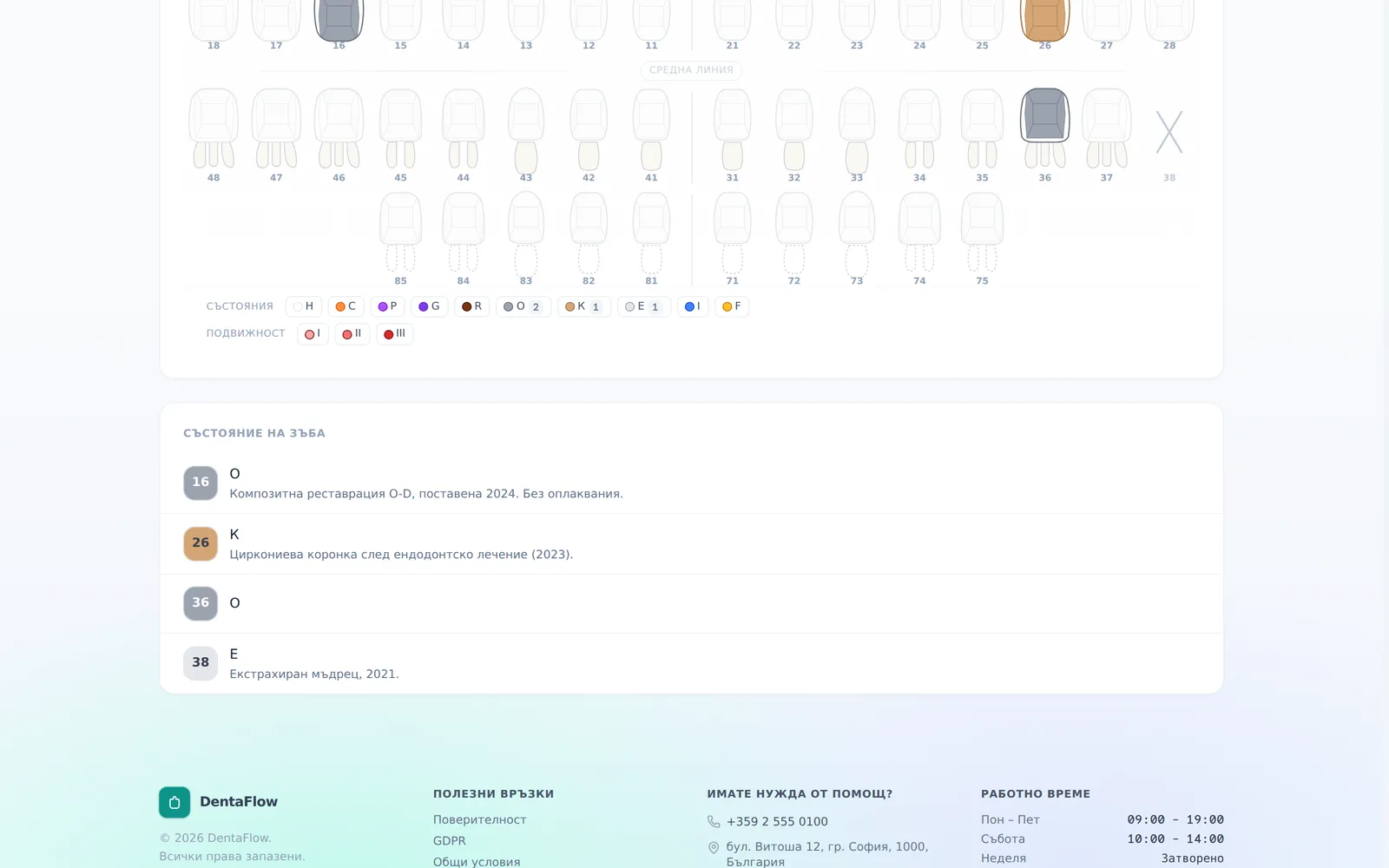
The portal also has a tooth chart — your dental status as your dentist recorded it, plus a list of the teeth whose condition is anything other than intact (for example caries, filling, crown or missing tooth), with the dentist’s note on each.
- Open the tooth chart from the account menu or the home screen’s quick links.
- Review the chart, then scroll the list below for tooth-by-tooth detail.
The chart is view-only — there’s nothing to click, edit or submit. If you think something looks wrong, mention it to the clinic at your next visit or contact them directly.
Frequently asked questions
Do I see all my treatment plans, or just the latest one? You see one plan at a time: first the one waiting for your decision, otherwise the newest. The portal shows plans that are awaiting approval, have a change requested, are accepted or are in progress. Draft, completed and declined plans aren’t shown. The link in the email or notification opens that exact plan.
Can I undo accepting a plan if I change my mind? No. Accepting is final from the portal’s side. If you change your mind, call the clinic — there’s no “un-accept” option. With a plan document you can use “Request changes” only while the decision on the current version has not been recorded yet.
Why don’t I see a treatment plan? The empty “No active treatment plan” screen means the clinic hasn’t presented a plan to you yet (a draft isn’t visible), or your plan is completed or declined. It’s not an error.
Can I fix my own tooth chart if I think there’s a mistake? No. The tooth chart is entirely view-only. Tell the clinic if you notice something off — they’ll update the record.