NHIS documents: D001, D003, D007
This guide describes DentaFlow’s implemented process for preparing, opening, supplementing and cancelling an ambulatory sheet. It is for Admin, Front Desk and Doctor staff who record visits. Access to the screen does not replace the treating dentist’s qualified electronic signature (KEP). The illustrations show the Bulgarian interface.
At a glance
- Start a new sheet through New ambulatory sheet (Нов амбулаторен лист) on the patient profile or Log treatment (Регистрирай лечение) from /treatments. Once a patient and dentist are selected, the app attempts early opening through D001; a number may appear before the final step.
- НРН / NRN means national reference number. NHIS issues a real number; in DentaFlow’s simulation the number is a test number. The closing process includes the patient’s pad signature and the dentist’s KEP, while early opening has no patient-signature step. If the computer has no pad, the sheet is submitted and closed with the dentist’s KEP only and the patient signs later — see Patient signs later.
- Save & supplement (D003) (Запиши и допълни) supplements a sheet that already has a number; with saved procedures, it also closes the sheet. The number stays the same. In DentaFlow’s simulation, this action uses simulated signatures and responses.
- After cancellation (D007), the document cannot be supplemented or resubmitted to NHIS. Separately saving changes to the local visit does not undo cancellation. Cancelling doesn’t need the visit’s procedures — you can cancel an empty sheet too.
- Every ambulatory sheet of the clinic is on the Ambulatory sheets (Амбулаторни листове) page (/nhis/documents) — Admin only: sheet number, patient, who pays, sums and the NHIS status. The list includes test documents; the Submitted status alone does not establish real NHIS acceptance. See The Ambulatory sheets list.
- The environment — test or live — is set up by the DentaFlow team for each clinic. Clinic settings have no switch to turn on live submission.
- When the clinic works with NHIS, DentaFlow never quietly drops back to test mode, and a document from one environment can’t be supplemented or cancelled after the clinic moves to another. See Test and live environments.
Opening a sheet (D001) and closing it (D003)
- Open the patient’s profile and click New ambulatory sheet (Нов амбулаторен лист) (or Log treatment (Регистрирай лечение) from /treatments).
- Step “Patient & procedures” (Пациент и процедури): confirm the patient, pick the treating Doctor (Лекар), and add one or more services under Services (Услуги).
- Step “Clinical details” (Клинични детайли): for each line, set the tooth/surfaces on the mini tooth map, the funding source, duration and any SOAP notes. The Activity code (CL110) (Код на дейност (CL110)) is filled in from the service — for a service with a КСМП code it’s the КСМП code itself. You see it, along with Diagnosis (ICD-10, CL011) (Диагноза по МКБ-10), on NHIF lines or after the NHIS codes (НЗИС кодове) link. A line’s diagnosis defaults to Same as the visit ({code}) (Като посещението ({код})) — the line follows the ICD-10 (МКБ) code in the visit’s ICD-10 diagnosis (МКБ-10 диагноза) field unless the doctor picks a different ICD-10 code for that line. That ICD-10 code is used when preparing the NHIS ambulatory sheet and the monthly NHIF claim. The diagnosis isn’t required for NHIS submission, but an NHIF activity without an ICD-10 diagnosis stays out of the monthly claim — the visit warns you about it in the Review & submit step.
- Step “Review & submit” (Преглед и подаване): check the procedures and amounts. If early opening has already returned a number, the button is Save & supplement (D003) (Запиши и допълни); otherwise it is Save & submit to NHIS (Запиши и подай към НЗИС). The separate Save action stores data locally and does not establish submission. If a line has no activity code, submission stops with “Line N: missing activity code” (see below). If the sheet could not be opened in NHIS when the visit was opened, you see a note with the reason (for example incomplete clinic details for NHIS, or NHIS not responding); the NRN is requested when you submit.
- In the NHIS test and live environments, the dentist is first authenticated through Bridge. At closing, the patient then signs on the configured pad — unless this computer has no pad or you ticked Patient signs later (Пациентът подписва по-късно). In DentaFlow’s simulation these D003 actions are simulated; a test success does not confirm a working integration.
- The dentist signs the XML with their KEP through DentaFlow Bridge, after the patient signature. Signing and NHIS acceptance are separate results. If the pad or KEP signing fails, the message is in the interface language and says what to do (for example start DentaFlow Bridge, plug in the token, or choose the dentist’s certificate). See KEP signing & DentaFlow Bridge.
- The app displays the result and number. Check the label beside the number: “mock” (DentaFlow’s simulation) and “sandbox” (the NHIS test environment) do not mean registration in the live NHIS. A document from the live environment has no label. The “Document accepted — NRN {number}” (Документът е приет — НРН {номер}) message in test mode remains a test result. If the sheet was closed without the patient’s signature, a note under it says the patient hasn’t signed yet and where to sign.
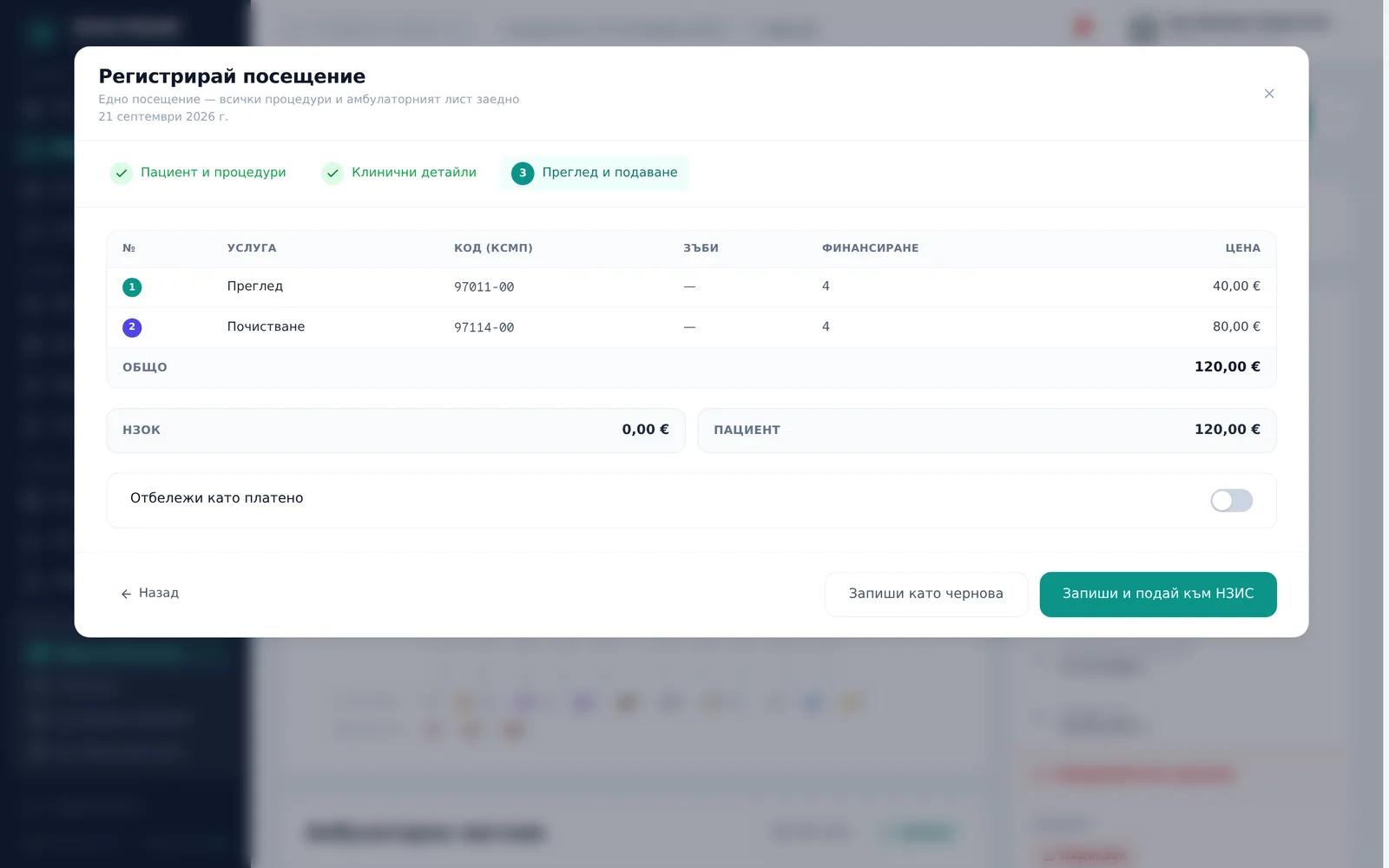
These illustrations show the process interface.
Supplementing and closing a sheet (D003)
If a sheet already has a number, the button is Save & supplement (D003) (Запиши и допълни). With saved procedures, this closes the early-opened sheet in the implemented process; later supplements retain the same number. Since 2 November 2026 a client clinic submits real sheets and receives NRNs from NHIS. This does not establish that DentaFlow supports every statutory correction of a real document.
Cancelling an ambulatory sheet (D007)
- Open the sheet you want to cancel.
- Click Cancel document (Анулирай документа).
- Enter a reason (at least 3 characters) and confirm.
Cancelling sends NHIS only the sheet’s number and the reason — it doesn’t need the visit’s procedures, so you can also cancel a sheet opened with no procedures saved. The dentist signs the cancellation with their KEP through DentaFlow Bridge.
After cancellation, a banner shows the date; the document cannot be supplemented or resubmitted to NHIS. The local Save changes action does not restore it. If an active electronic medical note is linked to the sheet, the app requires that note to be cancelled first.
Test and live environments
Each clinic works in one environment, set up by the DentaFlow team:
- DentaFlow’s simulation (“mock” label) — nothing reaches NHIS; numbers, signatures and responses are test ones.
- The NHIS test environment (“sandbox” label) — documents reach NHIS’s test system, but the numbers aren’t real.
- The live NHIS environment (no label) — documents are submitted to the real NHIS.
Two rules apply when the clinic works with NHIS (test or live environment):
- No quiet fallback to test mode. If authentication, KEP signing or the NHIS connection fails, submission stops with an error. DentaFlow doesn’t create a test number in place of a real one.
- A document stays in the environment it was created in. Once the clinic moves to another environment, a document from the previous one can’t be supplemented (D003) or cancelled (D007).
Patient signs later
Not every computer has a pad — for example cabinet laptops with the dentist’s KEP and one pad at the front desk. In that case the sheet is submitted and closed with the dentist’s KEP only, and the patient signs afterwards.
- On the computer without a pad, open Settings → Clinic profile → NHIS & NHIF (Настройки → Профил на клиниката → НЗИС и НЗОК), the Patient signature (NHIS) (Подпис на пациента (НЗИС)) section, and under Pad on this computer (Таблет на този компютър) choose No pad (Без таблет). This applies to this computer and browser only; elsewhere leave The pad is plugged in here (Таблетът е включен тук).
- In the Review & submit step on such a computer, Patient signs later (Пациентът подписва по-късно) is ticked and can’t be unticked. On a computer with a pad you can tick it yourself for a particular sheet.
- After closing, the dashboard shows an Awaiting patient signature (Чакат подпис на пациента) card — closed sheets with an NRN from the last 30 days that the patient hasn’t signed. Click Sign (Подпиши) on the computer with the pad: the print view opens, where the patient signs with Patient signature (Подпис на пациента).
This signature is stored in DentaFlow and printed on the sheet. It isn’t sent to NHIS.
Printing the visual copy
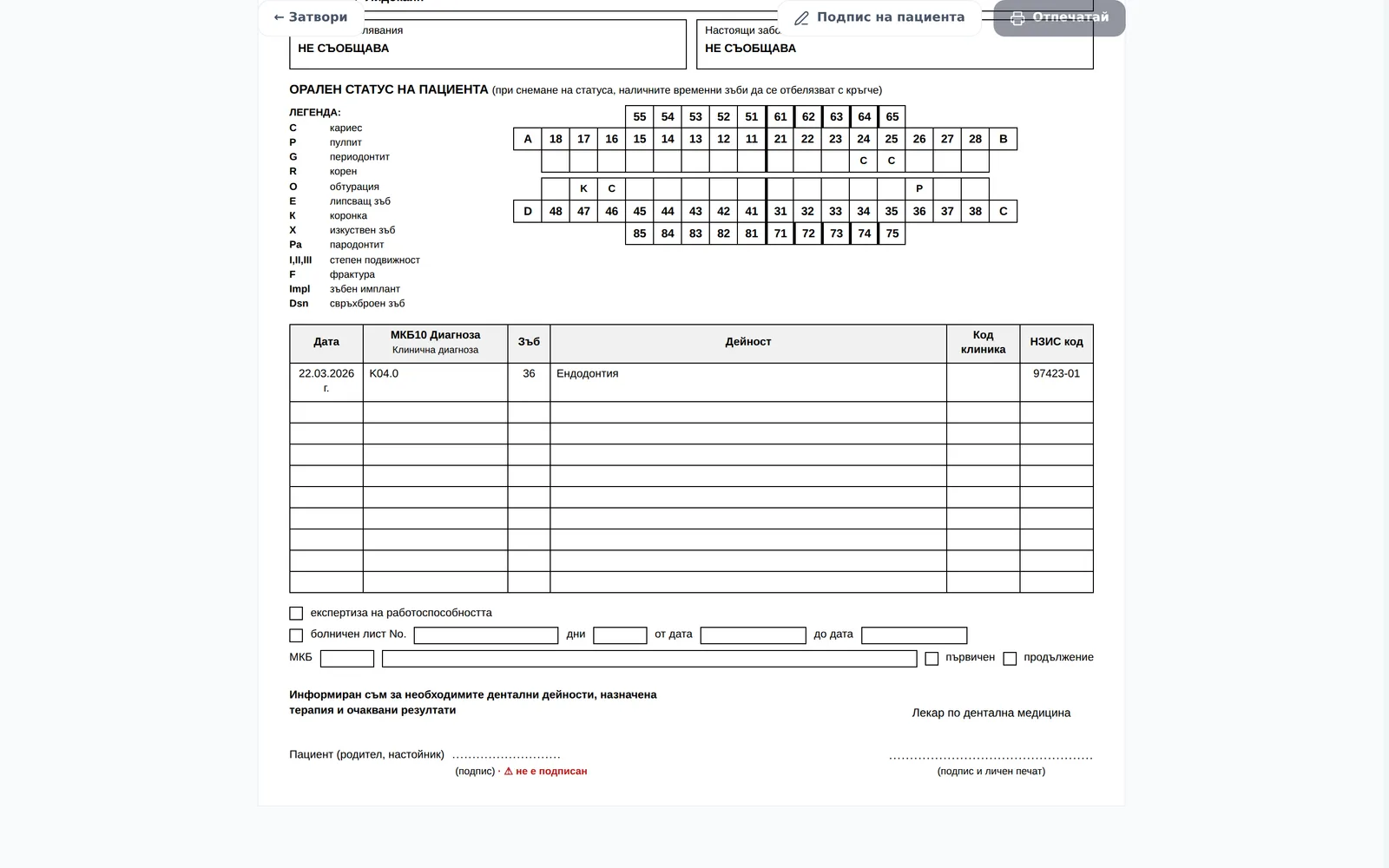
- Open the visit’s print view — from the row in the ambulatory-sheets table, or the Print ambulatory sheet (Печат на амбулаторен лист) link in the visit modal.
- Click Patient signature (Подпис на пациента) (or Sign again (Подпиши отново) if a signature already exists) to capture the patient’s signature on the tablet specifically for the paper copy.
- The Print (Отпечатай) button works without a captured signature too — the sheet prints with a blank line for the patient to sign on paper. A pad signature is stored in DentaFlow and printed on the sheet; it isn’t sent to NHIS.
The Ambulatory sheets list
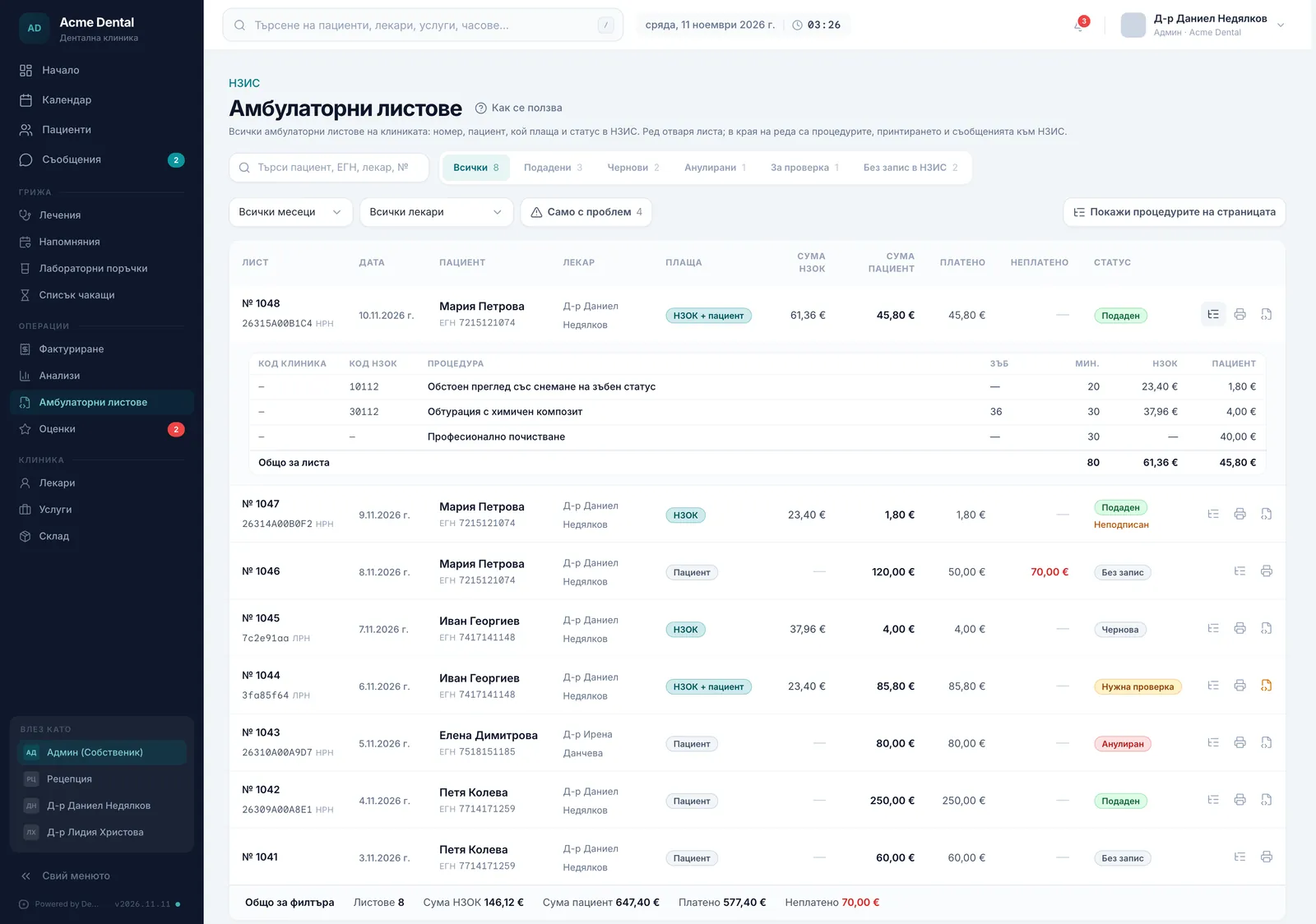
The Ambulatory sheets (Амбулаторни листове) page (/nhis/documents, Admin only) lists every ambulatory sheet of the clinic, newest first, 25 to a page. Sheets with no NHIS record are here too, with the status No record (Без запис). A sheet with NHIS documents has one row per document, so a cancelled document and the one that replaced it are two rows. The list is read-only.
What a row shows
- Sheet (Лист) — the sheet’s number in the clinic, with the NRN under it. Until the document has an NRN, the start of its LRN is shown there.
- Date (Дата) and Patient (Пациент) — the patient’s EGN or LNCh is under the name.
- Doctor (Лекар).
- Paid by (Плаща) — НЗОК, Patient (Пациент) or НЗОК + patient (НЗОК + пациент).
- НЗОК sum (Сума НЗОК), Patient sum (Сума пациент), Paid (Платено) and Unpaid (Неплатено). НЗОК sum shows a dash when the sheet has no NHIF procedure with a price.
- Status (Статус) — Submitted (Подаден) (the document has an NRN), Draft (Чернова) (there is an NHIS record, but no NRN yet), Cancelled (Анулиран), Needs review (Нужна проверка) or No record (Без запис). Not signed (Неподписан) appears under the status when the sheet was submitted to NHIS in the last 30 days and the patient has not signed yet.
On a narrower screen some columns are hidden and their values move under the patient’s name.
The Submitted status only means the document has a number — a test number included. Check the environment and the result of the particular message.
Opening, printing and procedures
- Click a row: the sheet opens in a new browser tab, in its print view.
- The end of the row has up to three buttons:
- Procedures in the sheet (Процедури в листа) shows the sheet’s procedures under the row — Clinic code (Код клиника), НЗОК code (Код НЗОК), Procedure (Процедура), Tooth (Зъб), Min (Мин.) and the НЗОК and Patient (Пациент) sums — with a Sheet total (Общо за листа) line.
- Print the sheet (Принтирай листа) opens the sheet straight for printing.
- NHIS messages (Съобщения към НЗИС) — only for a sheet with an NHIS record — shows the D001/D003/D007 messages under the row: code, time, status and any error from NHIS.
- Show the procedures on this page (Покажи процедурите на страницата) above the table opens the procedures of every row on screen; Hide the procedures (Скрий процедурите) closes them.
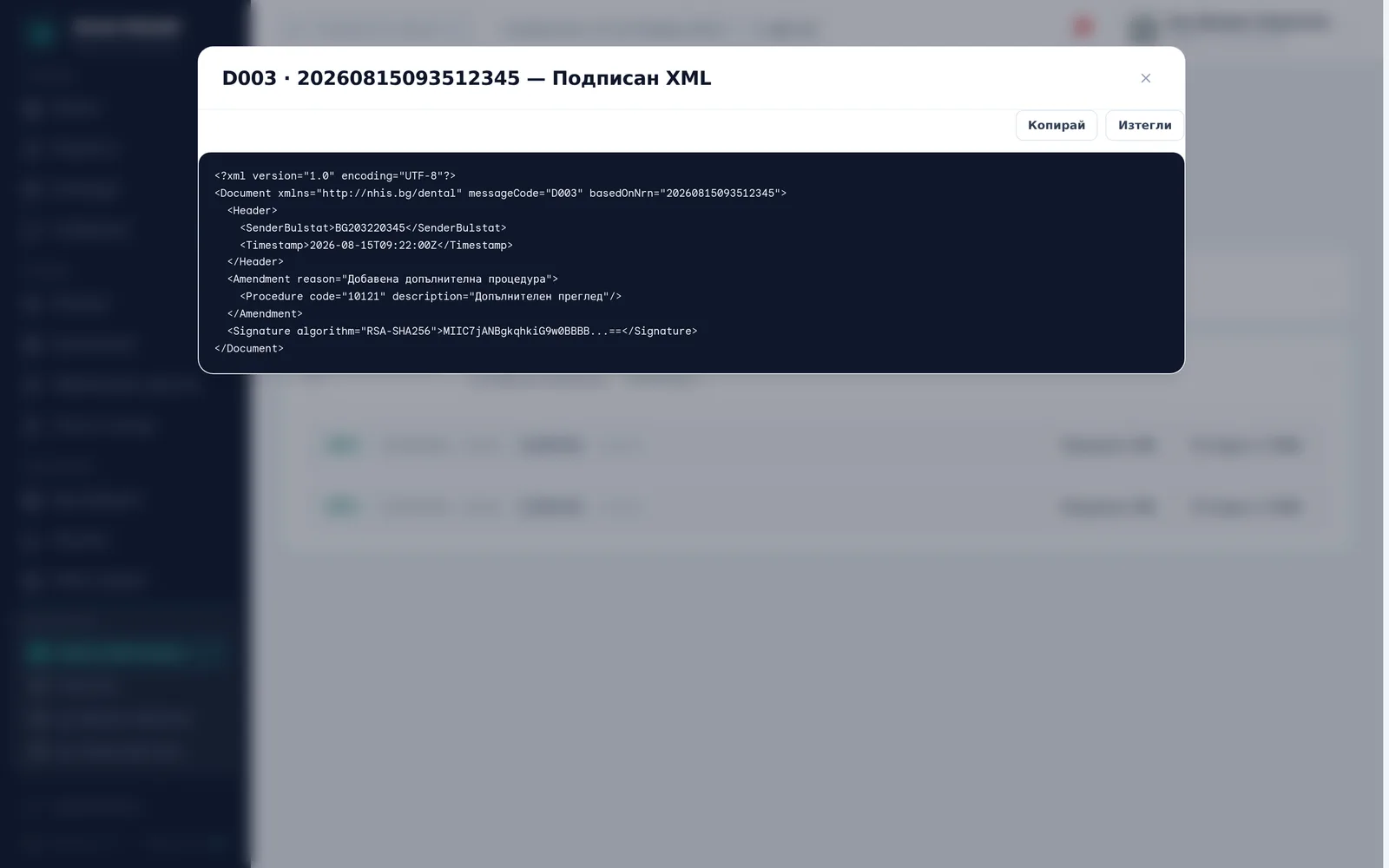
- Under NHIS messages, click Signed XML (Подписан XML) to see the exact signed file, or NHIS response (Отговор от НЗИС) to see the raw reply from the system. In the viewer, use Copy (Копирай) or Download (Изтегли) to keep the content for your records.
Filters and search
-
Status — All (Всички), Submitted (Подадени), Drafts (Чернови), Cancelled (Анулирани), Needs review (За проверка) and No НЗИС record (Без запис в НЗИС); each filter shows its number of rows. Needs review holds documents where NHIS answered without an error but the answer doesn’t confirm the document automatically — open NHIS response (Отговор от НЗИС) and check before submitting again.
-
Month and doctor — the two dropdowns above the table (All months (Всички месеци), All doctors (Всички лекари)).
-
Only with a problem (Само с проблем) keeps the sheets where at least one of these is true:
- there is an NHIS record but no NRN — the sheet was not sent, or was refused;
- there is an NHIS reply to check;
- the sheet was submitted to NHIS in the last 30 days and the patient has not signed (the Not signed note);
- the patient still owes money on the sheet.
A cancelled document counts here only when it has a reply to check. A sheet with no NHIS record counts only for money owed: the list cannot tell a sheet the clinic does not submit to NHIS from a missed one.
-
Search — by patient, EGN, doctor, sheet number, NRN or LRN.
Total for the filter
Under the table, the Total for the filter (Общо за филтъра) line shows the number of rows (Sheets (Листове)) and the totals for НЗОК sum (Сума НЗОК), Patient sum (Сума пациент), Paid (Платено) and Unpaid (Неплатено). It counts everything the filters and the search leave — on all pages, not only the one on screen. A sheet’s sums are counted once, even when the sheet has two rows.
Frequently asked questions
Does every visit go through patient signature and KEP? No. Local saving, early opening and closing are different actions. Early opening does not need a patient signature; with Patient signs later the sheet is closed with the KEP only; in DentaFlow’s simulation, supplementation simulates signing. The DentaFlow team sets up the environment.
What does a line-item error mean? A line that failed to save is never silently submitted to NHIS — submission stops with an exact “Line N failed to save (…)” error until you fix and re-save it. This keeps a document with a missing procedure from ever reaching the government system.
Submission stops with “Line N: missing activity code” — what do I do? That line has no NHIS activity code (CL110) — usually because the service has no КСМП code (the “Без код” badge in the catalog) or its code isn’t an NHIS activity code (the “Без НЗИС код” badge). DentaFlow opens the Activity code (CL110) (Код на дейност (CL110)) field on that line: pick a code there, or set it in the service editor in the catalog so it fills in on its own at future visits. DentaFlow deliberately sets no default code — a wrong code in the national record is worse than a missing one. See Services & price list.
Submission stops with “Line N: missing a valid activity code (the saved one has expired)” — why? The line was saved with an old D-code activity code (CL110). Those codes expired on 01.12.2024 and NHIS doesn’t accept them. In the line’s Activity code (CL110) (Код на дейност (CL110)) field the old code shows marked “expired 01.12.2024” (изтекъл на 01.12.2024), and the list offers live codes only. Pick a live code — for a service with a КСМП code that’s the КСМП code itself — and submit again.
What does an error on a message under NHIS messages mean? An errorCode on a message means that attempt failed — check the error text and environment. A test response is not a response from the live NHIS. A rejected D001 stays under the “Drafts” filter until it’s successfully resubmitted, since it never received an НРН; until then the sheet also counts under Only with a problem.
Why does a sheet have the status No record (Без запис)? There is no NHIS document for that sheet. The list shows this but not the reason: the sheet may be saved in DentaFlow only, without submission. Such a sheet has no NHIS messages button and is not counted as a problem on that ground alone.
Who can see the Ambulatory sheets list? Admin only — /nhis/documents isn’t available to Front Desk or Doctor. Staff roles that record visits can prepare the sheet; that does not replace the treating dentist’s signature.
Is a tablet compulsory for patient confirmation? It is not the only permitted method. NRD 2026–2028, article 129(7) allows the patient’s qualified electronic signature, an NHIS one-time code sent to their phone, an electronic signing device, or a signature on a printout. The general examination-confirmation requirement follows Ordinance N-6, articles 14(4) and 25(2); it is not limited to NHIF-funded care. For the tablet method, the ordinance also requires express signed agreement on its use and the signature’s equivalence. A pad signature captured later in the print view is stored in DentaFlow and isn’t sent to NHIS. The pad process described here is DentaFlow’s particular implementation, not a claim that the app supports all legally permitted methods. Sources checked on 6 October 2026.
Can I undo a cancelled document? No. Cancelling is a terminal action — there’s no “undo cancel” in the interface.