Logging treatments & visits
DentaFlow separates two things that sound alike in conversation: the services catalog (the price list — what the clinic offers) and performed treatments (the ledger — what was actually done to a patient). This guide covers both, plus the basic flow for logging a visit through an ambulatory sheet. For the deep dive into NHIS signing, see the articles under the NHIF & NHIS category. The app screenshots show the Bulgarian interface; every label below gives the Bulgarian original in parentheses.
At a glance
- The catalog lives at Settings → Treatment Catalog (Настройки → Каталог лечения) — Admin access; performed treatments live in the sidebar under Treatments (Лечения) (
/treatments), visible only to Admin and Front Desk. - Doctors don’t see Treatments in the sidebar, but can still log a treatment from the button on a patient’s profile.
- Deleting a service from the catalog does not affect past records — they stay as they were.
- You log a visit from the “New ambulatory sheet (Нов амбулаторен лист)” button in three steps — the modal is titled “Ambulatory sheet (Амбулаторен лист)” with NHIS mode on and “Log visit (Регистрирай посещение)” with it off; whether it asks for a patient signature and a doctor’s KEP token depends on that setting. With NHIS settings the sheet is opened in NHIS as soon as you pick a patient and a doctor, and the NRN shows in the header.
- Saving a visit completes the booked appointment in the calendar (same patient, doctor, date and start time) instead of adding a second one.
- You can submit the sheet with the doctor’s KEP only and let the patient sign later at the computer with the pad. The signature is not sent to NHIS.
- With “Consent coverage” on, every line has a consent badge — see Informed consents.
- For every line financed by NHIF you pick an НРД code — without one the activity stays out of the monthly NHIF claim. The amounts (NHIF share and copay) come from the Art. 105 prices of the НРД (National Framework Contract) on the visit date.
- A visit line that fails to save is never silently sent to NHIS — it’s blocked with a specific error until fixed.
Adding or editing a catalog service
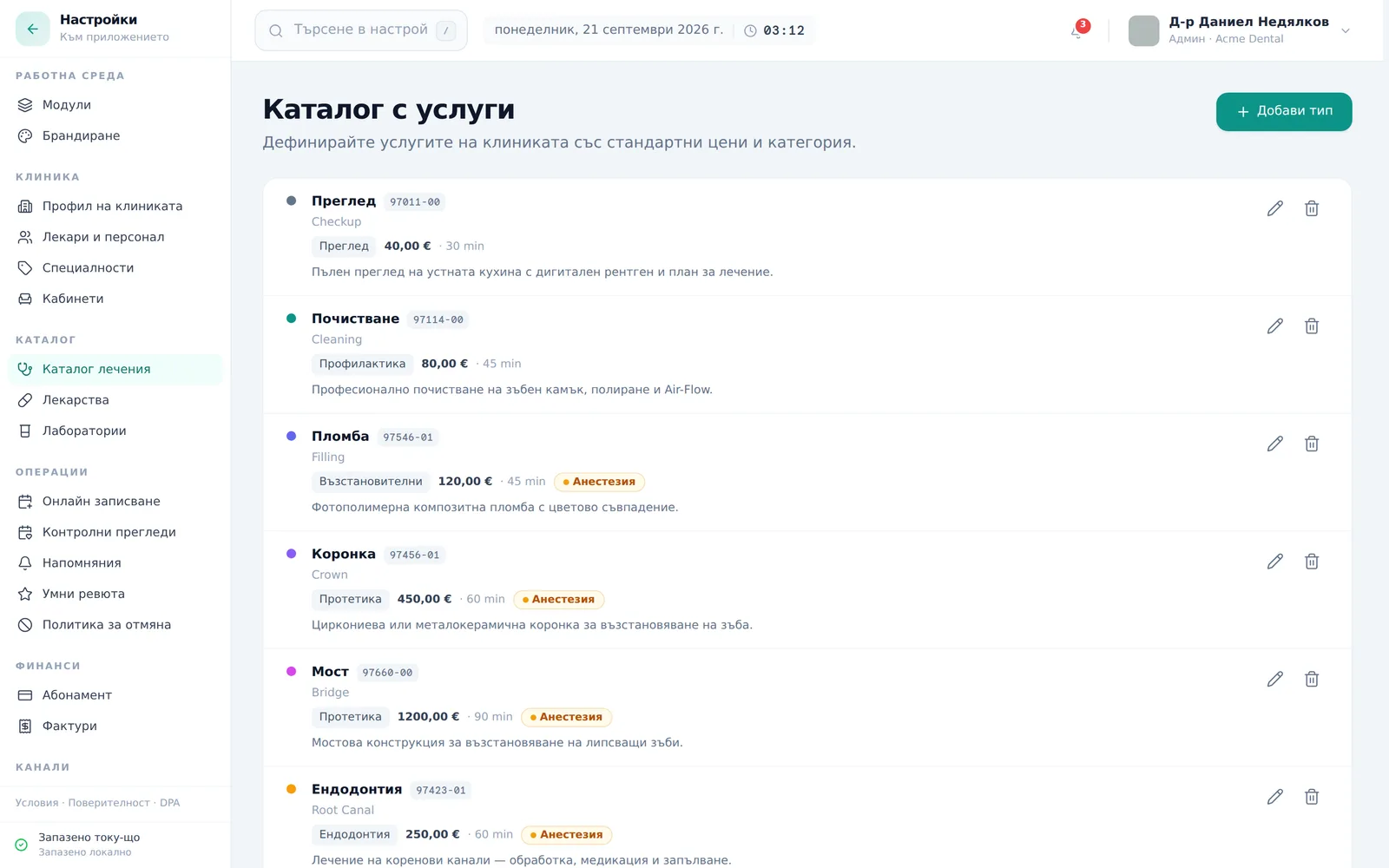
- Go to Settings → Treatment Catalog (Настройки → Каталог лечения), click Add service (Добави услуга) (or the pencil icon on an existing row to edit).
- Fill in Name (BG) (Име (BG)) and Name (EN) (Име (EN)) (or click the auto-translate icon next to the EN field to translate from the Bulgarian name).
- Pick a Category (Категория) and a Calendar color (Цвят в календара).
- Set Default cost (Стойност по подразбиране) and Duration (Продължителност) (in minutes).
- Enter the Procedure code (КСМП) (Процедурен код (КСМП)) — required for clinical documentation regardless of NHIF status. Leave NHIS activity code (CL110) (Код на дейност НЗИС (CL110)) empty: a visit then prepares that same КСМП code for NHIS (the field reads “Auto: {code} (Автоматично: {код})”). If it reads “No automatic match — pick a code (Без автоматично съответствие — изберете код)”, pick the code manually.
- Toggle Requires anesthesia (Изисква анестезия) if relevant (adds a needle badge on calendar slots).
- Optionally add a materials recipe under Materials (Bill of Materials) (Материали (рецепта)) — per-procedure or per-tooth.
- Click Add service (Добави услуга) / Save changes (Запази промените).
Bulk-importing the catalog, or viewing performed treatments
- From Settings → Data → Import patients (Настройки → Данни → Импорт на пациенти), use the second card “Import treatments catalog (Импорт на каталог лечения)” → Import from CSV (Импорт от CSV) (Excel/.xlsx up to 5MB), using the same map/review wizard as patient import.
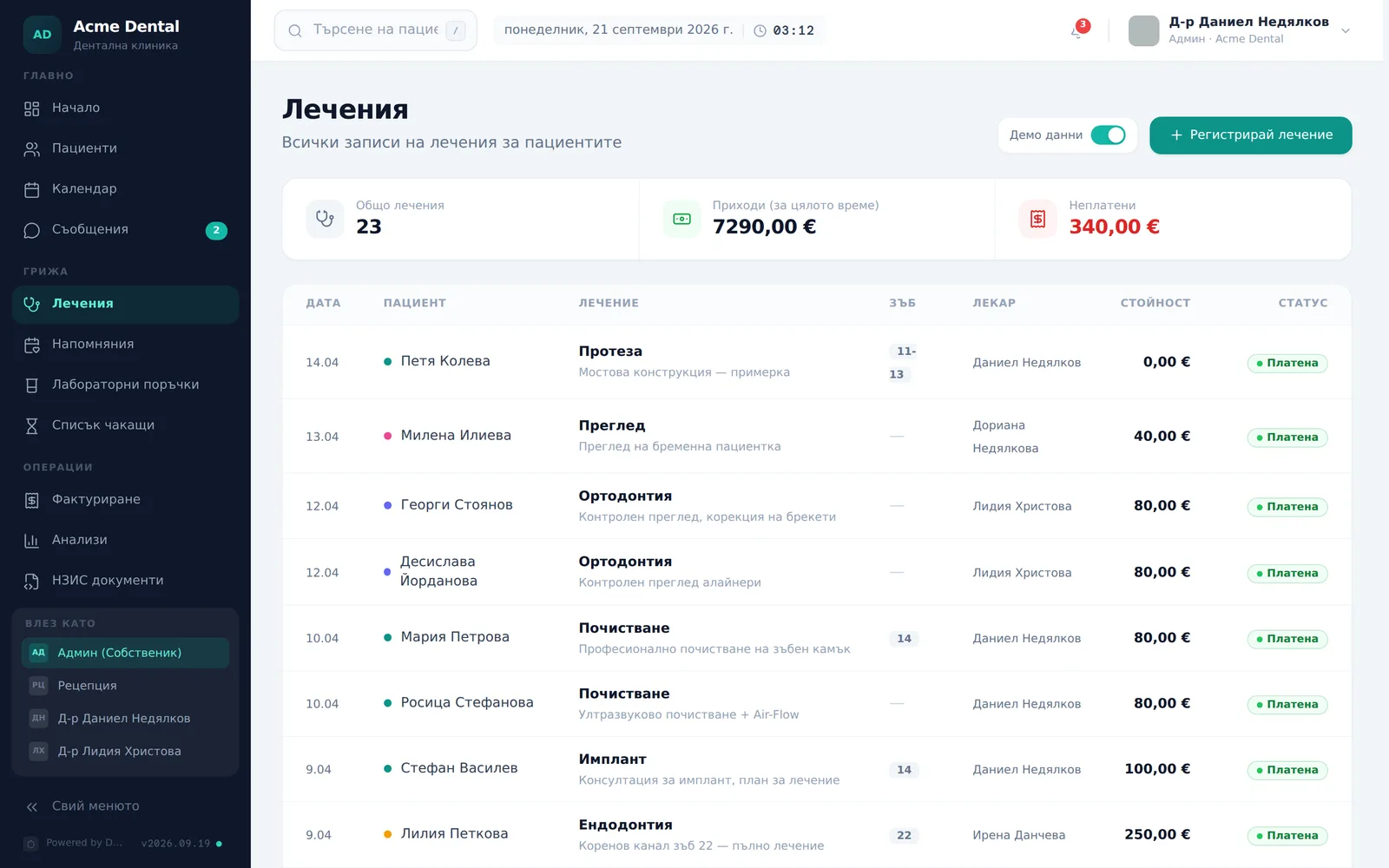
- Open Treatments (Лечения) in the sidebar to see every performed treatment clinic-wide, sorted newest-first, with date/patient/treatment/tooth/doctor/cost/paid-status columns and total-revenue/unpaid stat tiles.
- Click Log treatment (Регистрирай лечение) to open the same “New ambulatory sheet” flow described below — this is how new performed-treatment rows actually get created.
- Click any row to jump to that patient’s profile.
Logging and submitting an ambulatory sheet
- Click New ambulatory sheet (Нов амбулаторен лист) on the patient profile (or Log treatment (Регистрирай лечение) from
/treatments). The window has three steps. On a very wide screen a Summary (Обобщение) panel sits on the right with the patient, doctor, date, Procedures (N) (Процедури (N)) and the amounts; on a narrower screen it isn’t shown. A line with missing data is marked “Missing: … (Липсва: …)”. - Step “Patient and procedures (Пациент и процедури)”: confirm the patient (when the window is opened from the profile, the patient is locked), pick the treating Doctor (Лекар) in the “Doctor and time (Лекар и час)” section (with Date (Дата), Start (Начало) and End (Край); an overlap or a closed day shows an availability warning) and add one or more lines via Services — every pick adds a line (Услуги — всяко добавяне създава ред). Each pick is a new numbered line with its price; Total (Общо) is below. If the patient has an active plan, the Active treatment plan (Активен план за лечение) strip shows its current phase (“{done}/{total} phases”): + Add as line (+ Добави като ред) puts the plan procedure on the visit as a line, + Add all (+ Добави всички) the whole phase, and procedures already done are marked “Done (Изпълнен)”.
- Step “Clinical details (Клинични детайли)”: for each line, set the tooth/surfaces on the mini tooth map (for tooth-level procedures; otherwise use “Show the tooth map (Покажи зъбната карта)”), Financing source (Източник на финансиране), Duration (min) (Времетраене (мин)), Patient copay (Доплащане от пациента) and Notes (Бележки), plus the shared SOAP notes (SOAP бележки) block. Activity code (CL110) (Код на дейност (CL110)) and Diagnosis (ICD-10) (Диагноза по МКБ-10) show on NHIF lines or after the NHIS codes (НЗИС кодове) link, which already shows the filled-in code next to it. The activity code comes from the service — for a service with a КСМП code it’s the КСМП code itself; the list offers live codes only. A line’s diagnosis defaults to Same as the visit ({code}) (Като посещението ({код})) — the line follows the ICD-10 (МКБ) code in the visit’s ICD-10 diagnosis (МКБ-10 диагноза) field (at the end of the step) unless the doctor picks a different ICD-10 code for that line. That МКБ code goes into the NHIS ambulatory sheet and into the monthly NHIF claim. The diagnosis isn’t required for NHIS submission. For NHIF lines, see the next section.
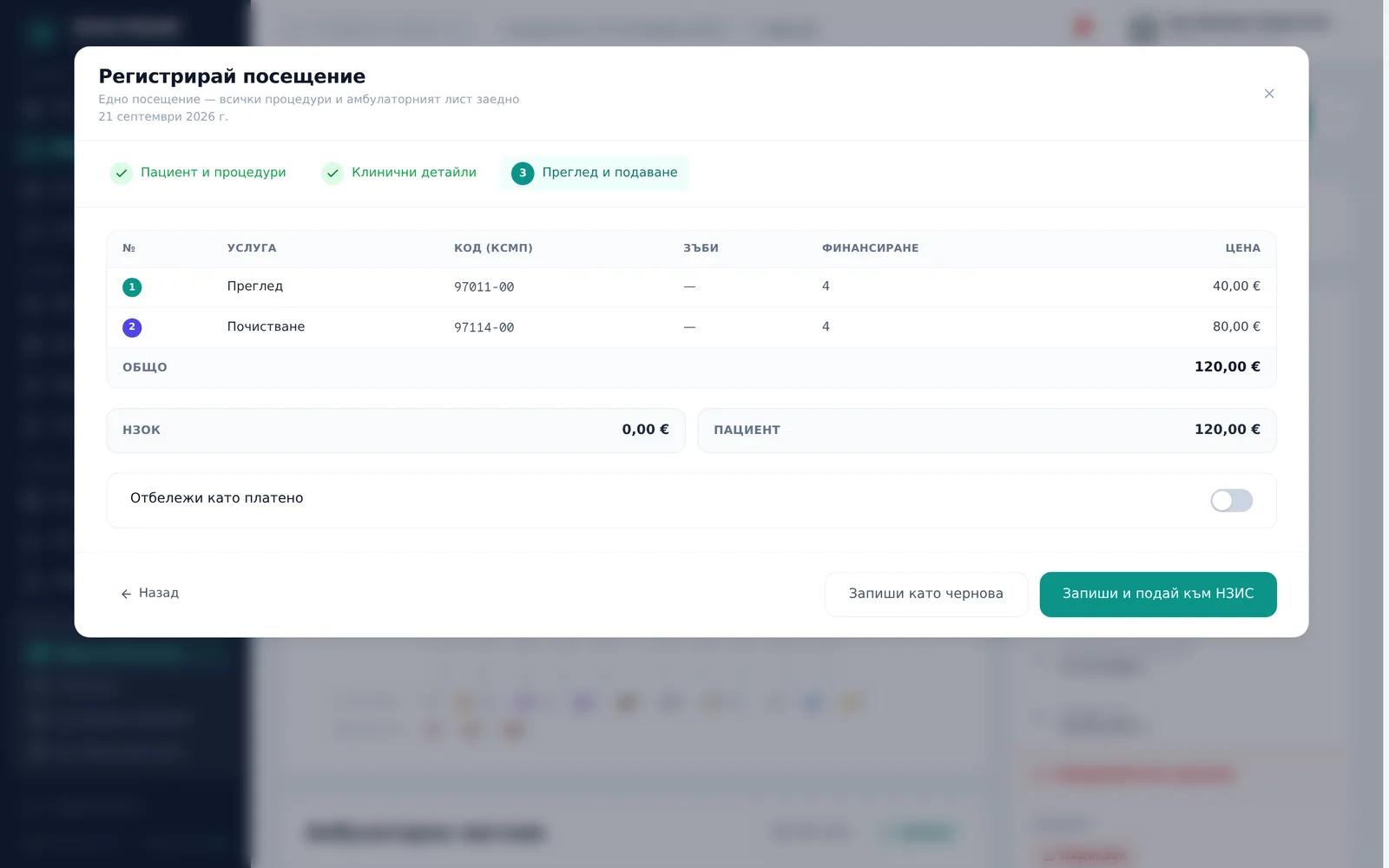
- Step “Review & submit (Преглед и подаване)”: review the Procedures and amounts (Процедури и суми) table and the Payment (Плащане) section (Mark as paid (Отбележи като платено); if the patient has an instalment plan that may already cover the visit, you must also tick Paid separately (not an instalment) (Платено отделно (не е вноска))). The buttons are at the bottom. Save as draft (Запиши като чернова) — Save changes (Запиши промените) when editing — saves the visit in DentaFlow without sending anything to NHIS; it isn’t proof of submission. The other button depends on whether the sheet already has an NRN (see “Early opening of the sheet” below): Save & submit to NHIS (Запиши и подай към НЗИС) or Save & supplement (D003) (Запиши и допълни (D003)). If a line has no activity code, submission stops with “Line N: missing activity code (Ред N: липсва код на дейност)” and the field opens on that line. If the line was saved with an old D-code that expired on 01.12.2024, the message is “Line N: missing a valid activity code (the saved one has expired) (Ред N: липсва валиден код на дейност (записаният е изтекъл))” — pick a live code.
- If the clinic has saved its settings under Settings → Clinic profile → NHIS & NHIF (Настройки → Профил на клиниката → НЗИС и НЗОК), the modal is an “Ambulatory sheet”. When you submit you see the stages “Preparing the document…”, “Authenticating with NHIS (QES)…”, “Signing…” and “Submitting to NHIS…” (Подготовка на документа… / Автентикация в НЗИС (КЕП)… / Подписване… / Изпращане към НЗИС…): the patient signs on the connected pen tablet and the doctor’s KEP token signs the envelope through the DentaFlow Bridge app. The tablet is asked on every first submission (D001), and for a supplement (D003) only in the NHIS sandbox or live environment. In DentaFlow’s simulation these steps are test ones. If the clinic has no NHIS settings saved, the same modal behaves as a plain “Log visit (Регистрирай посещение)” — no pen-tablet or KEP steps.
- On success, the modal shows “Document accepted — NRN {number}” (Документът е приет — НРН {номер}) — or “Supplement accepted — NRN unchanged (Допълнението е прието — НРН непроменен)” when the sheet already had a number — and, on a test environment, a “mock” or “sandbox” chip (none on the live environment). The NRN then appears in the ambulatory-sheets table’s NRN column on the patient profile. When you open a saved visit for editing there is also a Print ambulatory sheet (Печат на амбулаторен лист) button.
Early opening of the sheet
When the clinic has NHIS settings and you pick a patient and a doctor, DentaFlow immediately saves the visit as a draft and opens the ambulatory sheet in NHIS. The header briefly says “Registering NRN… (Регистриране на НРН…)”, then shows the NRN (on a test environment with a “mock” or “sandbox” chip). The number is ready while you fill in the procedures, and at the end the button is “Save & supplement (D003)”, which supplements the sheet and closes it when there is at least one line. In the sandbox or live environment early opening uses the doctor’s KEP through the DentaFlow Bridge (without a certificate-choice window). If it fails — for example the Bridge isn’t running or the clinic’s NHIS data is incomplete — a yellow note “The sheet was not opened in NHIS when the visit was opened…” with the reason appears above the steps, and the NRN is requested when you submit. Closing the window does not cancel a sheet that is already open; cancelling (D007) is done with Cancel the document (Анулирай документа) from the saved visit, opened for editing. Since 2 November 2026 a client clinic submits real sheets and receives NRNs; this section describes the flow in the app, and whether NHIS accepts a given sheet depends on the data in it.
Patient signs later
On a computer without a pad (or when the pad isn’t next to the doctor) the sheet can be submitted with the doctor’s KEP only:
- On the computer with the pad, open Settings → Clinic profile → NHIS & NHIF (Настройки → Профил на клиниката → НЗИС и НЗОК) and under Pad on this computer (Таблет на този компютър) choose The pad is plugged in here (Таблетът е включен тук) or No pad (Без таблет). The choice applies to this computer and browser only.
- On the “Review & submit” step a Patient signs later (Пациентът подписва по-късно) checkbox appears. On a computer marked No pad it is ticked and can’t be turned off.
- After submitting, the modal says the patient hasn’t signed yet. The signature is given at the computer with the pad: Dashboard → “Awaiting patient signature” → Sign (Табло → „Чакат подпис на пациента“ → „Подпиши“) (sheets with an NRN from the last few days and no signature). The signature is stored in DentaFlow and printed on the sheet; it is not sent to NHIS. More in Patient signature: pen tablets.
What happens in the calendar
When you save a visit, DentaFlow looks in the calendar for an appointment of the same patient and doctor on the same date with the same start time. If there is exactly one non-cancelled appointment that isn’t completed yet, the visit marks it completed instead of adding a second one. If that appointment is already completed, nothing is added. If there is no such appointment (or there are two open ones), the visit gets its own completed record. So set Start to the booked time.
NHIF lines: НРД code, amounts and package
When you set a line’s financing source to NHIF (НЗОК) in the “Clinical details” step, a field НРД code (NHIF claim) (НРД код (отчет към НЗОК)) appears under it.
- Open the Choose NHIF activity code… (Изберете НРД код…) list. It starts with the НРД codes that match the service’s КСМП code (heading “Suggested for НРД … (Предложени за НРД …)”), and only shows codes in force on the visit date, for the patient’s age group on that date.
- Pick a code. To see the whole catalog, click Show all (Покажи всички) or search by code or name; Suggested only (Само предложените) brings back the short list. When only one code fits the line, DentaFlow fills it in for you.
- Under the field you see NHIF pays … · patient copay … (НЗОК заплаща … · пациентът доплаща …) in euro — at the Art. 105 prices in force on the visit date (the new prices apply from 1 Sep 2026). Patient copay is filled from the chosen code and can’t be edited. From 1 Sep 2026 the extra exam for pregnant patients uses 103xx codes.
- The НРД code isn’t required to save the visit. A line without one shows the warning “Pick an НРД code — without one this activity stays out of the monthly NHIF claim.”, and the “Review & submit” step shows how many such lines there are. You can reopen the visit later and add the code. The same goes for the diagnosis: if an NHIF line with an НРД code has no ICD-10 diagnosis — neither on the line nor on the visit — the “Review & submit” step shows a warning, because the monthly NHIF claim needs it.
Adult package counter. If the visit has an NHIF line and the patient is 18 or over on the visit date (with a date of birth on file), a NHIF package {year} (НЗОК пакет {година}) strip shows between the tooth map and the procedures — “comprehensive exam: …/1”, “activities: …/3” and “with this visit: …”. From 1 November to 31 December 2026 the limit is 4 activities (the fourth activity under § 6 of the НРД 2026–2028); before 1 November the strip shows a note about it. It counts the patient’s NHIF visits at this clinic in the calendar year, based on DentaFlow data. At the limit the strip turns amber; over it, red, with a reminder to check the performed activities in ПИС (the NHIF portal). The strip is informational and never blocks saving. See also The fourth dental activity from 1 Nov 2026.
For how НРД codes feed the monthly claim and the Art. 89 reporting-time card, see Monthly NHIF claims & XML.
Consents on the lines
This part appears only if DentaFlow has switched on both the “Informed consents” and “Consent coverage” modules for your clinic (they are off by default). Then:
- Every visit line (and every plan procedure in the “Active treatment plan” strip) gets a badge from the rule for its service: Consent needed (Нужно съгласие), Recommended (Препоръчително), Consent ✓ (Съгласие ✓) with a date, or Scope changed (Обхватът е променен). A line typed by hand without a price-list service gets the grey badge Unclear if consent is needed (Не е ясно дали е нужно съгласие) — pick the service from the price list or decide yourself.
- Next to the line are the buttons Issue (Издай) / Issue new version (Издай нова версия) / Sign (Подпиши) and Record override (Запиши изключение) (after saving — Details (Детайли)). Issue saves the visit first, so the patient, doctor and date must be filled in.
- Only a doctor or an admin can record a clinical override; a doctor records it in their own name. It isn’t possible for a procedure with a signed refusal.
- The “Review & submit” step shows the matching strip: “Warning: Procedures without consent”, the red “Treatment Refusal” or “Procedure under clinical override”. The strips are information and don’t stop the visit from being saved.
- Issuing and clinical overrides work only for test patients for now.
The whole flow — templates, issuing, signing, refusal and clinical override — is in Informed consents.
More on NHIS signing
For pen-tablet error details, DentaFlow Bridge, cancelling and supplementing (D003), see NHIS documents: D001, D003, D007, Patient signature: pen tablets and KEP signing & DentaFlow Bridge.
Frequently asked questions
I changed a filling’s price in the catalog — why does an old record still show the old price? Deleting or editing a catalog service does not touch history — past treatments that used it keep the value from when they were recorded.
Why don’t I see Treatments in the sidebar? That item is visible only to Admin and Front Desk. As a Doctor, you can still log a treatment through the “New ambulatory sheet” button on a patient’s profile.
Why does /treatments show only a treatment count and no revenue? The revenue/unpaid stat tiles render only for roles with the revenue-visible setting turned on. Without it you see just the total-treatments tile.
Do I have to pick an НРД code to save the visit? No — the visit saves without one, but an NHIF line without an НРД code stays out of the monthly claim. Pick the code in the “Clinical details” step before you generate that month’s claim.
Why can’t I find the НРД code I’m looking for? The list starts with only the codes suggested for the service’s КСМП code and the patient’s age, and only shows codes in force on the visit date. Click “Show all” or search by code. A code that isn’t in force yet on the visit date (e.g. 103xx before 1 Sep 2026) isn’t saved.
The modal is asking for a pen-tablet signature and KEP, but I don’t want to submit to NHIS right now — why? “Save as draft” saves the visit without submitting anything. Whether the ambulatory sheet shows the pen-tablet and KEP steps depends on whether the clinic has saved settings under Settings → Clinic profile → NHIS & NHIF. If this computer has no pad, choose “No pad” there and the patient signs later. The environment — test or live — is set up by the DentaFlow team, not by a switch in Settings. If the clinic has no NHIS settings saved, the modal behaves as a plain visit log without those steps. See NHIS documents.
Why do I see an NRN before I’ve pressed submit? Because the clinic has NHIS settings: as soon as you pick a patient and a doctor, DentaFlow opens the sheet in NHIS (on a test environment with a “mock” or “sandbox” chip). At the end the button is “Save & supplement (D003)”. If early opening fails, you see a yellow note with the reason and the number is requested when you submit.
Why didn’t the visit add a second appointment to the calendar? If the patient has a booked appointment with the same doctor on the same date and the same start time, the visit completes it. For that, “Start” must match the booked time.
Can I edit an ambulatory sheet that’s already been submitted to NHIS? Not directly — if the sheet already has an NRN, the save button reads “Save & supplement (D003)” instead of creating a new one: this supplements the existing NHIS record, and the NRN stays unchanged. See NHIS documents: D001, D003, D007.