Invoices
This guide shows how to create, issue and track a patient invoice in DentaFlow — from draft, through payment and receipt, to voiding or a monthly statement. It applies to the Admin and Front Desk roles; the Billing (Фактуриране) section is not shown to the Doctor role. Billing and invoice printing depend on the Patient Invoices (Фактури в портала) module (Settings → Modules; on by default). The app screenshots show the Bulgarian interface; every label below gives the Bulgarian original in parentheses.
At a glance
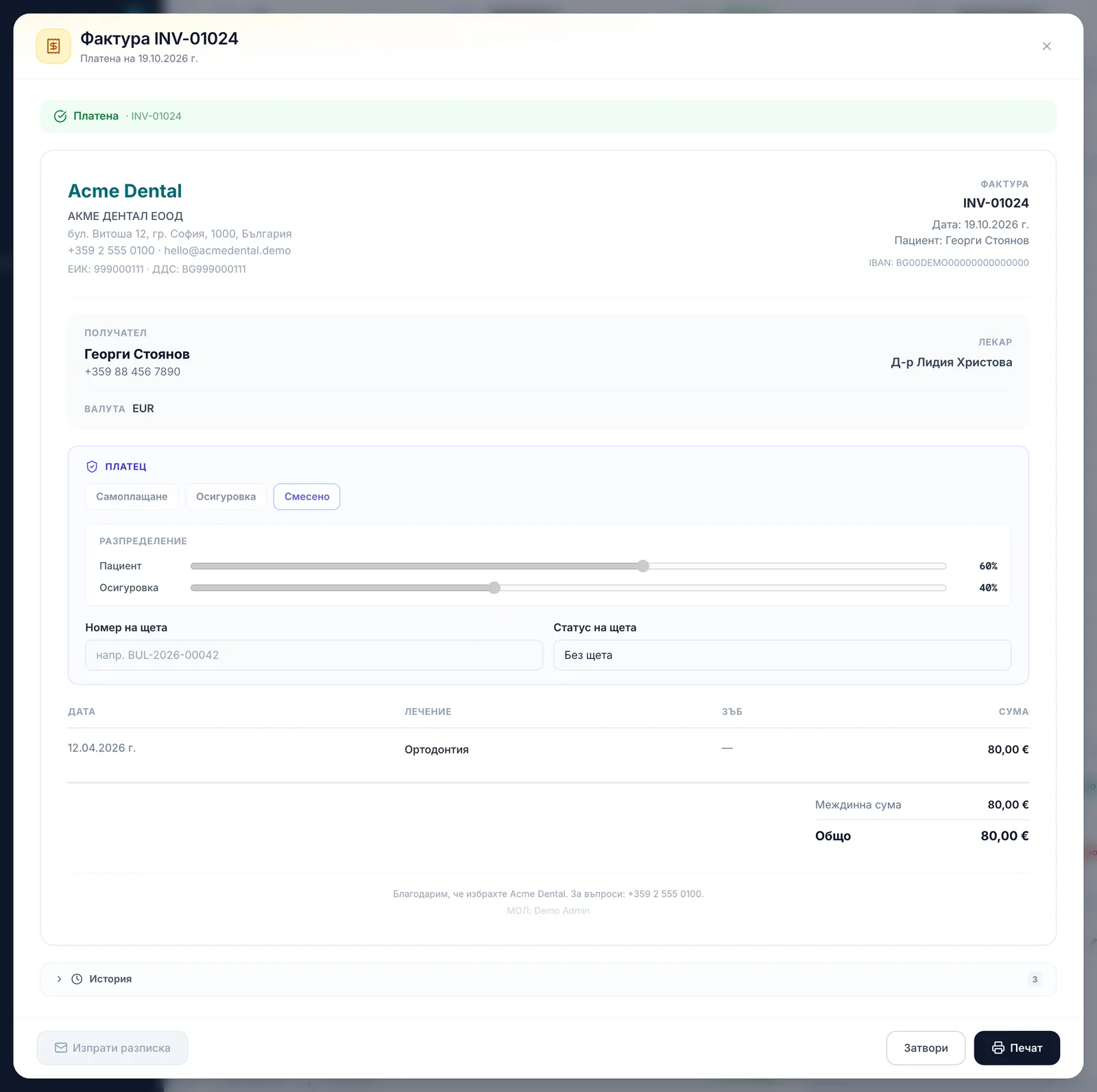
- Invoices are created only from the patient’s profile (the Invoice (Фактура) button) — never from the Billing page itself.
- The flow is Draft → Issued → Paid (or Void); currency and the self-pay/insurance/NHIF split can be edited only while the invoice is a draft.
- Issuing auto-emails the patient a view/pay link; marking an invoice paid auto-emails a receipt. A patient ticked Do not send via email (Не изпращай чрез имейл) gets neither.
- Printing goes through the browser (“Print / Save as PDF”) — there is no separate server-generated PDF file.
- Voiding is irreversible.
Creating and issuing an invoice
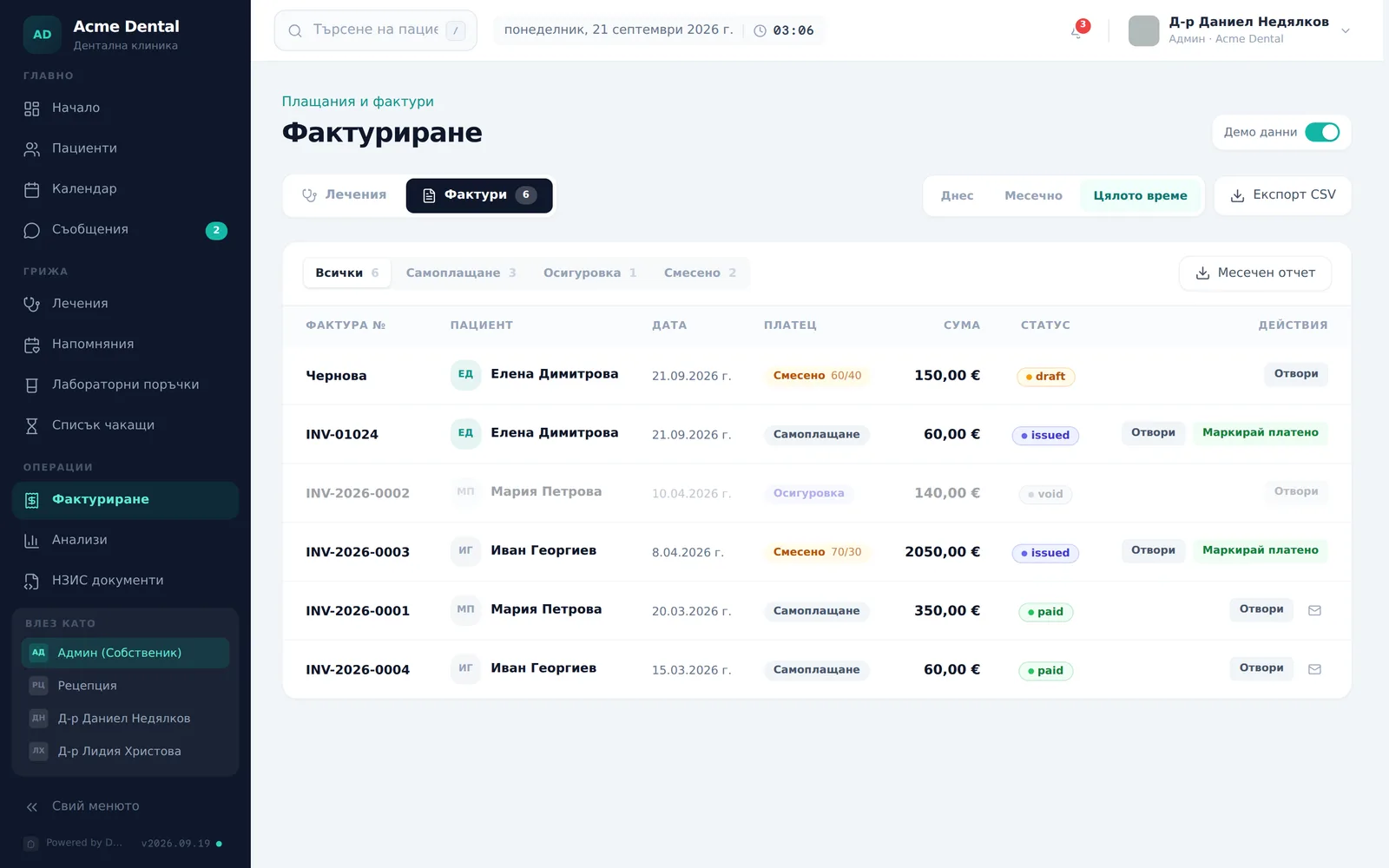
- Open the patient’s profile and click Invoice (Фактура). The invoice modal opens, pre-filled with the patient’s unpaid treatments.
- Review the line items, adjust amounts if needed, and add a Discount (Отстъпка) if applicable. A changed line amount is saved on the line itself; for a quantity above 1 the line shows the amount for the whole line, and the unit price is recalculated from it.
- Pick a Currency (Валута) from the clinic’s enabled display currencies. If the Private Health Insurance (Частни здравни осигуровки) module is on (Settings → Modules; off by default), choose a Payer (Платец): Self-pay / Insurance / Mixed (Самоплащане / Осигуровка / Смесено) — the NHIF (НЗОК) option is added only when NHIF is enabled for the clinic. For Insurance and Mixed, set the Split (Разпределение) sliders — they must add up to 100% (“Сумата трябва да бъде 100%.”). If needed, turn on Bill to guardian (Издай фактурата на настойника) (only for a patient with a linked guardian).
- Click Create draft (Създай чернова) to save it. Later changes to the draft are saved with Save changes (Запази промените); Print (Печат) is not available while the invoice is a draft.
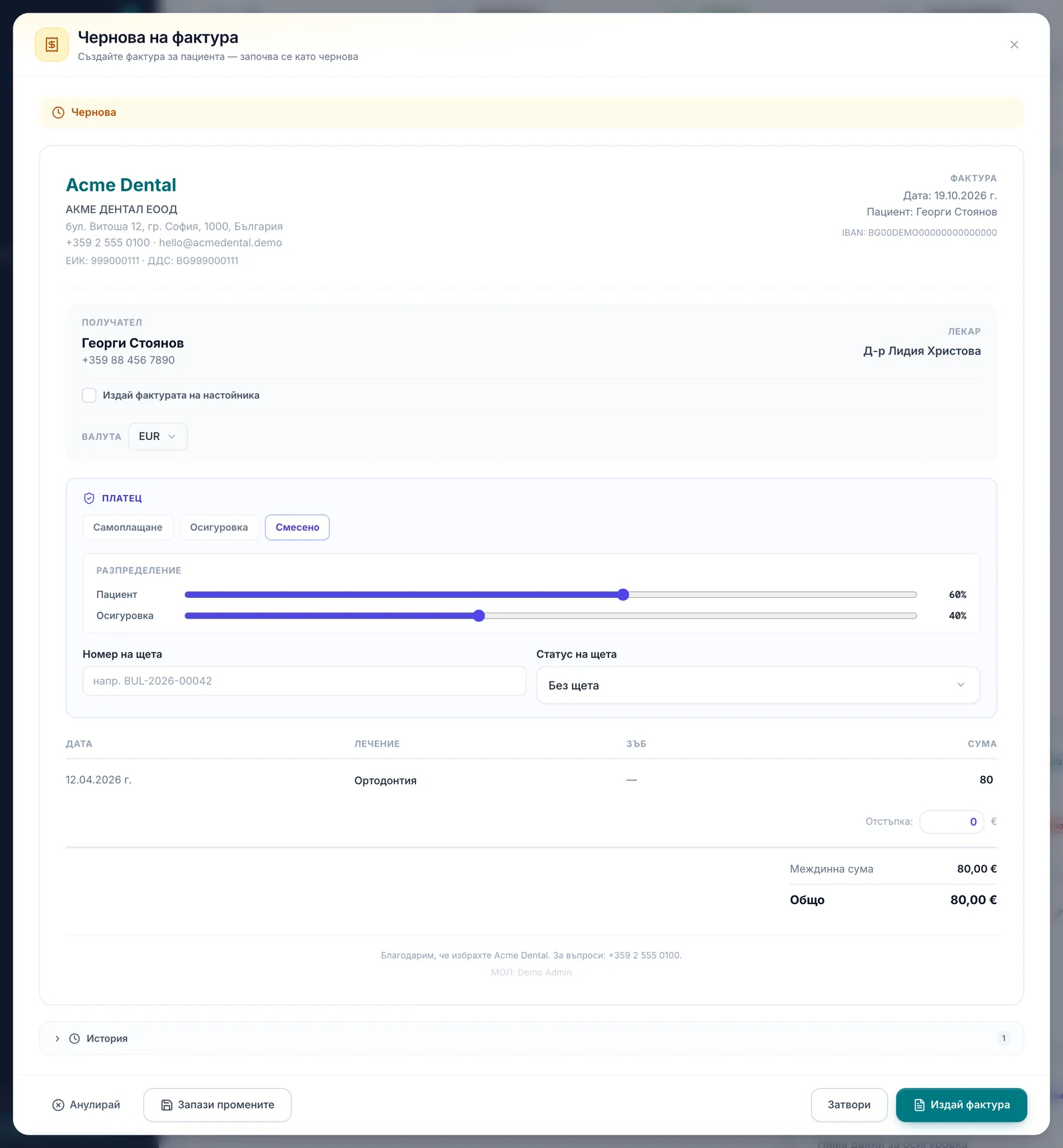
- When ready, click Issue invoice (Издай фактура). This assigns an invoice number (per the clinic’s numbering settings), locks the line items, and — if the patient has an email on file — silently sends the invoice-issued notice with a view/pay link.
Payment, receipts and printing
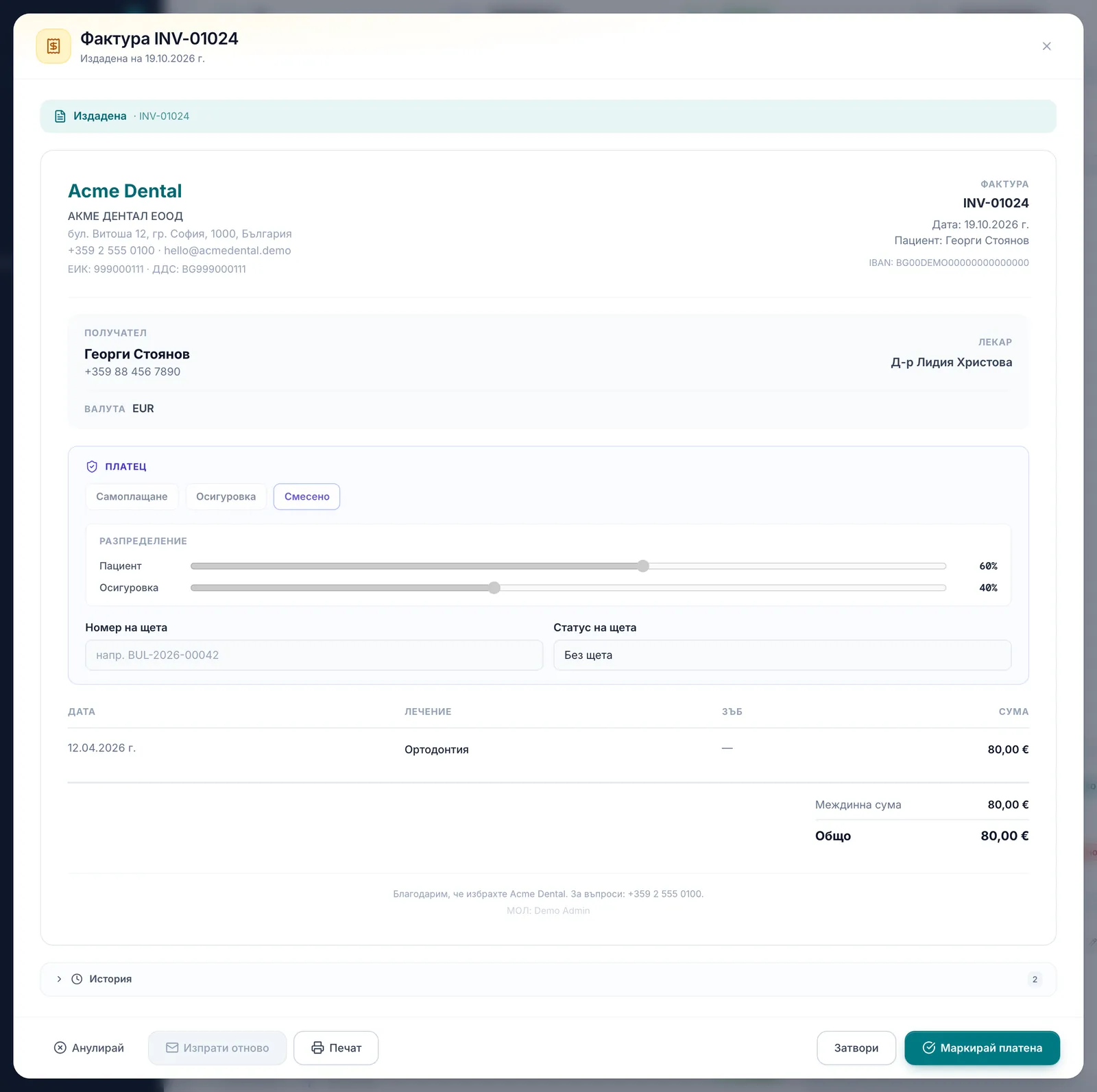
- From the invoices table click Mark paid (Маркирай платено) on a row, or open the invoice and click Mark paid (Маркирай платена) (issued invoices only). If the patient has an email on file, this automatically sends a payment receipt.
- On an issued invoice, click Resend (Изпрати отново) to re-send the issue notice; on a paid invoice, click Send receipt (Изпрати разписка) to re-send the receipt. Both buttons are disabled with an explanatory tooltip when the patient has no email on file. If the patient ticked Do not send via email (Не изпращай чрез имейл), nothing is sent and you see “The patient opted out of email — nothing was sent” (Пациентът е отказал имейли — нищо не е изпратено).
- Click Print (Печат) (on an issued, paid or voided invoice) to open the print layout in a new tab. The browser’s print dialog (“Печат / Запази като PDF”) opens once the invoice and the patient have loaded.
At the bottom of the modal, the secondary actions (Void (Анулирай), Save changes (Запази промените), Resend (Изпрати отново), Print (Печат), On instalments (На вноски)) sit on the left, and the main action (Issue invoice (Издай фактура), Mark paid (Маркирай платена), Record instalment (Запиши вноска)) sits on the right next to Close (Затвори). On a narrower screen the secondary actions fold into the More actions (Още действия) (⋯) menu.
Paying in instalments
If the Instalment plans (Плащане на вноски) module is on (it is on by default), an issued invoice with the Self-pay or Mixed payer shows an On instalments (На вноски) button to the Admin and Front Desk roles. It opens the instalment schedule for the invoice. From 20.11.2026 the last instalment must fall within 50 days of the treatment on the invoice; the form shows the latest due date. After that the invoice shows “On instalments · 1/3” (На вноски · 1/3), Record instalment (Запиши вноска) replaces “Mark paid”, and the invoice is marked paid after the last instalment. An invoice on instalments cannot be voided. Instalments are tracked in the Instalments (Вноски) tab of the Billing page.
Voiding and the monthly statement
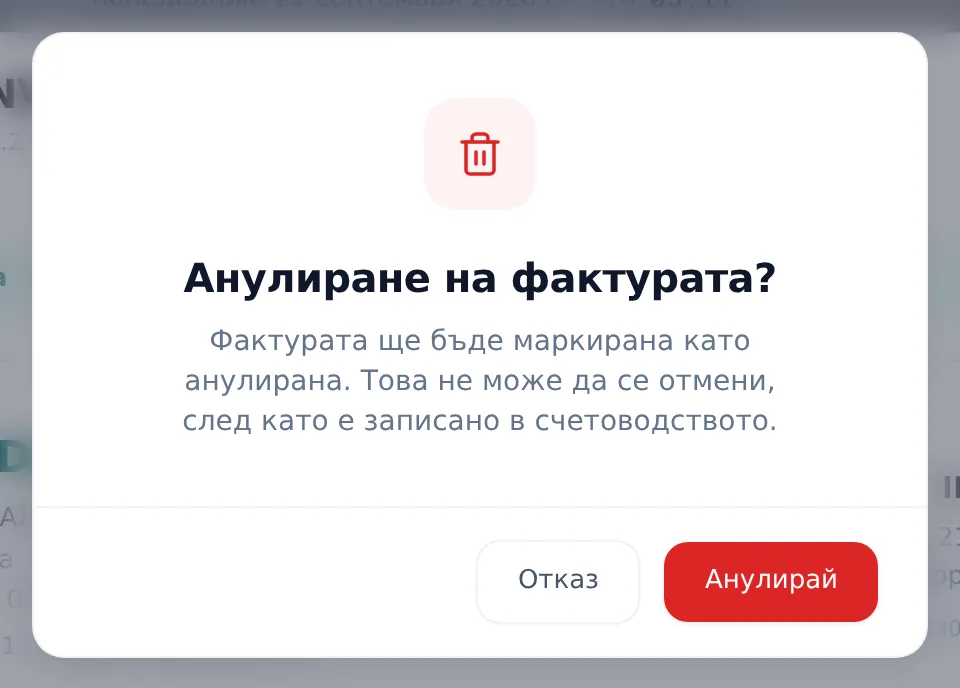
- To void a draft or issued invoice (but not one on instalments), click Void (Анулирай) and confirm in the dialog (“Фактурата ще бъде маркирана като анулирана. Това не може да се отмени…”). Voided invoices stay struck-through/dimmed in the list — they can still be printed, but not edited.
- From the Invoices tab, click Monthly statement (Месечен отчет) to download a CSV of the invoices for the selected period — Today / Monthly / All Time (number, patient, date issued, subtotal, discount, total, status). The CSV column headings are in English.
Frequently asked questions
Why can’t I create an invoice directly from the Billing page? Invoices always start from a specific patient’s profile. The empty invoices table shows “Все още няма фактури — Създайте фактури от профилите на пациентите” for exactly this reason.
Why can’t I change the currency or payer split on an already-issued invoice? Those fields are editable only while the invoice is a draft. Once issued or paid, they’re locked.
Why are Resend and Send Receipt greyed out? Because the patient has no email on file — sending isn’t technically possible, and the button’s tooltip explains why.
The patient isn’t getting invoices by email — why? Check their communication preferences. The Do not send via email (Не изпращай чрез имейл) tick stops every email to the patient — issue notices, receipts and manual resends. The invoice still stays issued or paid; hand the patient a printed copy (Print (Печат)).
If I mark an invoice paid but the receipt email fails to send, does the invoice stay marked paid? Yes. Sending the receipt is a best-effort side action — marking an invoice paid doesn’t fail just because the receipt email couldn’t go out.
What happens to invoices if the clinic’s DentaFlow subscription is past due? Once the clinic is 7 or more days past due, the app enters a read-only stage: saving, issuing, marking paid and voiding invoices are all blocked, with a “Read-only mode — pay the outstanding balance to resume saves.” („Режим само за четене — уредете плащането, за да продължите.“) toast and an Update billing (Обнови плащане) action. Viewing, printing and resending are not blocked. See Failed payments & restricted access.
Are invoice numbering, VAT and the footer text set per invoice? No — they’re configured once for the whole clinic. See Invoice settings: numbering & VAT.