KEP signing & DentaFlow Bridge
This guide explains what DentaFlow Bridge is, how the doctor signs the ambulatory sheet with a qualified electronic signature (KEP) when submitting to NHIS, and how to recognize and fix a bridge problem. It’s written for Doctor and Admin. The app screenshots show the Bulgarian interface; every label below gives the Bulgarian original in parentheses.
At a glance
- DentaFlow Bridge is a local app installed on the clinic computer — it performs the signing with the doctor’s KEP token.
- When a sheet is closed, the dentist signs the XML after the patient. If the computer has no pad or the patient signs later, the sheet is closed with the KEP only. Early opening and cancellation also use only the dentist’s KEP; NHIS authentication is a separate, earlier step.
- When the clinic works with the NHIS test or live environment, an unavailable Bridge stops signing — start the app and check the connection. In DentaFlow’s simulation, signatures are test ones and don’t show that Bridge works.
- The environment — test or live — is set up by the DentaFlow team for each clinic; clinic settings have no switch for live submission.
- The Send to NHIF („Изпрати към НЗОК“) button on monthly claims needs DentaFlow Bridge 1.2.0 or newer. The latest release is 1.4.0, but the upload to PIS hasn’t been verified with a real KEP yet — see Monthly NHIF claims & XML.
- DentaFlow Bridge is a Windows app. Version 1.4.0 updates itself; older ones (1.3.0 and below) are updated by hand — see New bridge version.
- If several KEP devices are plugged into the computer, DentaFlow asks which certificate is the doctor’s — see Several KEP tokens on one computer.
What DentaFlow Bridge does
DentaFlow Bridge is a desktop app that needs to be running on the computer the ambulatory sheet is submitted from. It connects the browser to the doctor’s KEP token and performs the actual cryptographic signing of the XML message sent to NHIS — a step that can’t happen directly in the browser.
The Admin downloads DentaFlow Bridge from the profile menu (“КЕП Signing Bridge” (КЕП мост за подписване); the menu item is visible to Admins only). The window shows whether the bridge is connected (“Bridge connected” (Мостът е свързан), “Bridge not installed” (Мостът не е инсталиран), “No КЕП token detected” (Няма открит КЕП токен) or “Update available” (Налична е актуализация)), the installed and latest versions, and Re-check („Провери отново“) checks again. It installs without administrator rights and starts automatically with Windows.
Signing with KEP when submitting an ambulatory sheet
The sequence is built for the NHIS test and live environments:
- The app first checks the dentist’s NHIS authentication through Bridge. Windows or the token driver requests the PIN if needed.
- At closing, the patient signs on the pad; early opening and cancellation skip this step. On a computer with No pad („Без таблет“), or with Patient signs later („Пациентът подписва по-късно“) ticked, the sheet is closed with the KEP only and the patient signs afterwards — see NHIS documents.
- The dentist signs the XML with their KEP through Bridge.
- Transmission and the NHIS response follow signing. In DentaFlow’s simulation, the number and result are test results, including “Document accepted — NRN {number}” (Документът е приет — НРН {номер}). See NHIS documents: D001, D003, D007.
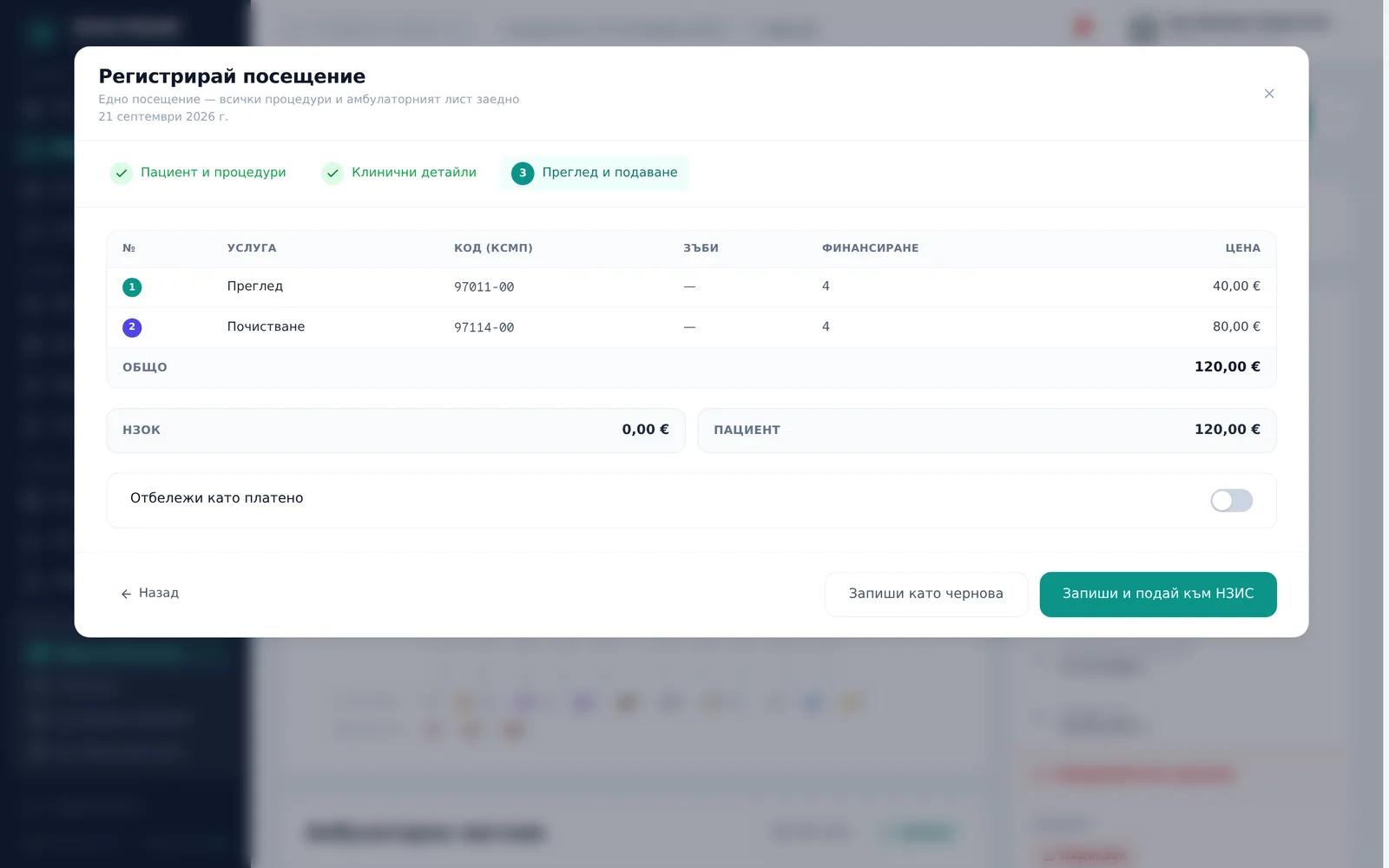
The illustration shows the process interface.
Several KEP tokens on one computer
If several KEP devices are plugged into the computer, DentaFlow shows the “Choose a КЕП certificate” (Изберете КЕП сертификат) window: pick the certificate issued in the doctor’s name and click Sign with this certificate („Подпиши с този сертификат“). An expired certificate is marked Expired („Изтекъл“). With Remember for Dr {name} on this computer („Запомни за д-р {име} на този компютър“) ticked, the choice is kept for that doctor on that computer and isn’t asked again; it is also used for NHIS authentication. If the plugged-in KEP isn’t the remembered one, you see a warning to check it’s the doctor’s. To clear remembered choices, open the “КЕП Signing Bridge” window and click Forget the chosen КЕП certificates on this computer („Забрави избраните КЕП сертификати на този компютър“). If you close the window without choosing, signing stops with the message “Several КЕП devices are plugged into this computer and the doctor’s certificate was not chosen — try again and choose the doctor’s certificate.”
New bridge version
DentaFlow Bridge 1.4.0 (released 19 October 2026) is the first version that updates itself while running. Versions 1.3.0 and older don’t, and are updated by hand, once, on each computer.
- When the bridge on the computer is older than the latest release, a “Version {number} is available” (Версия {номер} е налична) window appears when DentaFlow opens. It only appears on a computer where the bridge has already answered; on a computer with no bridge (for example reception) it doesn’t show.
- If the bridge is downloading or has downloaded the new version itself, the window doesn’t appear — it gets time first (about a day after release). The window shows when the bridge doesn’t update itself or the automatic update failed (“The automatic update failed on this computer, so a manual install is needed.”).
- Follow the steps in the window: Download {version} („Изтегли {версия}“), run the downloaded file, then click Check („Провери“) to confirm the new version. Later („По-късно“) hides the window for 3 days; if the version is needed to sign and send from this computer (for example older than 1.2.0 at an NHIF clinic), it hides for 1 day.
- Once the bridge has updated, a message “The КЕП bridge on this computer was updated to version {number}.” appears.
The window doesn’t open on top of a visit or invoice in progress — it waits until no dialog is open.
When Bridge isn’t available
If the computer doesn’t have DentaFlow Bridge running, submission stops with the error “The КЕП bridge is not reachable on this computer — start DentaFlow Bridge and try again.” (КЕП мостът не е достъпен на този компютър — стартирайте DentaFlow Bridge и опитайте отново.).
- Start the DentaFlow Bridge app on the computer.
- Go back to the submission modal and trigger the signing step again.
- If the error repeats, check that the KEP token is physically plugged in and recognized by the computer before trying again.
Frequently asked questions
What is KEP? A qualified electronic signature — the doctor uses it to confirm submitting the ambulatory sheet to NHIS. The token belongs to the doctor personally, not the clinic.
Does Bridge need to run on every computer in the clinic? It needs to run on whichever computer is currently submitting the ambulatory sheet — if the doctor submits from different workstations, Bridge needs to be started on each one separately.
Does the KEP step show up on every visit? No. Local saving is separate from signing and submitting. In DentaFlow’s simulation, opening and supplementation use test signatures; the NHIS test and live environments require the dentist’s KEP. The DentaFlow team sets up the environment.
Which version of DentaFlow Bridge do I need? For signing ambulatory sheets — 1.1.2 or newer; that’s the version authentication in the NHIS test environment was confirmed with. The Send to NHIF button on monthly claims needs 1.2.0 or newer (the latest release is 1.4.0), but the upload to PIS hasn’t been verified with a real KEP yet, so NHIF files are uploaded by hand in the NHIF portal. You can see the version on the computer in the “КЕП Signing Bridge” window. See Monthly NHIF claims & XML.
Are the patient’s tablet signature and the doctor’s KEP signature the same thing? No — they’re two separate steps in one submission. The patient signs on the connected tablet, and the doctor separately confirms with their KEP token through DentaFlow Bridge. If the patient signs later, the sheet is closed with the KEP only, and the pad signature is captured afterwards and stays in DentaFlow — it isn’t sent to NHIS. See Patient signature: pen tablets.
What happens if a procedure line didn’t save before signing? Submission doesn’t proceed to signing — DentaFlow stops with an exact message naming the line that didn’t save, so an NHIS document with a missing procedure never gets submitted.