Specialties & treatment rooms
This guide covers two short admin lists under the “Clinic (Клиника)” group in Settings: the specialties a doctor can carry, and the list of the clinic’s physical treatment rooms (chairs). Both are Admin-only. The app screenshots show the Bulgarian interface; UI labels give the Bulgarian original in parentheses.
At a glance
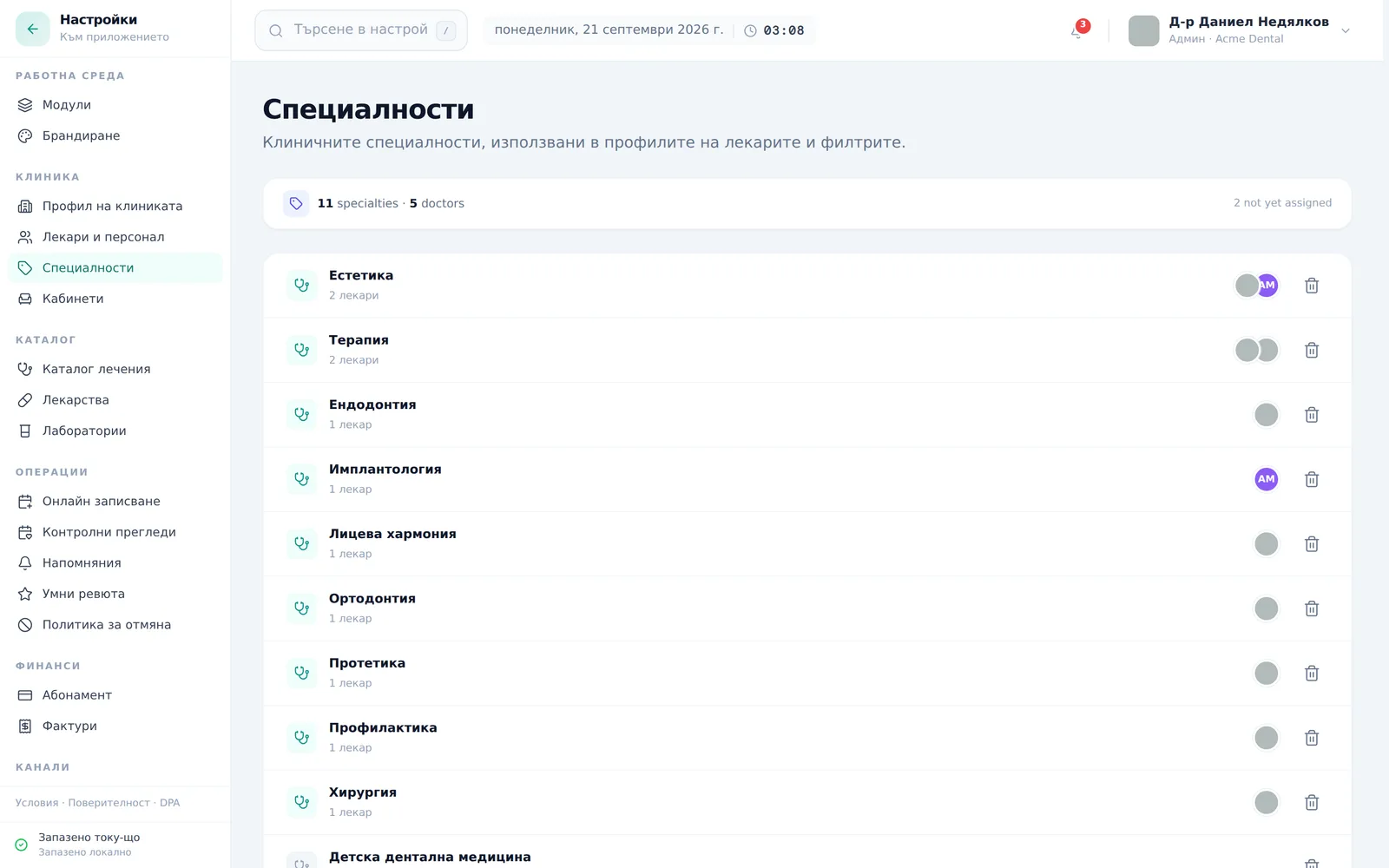
- Specialties are a simple tag list (e.g. Orthodontics, Endodontics) assigned to a doctor from their own edit modal — not from this list directly.
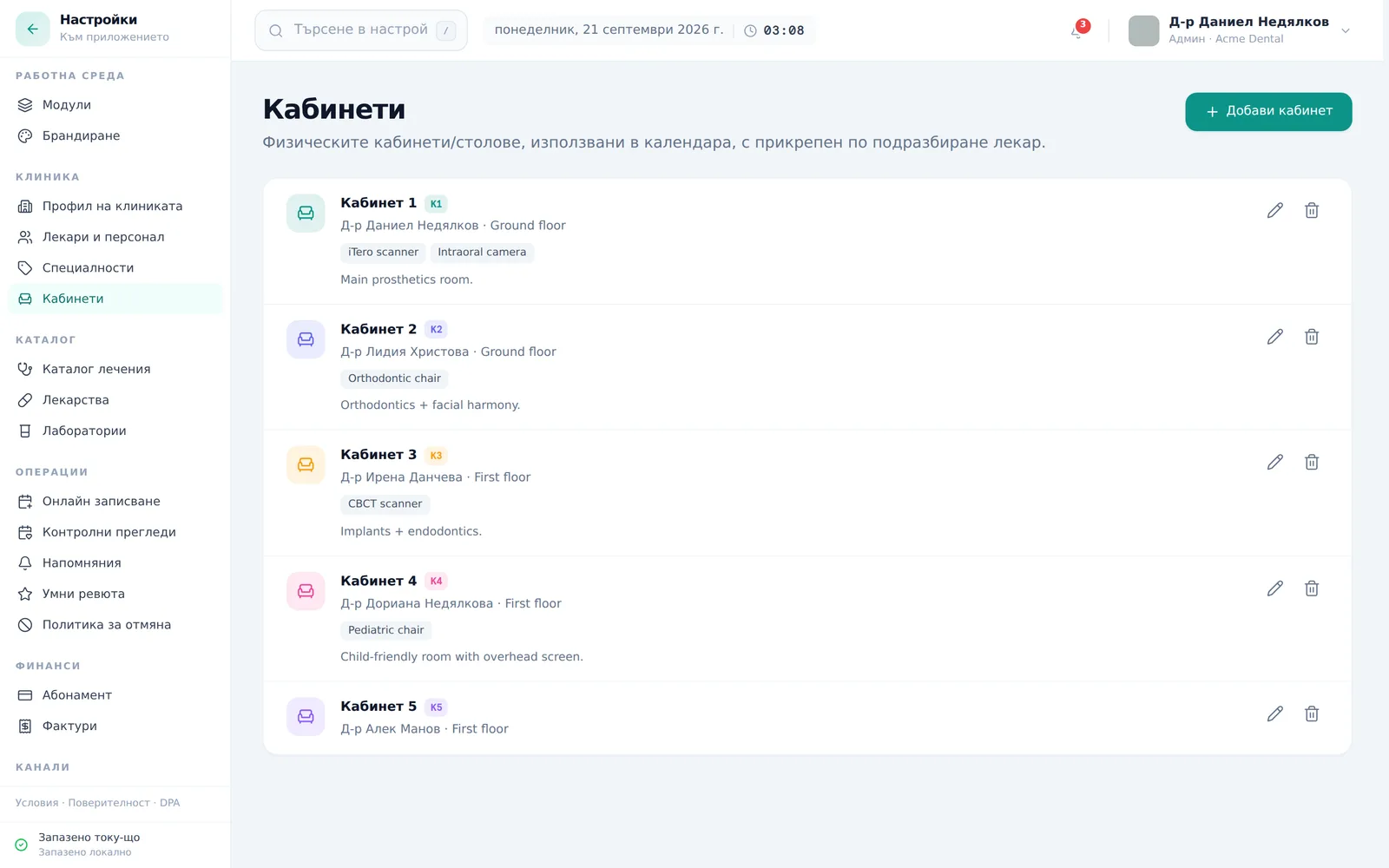
- Treatment rooms describe the clinic’s physical chairs: name, short code, default doctor, floor/area, color, equipment and notes. For now this is a reference list only: the Calendar shows one column per doctor, and no room is chosen when booking an appointment.
- Both lists are Admin-only.
- Appointments are booked without a room — booking by a specific chair is not available yet.
Managing specialties
- Open Settings, and in the Clinic (Клиника) group choose Specialties (Специалности).
- Type a new specialty name in the input at the bottom of the card and click Add (Добави) (or press Enter).
- To assign a specialty to a doctor, open that doctor’s edit modal (Add/Edit doctor → Specialties (Специалности) field) — not from this page directly.
- To remove a specialty, click the trash icon on its row and confirm in the “Remove specialty?” („Премахване на специалност?“) dialog.
Managing treatment rooms
- Open Settings, and in the Clinic (Клиника) group choose Operatories (Кабинети).
- Click Add operatory (Добави кабинет) and fill in Name (Име) (required), optionally Short code (Кратък код) (up to 4 characters), Default doctor (Лекар по подразбиране), Floor / area (Етаж / зона), Calendar color (Цвят в календара), Equipment (Оборудване) (add with Enter or a comma) and Notes (Бележки).
- Click Add operatory (Добави кабинет) at the bottom of the window. The room appears in the list; for now it does not add a Calendar column and cannot be picked when booking an appointment.
- Edit a room with the pencil icon on its row; remove one with the trash icon (confirmation required). The button in the edit window is Save changes (Запази промените).
Frequently asked questions
Does a specialty with zero doctors assigned get removed automatically? No — it stays in the list and shows “Not assigned to anyone (Не е възложено на никого)” so you can spot unused tags before cleaning up.
If I delete a specialty, do doctors who had it lose anything from their record? No — doctors who have the specialty keep it; only the entry in the list is removed, so it is no longer offered for future choices. The action isn’t reversible from the UI, so confirm before deleting.
Do I have to assign a room to every appointment? No — and you can’t: no room is chosen when booking an appointment, and the Calendar shows one column per doctor. The room list is a reference for now.
Who can add specialties and rooms? Admin only — both sections require that role.