Documents & messages
The clinic shares documents with you through the portal — X-rays, treatment summaries, consent forms, referrals — and you can download them anytime. The same portal holds your conversation with the clinic: one continuous message thread, not split by topic. The screenshots below show the Bulgarian interface; every label gives the Bulgarian original in parentheses.
At a glance
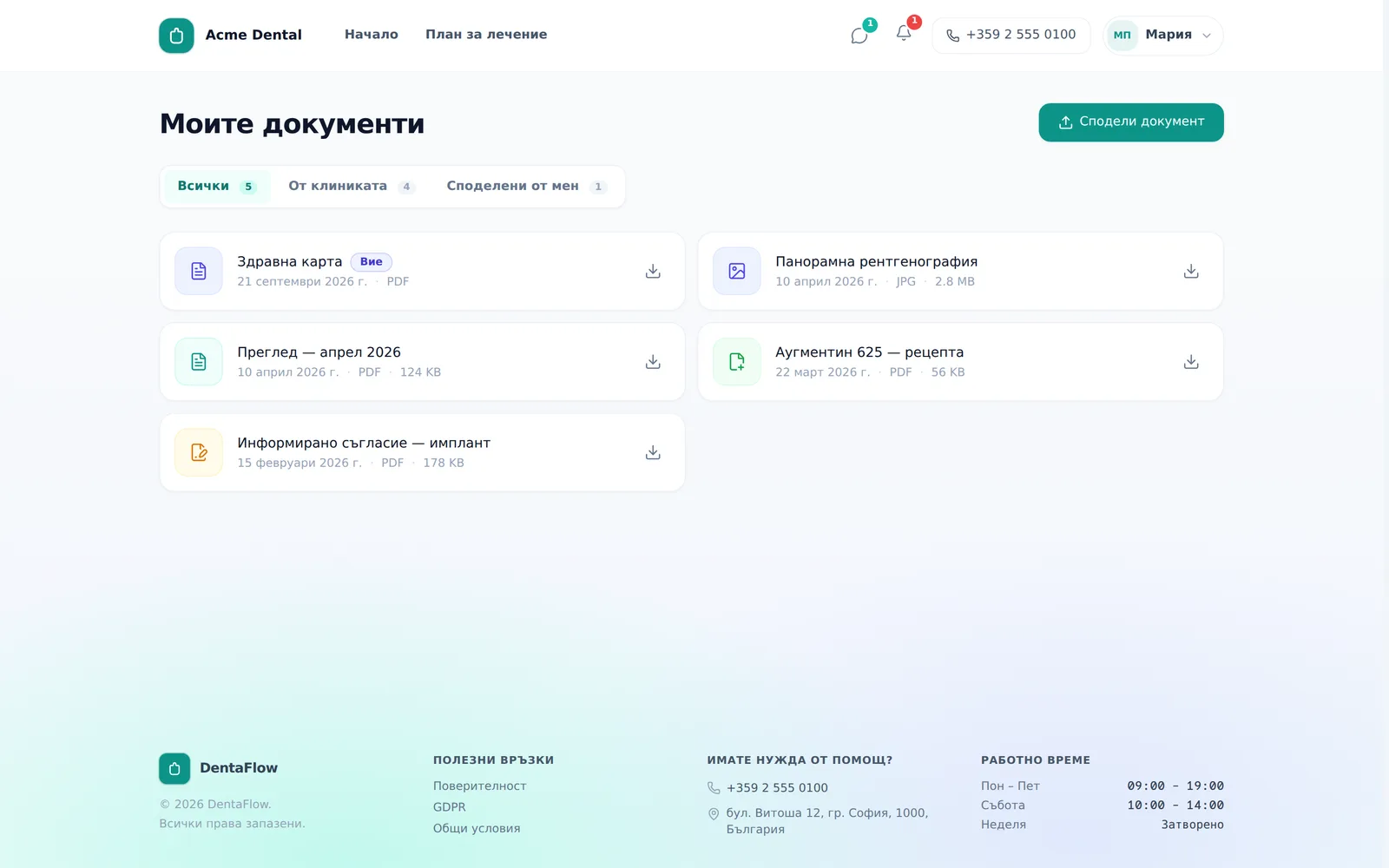
- The From clinic (От клиниката) tab shows everything the team has shared — download with one click.
- Download links stay valid for about an hour — reload the portal if one stops working.
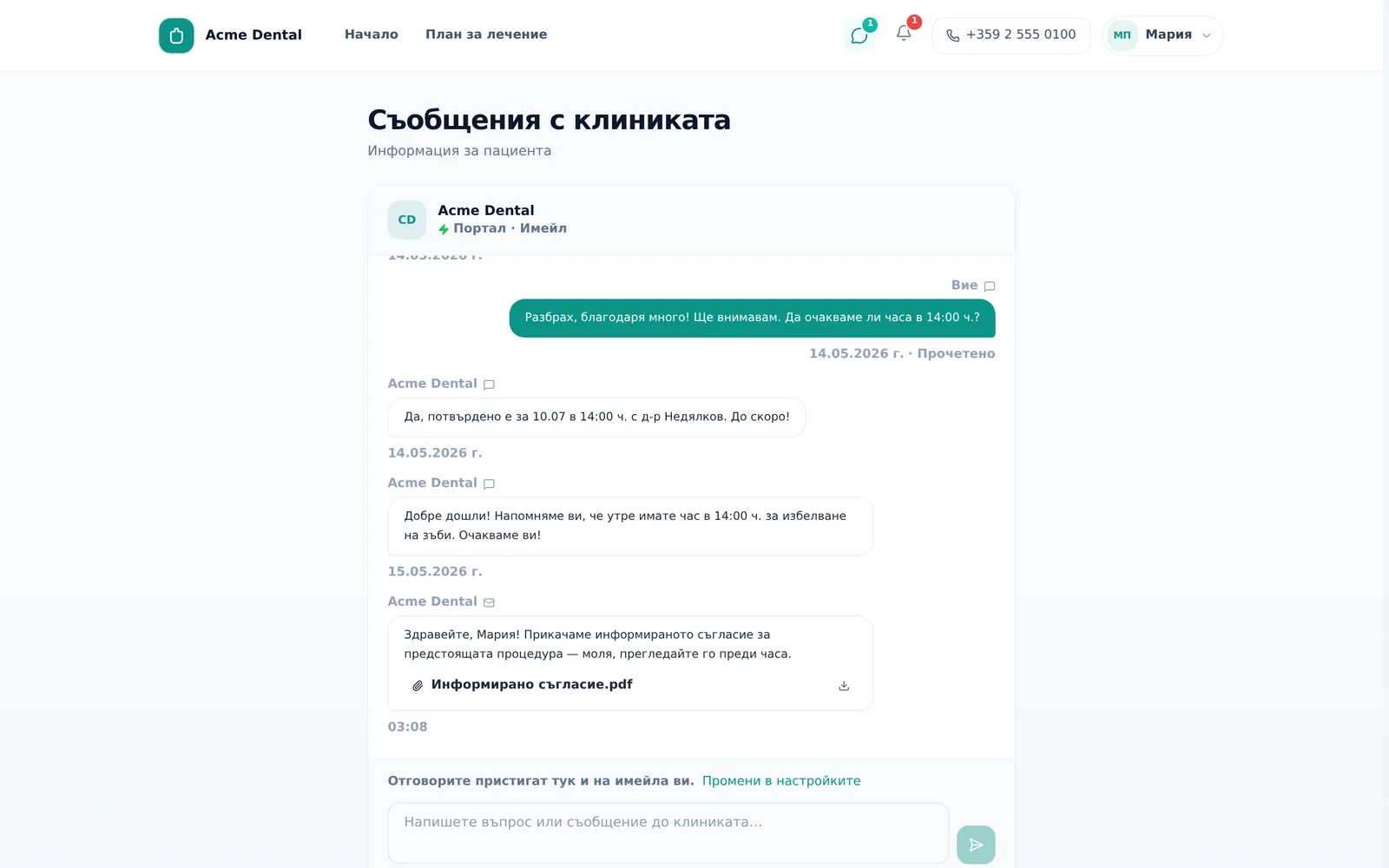
- Messages with the clinic sit in one shared thread, not organized by topic.
- If you have an email on file, the clinic’s replies also land in your inbox. You write your messages in the portal.
- If the clinic has switched on the “Informed consents” module, Documents also has Informed Consents (your signed consents as PDF) and Pre-reading tabs.
- You can’t attach files to your own outgoing messages — only download what the clinic sends you.
Reviewing and downloading documents from the clinic
- Open Documents (Документи) from the account menu or the home screen’s quick links.
- Use the All / From clinic / Shared by me (Всички / От клиниката / Споделени от мен) tabs to filter. If the clinic has switched on the “Informed consents” module you also see Informed Consents (Информирани съгласия) and Pre-reading (За предварително четене).
- Click the download icon on any document card to open or save it.
If you have records at several clinics, you see only the selected clinic’s documents (see “Switch clinic” in the portal header).
Download links stay valid for about an hour. If you bookmark or forward one and it stops working later, go back into the portal and download it again.
Informed consents in the portal
This tab only shows if the clinic has switched on the “Informed consents” module (off by default).
- Informed Consents (Информирани съгласия) — the signed consents the clinic has shared with you. Each has a Signed (Подписано) badge, a date and a page count, and downloads as a PDF. Above the list the portal states your right of access and copy under Art. 86 of the Health Act and Art. 15 GDPR; for any other copy, ask the clinic.
- The „Отвори копието“ (“Open the copy”) link in a consent-copy email takes you straight to this tab and downloads the copy. If the copy is not among your documents, you see “The copy was not found in your documents.” („Копието не е намерено в документите Ви.“)
- Pre-reading (За предварително четене) — documents the clinic sent you before the visit. Read the document and, if you want, click I confirm that I have read this document (Потвърждавам, че прочетох документа); the confirmation only proves timely disclosure of the information and is not consent to treatment — consent is signed at the clinic. Under the document you can ask your doctor a question (Pre-visit questions to your doctor (Въпроси към лекаря преди посещението), Submit question (Изпрати въпрос)).
Messaging the clinic
- Open Messages (Съобщения) from the message (speech-bubble) icon at the top of the portal — it shows an unread count.
- Type in the box at the bottom and press Enter or the send button.
- Click an attachment the clinic sent to download it.
- A note above the composer says where replies arrive (“Replies arrive here and in your email.” or “Add an email in settings to also get replies outside the portal.”). To change how the clinic reaches you outside the portal, click “Change in settings” (“Промени в настройките”) — this takes you to your profile.
Frequently asked questions
Can I attach files to my own documents or messages from the portal? A “Share document” (“Сподели документ”) button (at the top of the Documents page) exists in the interface, but files shared this way aren’t reliably stored today — only the name and type are saved, and a later download attempt often fails. Don’t rely on it. If you need to send the clinic a file (an insurance card, a referral letter), email it to the clinic directly, or ask them to upload it to your record at your next visit. You also can’t attach files to messages — you can only download what the clinic sends you.
Why doesn’t my download link work? Links stay valid for about an hour. If you saved it for later or forwarded it, it has likely expired — go back into the portal and download it again.
Will I know right away when the clinic replies? This isn’t live chat — there’s no typing indicator or push notification. Reload the page, or rely on the notification bell or your email, to see a new reply.
What if I don’t have an email on file? The note above the composer says you need to add an email to get replies outside the portal. Add one via “Change in settings” if you can.