Email templates
This guide covers editing the wording of the automated emails DentaFlow sends patients on the clinic’s behalf — subject, preheader, body copy and CTA button text, with a branded preview. Admin and Front Desk can open the page from the account menu, but only Admin can edit and save. The app screenshots show the Bulgarian interface; every label below gives the Bulgarian original in parentheses.
At a glance
- Open it from Settings → Email templates (Настройки → Имейл шаблони), in the “Channels (Канали)” group. The old
/email-templatesaddress redirects here automatically. - The clinic can edit 24 patient-facing templates in three categories — Clinical (8), Financial (9) and Engagement (7).
- Only Admin can edit, save or revert — for Front Desk the editor is read-only, with a note saying so.
- Editing changes wording only — it doesn’t decide when or whether an email fires.
- The preview on the right shows how the email will look with the clinic’s branding and the real “From” address before you save.
- Edits apply to the Bulgarian emails. Patient emails are in Bulgarian by default; an English version is sent only by clinics for which DentaFlow has switched that on, and it uses DentaFlow’s standard English copy.
- The preheader appears next to the subject in the patient’s inbox.
Editing a template
- Open Settings → Email templates (Настройки → Имейл шаблони).
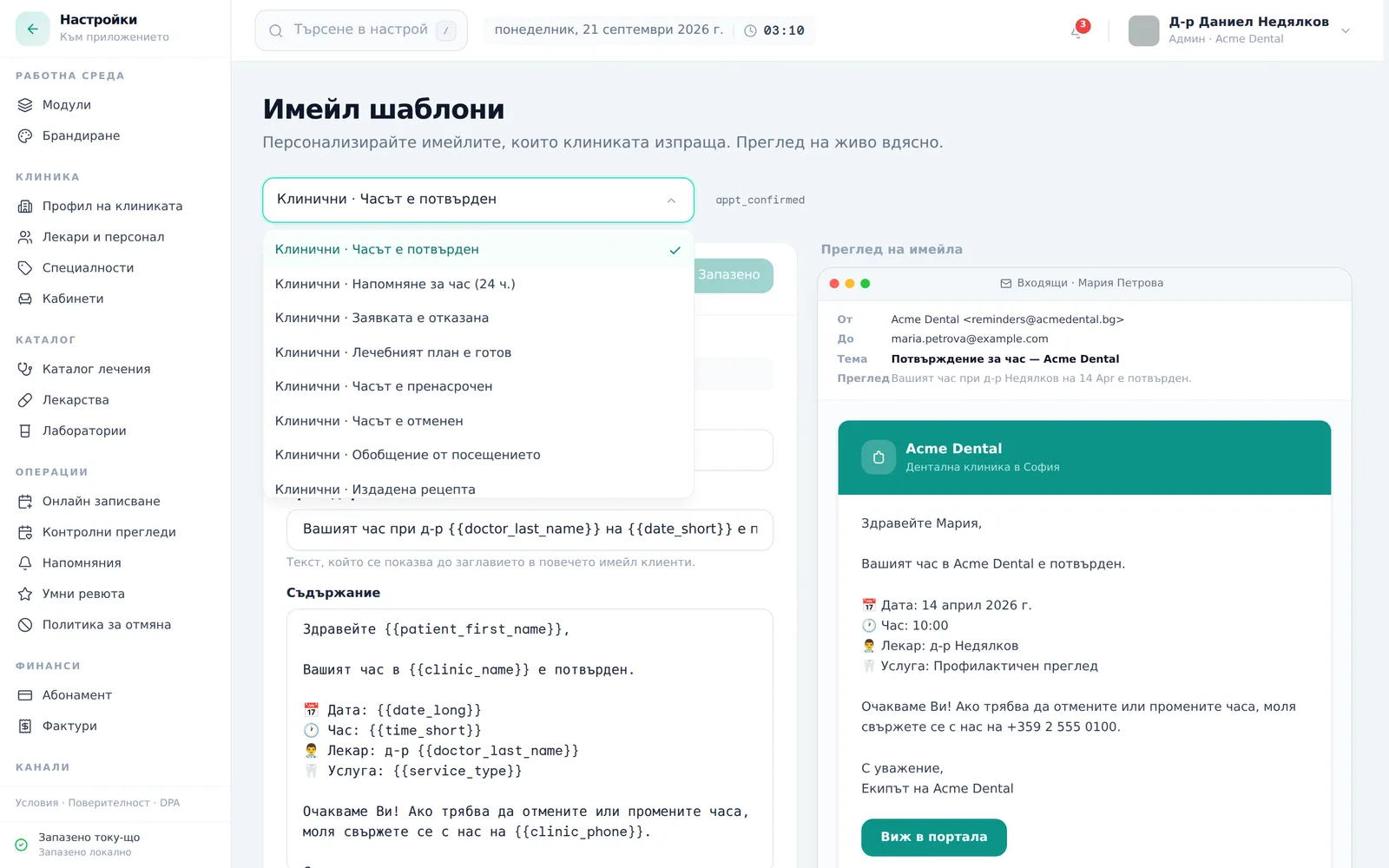
- Pick a template from the dropdown at the top — each option reads “Category · Name”, e.g. “Engagement · Recall Reminder (Ангажираност · Напомняне за преглед)”.
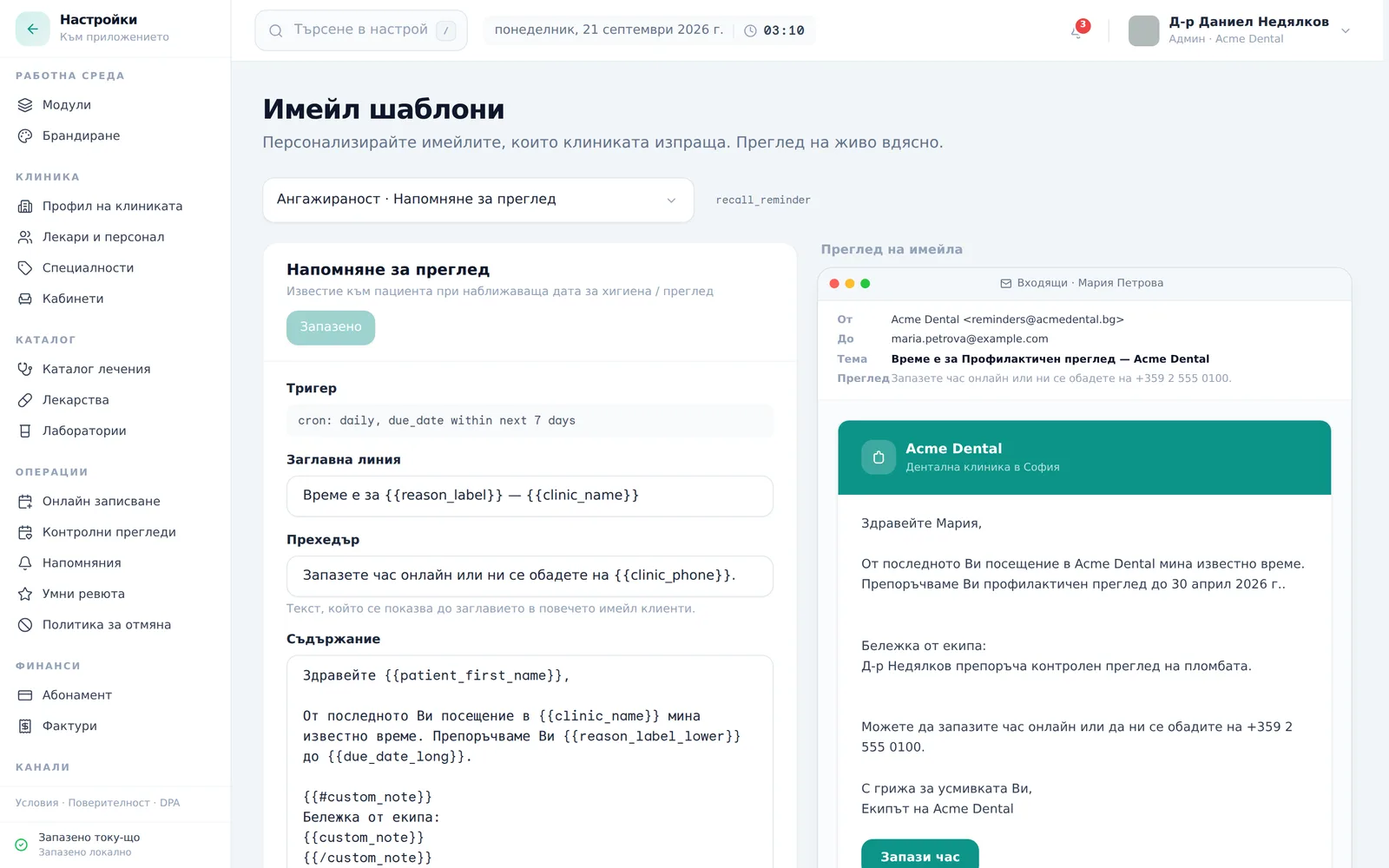
- Under the template name, the read-only Trigger (Тригер) field shows when the email is sent. Change the Subject Line (Заглавна линия), Preheader (Прехедър), Body (Съдържание) and/or the CTA Button (CTA бутон) text on the left — the preview on the right updates live. The preheader is the short line mail apps show next to the subject; it isn’t visible in the opened email.
- To add a merge field (e.g.
{{patient_first_name}}), click the matching chip under Available Variables (Налични променливи) — it’s appended to the end of the body; move it where you need it. - Click Save template (Запази шаблона) — enabled only once something changed; it reads “Saved (Запазено)” when there are no unsaved edits.
- To fall back to DentaFlow’s default copy, click Revert to original (Върни към оригинала) — it appears when the clinic has a saved version and there are no unsaved edits.
Which templates you can change
Settings lists only the templates the clinic can edit:
- Clinical (Клинични) — 8: Booking Confirmed, Appointment Reminder (24h), Booking Declined, Treatment Plan Ready, Appointment Rescheduled, Appointment Cancelled, Visit Summary, Prescription Issued.
- Financial (Финансови) — 9: Deposit Request, Invoice Issued, Payment Receipt, Deposit Paid Receipt, Deposit Expiring, Balance Reminder, Instalment Due Reminder (Напомняне за вноска), Instalment Overdue Reminder (Просрочена вноска) and Instalment Payment Receipt (Получено плащане по вноски).
- Engagement (Ангажираност) — 7: Portal Invite, Portal Invite (Existing Account) (Покана за портала (съществуващ профил)), Document Shared, Recall Reminder, NHIF Entitlement Reminder (Неизползвани дейности по НЗОК), Pre-visit Intake Form and Portal Message.
The three instalment templates are sent only for clinics that use instalment plans.
Not shown and not editable: the Smart review invitation, the informed-consent copy email (Копие на информирано съгласие), the “New Message (notification)” email, emails to the team (new online booking request, low review score alert, stock digest, supplier and lab orders) and the system sign-in and password emails.
When reminders go out
Editing changes the words, not the schedule. The two reminder templates fire like this:
- Appointment Reminder (24h) (Напомняне за час (24 ч.)) — automatically, about 24 hours before every confirmed appointment, if the patient has an email address.
- Recall Reminder (Напомняне за преглед) — through the daily automatic recall check, for pending recalls set to the Email channel that fall due from today to 7 days ahead. See Recall reminders.
Sending a reminder by hand from the patient profile
Send Reminder (Изпрати напомняне) on the patient’s profile emails your wording from this page. It has two options:
- Appointment Reminder (Напомняне за час) — the details of the patient’s next confirmed appointment (date, time, doctor, service). If the appointment is tomorrow it sends “Appointment Reminder (24h)”; for any other date it sends “Booking Confirmed” (Часът е потвърден), because the 24h wording says “tomorrow”. The option is disabled when the patient has no upcoming confirmed appointment.
- Recall / Checkup (Контролен преглед) — “Recall Reminder” with the reason and due date of the patient’s open recall. The option is disabled when there is none.
Frequently asked questions
If I edit a template, does it change when the email sends? No. Editing here only changes the wording — when or whether an email fires is controlled separately per feature (see “When reminders go out” above).
Why don’t I see the “Review Request” template in the list? The Smart review invitation is fixed system copy, the same for every clinic, and isn’t shown in the editor.
When does the patient get the “Portal Message” email? On every message the team sends in the patient’s chat thread, as long as the patient has a working email (the address doesn’t bounce and the patient hasn’t opted out of email) — the email carries the message text and a reply link. See Messaging patients.
What does the “Override active” badge mean? It shows on a template where you already have a saved clinic version — a sign that you’re no longer seeing DentaFlow’s default wording. Revert to original (Върни към оригинала) brings the default back.
Where does the “From” address in the emails come from? If the clinic has connected its own verified sending domain, mail goes out from it under the clinic’s name. Otherwise it goes from DentaFlow’s shared address, “DentaFlow noreply@dentaflow.bg”. The editor preview shows exactly that address.
How do I connect my own sending domain? Open Settings → Integrations (Настройки → Интеграции), open the Sending domain (Домейн за изпращане) card and enter the clinic’s domain. You get DNS records to add to the domain’s DNS. If the domain is in a DNS zone that DentaFlow manages for the clinic, click Add the records automatically (Добави записите автоматично) — otherwise add them yourself at your DNS provider. Each record shows its own status (Verified, Checking, Not checked, Failed or Temporary failure); the window refreshes the status on its own every 30 seconds, and Verify (Провери) checks right away. Once verified you can also change the part before the @ (noreply by default). See Integrations.
I edited a template but a patient got an English email. Why? Your text is for the Bulgarian email. For clinics with English patient emails switched on, a patient whose language is English gets DentaFlow’s standard English copy — your edit doesn’t change it.
Can Front Desk edit templates? Front Desk can open and read them — the fields are locked and a note above them says only a clinic admin can change them. Doctors don’t see Settings in the account menu.